

Adjust the timing of effects
On this page
If a background or sprite changes too fast or too slowly, you can change its length on the timeline. You don’t have to type numbers; just drag a bar.
The examples on this page use the project you make in the tutorial, “Shiori of the Library.”
Open the timeline
- In the script, select a text line on the page you want to adjust. Here, select the first narration line, “After school, the library was quieter than usual.”
- Choose “Timeline” from “More screens” at the top of the screen.
The preview is at the top, the details of the selected item are on the right, and the effects of that page are lined up at the bottom as bars in time order. “Text,” “BGM” and “Background” in the left column are the kinds of rows.
- Click the bar in the “Background” row to select it.
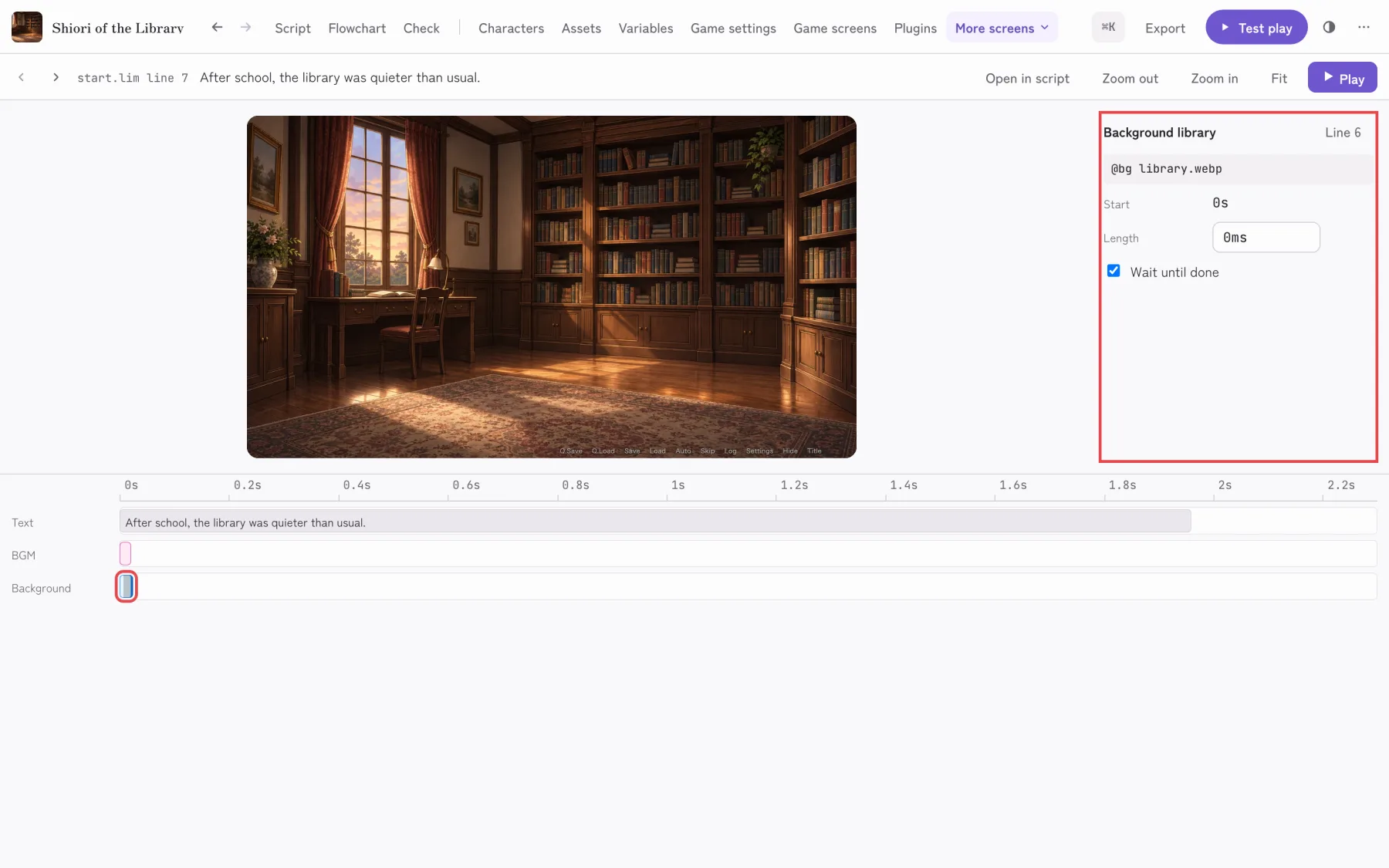
In this example, the background’s length is 0 seconds, so the bar is very short and the background changes instantly.
Drag a bar to change its length
- Point at the right end of the background bar.
- Drag it to the right. While you drag, the current length appears beside it. The length changes in steps of 0.05 seconds.
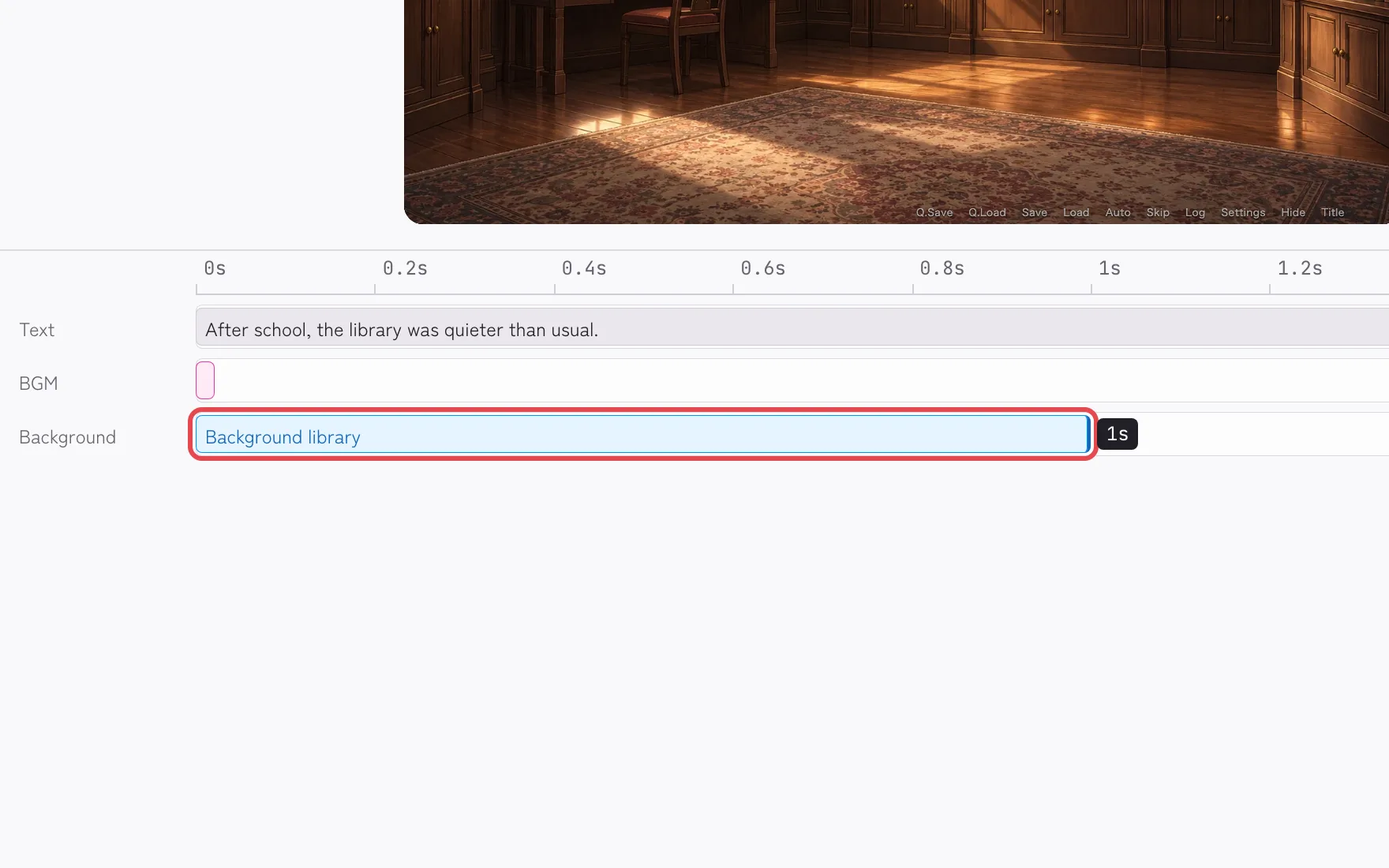
- Release it at 1 second.
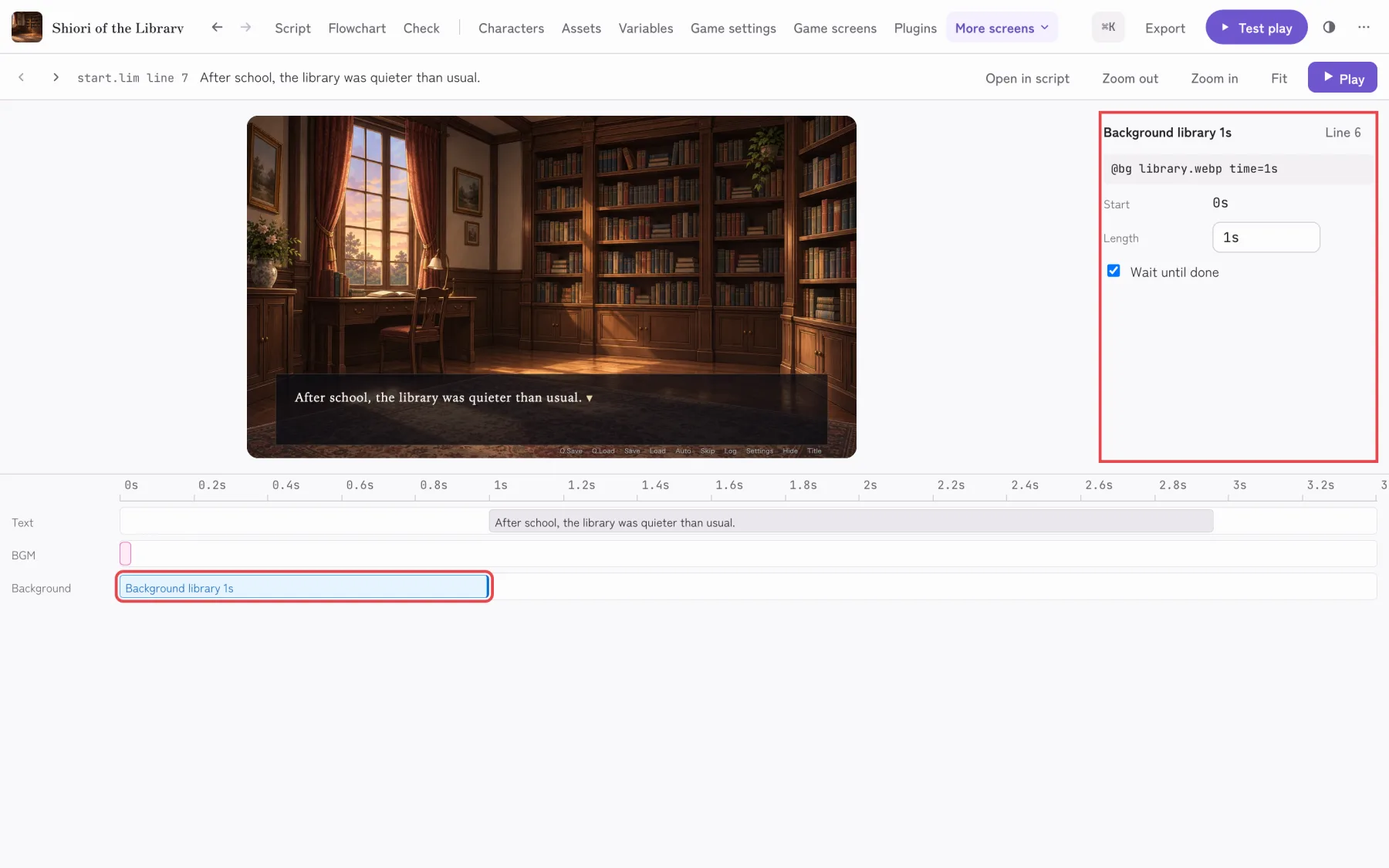
The background now takes 1 second to change, and the text bar has moved to after it. “Wait until done” on the right is checked, so the text appears after the background has finished changing. Clear the checkbox, and the text starts to appear at the same time as the background change.
You can drag sprite bars in the same way to change their length.
How the script changed
What you do on the timeline rewrites that line in the script. Look at the code view of the “Script” screen, and you’ll see that time=1s has been added to the background line.
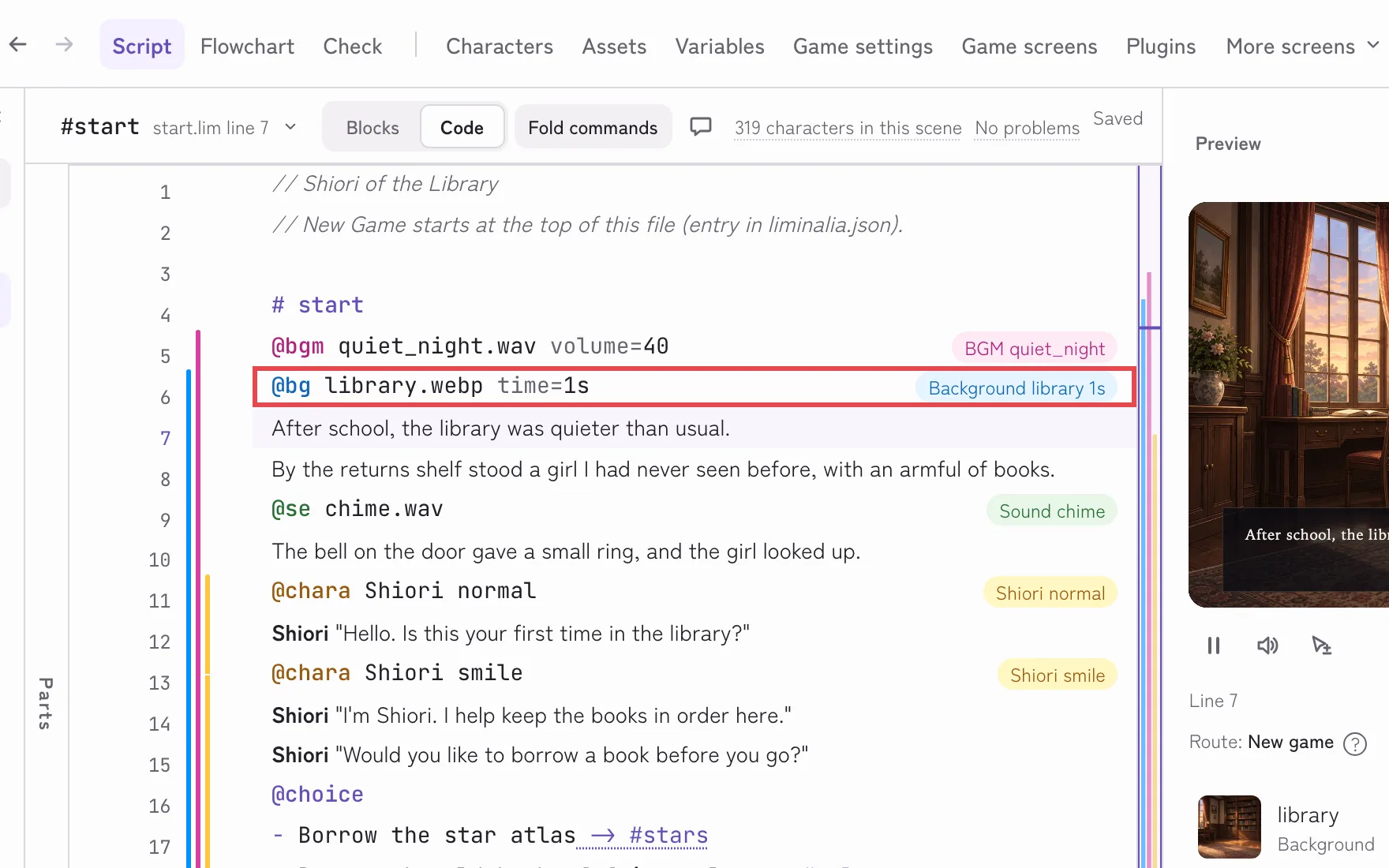
@bg library.webp time=1sIf you put the length back to the original, time goes away. You can also undo with ⌘Z.
Other things you can do
- You can also change the length by typing
1.5sor800msin the “Length” field on the right. - Drag the middle of a bar to shift when it starts. Shift it later, and a line that waits (
@wait) is added before it. - “Play” at the top right plays the page’s effects from the start in the preview.
- The arrows at the top left move to the previous or next page.