

Release on smartphone app stores
On this page
To release the smartphone versions on the stores, upload an Android App Bundle (.aab) to Google Play, and an .ipa exported from an Xcode Archive to the App Store. Both are made with commands. The signing settings for uploading and the links between achievements are set in Studio’s project settings.
First, check that you have the tools needed for export with lim doctor --target android,ios, as described in Check the tools needed for export.
Set the signing and version numbers
- Click the project button at the top left of the screen, and choose “Export” at the top right.
- Scroll down to “Mobile.”
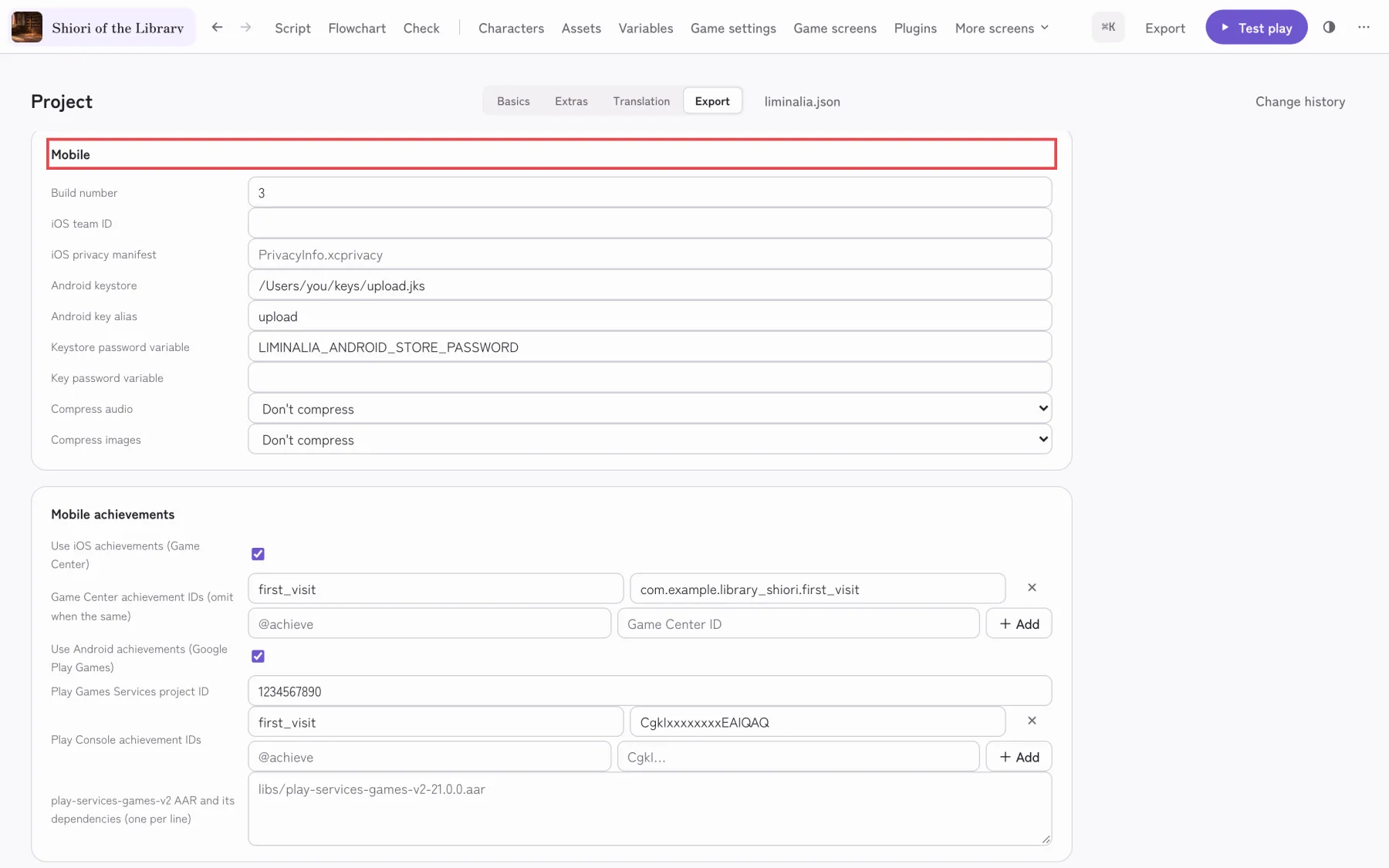
| Field | What to enter |
|---|---|
| Build number | A number you raise by one each time you upload to the store |
| iOS team ID | Your Apple Developer Program team ID (if it’s empty, it’s found from the certificate in the keychain) |
| Android keystore, Android key alias | The signing key to use as the Google Play “upload key” (keep it outside the project folder) |
| Keystore password variable | The name of the environment variable that holds the password (don’t write the password itself) |
You can make the Android key with the following command.
keytool -genkeypair -v -keystore upload.jks -alias upload -keyalg RSA -keysize 2048 -validity 10000Release on Google Play (.aab)
LIMINALIA_ANDROID_STORE_PASSWORD=… lim build android --aabThe .aab is made next to the APK. Create the app in Google Play Console, and upload this .aab to the internal testing track. You need bundletool to make it (brew install bundletool).
Release on the App Store (Archive)
lim build ios --archiveThis makes an Xcode Archive and exports it to export/App.ipa for the App Store. Upload it with Transporter (Apple’s app on the Mac App Store). If you’ve put an App Store Connect API key in environment variables, --upload takes it all the way to TestFlight.
| Option | What it does |
|---|---|
--export ad-hoc | Exports it in a form for distributing to registered devices |
--upload | Uploads to App Store Connect instead of exporting |
App Store and ad-hoc exports require a team enrolled in the Apple Developer Program (paid).
Send achievements to Game Center and Google Play Games
You can also send the game’s achievements (Add achievements) to Game Center for the iOS version, and to Google Play Games achievements for the Android version.
- Scroll down to “Mobile achievements” in the “Export” section of the project settings.
- Check “Use iOS achievements (Game Center)” and “Use Android achievements (Google Play Games).”
- For each achievement name, enter the store’s achievement ID.
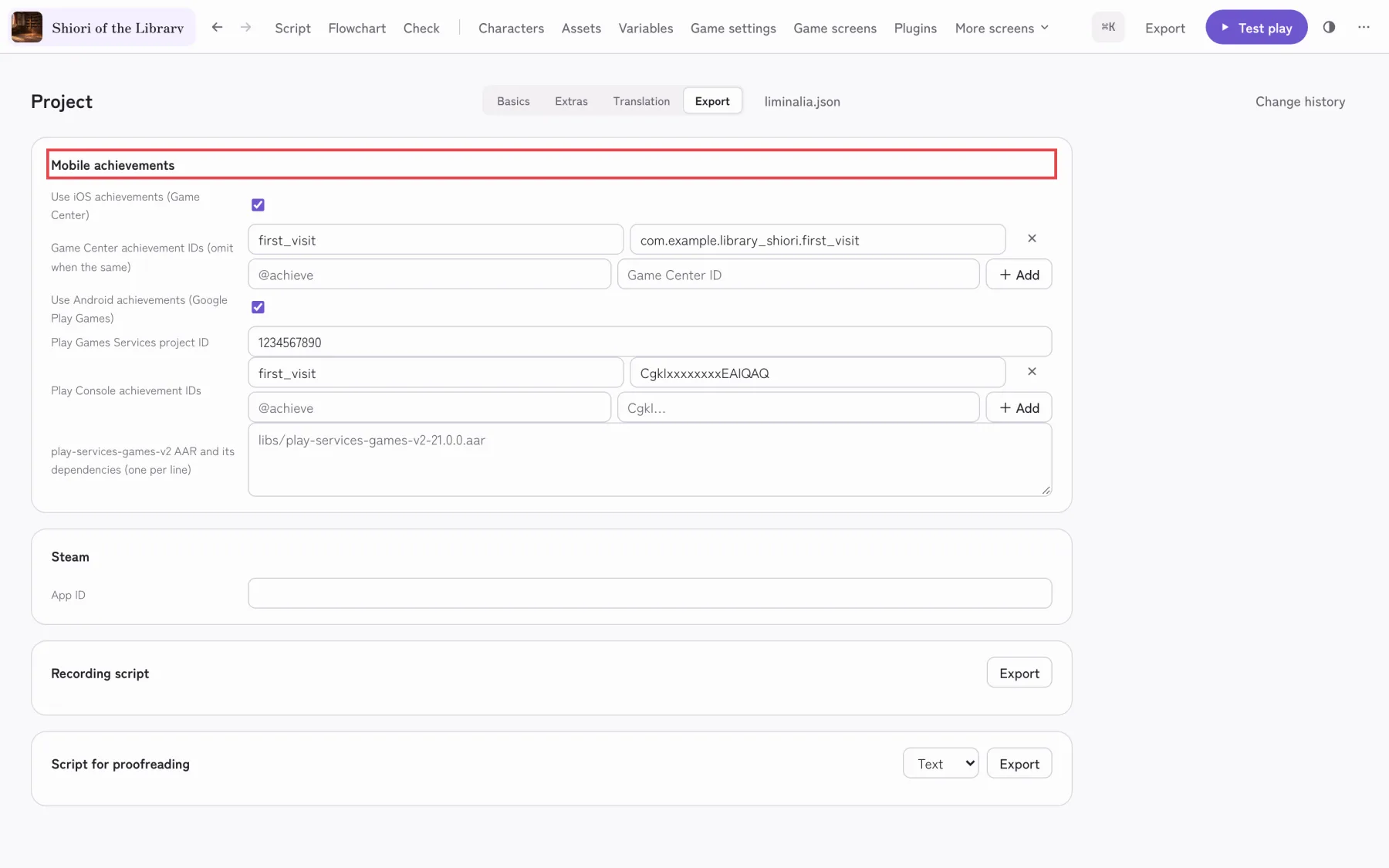
Achievements that count are sent to Game Center as a percentage complete, and to Google Play Games as a number of steps. In Play Console, make it an incremental achievement whose number of steps matches the goal of the game’s achievement. Achievements unlocked offline or before signing in are sent after the player signs in.
Creating the achievements on the store side and setting up the Play Games library are done by hand. For details, see the distribution documentation.