

Publish on the web
On this page
Exporting for the browser gives you a game that people can play just by opening a web page, with nothing to install. Use it to distribute a trial version or to post your game on sites for visual novels.
Export for the browser
- In the desktop version of Studio, click “Export” at the top of the screen (⌘⇧E).
- Under “Platforms,” check “Browser.”
- Click “Export.”
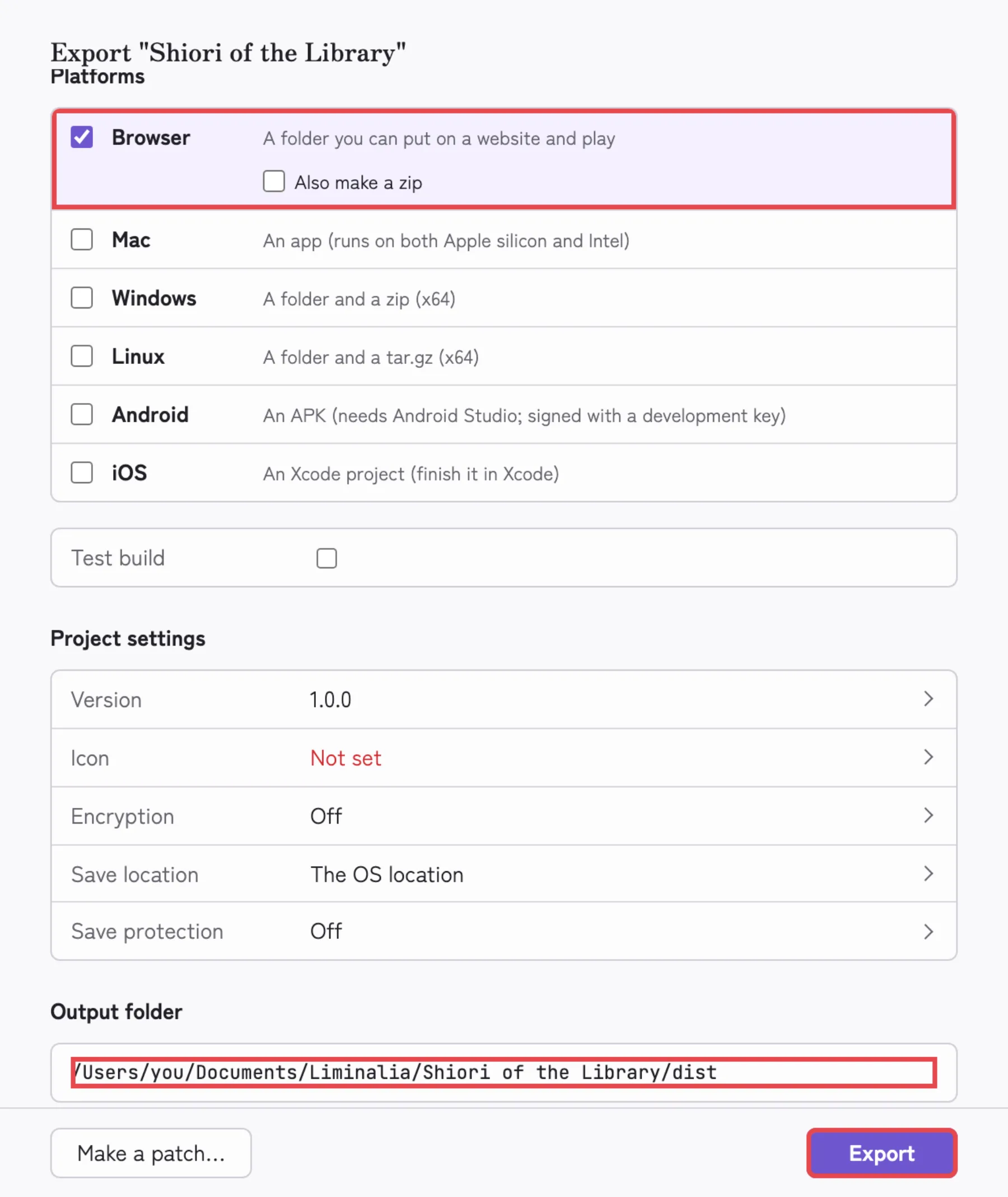
The export is created in the browser folder inside the dist folder shown as “Output folder,” as a folder named after the project ID (in this example, dist/browser/library_shiori). Inside are index.html and the folders for the scenario and assets. This folder is the whole game.
Each export for the browser re-creates the same folder.
Put the whole folder on the web
Put the exported folder on a web server as a whole, without splitting up its contents. Open index.html in that location in a browser, and the game starts from the title screen.
- To put it on your own site, upload the folder to the server and open a location such as
https://(your site)/library_shiori/. It works at any level of your site. - Many sites for visual novels and indie games accept browser games as a zip. Check “Also make a zip” on the “Browser” row of the export screen to also make a zip with
index.htmlat the top level (dist/browser/library_shiori.zip). You can upload this zip as is to sites such as itch.io. Rules such as file size limits differ from site to site, so check each site’s guidelines.
Double-clicking index.html on your computer doesn’t work (opened that way, the page explains why the game can’t be played and how to open it). To check it on your computer, use “Open in browser” on the browser version’s row on the screen shown when the export finishes (it serves the game only to this computer for a while and opens it in your default browser). “Run a playthrough” plays the exported game from the start to the end automatically and checks that it finishes without stopping on the way.
A browser version on an https page can be played offline once the player has opened it.
Differences from the desktop version
- “Encryption” on the export screen is for the desktop version only. To encrypt the browser version, use “Encrypt assets and scenario (browser)” in the project settings (Encrypt assets and scenarios).
- Save data is stored in the player’s browser.
When you fix a game you’ve already published, export it again and replace the folder. To distribute only the files that changed, see Distribute updates.