

Zoom in and out with the camera
On this page
With the Camera part, you can enlarge the whole screen (the background and sprites) or move it up, down, left and right. Use it to move in on a character’s face or look around a landscape. You can also move only the background.
The examples on this page use the English sample story, “Waiting for Stars” (choose “A sample story” and English in New Project, or run lim new --lang en; the characters are Akari and Sou).
Move in on a character
- Select the dialogue block just before where the camera should move in (here, “Good evening. Is it all right if I come in?”).
- Type “camera” in the search box at the top of the parts panel, and double-click “Camera” in the results.
- In the parameter panel on the right, enter the zoom factor
1.5inzoom. To move toward the face, enter-100iny. - Enter the time the motion takes,
1500(milliseconds), intime.
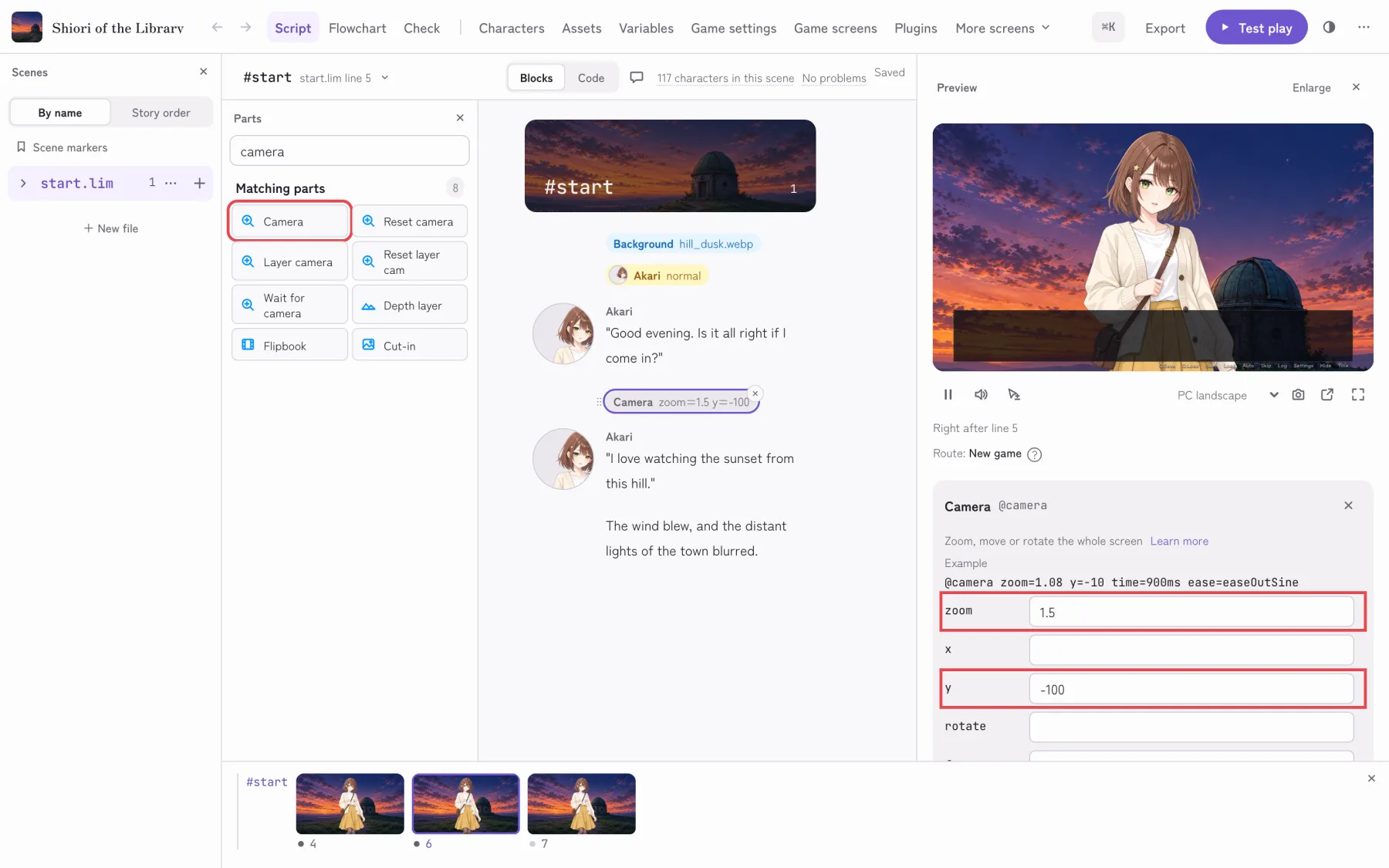
Over 1.5 seconds, the camera moves in toward Akari’s face. After the move, the screen looks like this.
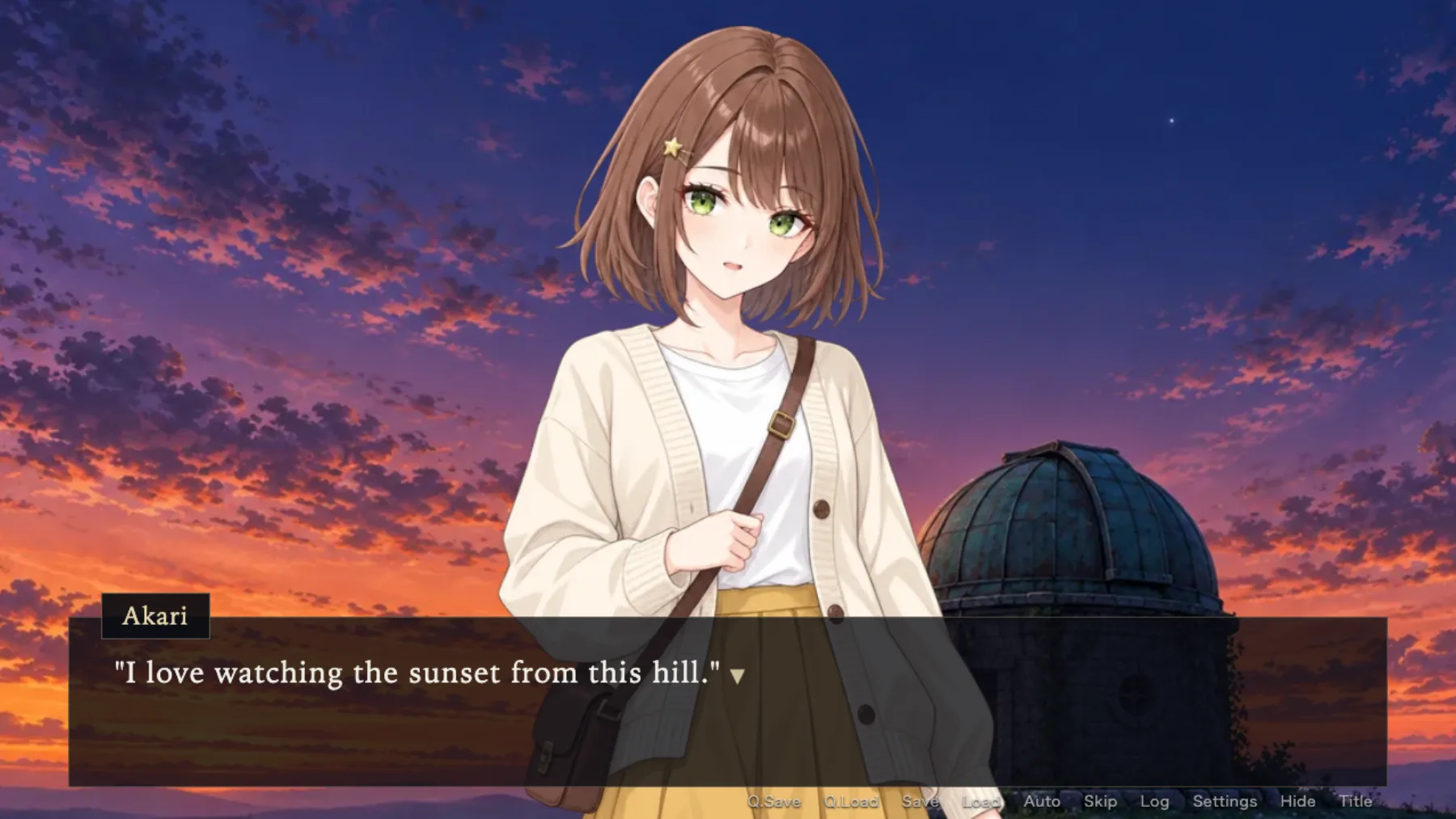
x and y are the position of the camera. A positive x moves the camera right, so the view scrolls left. A negative y moves the camera up, so the view scrolls down.
| Parameter | What it sets |
|---|---|
| zoom | Zoom factor (1 is actual size; above 1 zooms in, below 1 zooms out) |
| x, y | Horizontal and vertical position of the camera (px) |
| rotate | Rotation angle (degrees) |
| from-zoom, from-x, from-y, from-rotate | Values at the start of the motion (if left out, from the current values) |
| time | Time the motion takes (1 second by default) |
| ease | Easing of the motion (ease, linear, easeOutSine and so on; click the field to list them) |
| wait | Wait until the motion finishes before continuing (checked by default) |
The camera doesn’t move the message window.
Reset the camera
- Select the block just before where the camera should go back (here, “I love watching the sunset from this hill.”). With “camera” still in the search box, double-click “Reset camera.”
- Enter the time it takes to go back in
time. Here, enter800.
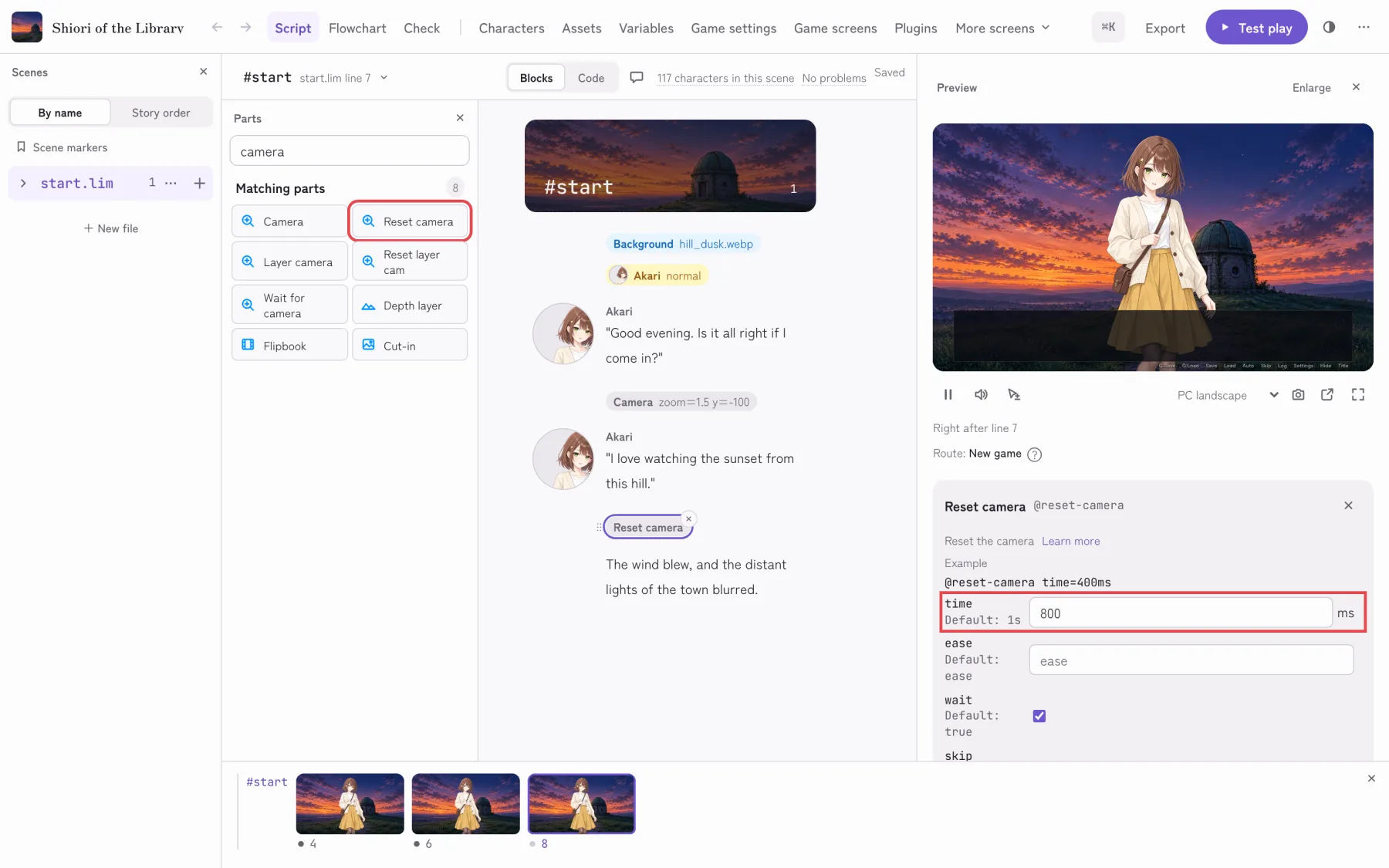
Move only the background
The Camera part moves the sprites too. To move only the background, use the part that moves a single layer.
- With “camera” still in the search box, double-click “Layer camera” (
@layer-camera) in the results. - Set
layerto “base” (the background). - Enter
1.3inzoom,150inxand2000intime.
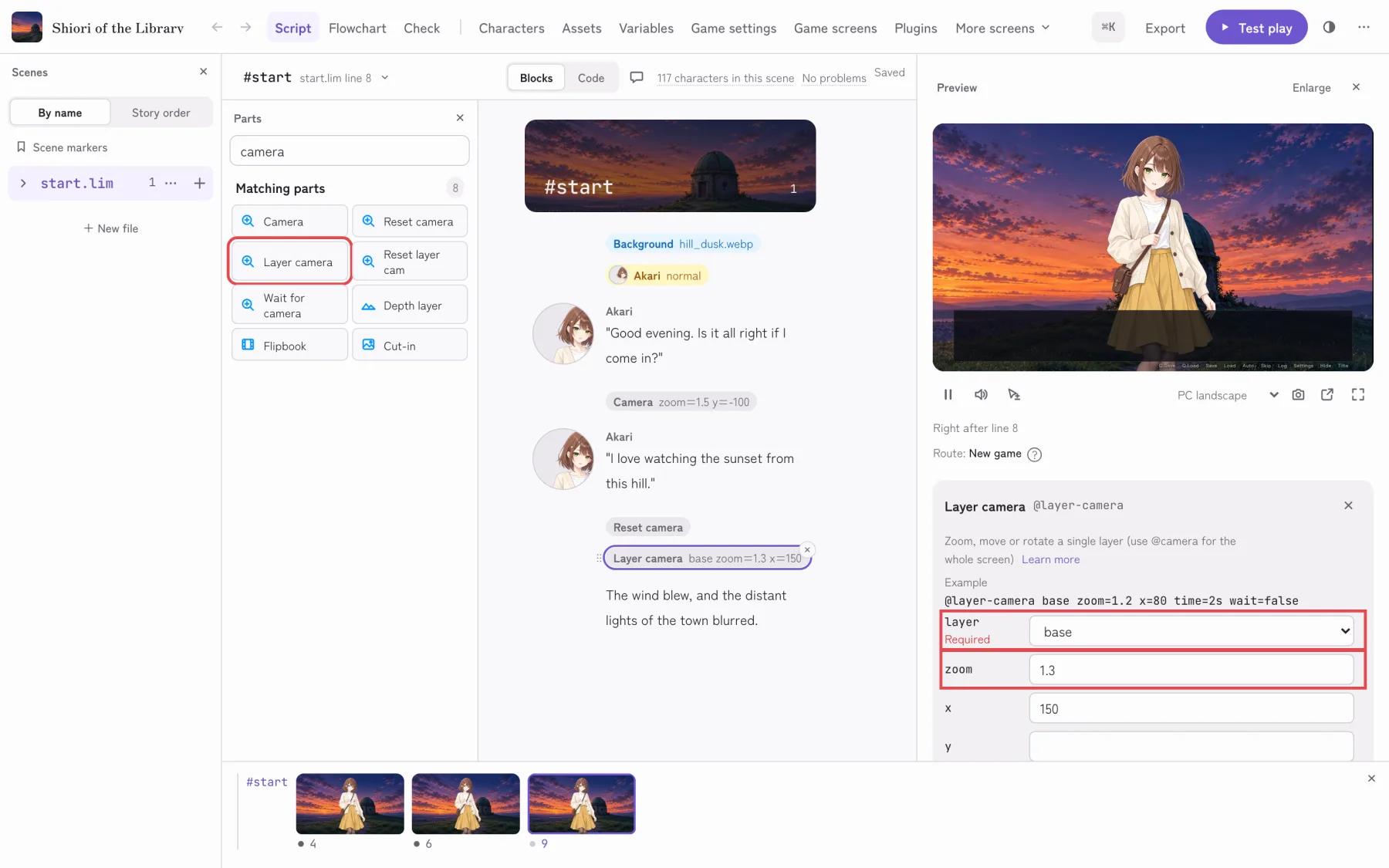
Only the background enlarges over 2 seconds and scrolls left. Akari’s sprite doesn’t move.
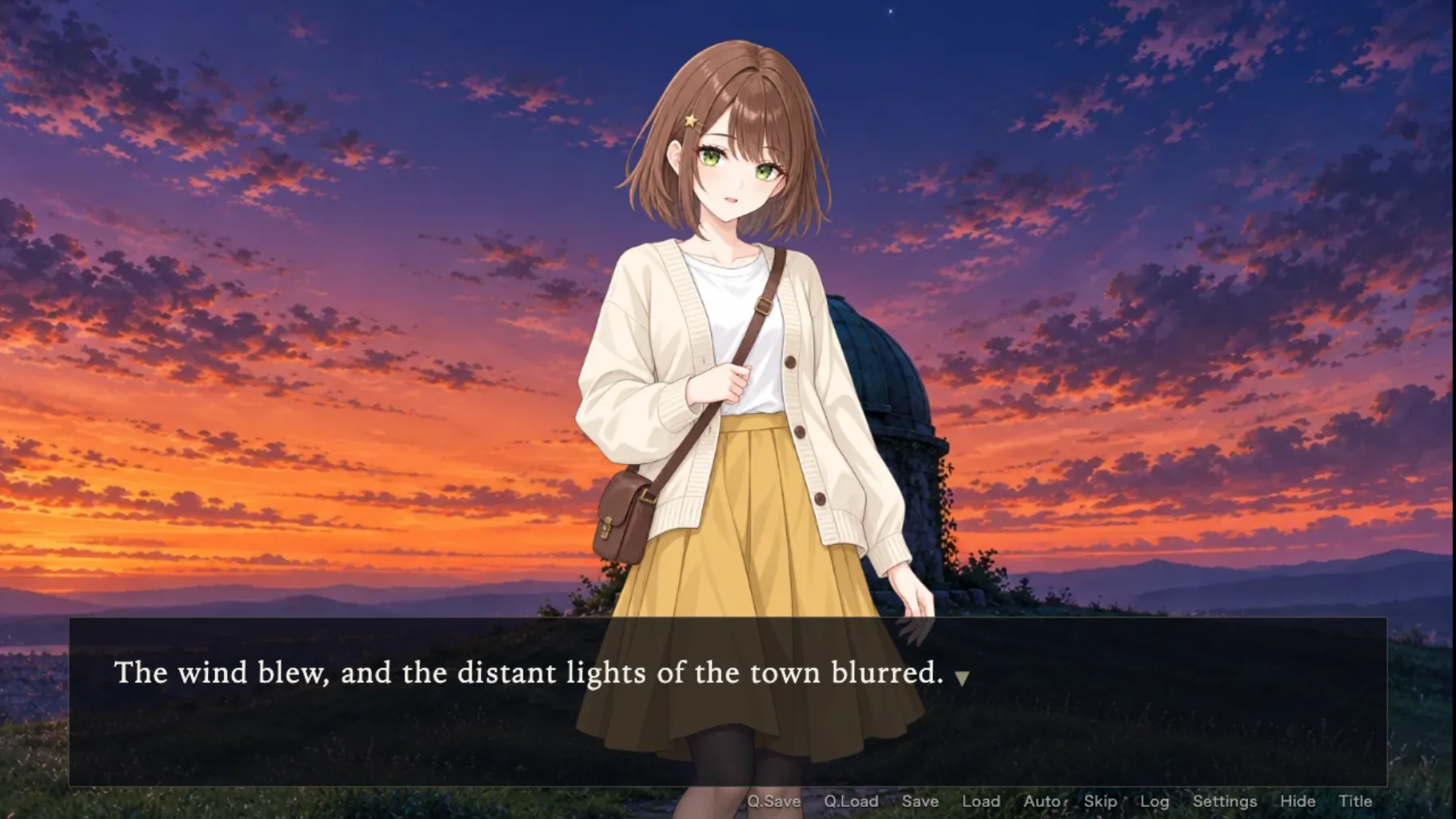
Besides base (the background), you can choose layer from fg0 to fg2, the layers that show images. Reset a layer you moved with “Reset layer cam” (@reset-layer-camera).
In code
@bg hill_dusk.webp
@chara Akari normal
Akari "Good evening. Is it all right if I come in?"
@camera zoom=1.5 y=-100 time=1500ms
Akari "I love watching the sunset from this hill."
@reset-camera time=800ms
@layer-camera base zoom=1.3 x=150 time=2000ms
The wind blew, and the distant lights of the town blurred.
For details, see @camera, @reset-camera and @layer-camera.
Commands used on this page
@layer-camera@reset-layer-camera@bg@chara@camera@reset-camera