

Set command defaults for each project
On this page
If you enter the same value for a parameter every time in a project, such as 400 for time whenever a sprite appears, or always 1500 milliseconds for scene changes, you can make it the project’s default. Once you set a default, every line that leaves out that parameter uses that value.
Add a default
- Click “Game settings” at the top of the screen, and scroll down to “Command defaults” at the very bottom of the left panel.
- Under “Add a default,” choose
@charafor “Command” andtimefor “Parameter,” and click “Add.” - Enter a value (here,
400ms) in the field of the row you added. It’s saved as soon as you enter it.
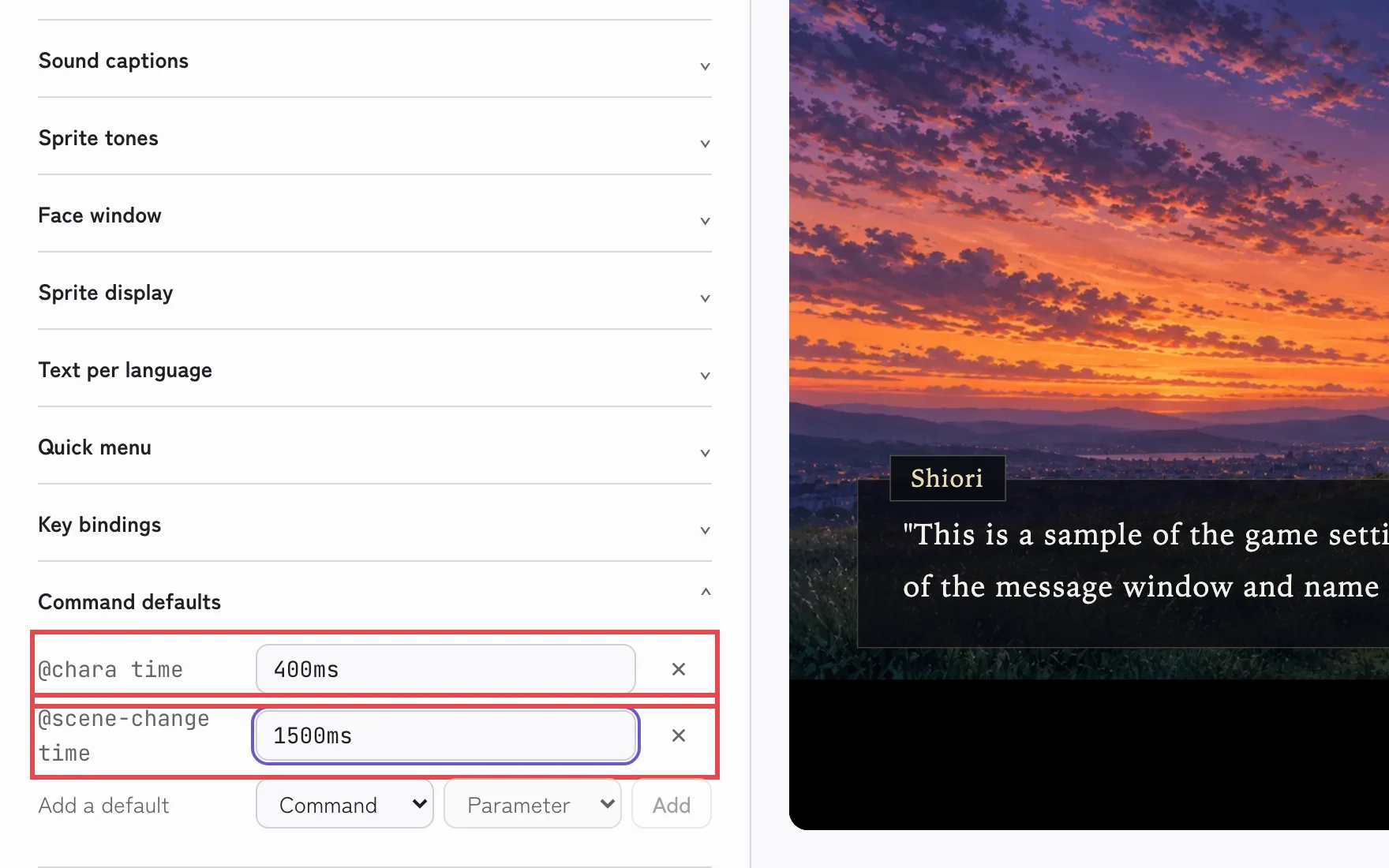
Enter values in the same form as in the script (times like 400ms or 1.5s, and true or false for true/false values). If a value has the wrong form, or you write a parameter that doesn’t exist, it’s an error in Check, and the value isn’t used.
The defaults you set also appear in the parameter fields in the block view.
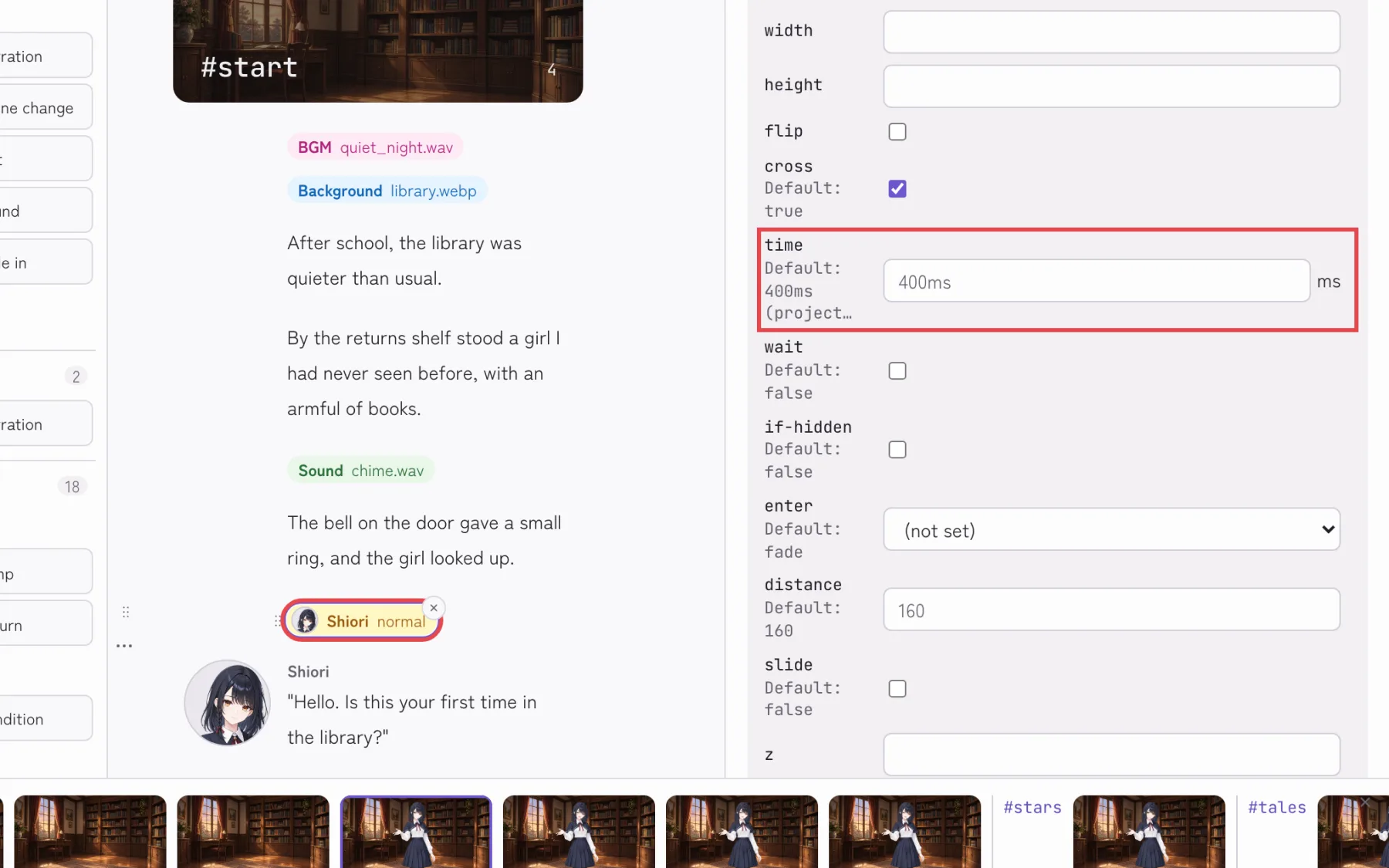
Lines that need a different value
Enter a value for the parameter on that line only, and it takes priority over the default. Write time=0ms, and only that line appears instantly.
Things to watch out for
- You can only set defaults for parameters that already have a default.
- If you set a default for a parameter that keeps the current state when left out (such as
atfor sprites), lines that leave it out also use that value instead of keeping the current state. - Changing the default of
waitalso changes whether that command waits for its effect to finish. - You can also set defaults for the parameters of macros (
@define). - In the preview, the values you set take effect from the next “New Game” or load.
- “Reset everything to default” at the very bottom of “Game settings” removes the command defaults along with the game settings.
In the file
Defaults go into commandDefaults in liminalia.json.
"commandDefaults": {
  "chara": { "time": "400ms" },
  "scene-change": { "time": "1500ms" }
}