

Check from partway through
On this page
When you’re writing a long script, you often want to check just the scene you fixed, right away. You don’t need to play from the beginning in a test play: the preview on the right of the “Script” screen can run from any line you like.
Run from the selected line
- In the script, select the line you want to check. The preview shows the screen as of that line (background, sprites, BGM).
- Click the preview, and it moves forward one page at a time from that line, just as in the game. When choices appear, you can pick one in the preview.
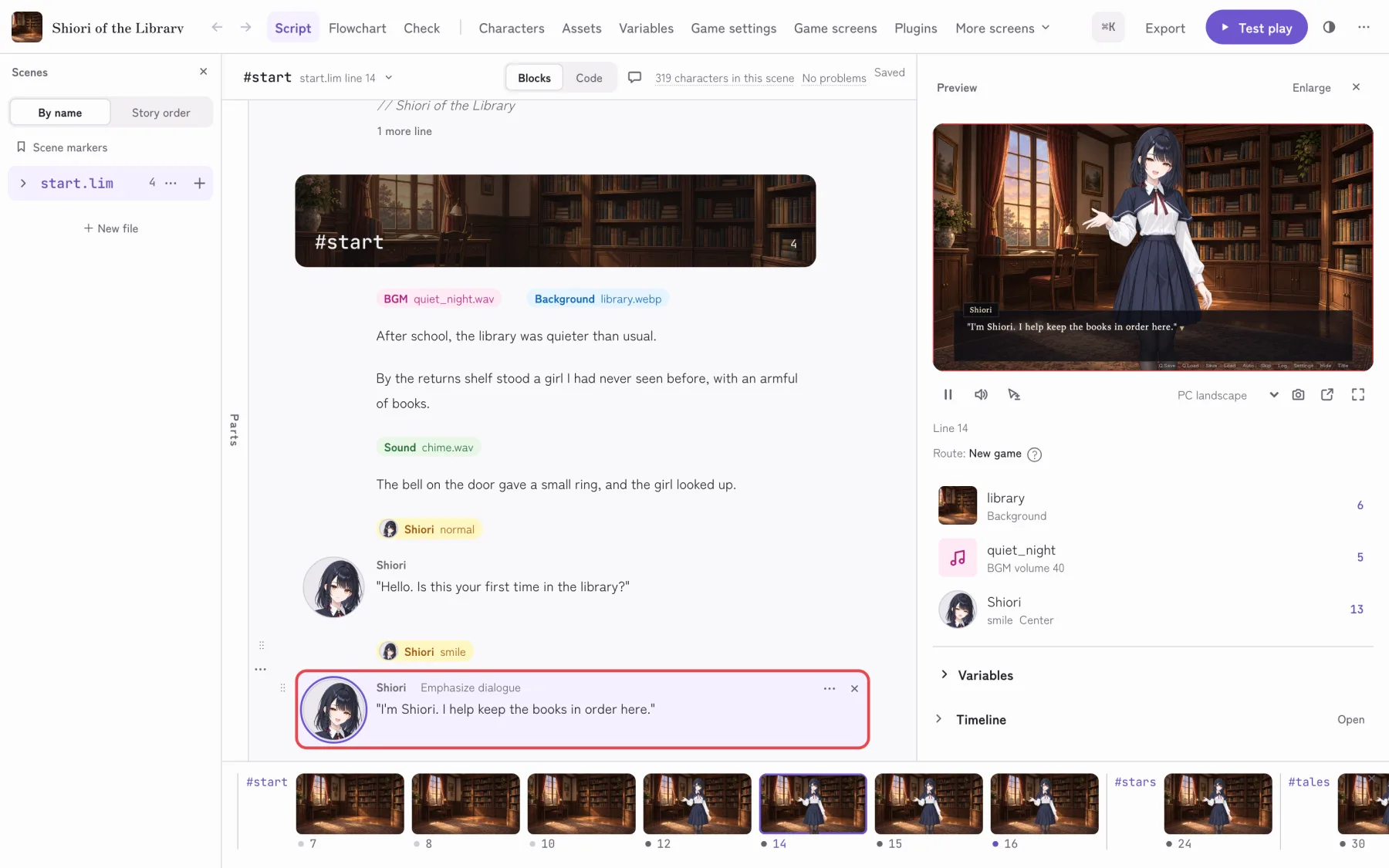
When you select a line that comes after choices, the choices that reach that line are worked out automatically and shown under “Route” below the preview.
Follow where it goes in the script
With “Cursor sync” on, as you click the preview to move forward, the cursor in the script moves to the line being shown. When the story moves to another file, that file opens.
- Click “Cursor sync” below the preview to turn it on (⌘⇧J).
- Click the preview to move forward.
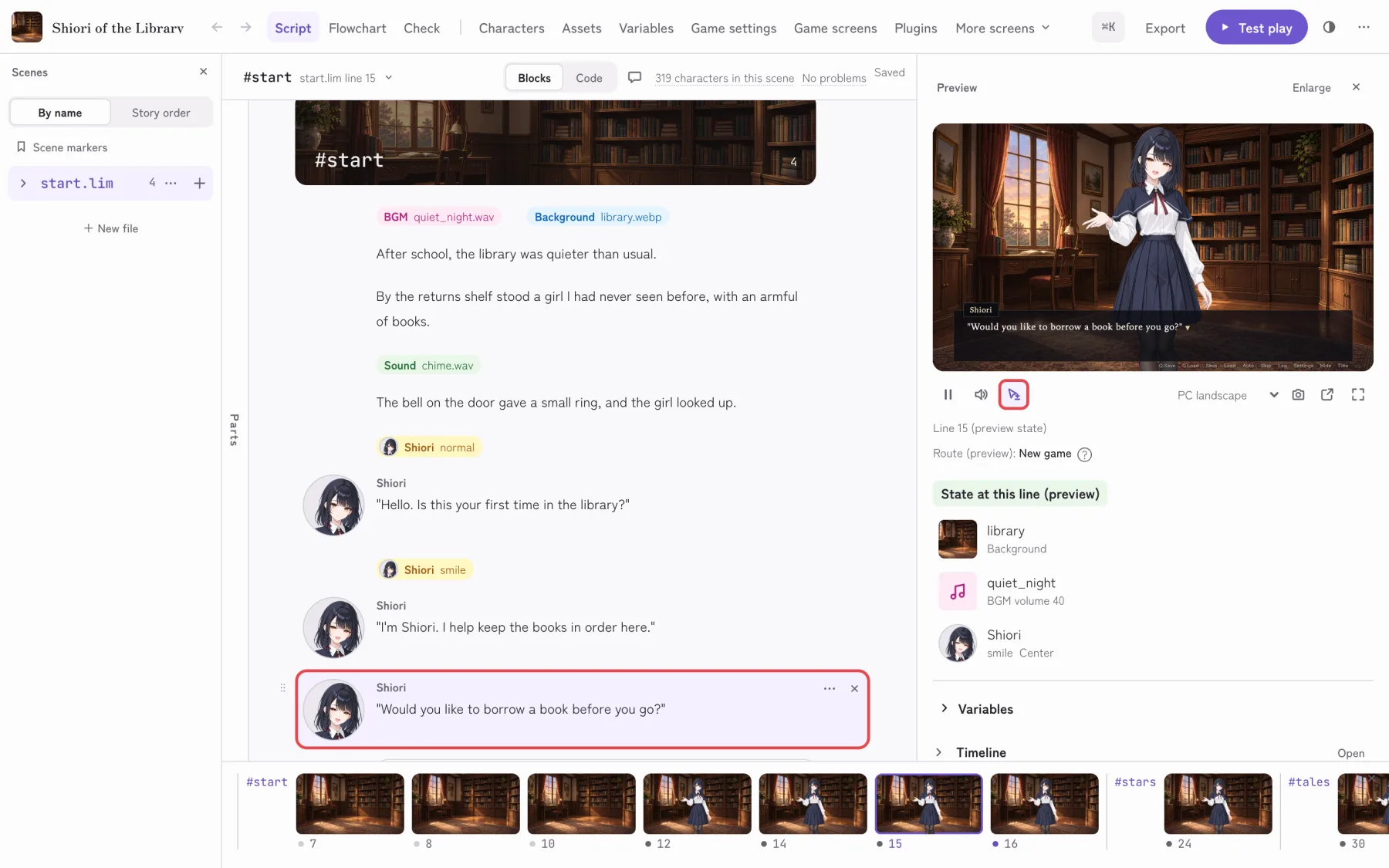
At a line reached with cursor sync, the label below the preview reads something like “Line 16 (preview state),” and the background and variable fields show the state actually reached by playing in the preview. Select another line in the script, and the preview goes back to that line’s screen as usual. Click “Cursor sync” again to turn it off.
Pause
Click “Pause” below the preview (⌘⇧P), and the preview stops on the current screen. Sound and moving effects stop too, and clicking the preview doesn’t move it forward. “Paused” appears at the top right of the preview.
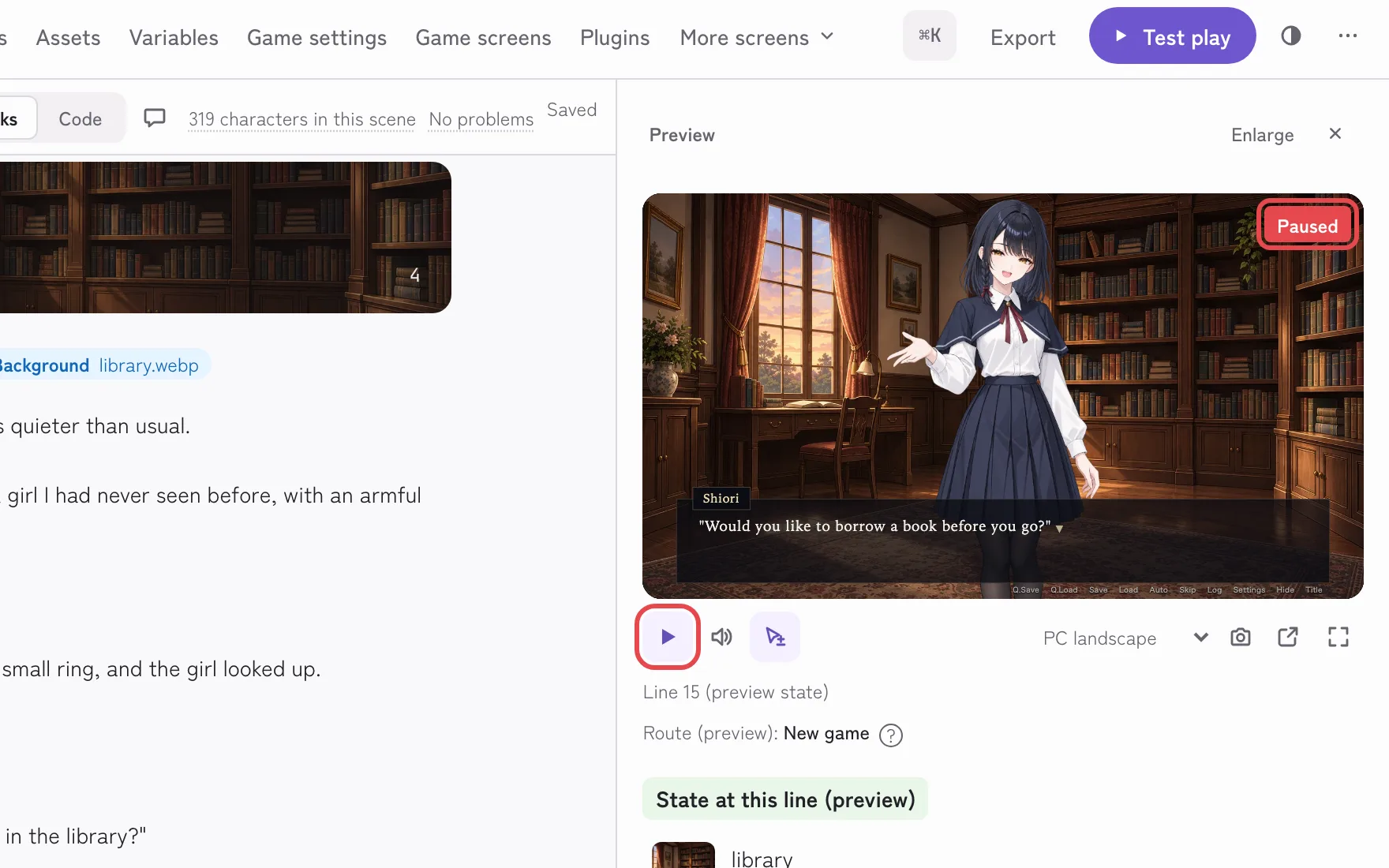
While it’s paused, moving the cursor in the script doesn’t change the preview. Click “Pause” again, and it starts again from the line where the cursor is at that moment. This also helps when the preview updating with every keystroke makes things slow.
Move from the thumbnails
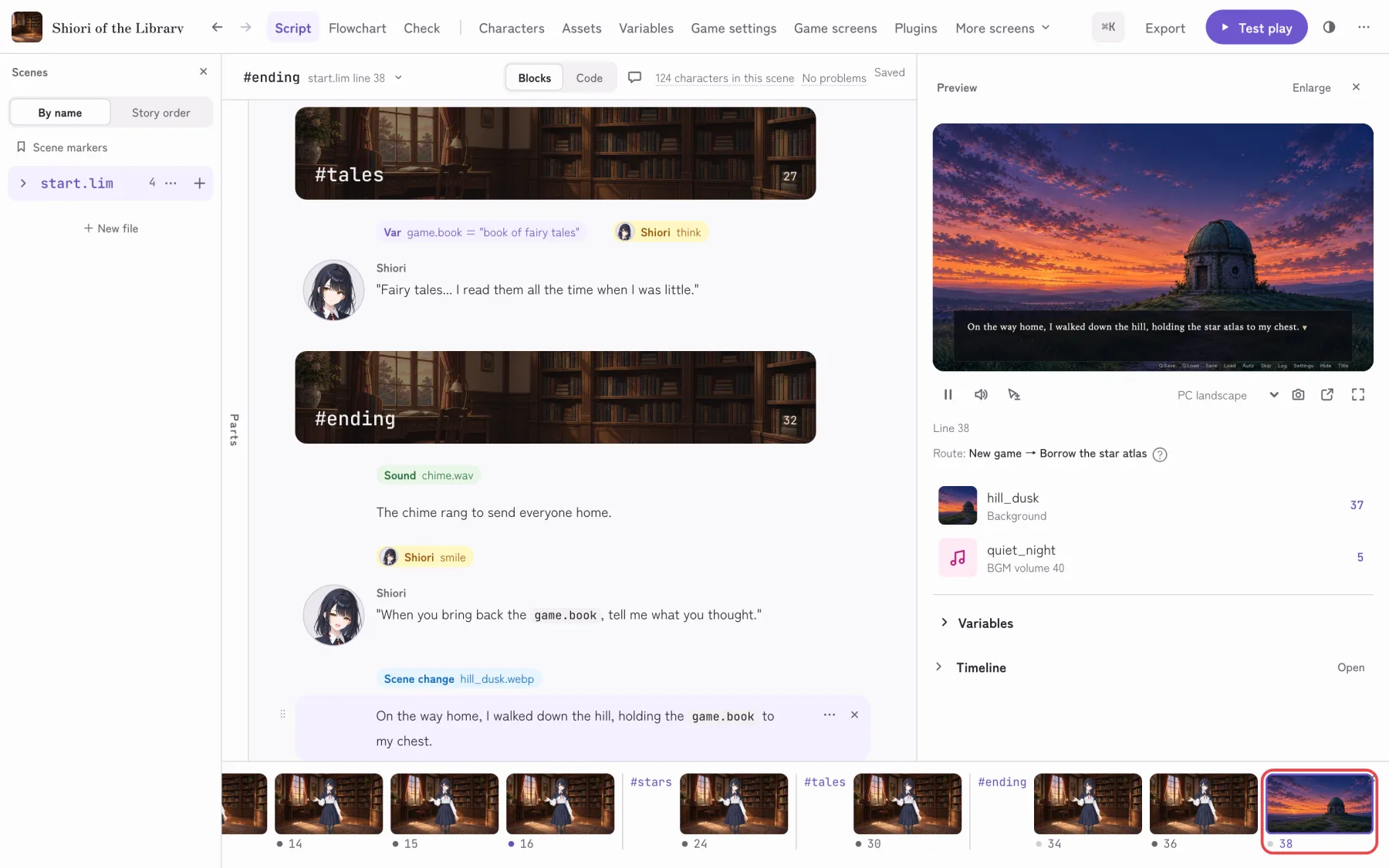
The thumbnails at the bottom of the screen show the pages of the open file as small pictures of the background and sprites at that point. The number under each picture is the line number. Click one, and the script and the preview move to that line.
Start a test play from that line
Right-click a line and choose “Play from Here” (⌘⌥P) to start a test play from the state at that line. You can also choose it by right-clicking a scene heading or a scene in the scene list, which starts from the beginning of that scene.
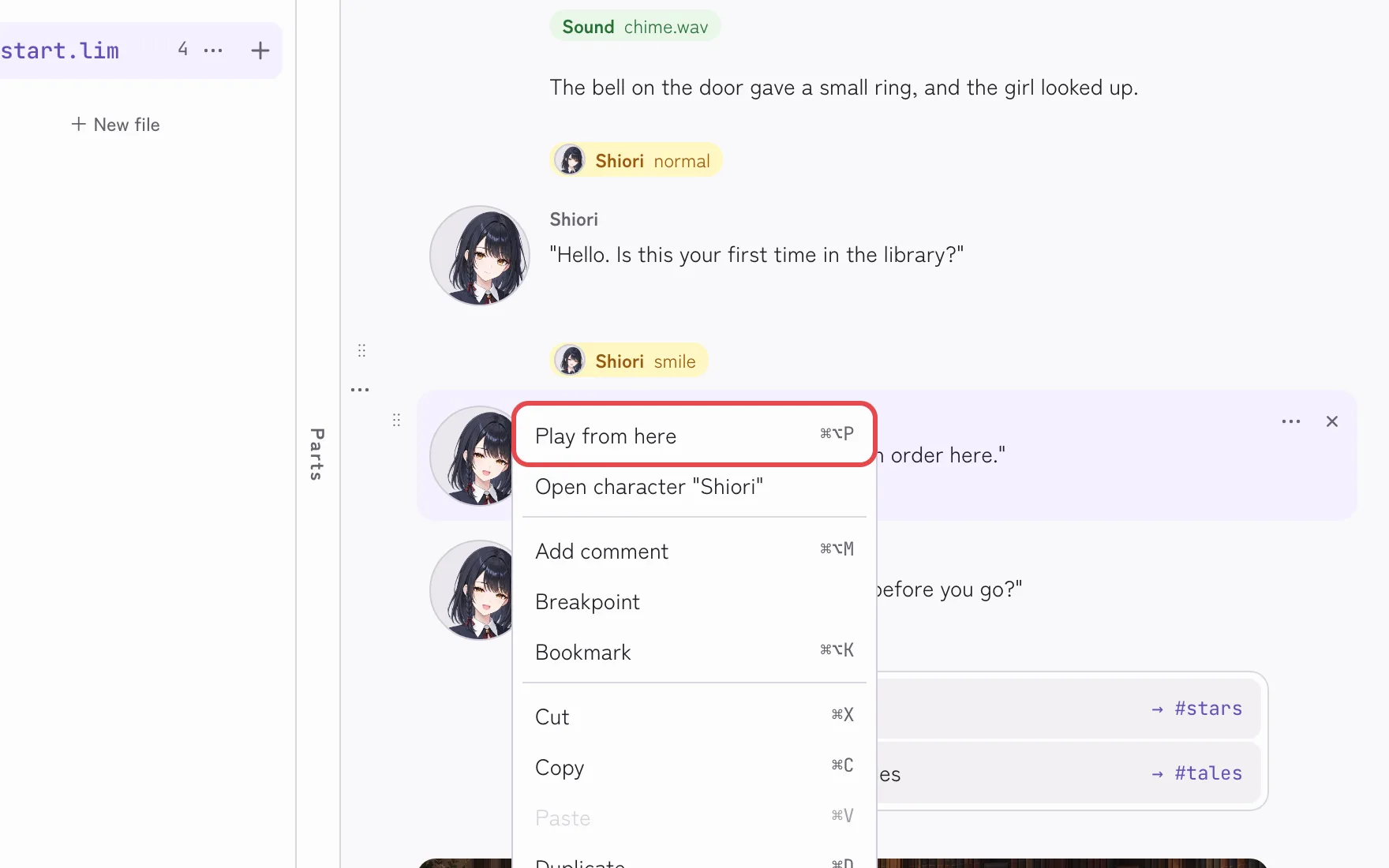
If you choose a line that the current route doesn’t reach, it first looks for choices that reach that line, and then starts.
Show it large in a separate window
Click the icon below the preview with an arrow coming out of a square (“New window”), and the preview appears in a separate window. It grows to fit the window, so you can put it on a second screen and view it large.
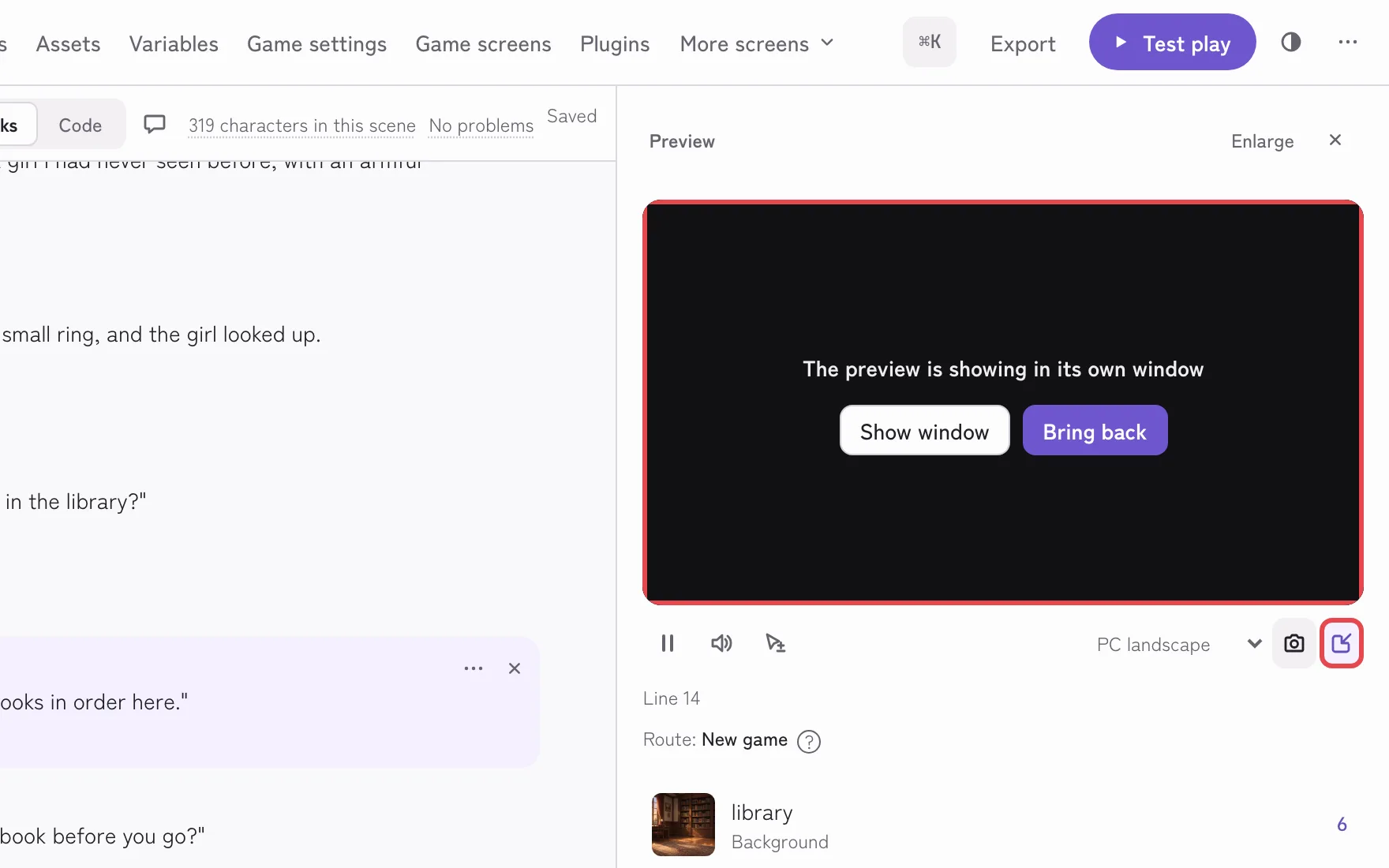
In the separate window too, selecting a line changes the screen, and pause, mute and cursor sync work as before. To bring it back into the panel, click “Bring back,” click the icon again, or close the window. If the separate window gets hidden behind others, “Show window” brings it to the front.