

Check the export size and find unused assets
When you want to make an export smaller before distributing it, use lim size to find what’s large and lim unused to find assets you no longer use. Neither command rewrites or deletes any files. Add --lang en for English output.
See a breakdown of the export size
After exporting, run the following command in the project folder.
lim size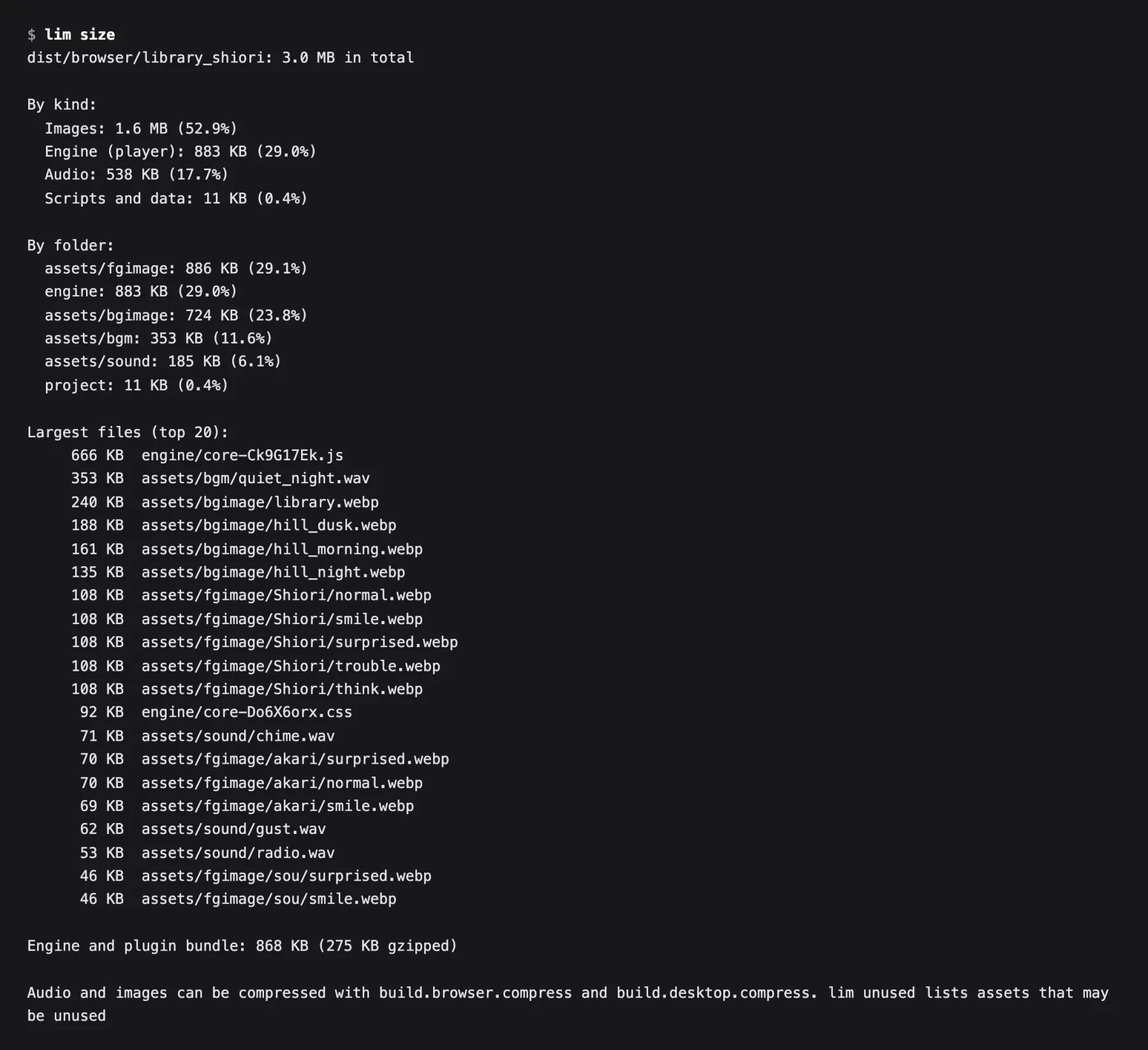
It breaks down the size of the newest export by kind (images, sound, video, engine and so on) and by folder, and lists the large files. To check a different export, add its folder at the end (lim size . dist/browser/library_shiori_…).
Large sounds and images can be made smaller with the export settings (such as the audio and image compression for the smartphone versions).
Find unused assets
lim unused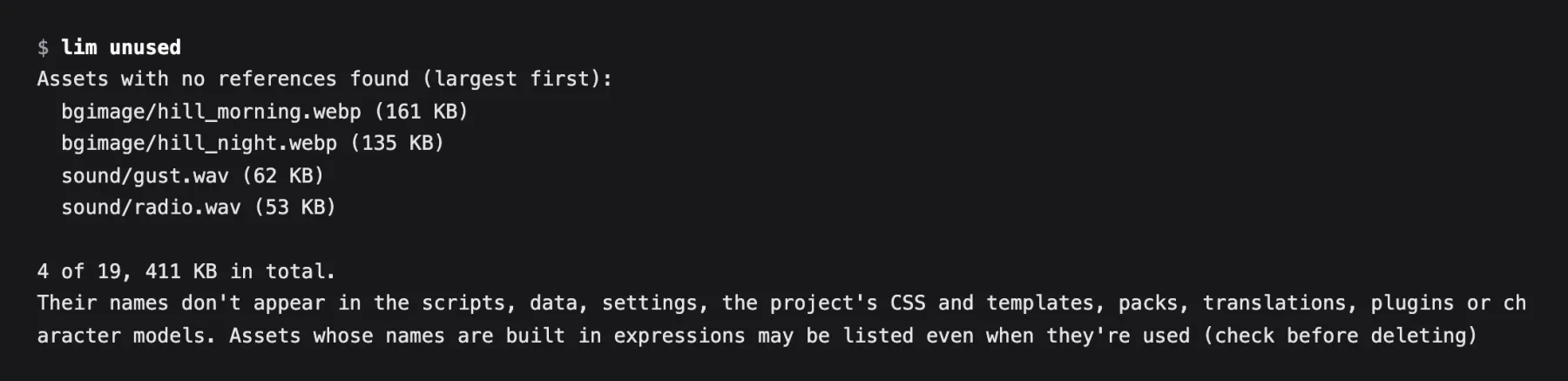
It lists, as candidates, the assets that nothing refers to in the scenario (including commands inside text), characters, game settings, data, the project’s CSS and screen templates, packs, translations, plugins or character models. Differences in upper and lower case, and in Unicode composition such as split dakuten, are ignored. Assets matching a numbered @flipbook pattern (slash_{nn}.png), and assets whose name begins or ends with text joined in an expression ("radio_" + n), aren’t listed either. Add --all to include voices.
These are only candidates. Some uses can’t be found, such as assets whose names a plugin builds as it runs. Check what they are before deciding whether to delete them. On Studio’s “Assets” screen too, click “Unused only” above the list to show only unused assets, counted the same way as lim unused (“Heavy only” shows only assets that are too large).