

Change how backgrounds transition
On this page
If you don’t set anything, the Background part changes the background instantly. Set the time the change takes (time), and the old background is replaced little by little. You can also slide the new background in from the side, or swap them in the shape of a circle or a diagonal.
The examples on this page use the project you make in the tutorial, “Shiori of the Library.”
Here, the example is a background change from the library to the hill at dusk.
Change over time
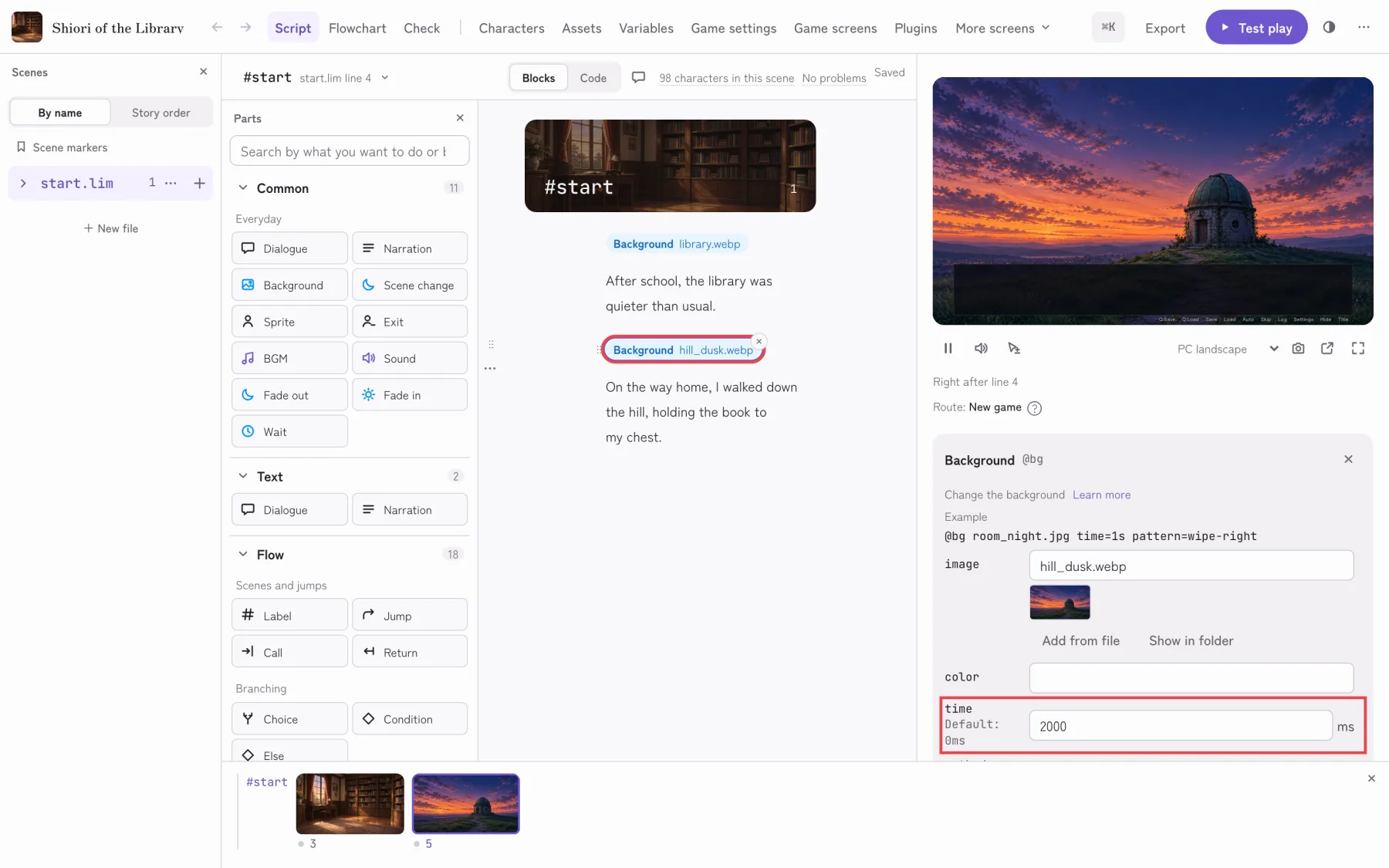
- In the block view, click the background block you want to change (here, “Background hill_dusk.webp”) to select it, then click it again.
- A parameter panel appears on the right. Enter the time the change takes, in milliseconds, in
time. For 2 seconds, enter2000.
Now the library changes into the hill at dusk over 2 seconds. Below is the screen partway through the change.
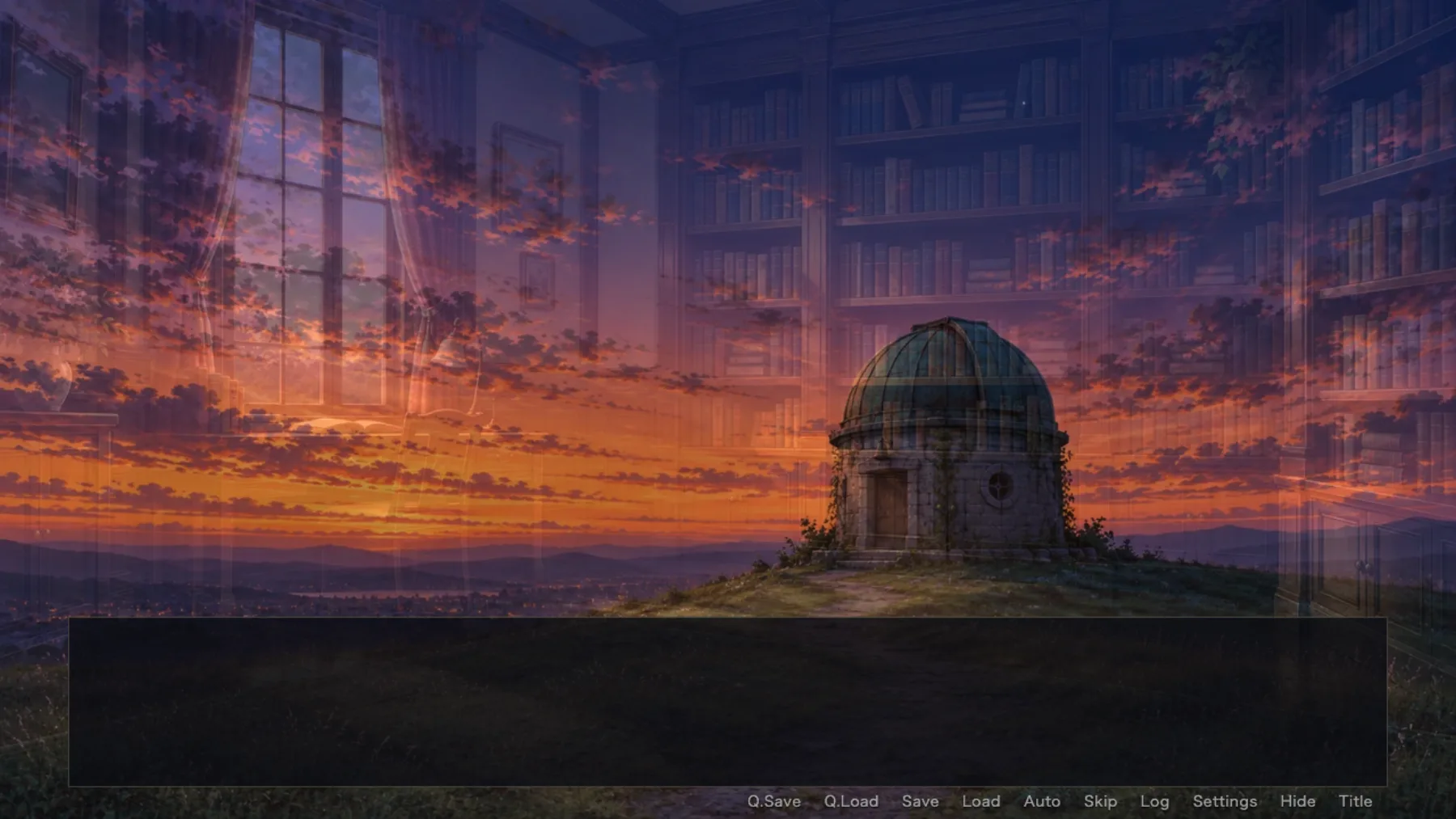
During the change, the message window disappears, and it comes back with the next text. To keep the window shown, uncheck hide-window.
If the player clicks during the change, it jumps to the end. The same goes for other effects that take time, such as fade outs, shaking and the camera. For lines that players shouldn’t skip through, uncheck skip. To prevent skipping in the whole project, set ui.input.skipEffects in liminalia.json to false.
Change the motion
With method, you can choose how the new background comes in.
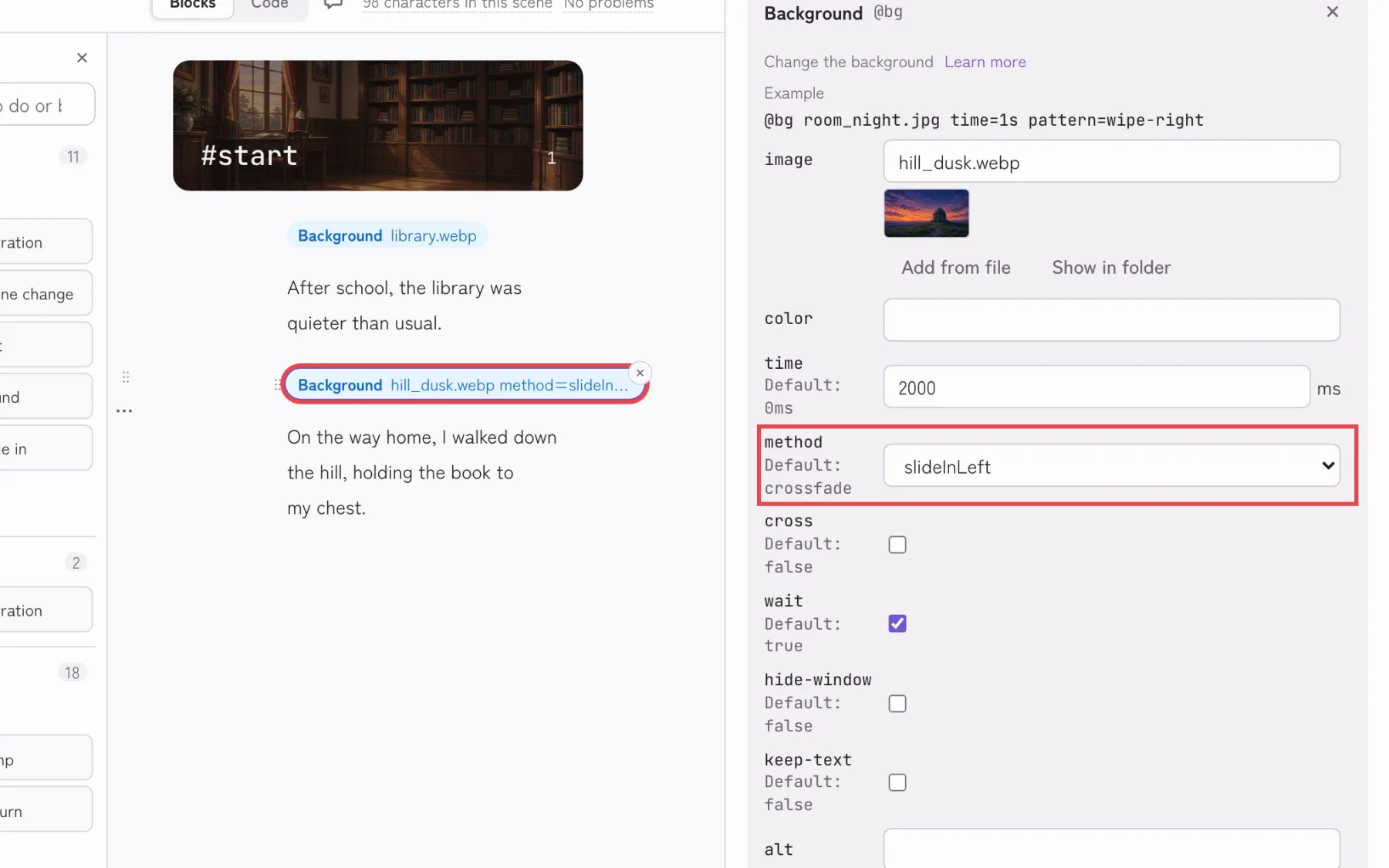
- In the same parameter panel, set
methodto “slideInLeft.”
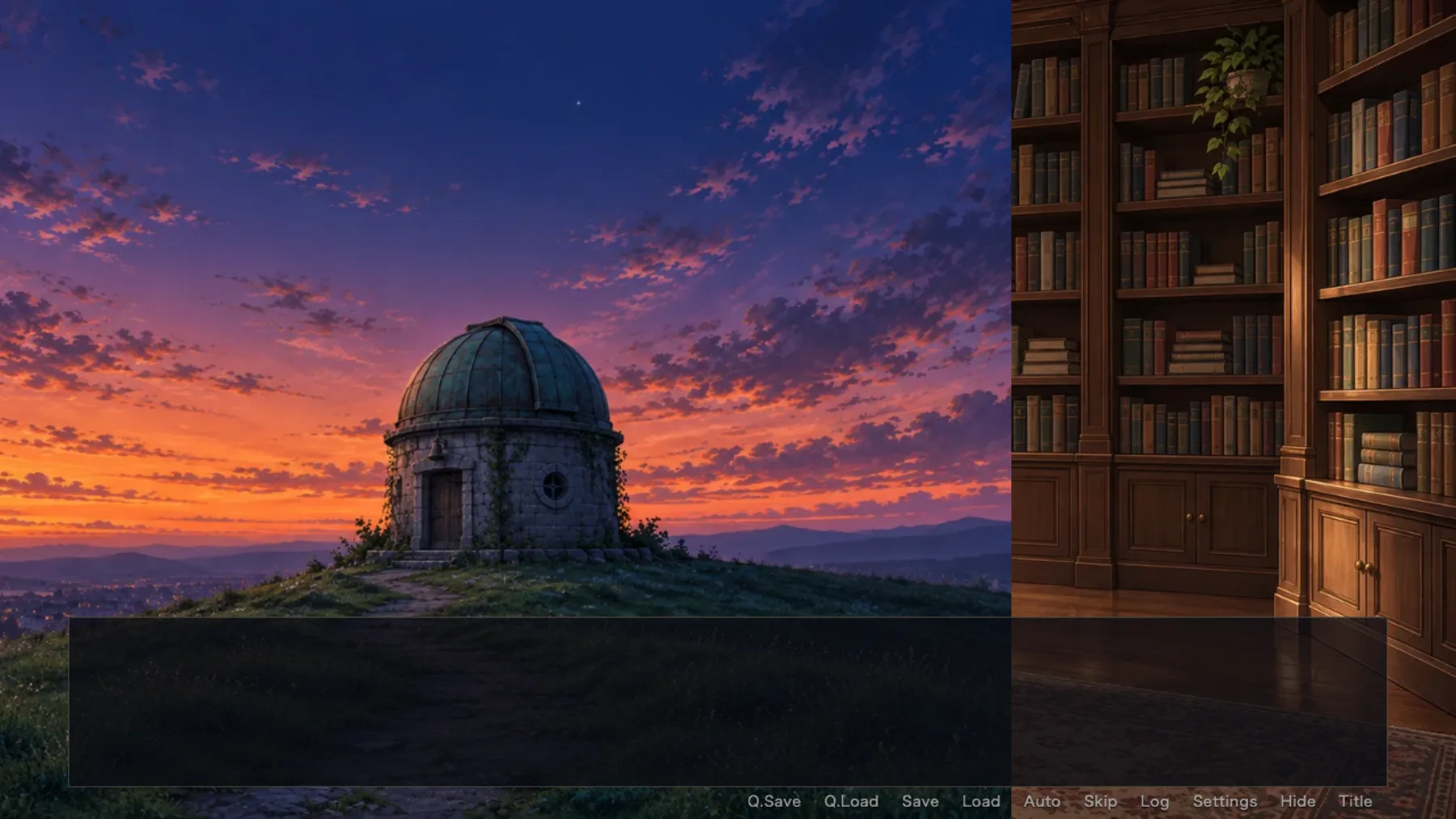
The new background slides in from the left.
| method | How the new background comes in |
|---|---|
| crossfade, fadeIn | Appears little by little in place (the default) |
| fadeInLeft, fadeInRight, fadeInUp, fadeInDown | Appears while moving in from the left, right, bottom or top |
| slideInLeft, slideInRight, slideInUp, slideInDown | Slides in from the left, right, bottom or top |
| puffIn | Appears while shrinking from a larger size |
| vanishIn | Appears while shrinking from a large, blurred image |
Check cross, and the old background disappears at the same time, with a matching motion.
Change in a set shape
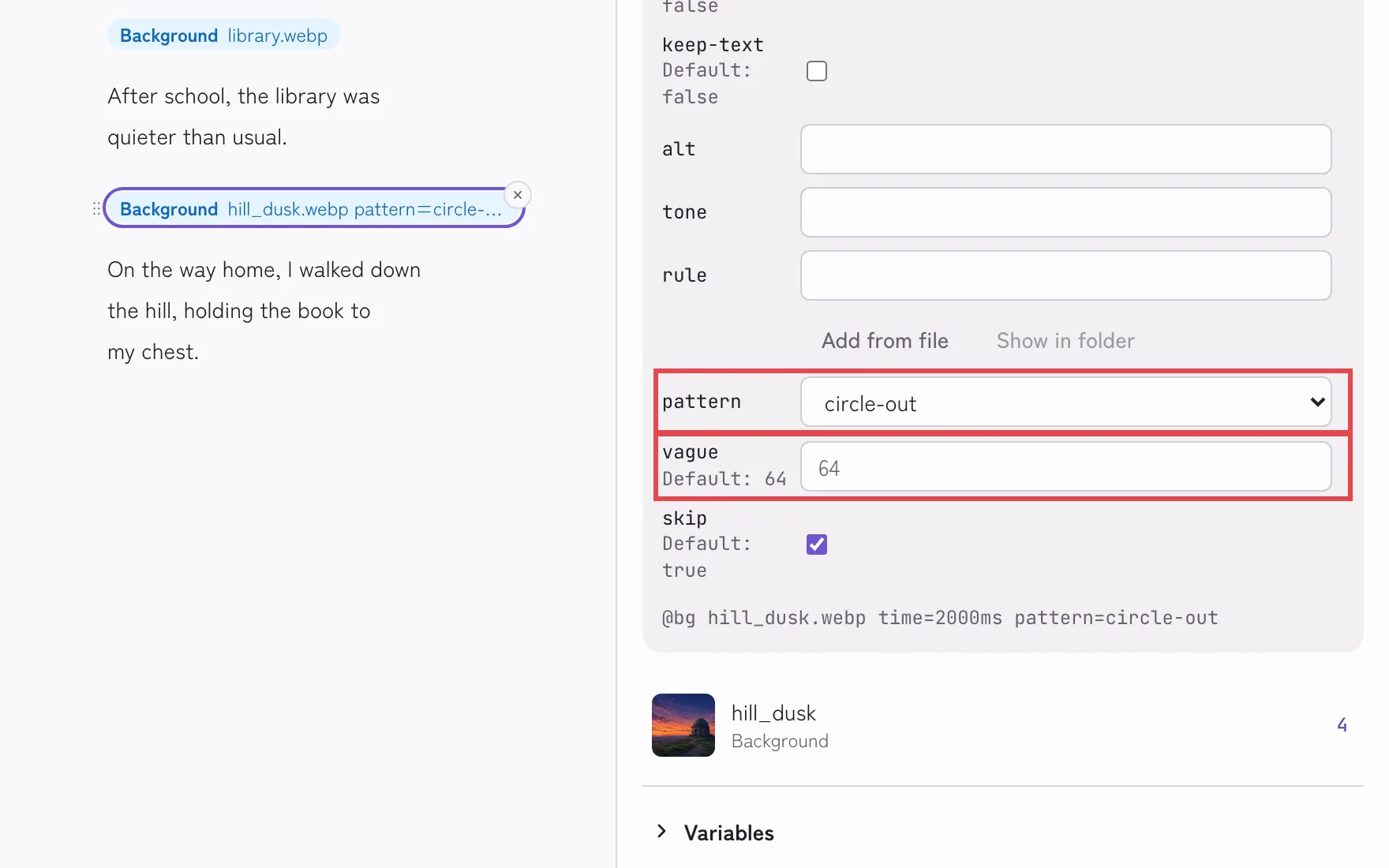
Choose a pattern, and the backgrounds swap in a set shape.
- Set
methodback to “(not set),” and setpatternto “circle-out.” - Set the softness of the edge with
vague(0 to 255). Higher values make the edge softer.
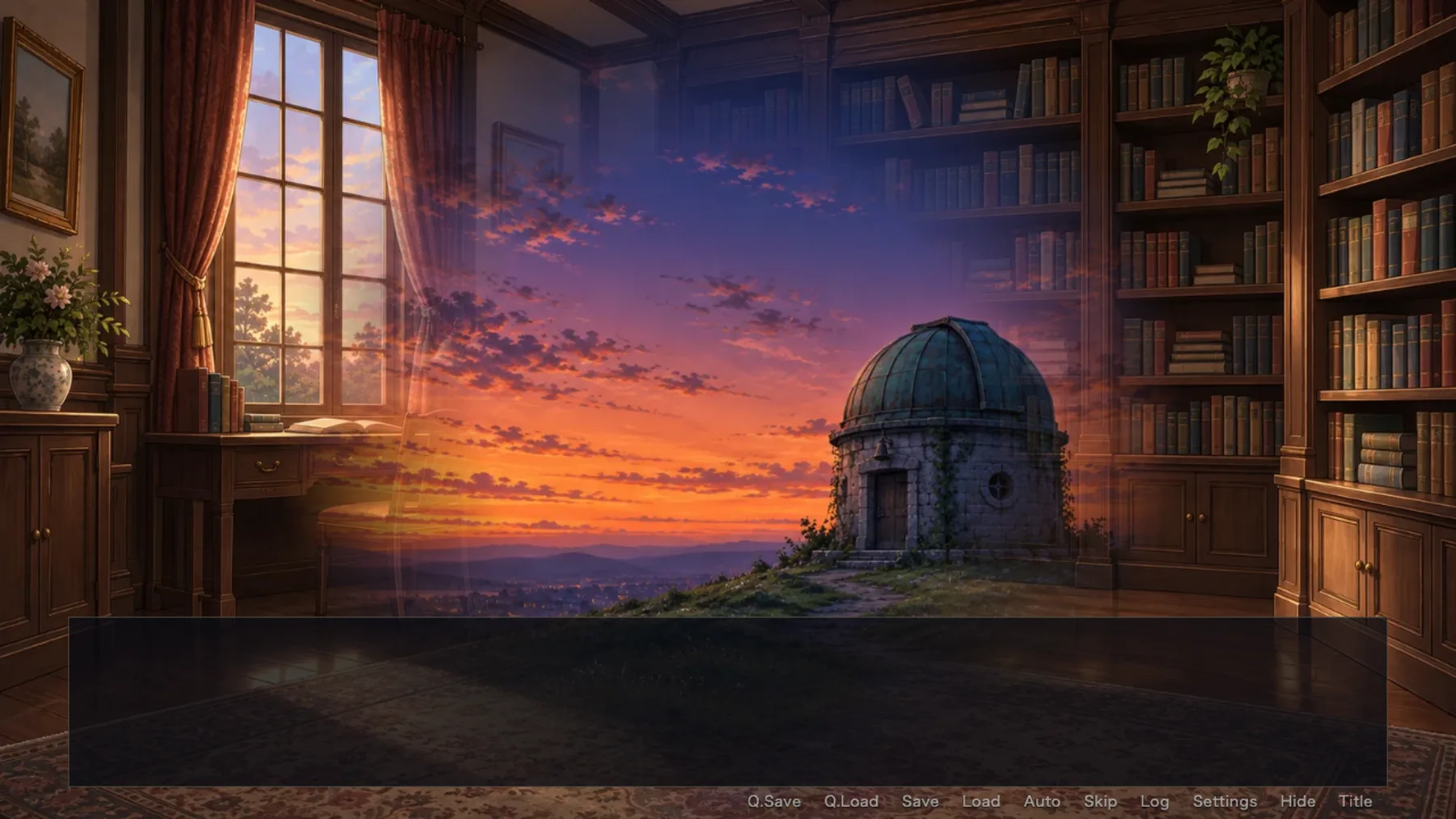
The hill appears in a circle that grows from the center of the screen.
| pattern | How they swap |
|---|---|
| wipe-left, wipe-right, wipe-up, wipe-down | Wipes toward the left, right, top or bottom |
| circle-in, circle-out | A circle shrinks from the outside in, or grows from the inside out |
| blinds, blinds-vertical | In horizontal or vertical strips, like blinds |
| diamond | A diamond grows |
| noise | In scattered squares |
When you choose a pattern, method isn’t used.
Change with your own rule image
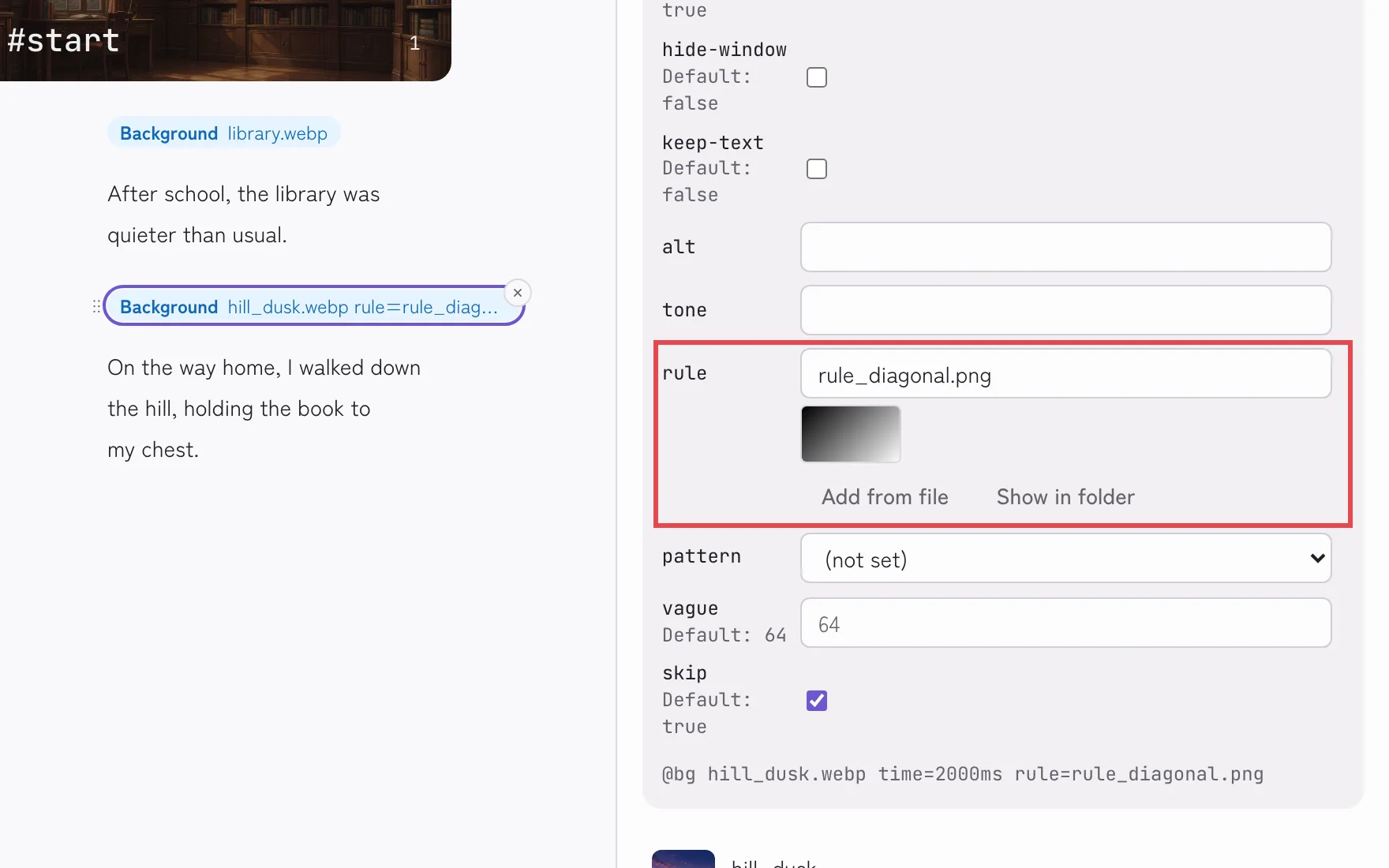
Prepare a grayscale image (a rule image), and the backgrounds swap in the order of its brightness. Darker areas change first.
- Put the rule image in “Images” on the “Assets” screen beforehand. Here, an image that’s black at the top left and gets whiter toward the bottom right (
rule_diagonal.png) is used. - In the background’s parameter panel, set
patternback to “(not set),” click therulefield, and choose the rule image from the list.
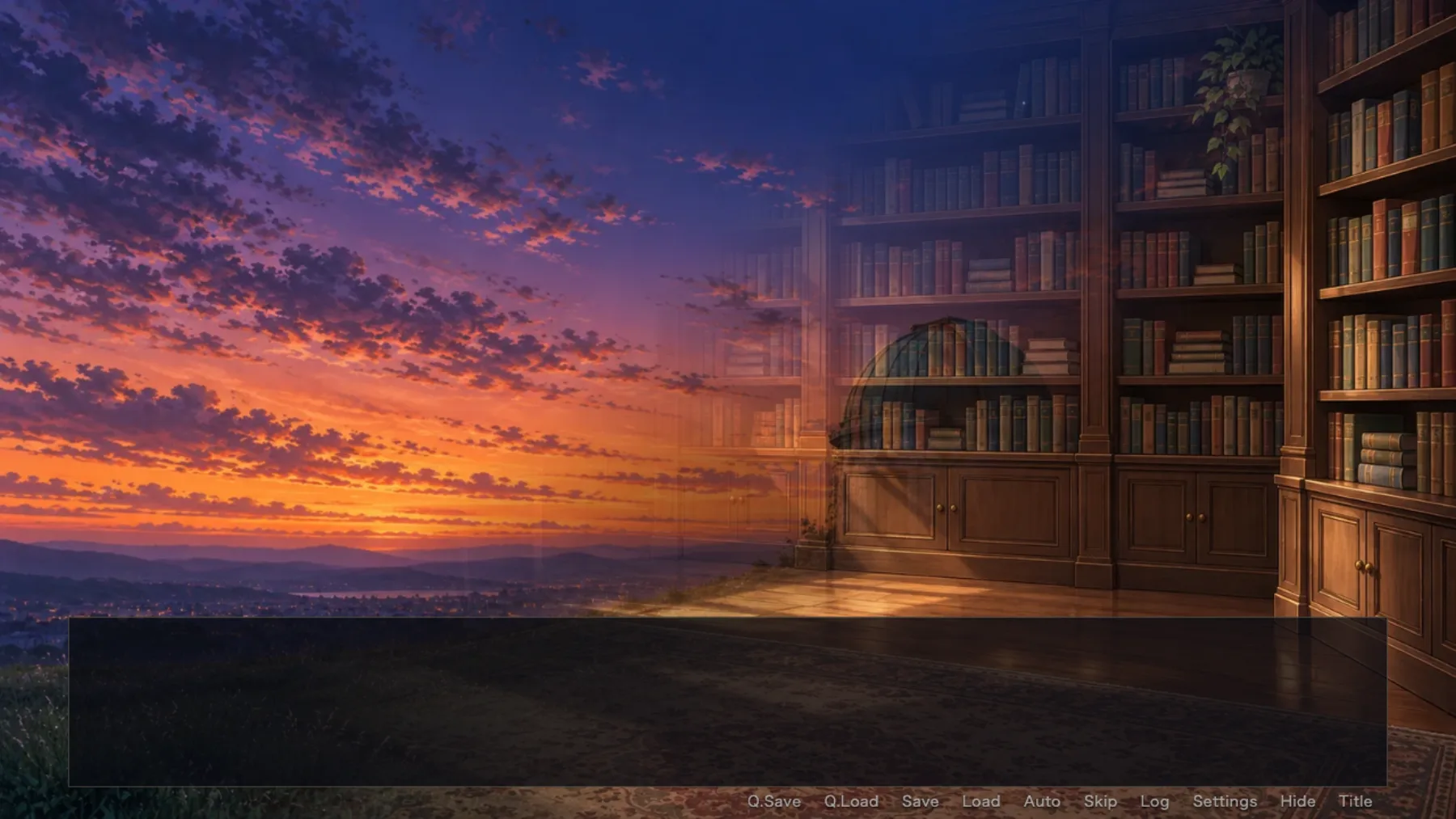
The backgrounds swap diagonally, from the top left to the bottom right.
When you choose a rule, pattern and method aren’t used.
In code
@bg library.webp
After school, the library was quieter than usual.
@bg hill_dusk.webp time=2s method=slideInLeft
On the way home, I walked down the hill, holding the book to my chest.
To change in a shape or with a rule image, write it like this.
@bg hill_dusk.webp time=2s pattern=circle-out
@bg hill_dusk.webp time=2s rule=rule_diagonal.png
If you enter 2000 in time in the parameter panel, time=2000ms is written in the script. Writing 2s means the same. For details, see @bg.