

Make the game easier for everyone to play
On this page
The game’s Settings screen comes with settings for readability and visibility from the start. They work without anything from the project, but some, such as sound captions, work once the project provides the text.
The examples on this page use the English sample story, “Waiting for Stars” (choose “A sample story” and English in New Project, or run lim new --lang en; the characters are Akari and Sou).
Settings players can choose
They’re on the “Display” tab of the in-game Settings screen.
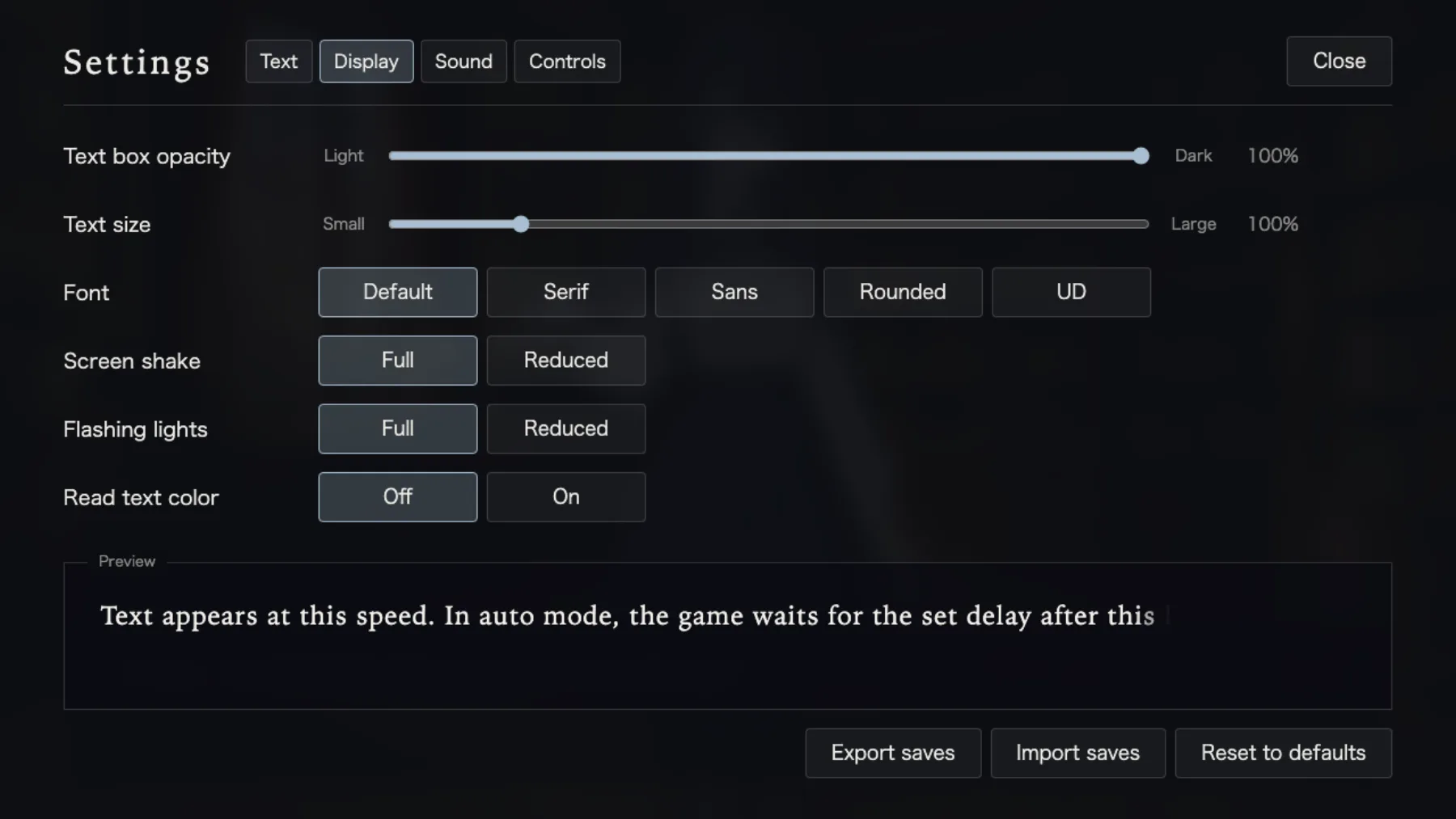
| Setting | What it does |
|---|---|
| Text size | 80 to 200%. Enlarges the text, choices, name box, backlog and system screens |
| Font | Default, Serif, Sans, Rounded and UD (a font designed for readability) |
| Screen shake | “Reduced” stops shaking of the screen and sprites |
| Flashing lights | “Reduced” lays a faint veil over the screen once instead of flashing |
| Read aloud | After a page finishes displaying, reads the speaker and text in the device’s voice. Lines with voice aren’t read |
| High contrast | Makes the message window opaque black and the text white, and sharpens the outlines of the choices and the screen |
| Color vision | Protan, Deutan and Tritan. Shifts color differences that are hard to tell apart to ones that are easier to tell apart |
| Sound captions | Shows a caption at the top right of the screen when a sound effect plays (when the project provides captions) |
With larger text, the save and load screens show the slots in one column, and the Settings screen is laid out so you can scroll through it a screen at a time.
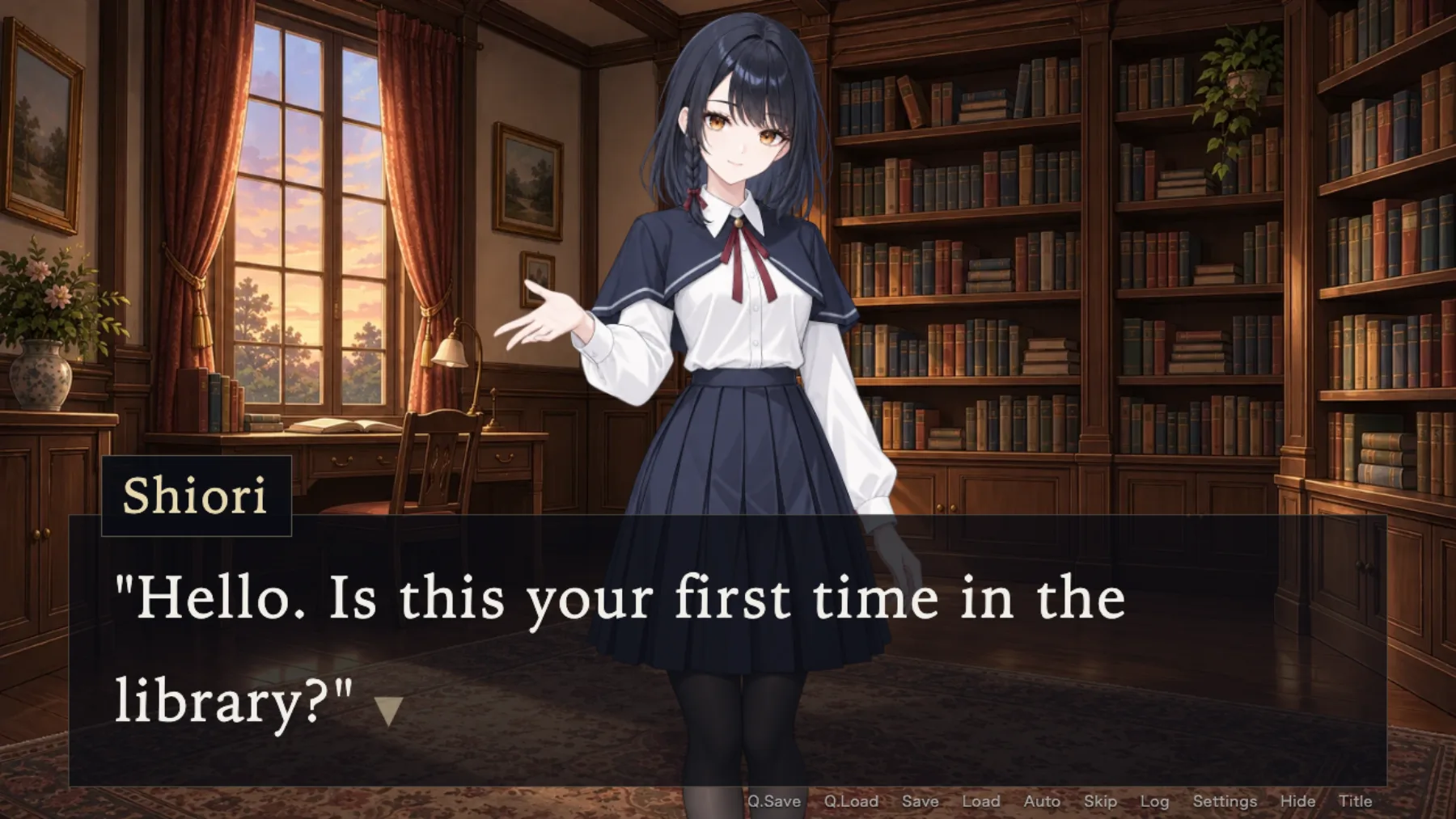
For players who increase contrast in their OS, High contrast starts on.
Turning off “Choice time limits” on the “Text” tab means choices with a time limit never time out, and the bar showing the remaining time doesn’t appear. It’s a setting for people who can’t read when rushed.
What to do in the project
- Ruby: Read aloud reads characters that have ruby using the ruby reading. Ruby is the small reading aid printed above Japanese characters. Add it to names and words that can be read in more than one way.
- Sound captions: In “Game settings,” under “Sound captions,” set the caption text for each sound effect file in “Caption per sound effect.” You can also write it in
captionof the sound effect part in the scenario (this takes priority). - Starting text size: In “Game settings,” under “Config defaults,” “Text size (%)” sets the text size for players playing for the first time.
- Games with a lot of screen shaking or flashing: In “Game settings,” “Notice and content” can show a notice at startup that points players to “Screen shake” and “Flashing lights” in the settings.
In code
@se gust.wav caption="(A strong gust of wind)"