

Distribute updates
On this page
When you fix typos or add scenes after release, you can distribute a patch with only the changes instead of the whole game again. A patch is made by comparing a previous export with the current project.
To make a patch, you need to still have the export you distributed before (a folder or zip, or the app for the Mac version). Keep your exports even after you distribute them.
Make a patch
- In the desktop version of Studio, click “Export” at the top of the screen (⌘⇧E).
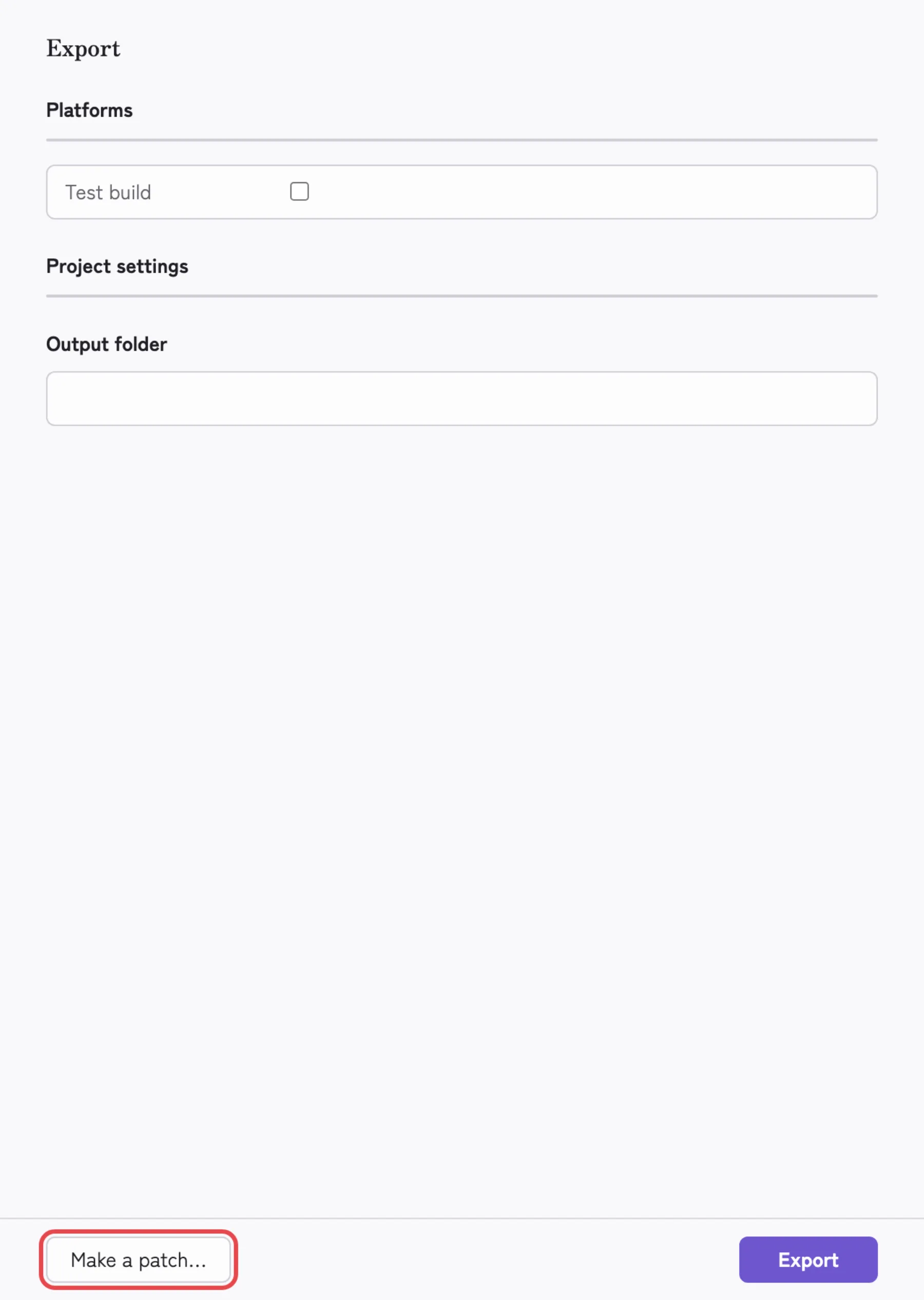
- Click “Make a patch…” on the export screen.
- “Choose the previous export…” appears, and a file chooser opens. Choose the folder or zip of the export you distributed before.
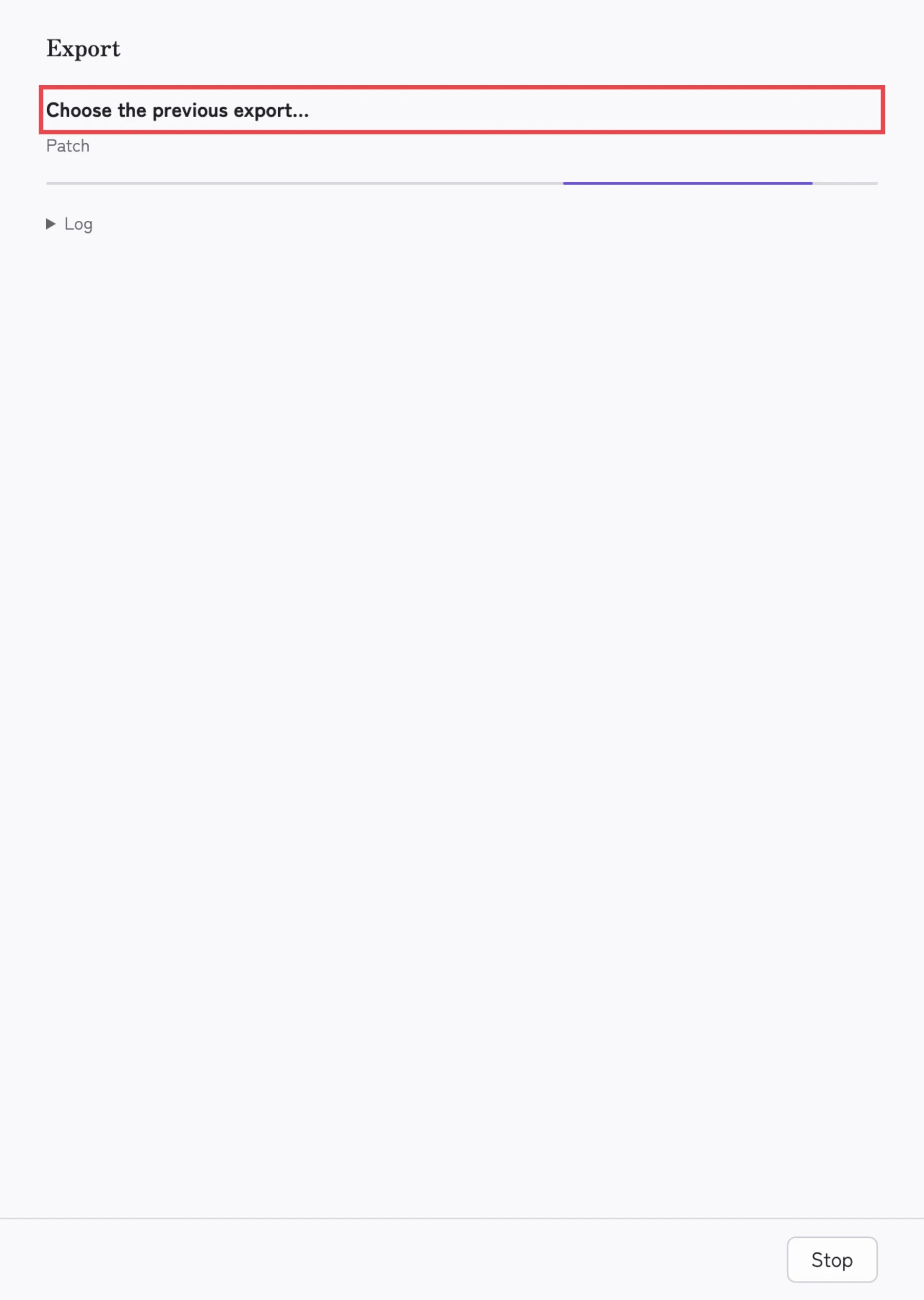
Once you choose it, the current project is exported and compared with the previous one, and a patch with only the changes is made. The patch goes into the patches folder inside the dist output folder. If you close the chooser without choosing anything, nothing is made.
When a patch won’t work
A patch can contain the game’s content, such as the scenario, characters, translations and assets. In cases like the following, a patch can’t fix things.
- When the game itself differs from the previous export, such as after you change the game settings or the project settings, or update Liminalia. Making the patch stops and shows the reason. Distribute the whole game again, or click “Make a patch…” again to make a patch with only the content, leaving out the differences in the game itself.
- When you delete files. A patch can’t delete files, so the files that were in the previous export stay.
If the previous export was encrypted, the patch is encrypted the same way. You can make a patch even if you raised the version in the project settings.
Distribute the patch
dist/patches gets a patch that matches the kind of the previous export.
| Previous export | What you get | How to distribute it |
|---|---|---|
| Windows version | (name)-windows.zip | Have players extract it into the game folder, overwriting the files |
| Browser version | (name)-browser.zip | Extract it into the game folder on the web, overwriting the files |
| Mac version | Only the patch folder | Distribute it with the update system below |
The Mac version can’t be updated by overwriting it from a zip, because rewriting the inside of the app breaks its signature.
Announce updates inside the game
For a desktop version sold outside Steam (on your own site, BOOTH and so on), the game can check by itself at startup whether there’s a new patch or version, and tell the player.
- Use the
lim update-manifestcommand to make the files to distribute and the update information file (update.json), and put them on the web. - In “Update manifest URL” under “Updates (desktop)” in the “Export” section of the project settings, enter where you put
update.json. Then export the game and distribute it.
When a new version of the game itself is distributed, on Windows it starts the installer, and on Mac and Linux it extracts and swaps in the new version, then restarts.
So that no one can take over your distribution location and slip in fake updates, sign the update information with a key made with lim update-key. The game then uses only information whose signature it can verify.
This system works in games exported with it built in. How to use the commands and the detailed rules are in the sections on updates and patches in the distribution documentation. When you sell on Steam, Steam distributes the updates.