

Features
These features come with the engine and Studio from the start (Studio is available as a beta). Staging and screens that aren't here can be added with plugins.
Scenarios and text
A text format where each line is complete on its own. A scenario can be checked the same way whether a person or an AI wrote it.
- .lim format
- Write dialogue, narration, commands and labels one per line. There's only one way to write each thing
- Syntax check
- Reports missing labels and sprites, parameters of the wrong type and choices that never show, with the line and a suggested fix
- Punctuation check
- Checks Japanese punctuation: unclosed brackets, doubled punctuation marks, the space after ! and ?, and the number of ellipses and dashes
- Staging rules
- The syntax check also checks each project's staging rules (check.rules) and per-scene information (scenes)
- Ruby and emphasis dotsSteps
- {r 漢字|かんじ} adds ruby (small reading aids above characters) and {dot 強調} adds emphasis dots. Both work in vertical and horizontal text
- Continue without a clickSteps
- End a line with {noclick} to move on to the next line without waiting for a click. A question can stay on screen while the choices appear
- Name shown in the name boxSteps
- Keep the character but show “???” or another name in the name box (Speaker{name Shown name}, @name)
- Text styling and effectsSteps
- Bold, color, text size, highlighting, and shaking, wavy and bouncing text. {fx} can also set how big and how fast the motion is
- Vertical text and NVLSteps
- @vertical sets text vertically, and @nvl keeps text running across the whole screen
- Speech balloons and chat
- Balloons above the speaker's sprite, and a conversation screen like a messaging app
- Variables and expressionsSteps
- game, system and temp variables. Functions return how many times a scene was visited, whether a line has been read, and which choice was picked (visits, read, chosen)
- Macros (@define)Steps
- Give a name to staging you use often and call it in one line. You can pass a block of lines when you call it (@with, @content), loop (@while) and return a value (@return)
- Command defaultsSteps
- Set the value a parameter takes when you leave it out, per project (commandDefaults in liminalia.json). Works for macros too
- Chapters
- List chapter numbers, titles and files together under chapters in liminalia.json. Expressions (chapter()) and plugins can read them
- Glossary
- Click a word in the text to show what it means
- Multiple languagesSteps
- Switch the text, choices and screen labels with translation files. You can translate the same source line differently in each scene, and change the font and text size for each language
Sprites and staging
Sprites are named by character and variant. Switching variants doesn't shift the position.
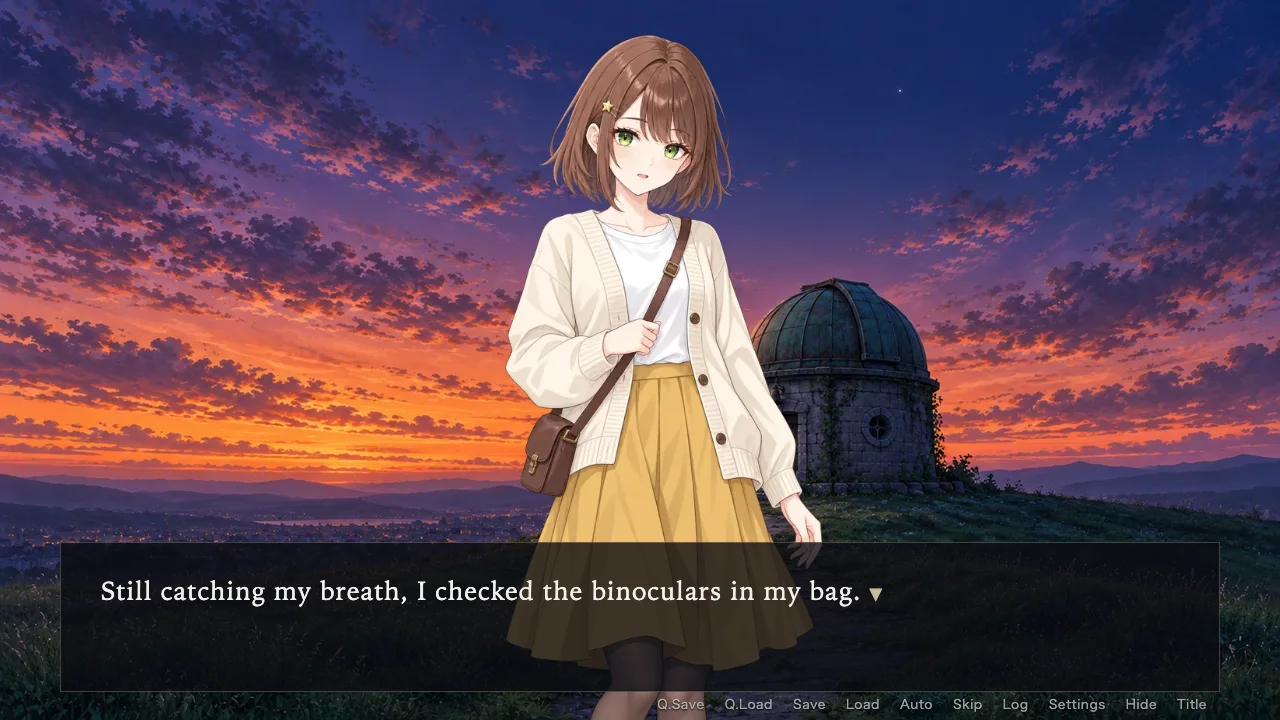
- SpritesSteps
- Three levels: character, sprite set and variant. Name them in one line, as in @chara Yui smile at=left
- Entrances and exitsSteps
- How sprites appear and leave, sliding to a new position, stacking order, and bringing in several characters one at a time
- Scene transitionsSteps
- Fade to black, clear the sprites, change the background and fade back in, all in one line. You can also stop or change the BGM during the fade
- One-shot effectsSteps
- Flipbook animation, flashes, blinking, cut-ins, and screen effects that end on their own
- Layered sprites and PSD import
- Sprites built by stacking layers for eyes, mouth, cheeks and so on. Make them straight from PSD and PSB files
- Swaying sprites
- Bring a single-image sprite to life with breathing, a tilting head and swaying hair
- Lip sync and blinkingSteps
- Moves the mouth along with the voice volume or the text as it appears
- Face windowSteps
- Shows the speaker's face in the message window
- Sprite toneSteps
- Night, evening, sepia and other tones, for one sprite or for everyone
- TransitionsSteps
- Fades, slides, rule images and built-in wipes
- Camera and shakeSteps
- Zoom, pan and rotate, with a camera for the whole screen and for each layer
- Depth and depth of field
- Backgrounds where farther images move less when the camera moves, and focus on either the background or the characters
- Screen effectsSteps
- Wobble, glitch, chromatic aberration, noise, vignette, scanlines, blur, mosaic, ripples and custom shaders
- Animation and videoSteps
- Keyframe animation for images and sprites, full-screen movies with subtitles, background video and video laid over the screen
- Staff rollSteps
- Scroll headings, names and images from the bottom to the top. Write the content in the scenario or in a JSON file in the data folder
Sound and voice
Supports BGM with intro loops and crossfades, sound effects, and numbered voice files per speaker.
- BGM and sound effectsSteps
- Loops after an intro, crossfades, left and right panning and playback speed. Long BGM is streamed
- VoiceSteps
- Set a voice per line, or play numbered files for each speaker automatically and lock the numbers (voice-lock). Players can replay the voice on the current page
- Volume and mute
- Volume for everything, BGM, sound effects, voice and video, and muting with the M key
- System voices
- Title calls and voices that play when players use the menus
- Recording script
- Exports the voice script as a CSV file
System screens
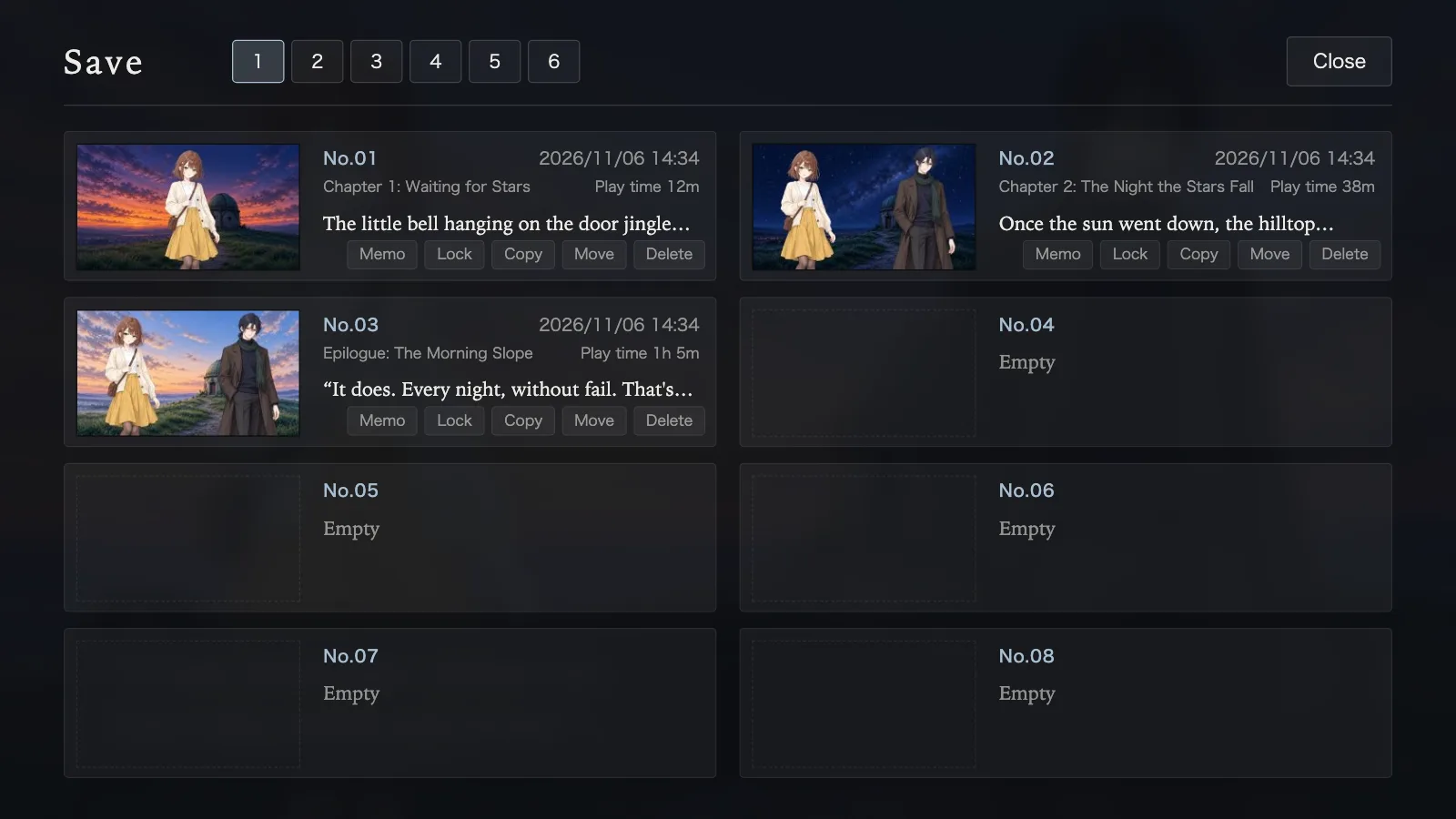
The screens a commercial visual novel needs are all there. You can replace a whole screen or change just part of it.
- Title screenSteps
- A title screen that changes as players clear the game, plus notices and logos at startup
- Save and loadSteps
- Thumbnails, chapter names, play time, notes, overwrite protection, copy and move. The browser version saves to IndexedDB
- Autosave and quick saveSteps
- Saves to its own slots automatically when the game closes or goes to the background. Quick saves rotate through several slots
- Backlog
- Replay voices, jump back to that scene, search, see the choices made and copy the text
- Rewind and jump to choices
- Go back one page, play forward again, jump to the previous or next choice, or to the next unread line
- Fast-forward effects
- Click during an effect to skip to its end
- NotificationsSteps
- Short notifications shown over the top right of the screen (@notify)
- SettingsSteps
- Text speed, auto delay, volume, font, window opacity, auto and skip after choices, and key and gamepad bindings
- ExtrasSteps
- Gallery, scene replay, music room, movies, character viewer, chapter select, achievements, ending list and completion rate
- CodexSteps
- Entries for people and terms that unlock as players read on (data/codex.json, @codex-unlock)
- InvestigationSteps
- Scenes where players click places in the background to examine them (data/investigation.json, @investigate)
- Items
- An item screen, and scenes where players choose from the items they have
- Flowchart
- Shows the routes taken as a chart, and lets players read again from there
- Controls
- A list of controls made from the current key bindings. Gamepad buttons are labeled to match the controller
- Offline
- Once opened, the browser version plays without a connection
- Replacing screensSteps
- Replace a whole screen or part of one with a plugin
Accessibility
Settings players can change to suit themselves come as standard.
- Read aloudSteps
- Reads text and choices aloud with the device's voice, using the ruby readings. Auto mode moves on after the reading ends. Screen readers are supported too
- High contrast and color visionSteps
- A high-contrast color scheme, and color correction for protan, deutan and tritan color vision
- Font and text sizeSteps
- Switch to a UD (universal design) font and enlarge text up to 200%. Text in the name box, the backlog and the system screens gets bigger too
- Captions for soundSteps
- Shows sound effects and BGM as captions
- No time limitsSteps
- Players can turn off choice time limits in Settings
- Gamepad and touchSteps
- Every screen works with a gamepad, a keyboard or touch. Players can also swipe to go back one page
Editor
In Liminalia Studio, you build while checking each line you write in the preview.
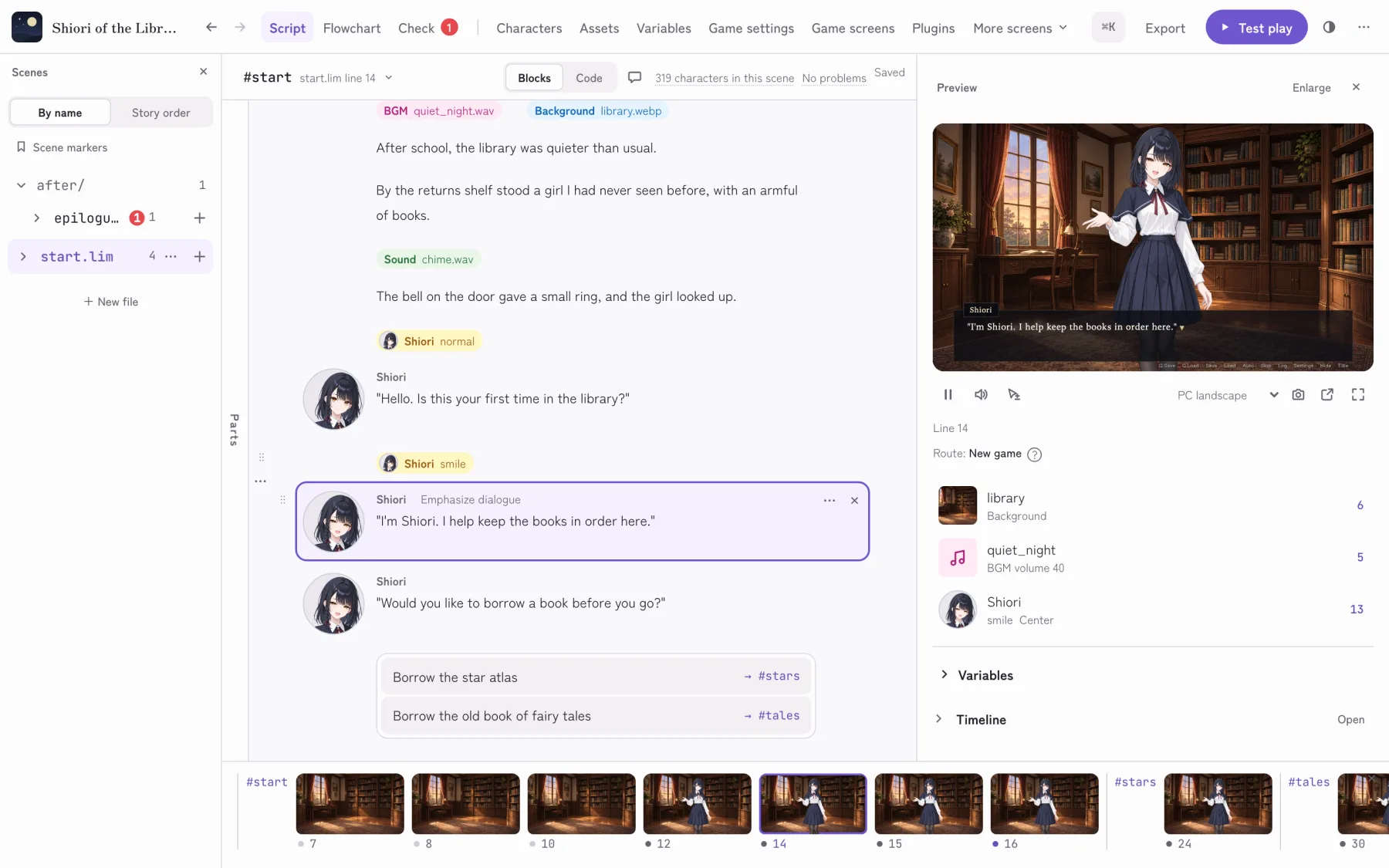
- Liminalia Studio
- Editing, preview, test play and export in one app, for Mac and Windows
- Search and command palette
- ⌘K finds and opens files, scenes, characters, assets, variables, screens and actions
- Play from HereSteps
- Starts a test play from the selected line or scene
- Go to the jump target
- ⌘-click opens the scene a jump goes to. You can also list the lines that jump to that scene
- Tabs and split view
- Open scenario files in tabs and write in a second file side by side. Lines can have bookmarks
- Build with the flowchart
- In the map of how scenes connect, draw lines to connect them, delete lines and add scenes. There's also an overview and a filter
- Move scenes and split filesSteps
- Move a scene to another file, or move everything from the selected scene on into a new file. Either way, the jumps are rewritten automatically
- Breakpoints
- Breakpoints that remember the line by its content, not its number. Add conditions, manage them from a list and step through one line at a time
- Check and suggested fixes
- A list of errors and warnings. Apply similar spellings, names close to a missing asset and punctuation fixes with one click
- Character counts and spelling variants
- Character counts per file, scene and speaker, progress toward a target and estimated play time. Spelling variants can be changed to the more common form
- All-routes testSteps
- Plays every route automatically and checks for lines with problems and differences on screen
- Character editing
- Adjust sprite positions, add variants, edit the layers of layered sprites, see how often each expression is used, and keep notes
- Data schemas and input formsSteps
- Declare a schema for the project's data and Studio makes an input form for it
- TimelineSteps
- Drag to adjust when effects start and how long they last
- Review commentsSteps
- Comment on lines or ranges in a scenario, then reply and resolve. Comments can be shared with git
- Change history and trashSteps
- Keeps history on every save and thins out older entries. Deleted files can be restored from the trash
AI and editors
Besides Studio, AI assistants, VS Code and the command line can all work on the same project.
- AI assistants (MCP)Steps
- With lim mcp, Claude, Codex and others can create a project, write scenarios, check them, run them without opening a window and confirm the result with screenshots
- Editing part of a scenarioSteps
- Rewrites line by line. Lines edited in Studio or elsewhere after the AI read the file aren't overwritten. There's also a check before writing and a guide to writing scenarios
- Use with StudioSteps
- If Studio is open, screenshots are taken from that screen. The AI can also register characters and change project settings
- VS Code extension
- Completion, syntax check, go to definition, formatting, Quick Fix, renaming scenes and Play from Here
- Command line
- Create, check, screenshot and export projects with lim
Migration and import
Scenarios written for other engines and formats are converted to .lim and imported.
- TyranoScript
- Converts .ks to .lim and checks that the text matches character for character. Also imports .ks files in subfolders
- Writing back to TyranoScript
- Writes the changes you made in Liminalia back to .ks
- Ink and Yarn SpinnerSteps
- Ink functions become macros, and LISTs become array variables. Yarn Spinner's <<once>> and line groups are converted too
- Ren'Py and TwineSteps
- Imports .rpy files and .twee files in Twee 3 format. Also available from Import text in Studio
- Text and tables
- Turns lines written as Name "…", 【Name】… and Name: … into dialogue, and other lines into narration
Export and distribution
One project exports for the browser, desktop and smartphones.
- Export targetsSteps
- Browser, Mac, Windows, Linux, Android and iOS. The Mac version can also be packed as zip and dmg, and the browser version as zip
- Store submissionSteps
- Android App Bundles for Google Play, iOS archives and uploads to App Store Connect, and uploads to Steam with lim publish steam
- EncryptionSteps
- Exports with the assets and scenarios encrypted. Works for the desktop and browser versions and for add-on packs
- Signing and installers
- Signing and notarization for Mac, and signing and installers for Windows
- Patches and updatesSteps
- Makes a patch from the difference with the previous export. The update information file is signed, and the app checks the signature before applying the update
- Pre-export checkSteps
- lim doctor checks in one go that you have the tools and signing keys the export needs
- Playtesting the exported gameSteps
- lim playtest plays the exported browser version to the end automatically and checks that nothing gets stuck. Comes with a CI template
- Size breakdownSteps
- lim size shows what makes up the export size, and lim unused lists assets that may be unused. You can also choose how audio and images are compressed
- Smartphone achievementsSteps
- Sends achievements to Game Center and Google Play Games
- In-app purchases
- One-time purchases on the App Store, Google Play and Steam. GOG Galaxy and the Epic Games Store are supported with plugins
- Add-on content and demos
- Distribute scenarios and assets as add-on packs. The full version can load saves from the demo. Export a separate build for each edition