

Show a face window
On this page
The face window shows the face of the speaking character beside the message window. Even in scenes without sprites, players can tell who is speaking.
The examples on this page use the English sample story, “Waiting for Stars” (choose “A sample story” and English in New Project, or run lim new --lang en; the characters are Akari and Sou).
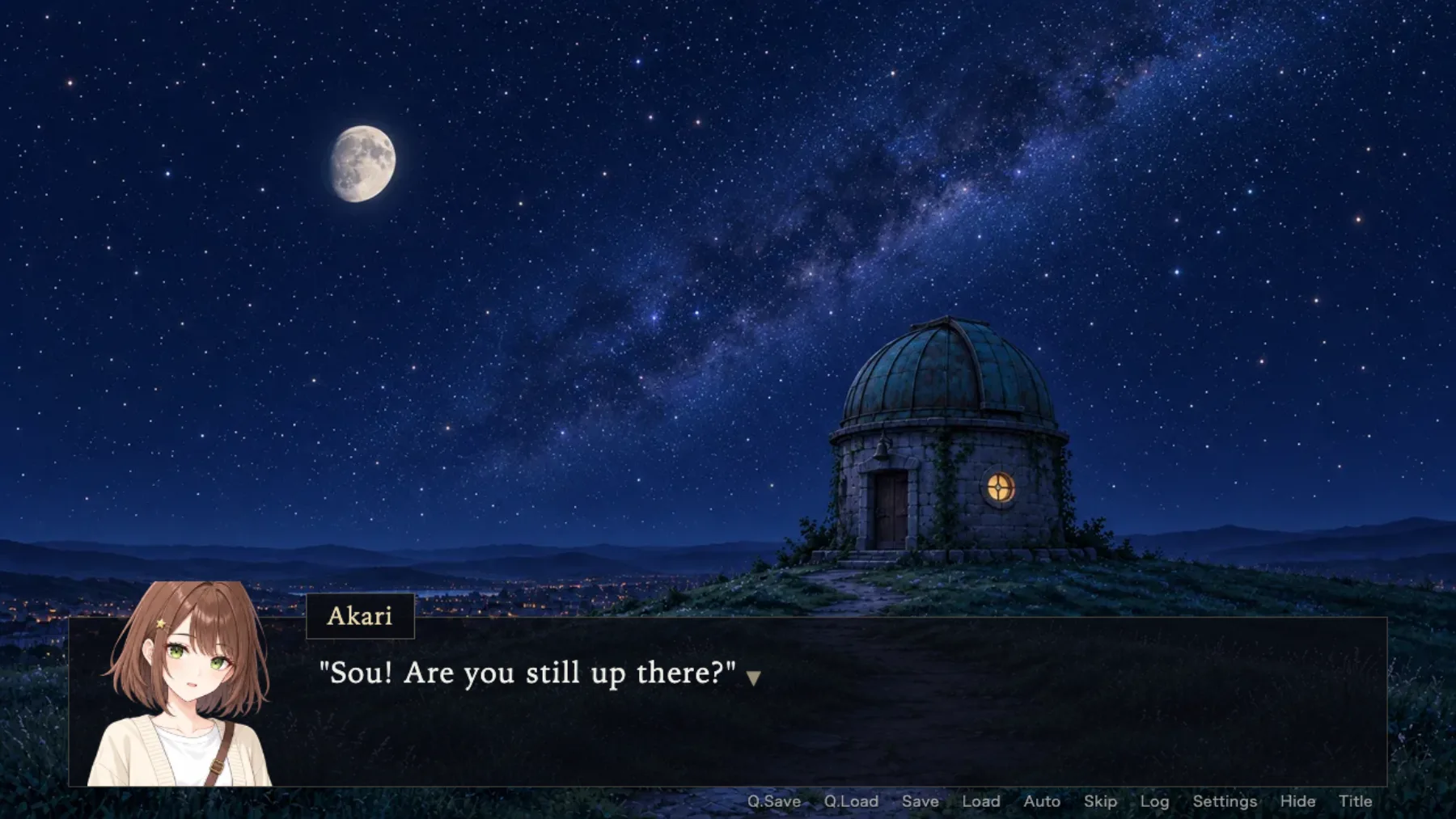
To show the face window, decide which part of the image to crop for the face, and turn on the face window in the game settings.
Set the face area
- Click “Characters” at the top of the screen, and choose a character from the list on the left.
- Drag the round preview under “Face position” so the face is in the middle, and adjust the size with the “Size” slider (or the mouse wheel).
- Check “Also use for the face window in the game.”
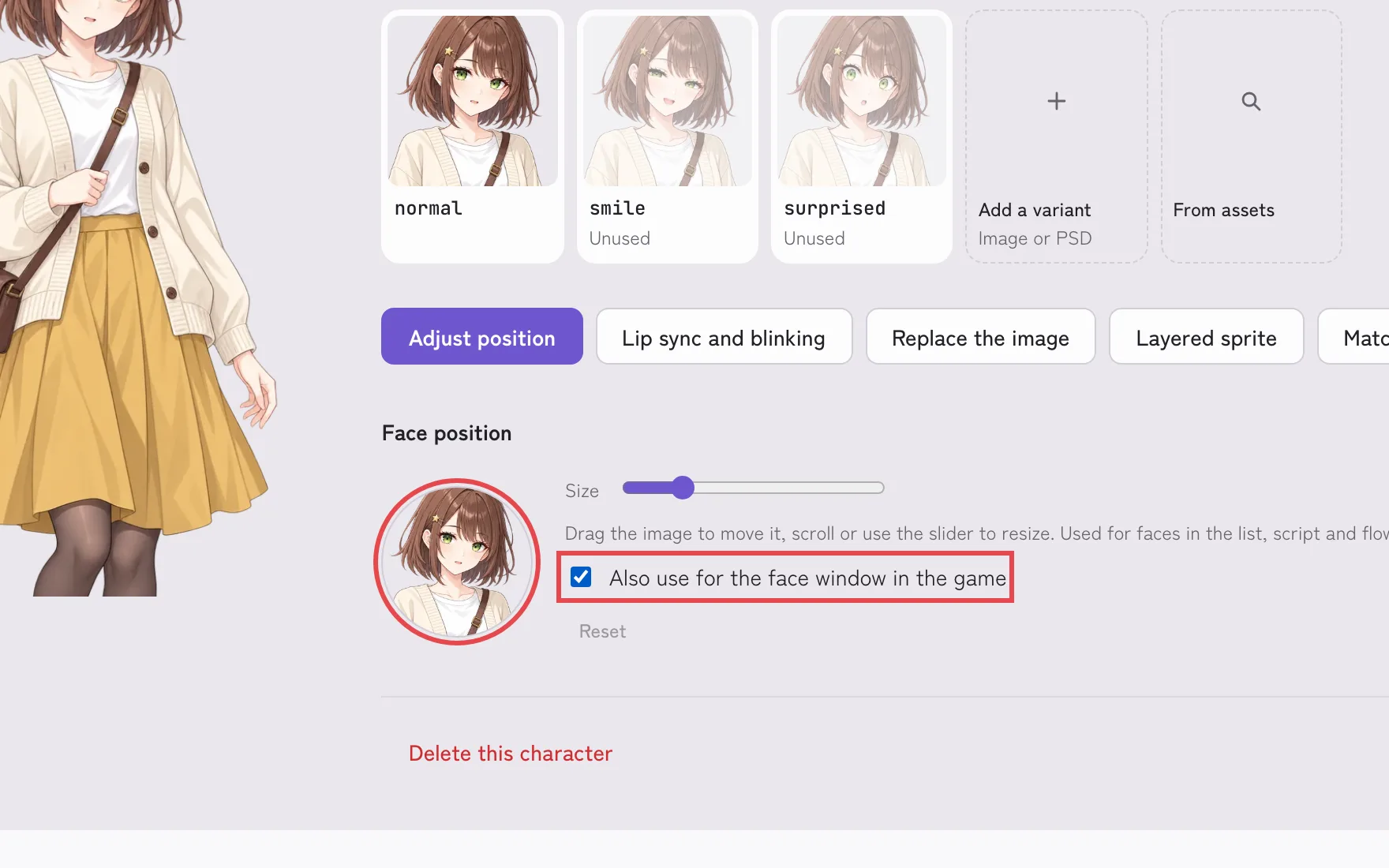
When it’s checked, the area of the preview is saved as face in the sprite set in cast.json, and the game’s face window crops that area from the sprite. Moving the preview while it’s checked changes the area in the game too. Every variant of the same sprite set is cropped from this area, so when you change the expression, the face window’s expression changes too. Characters without a face area don’t get a face window.
If you want to prepare the face as a separate image, you can also write an image path in face of each variant in cast.json.
Show the face window
- Open “Game settings” at the top, and under “Face window,” choose when to show it in “Show.”
- In “Position,” choose whether it appears to the left or right of the message window.
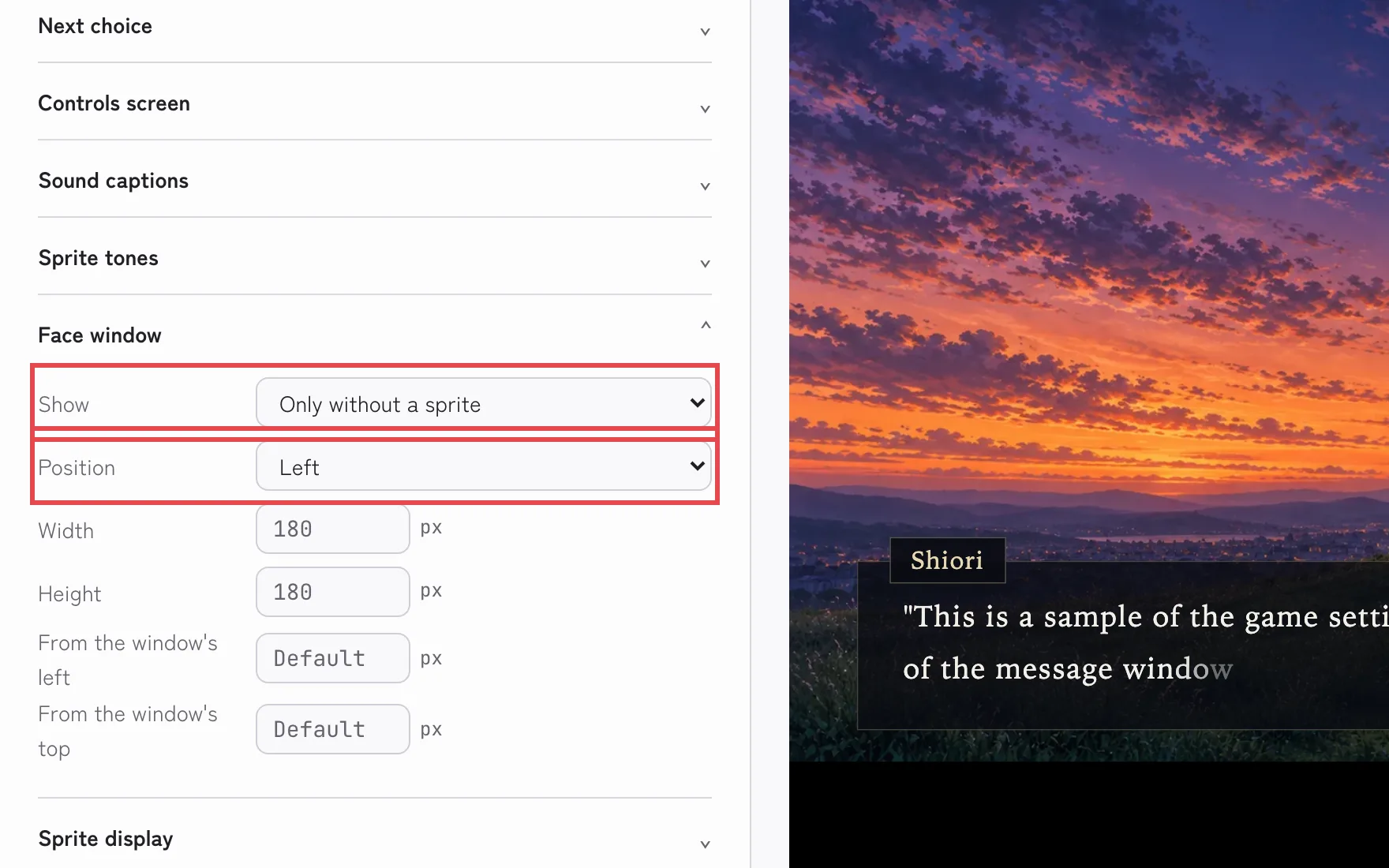
| Show | When the face window appears |
|---|---|
| Always | Whenever the speaking character has a face area |
| Only without a sprite | Only when the speaking character’s sprite isn’t on screen |
“Width” and “Height” change the size of the face window (180px by default). It doesn’t appear for narration, or while vertical text, NVL or speech balloons are in use.
Choose the expression
While the speaking character’s sprite is on screen, the face window uses the expression of that sprite. For a character whose sprite isn’t shown, choose the expression with a part.
- Type “face window” in the search box at the top of the parts panel.
- Select the line just before the dialogue where the expression should change, and double-click “Face window” in the results.
- In the panel on the right, set
whoto “Akari,” and click “smile” in the faces ofvariant.
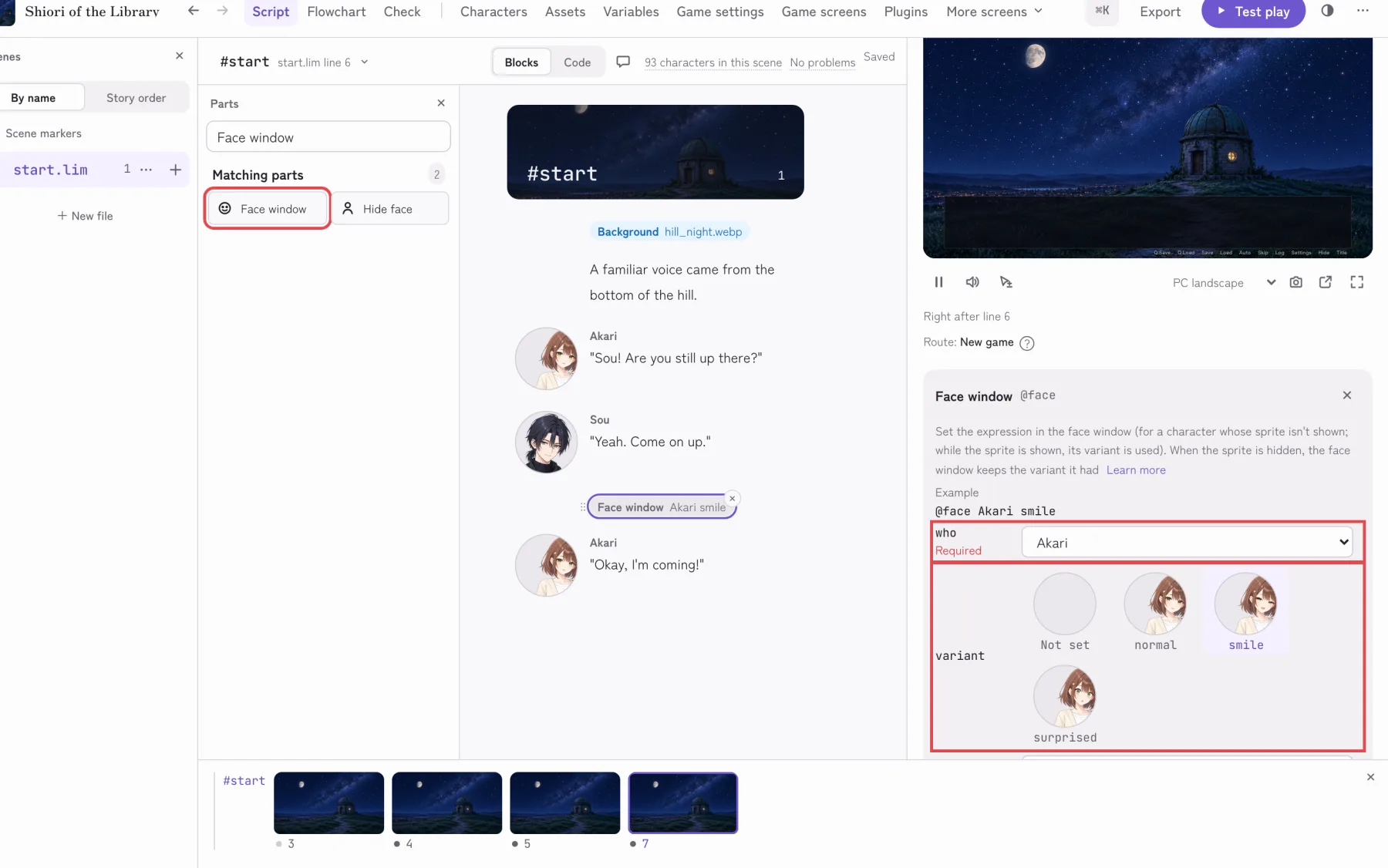
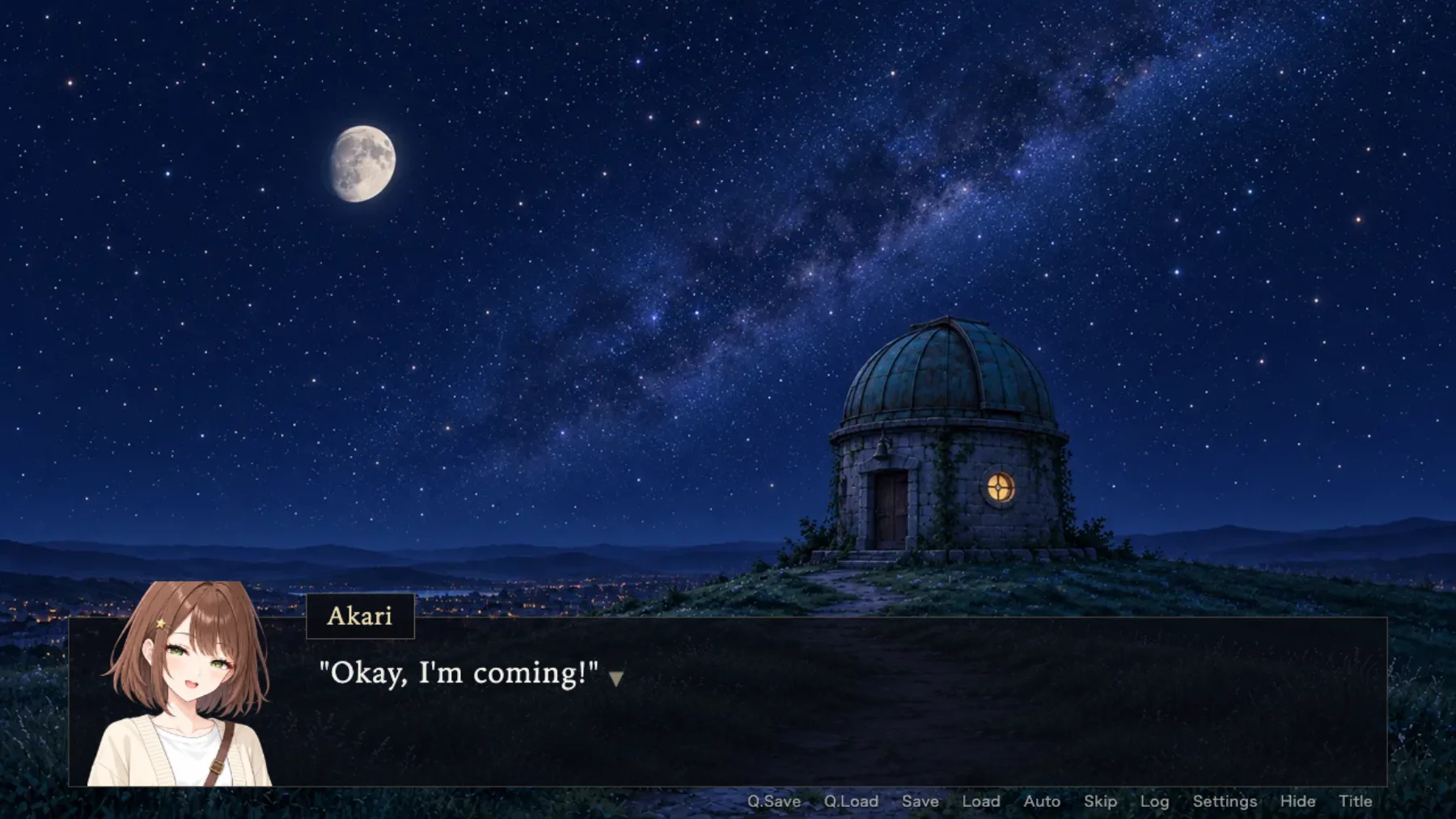
The expression you choose lasts until you change it again. If you’ve never chosen one, the face of the base variant is used, and after a sprite is hidden, the face window keeps the expression the sprite had before it was hidden.
In code
@bg hill_night.webp
A familiar voice came from the bottom of the hill.
Akari "Sou! Are you still up there?"
Sou "Yeah. Come on up."
@face Akari smile
Akari "Okay, I'm coming!"
The game settings are saved in ui of liminalia.json as "face": { "show": "offstage", "side": "left" }. The full list of parameters is in @face.