

Adjust sprite position and size
On this page
Where a sprite appears and at what size is set for each variant on the Characters screen. In the script, you only choose the name of a position (at), so what you adjust here applies to every scene that uses that position.
The examples on this page use the English sample story, “Waiting for Stars” (choose “A sample story” and English in New Project, or run lim new --lang en; the characters are Akari and Sou).
Adjust positions and size
- On the “Script” screen, select a line where the sprite you want to adjust is shown.
- Open “Characters” at the top, and click “Position” in the heading row. It opens with the sprite shown on the selected line already selected. The Position screen is shown in Japanese only, so its labels are given below in Japanese, with translations in parentheses.
- Check the sprite you’re adjusting with “キャラクター” (character), “差分” (variant) and “立ち位置” (position) on the left. If you choose a background in “背景” (background) on the right, you can adjust it as it will look in an actual scene.
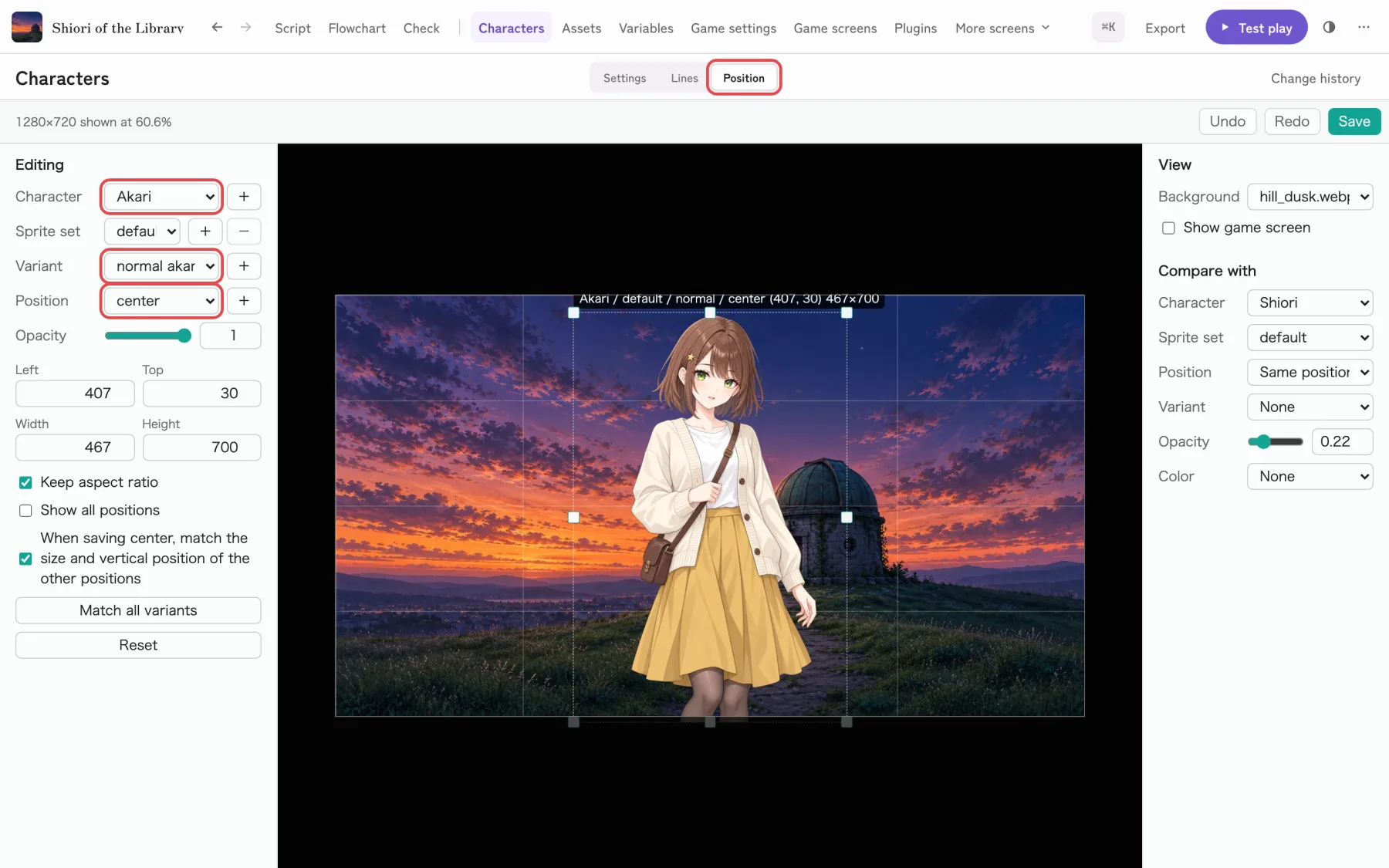
- Turn the mouse wheel over the sprite to enlarge or shrink it around its center. Drag the sprite to move it.
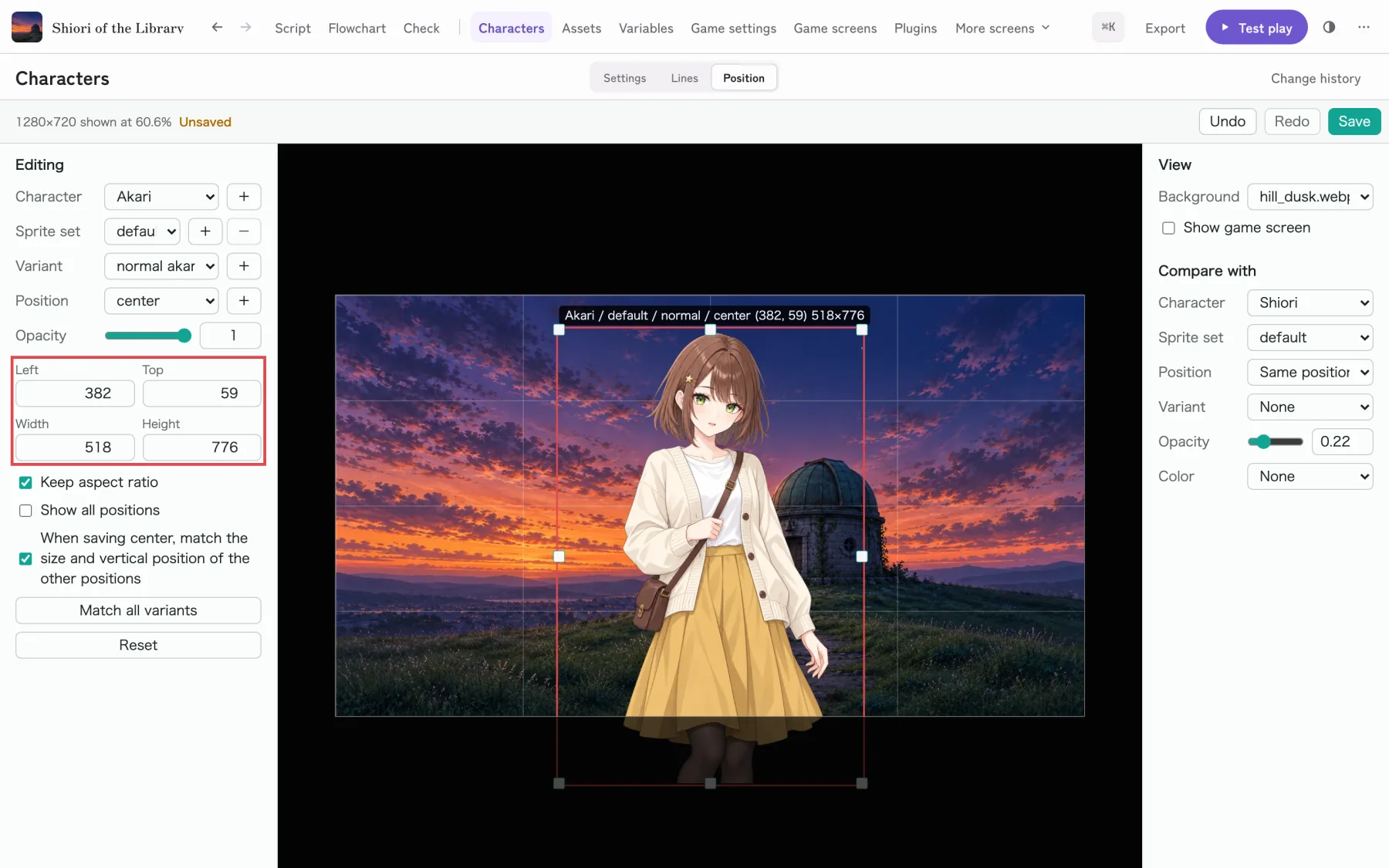
You can also adjust it by entering numbers in “左” (left), “上” (top), “幅” (width) and “高さ” (height) on the left (game screen coordinates, in px). The arrow keys move it 1px at a time, or 10px with Shift. Entering “幅” or “高さ,” or using the wheel, changes the size around the center. When you drag the handles at the corners and edges, the opposite edge stays in place.
- Click “すべての差分に合わせる” (match all variants), and click OK in the confirmation. The size and vertical position of the current variant are applied to the other variants of the same sprite set (such as smile and surprised). Without this, the size changes when you change the expression.
- Click “保存” (save) at the top right.
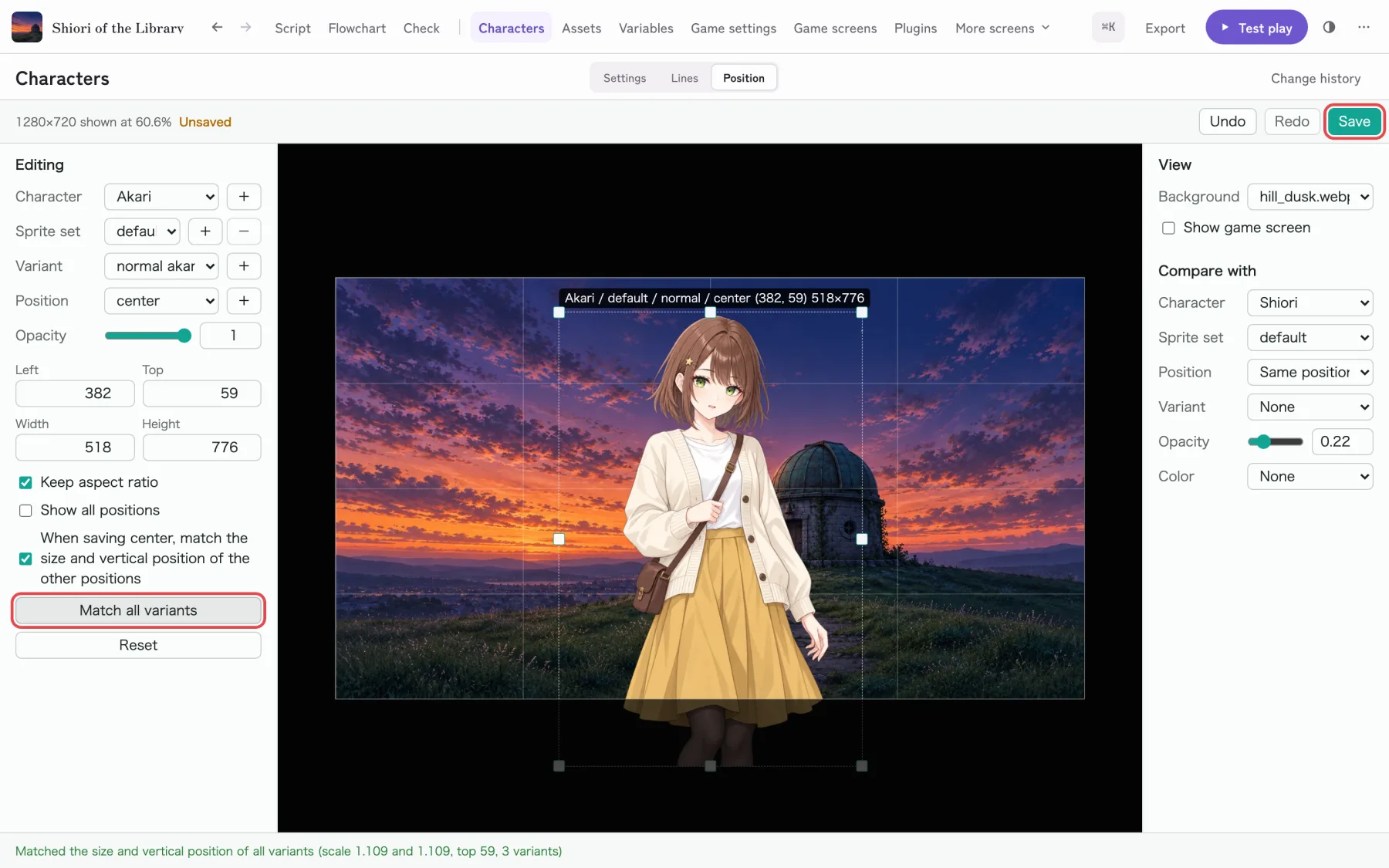
When you’re adjusting center and “center を保存するとき、サイズと縦位置をほかの立ち位置にも合わせる” (when saving center, match the size and vertical position of the other positions) is checked (the default), saving also makes the size and vertical position of left and right match center. The horizontal positions keep the center of each position.
What you save shows up in the preview and test play right away.
Place by coordinates
You can also place a sprite anywhere you like in a single scene, without using a position.
- On the “Script” screen, click the sprite block to select it, then click it again to show its parameters in the panel on the right.
- Leave
atas “(not set),” and enter the left edge inxand the top edge iny(in game screen px).
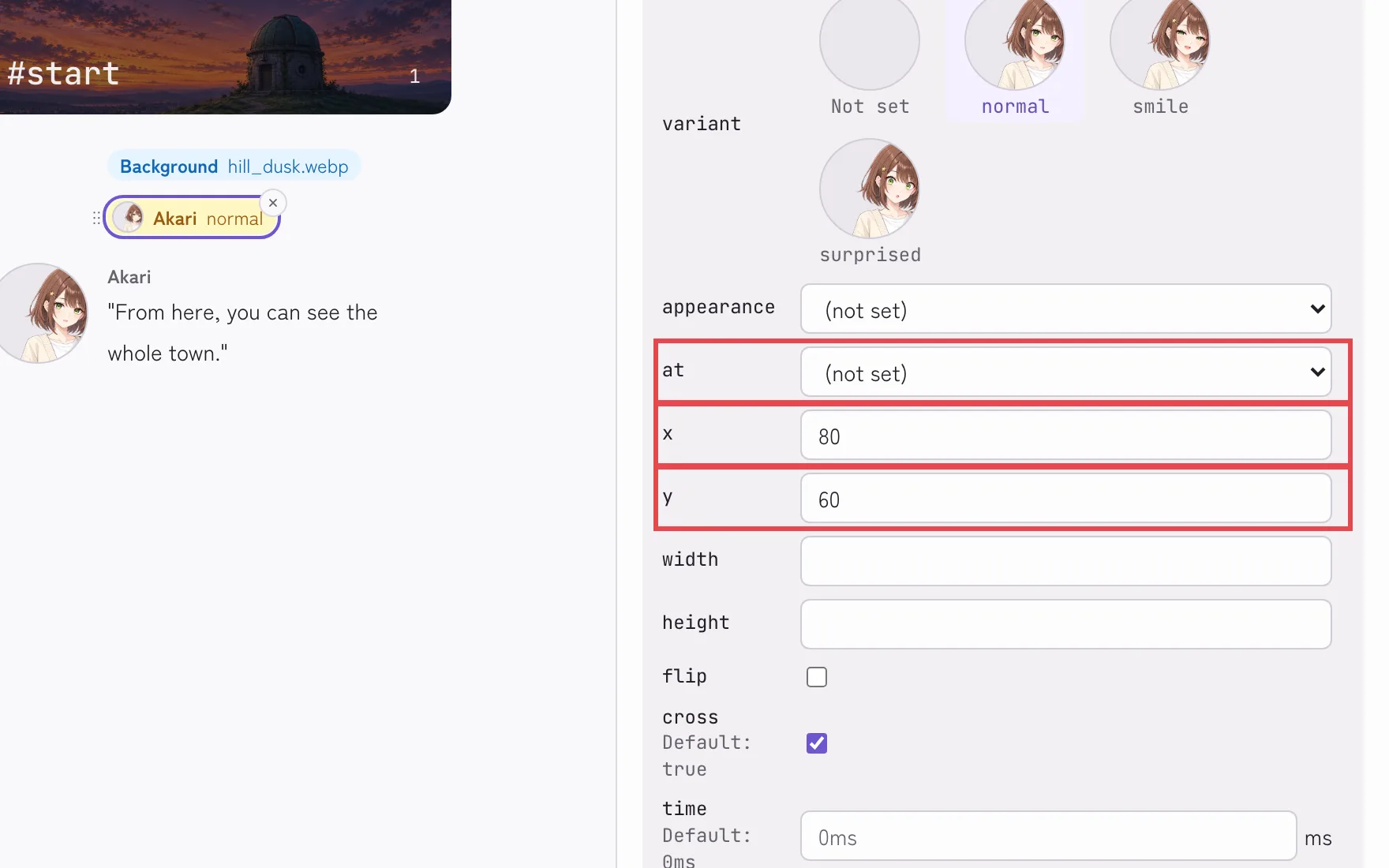
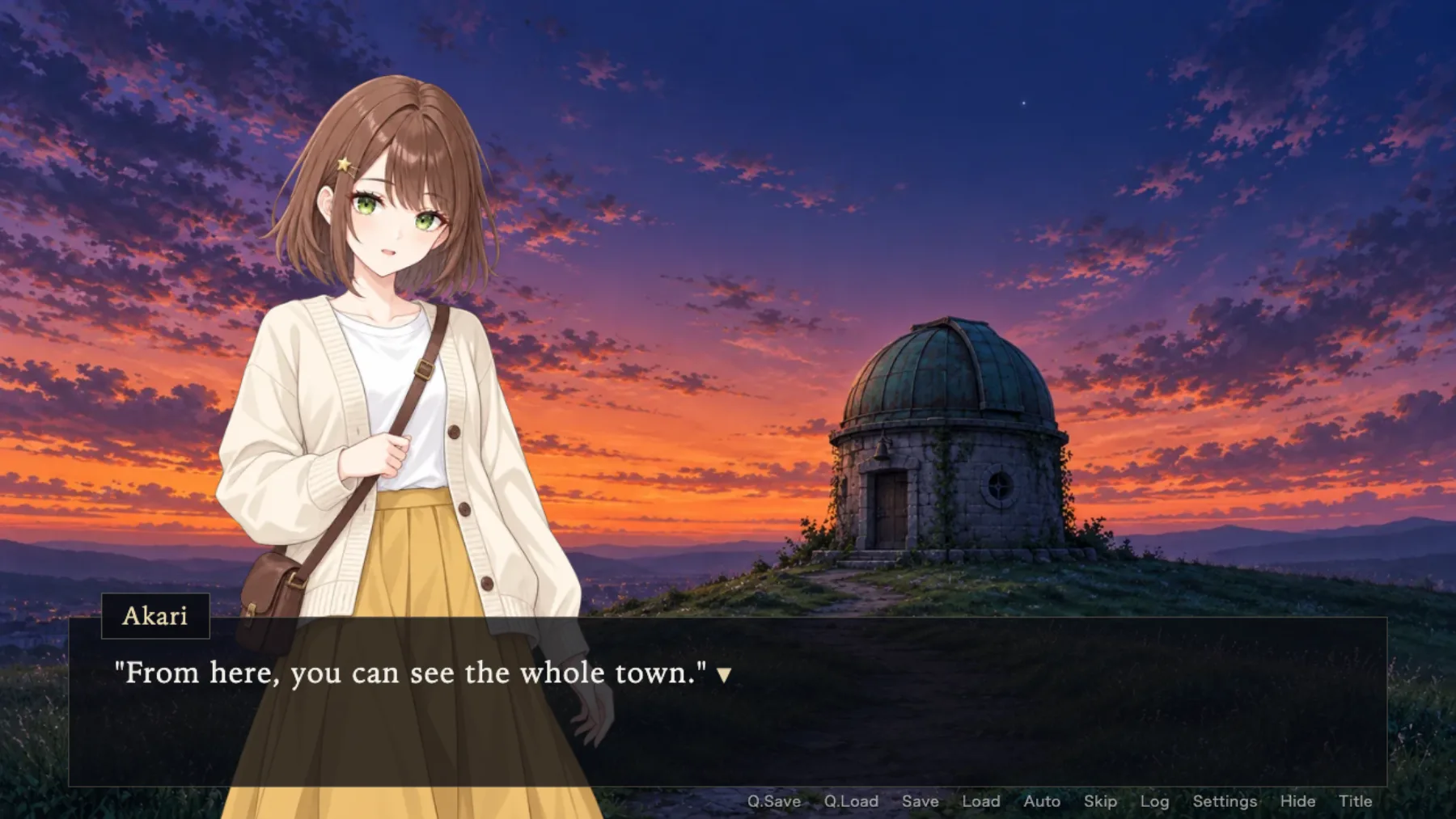
The size stays as set for the variant. If you enter only one of x and y, only that one overrides the position. When you enter both x and y, don’t set at (writing all three gives an error).
To change the position or size after the sprite is shown, see Move and shake sprites.
In code
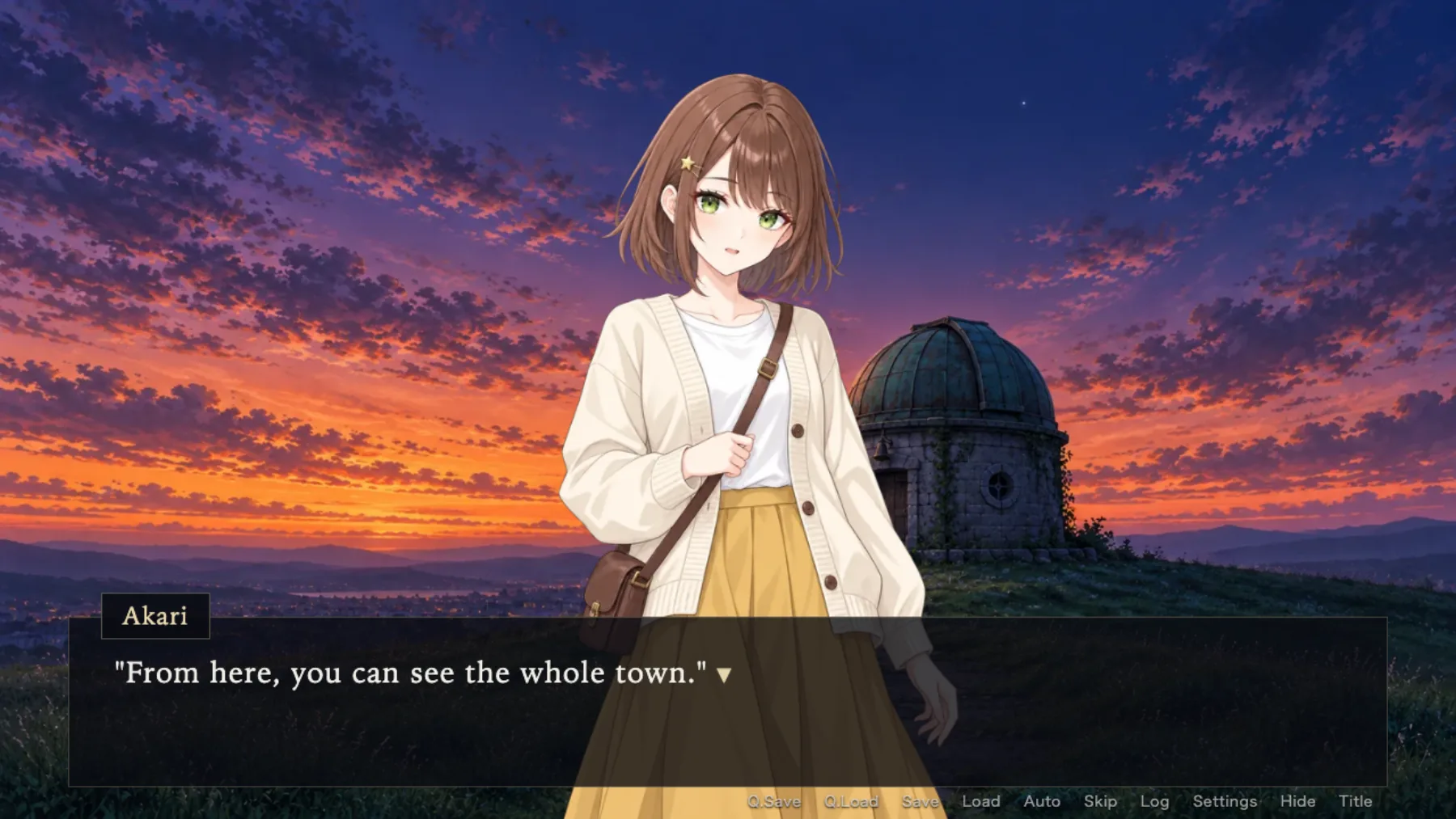
@chara Akari normal at=center
Akari "From here, you can see the whole town."
@chara Akari normal x=80 y=60
The full list of parameters is in @chara.