

Add voices
On this page
There are two ways to add voices to dialogue: set a file for each line, or play numbered files for each speaker automatically. Put the voice files in “Voice” in the assets (assets/voice/). In this example, the folder holds akari/001.ogg, akari/002.ogg, akari/003.ogg and sou/welcome.ogg.
The examples on this page use the English sample story, “Waiting for Stars” (choose “A sample story” and English in New Project, or run lim new --lang en; the characters are Akari and Sou).
Add a voice to one line
- Select the line just before the dialogue that gets the voice.
- Type “voice” in the search box at the top of the parts panel, and double-click “Voice” in the results.
- Choose the voice file in
filein the panel on the right.
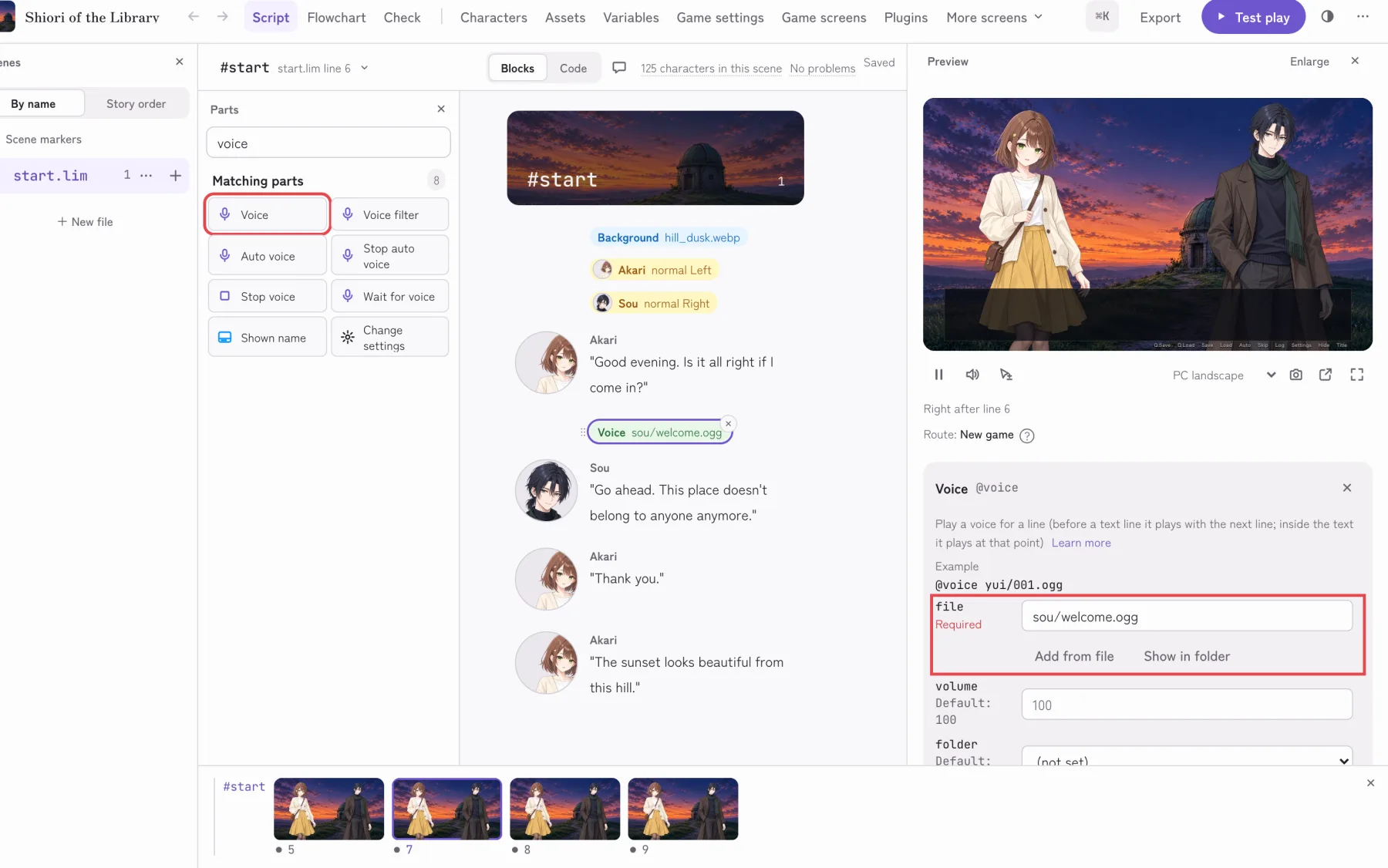
The voice plays once, with the dialogue right after it.
Play numbered voices for each speaker automatically
When there’s a lot of dialogue, you can prepare numbered files for each speaker and play them in order, one for each line.
- Select the line just before where automatic playback should start (here, before the first line of dialogue).
- Type “voice” in the search box at the top of the parts panel, and double-click “Auto voice” in the results.
- In the panel on the right, write the speaker’s name in
whoand the file name pattern inpattern.
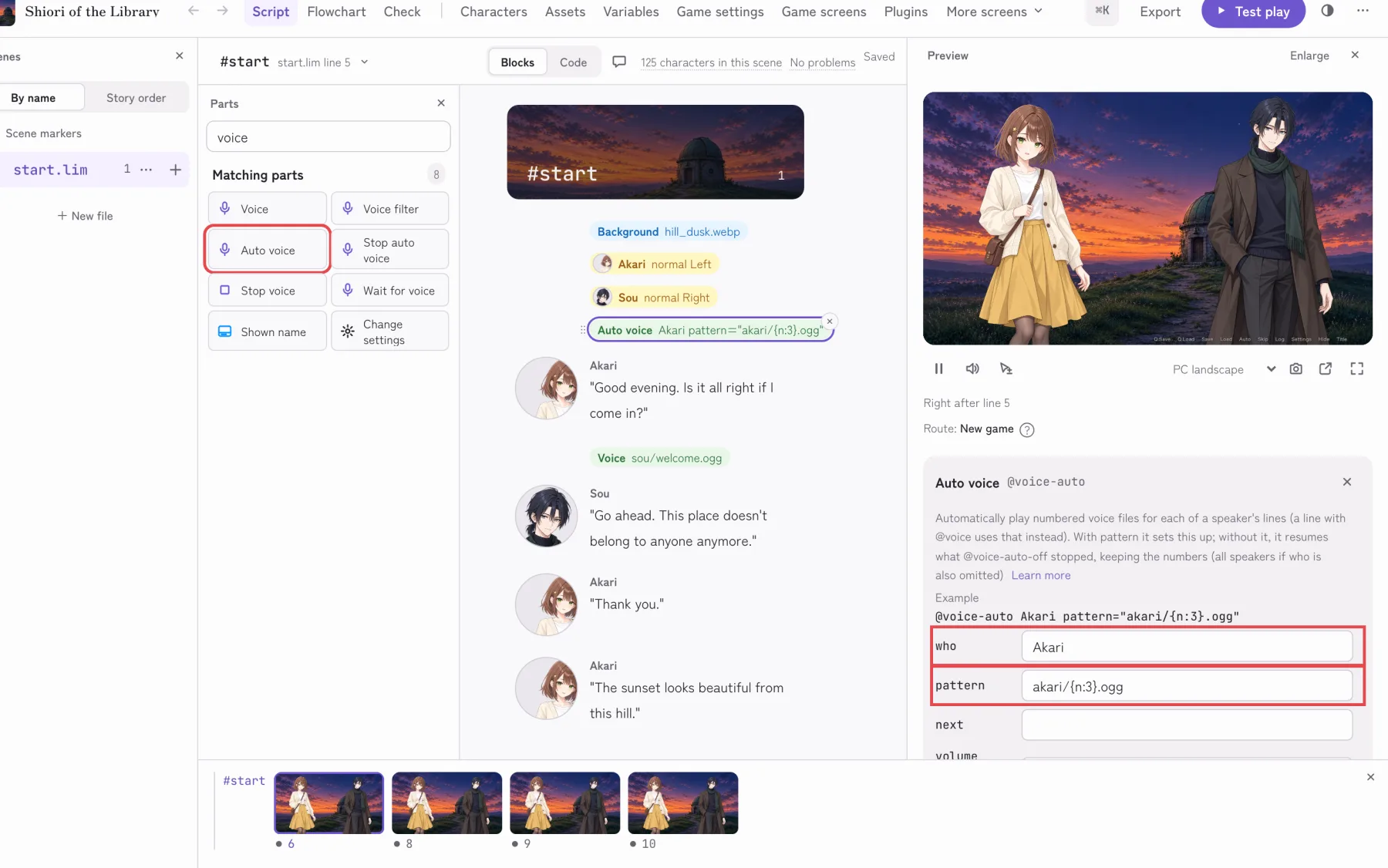
{n} in pattern becomes the number. {n:3} pads it to 3 digits, as in 001 and 002. With akari/{n:3}.ogg, Akari’s lines play akari/001.ogg, akari/002.ogg and akari/003.ogg in order. Other speakers’ lines don’t advance the number.
A line with its own file set by “Voice” plays that file instead, and doesn’t advance the automatic number.
When you select a line of dialogue, the list below the preview on the right shows the number that plays for it, as in “Auto voice” with “Akari (next: 3).”
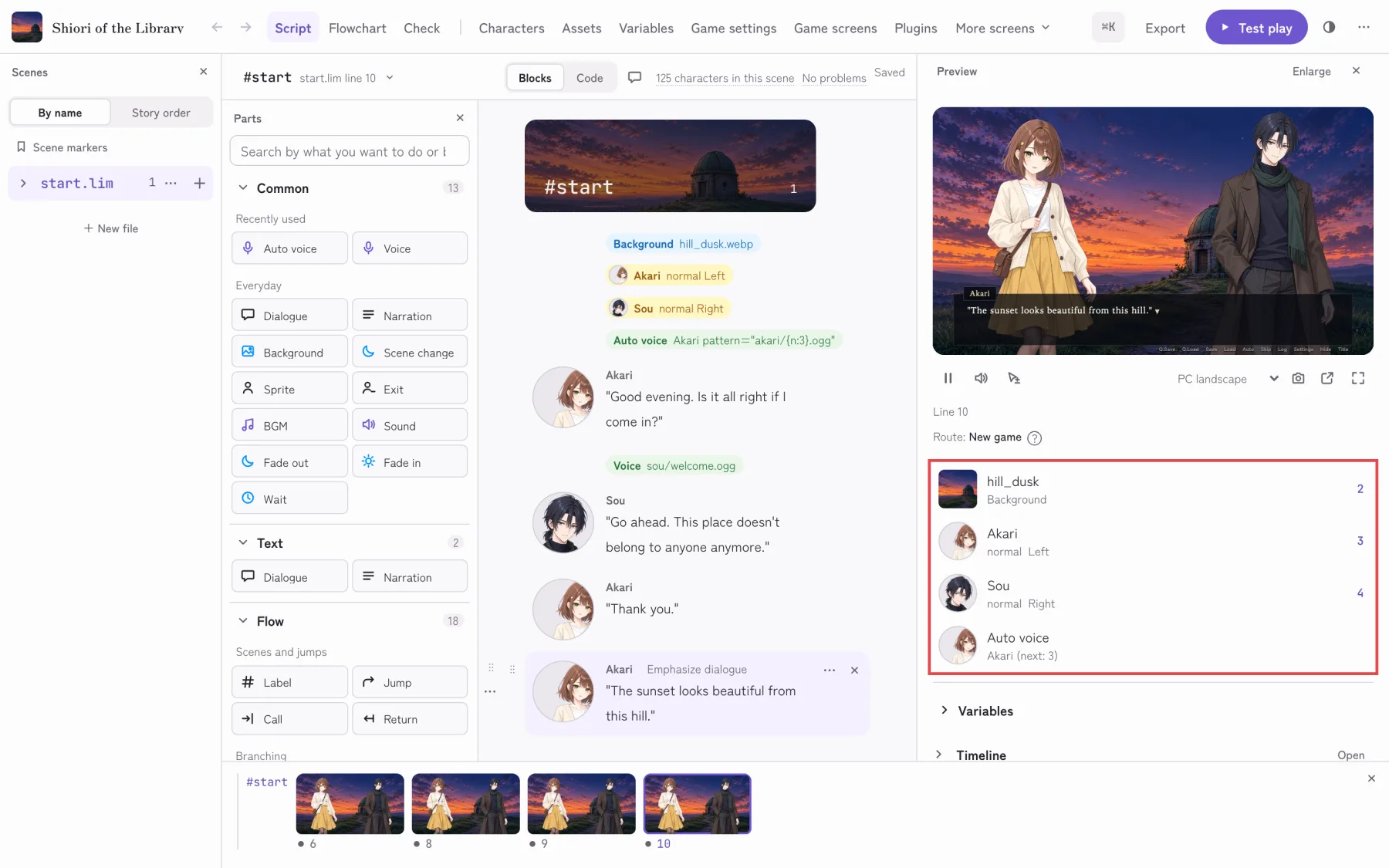
To stop automatic playback partway through, use “Stop auto voice.” If you place “Auto voice” again without pattern, it continues from the number where it stopped.
Adding a line of dialogue shifts all the numbers after it. Once recording is done, lock the numbers to each line, and adding dialogue later won’t shift them.
Assign voices on the voice screen
Choose “Voices” from “More screens” at the top of the screen to see the voice of each line of dialogue. You can filter by speaker or file, and view them by “Not set,” “File missing” or “Set.”
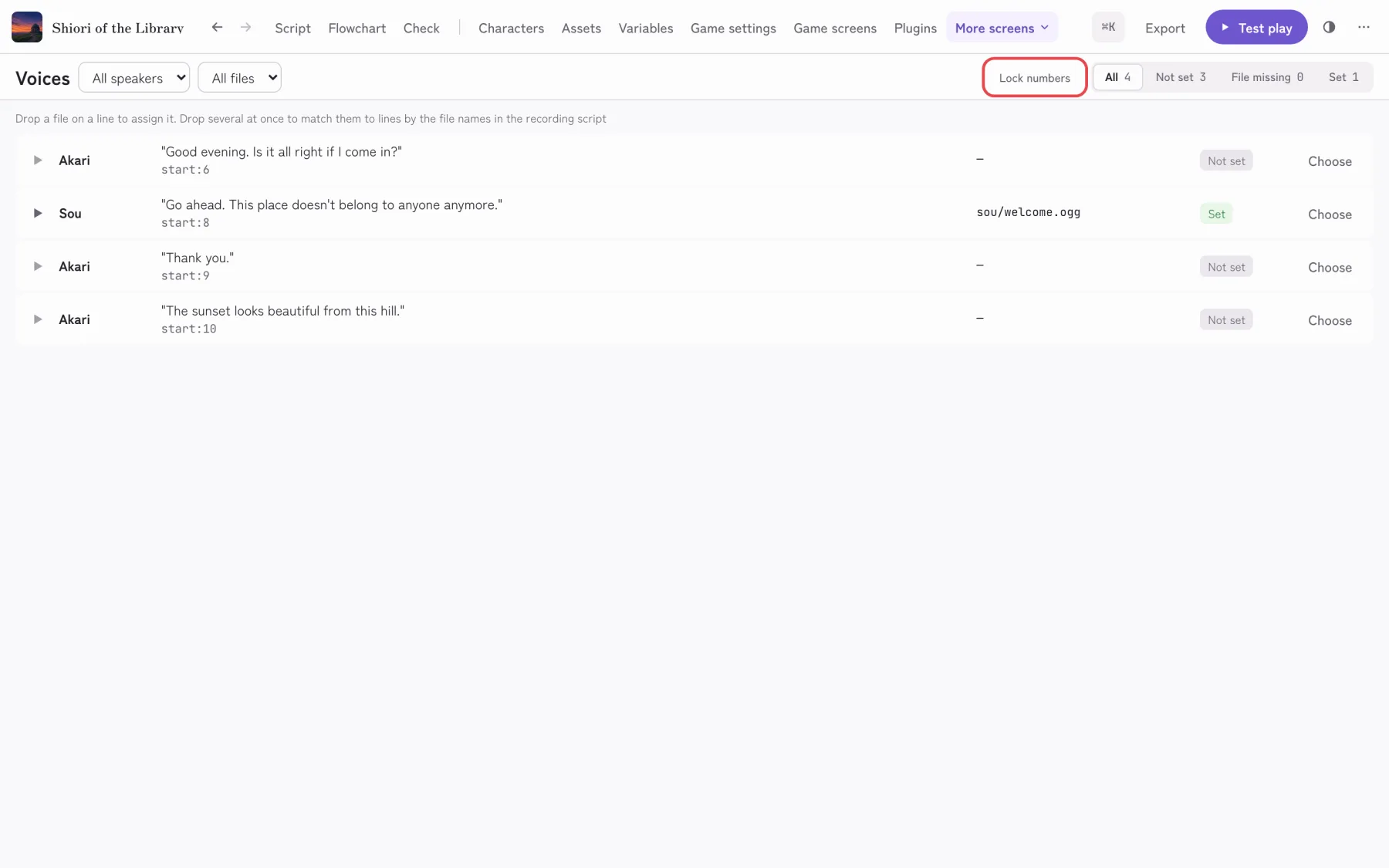
- Click “Choose” on a line to choose a file from the voice assets. While you’re filtering by “Not set,” choosing a file moves you to the next line that isn’t set, so you can fill them in one after another.
- Drop a single file on a line to add it to the assets and assign it to that line.
- Drop a batch of recorded files at once to match them against the file names in the recording script and assign them line by line. For files that can’t be matched by name, choose the line in a confirmation screen.
- Click “Lock numbers” to lock the numbers of numbered voices to each line (
voice-lock.json). Even if you add dialogue later, the numbers of locked lines don’t change.
How voices play in the game
- When the player goes to the next page, the voice that’s playing stops.
- In auto mode, the story goes on after the voice finishes. While skipping, voices don’t play.
- While a voice is playing, the BGM volume is lowered. You can change this with “Lower BGM during voice” under “Config defaults” in the game settings.
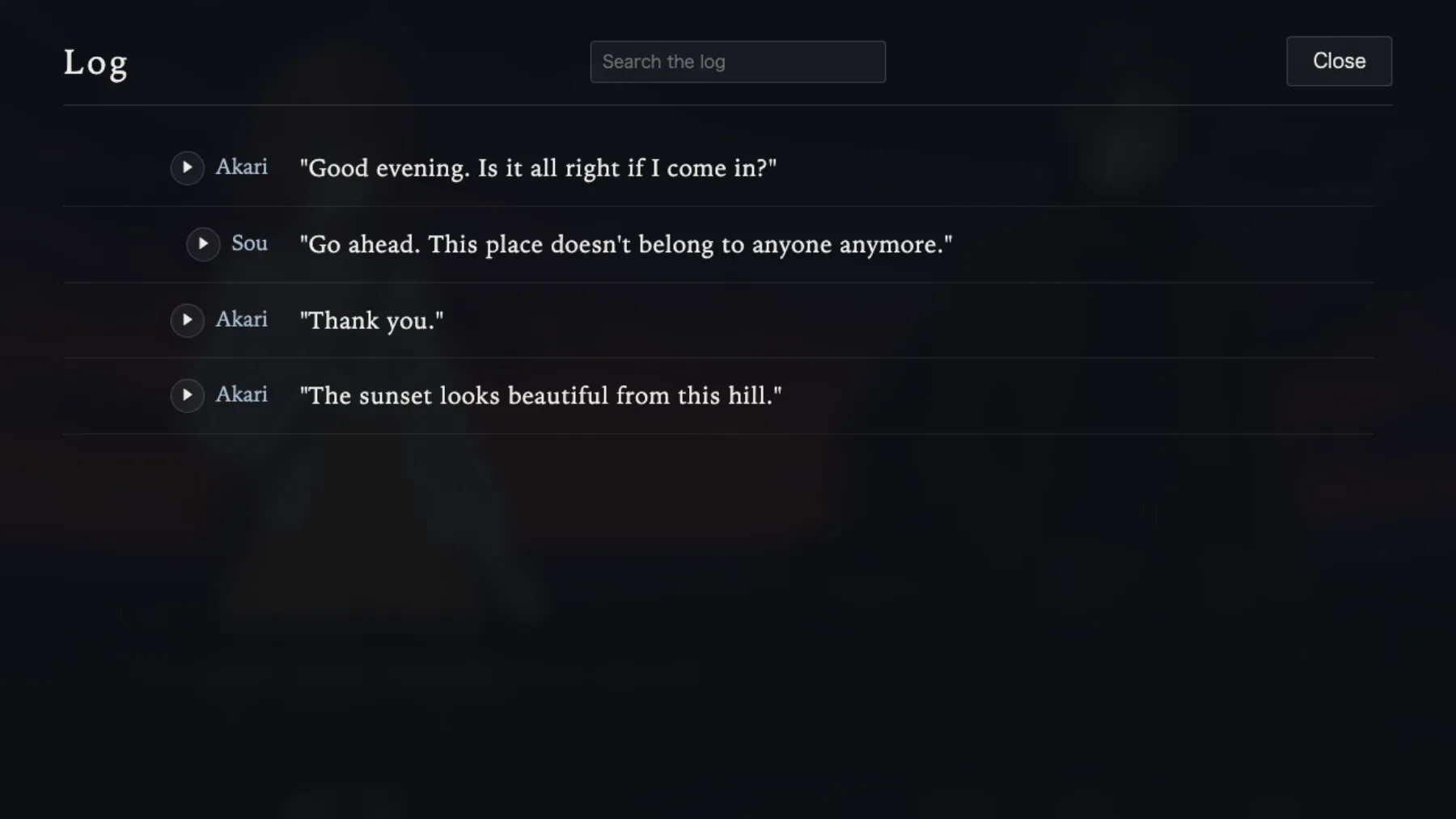
- In the backlog, lines with a voice get a play button that plays the voice again.
- Players can replay the voice on the current page with the V key or “Replay voice” in the menu. You can also put a “Replay voice” button on the quick menu.
- Writing two
@voicelines for different speakers (who=Mika) before the same line plays both voices together. Both mouths move, and the name box shows both names. - For a voice over the phone or a radio, place
@voice-filter phone who=Mika(noneremoves it). BGM and sound effects takefilter=muffledand the like too.
In the “Sound” tab of Config, players can change the voice volume for each speaker, or keep voices playing when they go to the next page.
In code
@voice-auto Akari pattern="akari/{n:3}.ogg"
Akari "Good evening. Is it all right if I come in?"
@voice sou/welcome.ogg
Sou "Go ahead. This place doesn't belong to anyone anymore."
Akari "Thank you."
Akari "The sunset looks beautiful from this hill."