

Stop and switch BGM
On this page
Once BGM starts, it keeps playing until you play another track or stop it. You can switch tracks where the scene changes, lower the volume before a quiet scene, or fade it out gradually and stop it.
The examples on this page use the project you make in the tutorial, “Shiori of the Library.”
Cross-fade to another track
If you play a different BGM while one is already playing, the track switches. With crossfade, the old track gets quieter while the new one gets louder, so the music switches without a break.
- Select the line just before where the track should switch, and double-click “BGM” in the parts panel.
- Choose the new track in
filein the panel on the right. - Enter the cross-fade time in milliseconds in
crossfade(here, 2000).
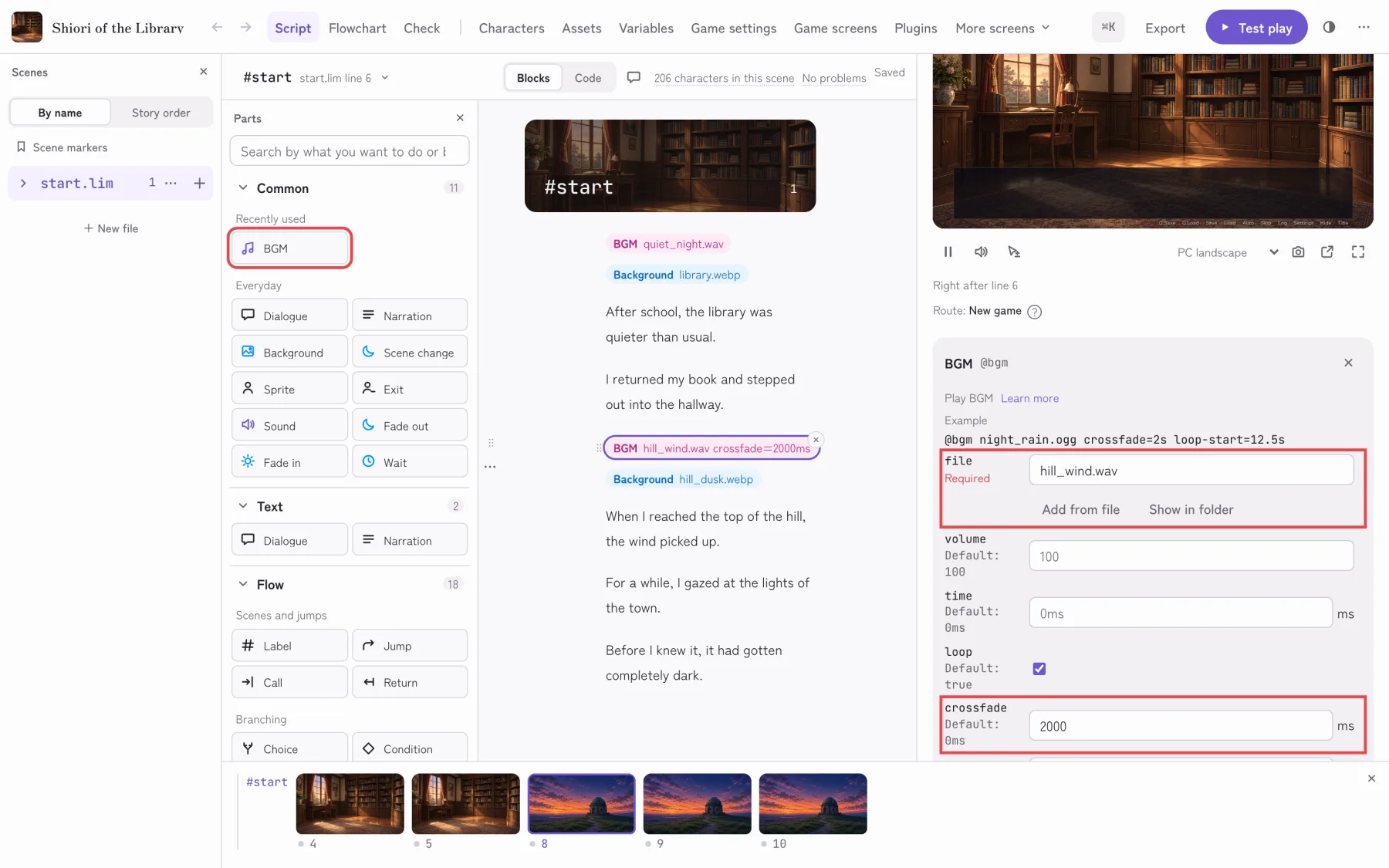
Without crossfade, the old track stops at once and the new one starts. To start the new track quietly and bring it up gradually, enter a fade-in time in time.
Set the loop points
By default, BGM goes back to the beginning and repeats when it reaches the end (loop). To repeat from after the intro, enter where the loop starts in loop-start and where it ends in loop-end. Both are times (in milliseconds) from the beginning of the track.
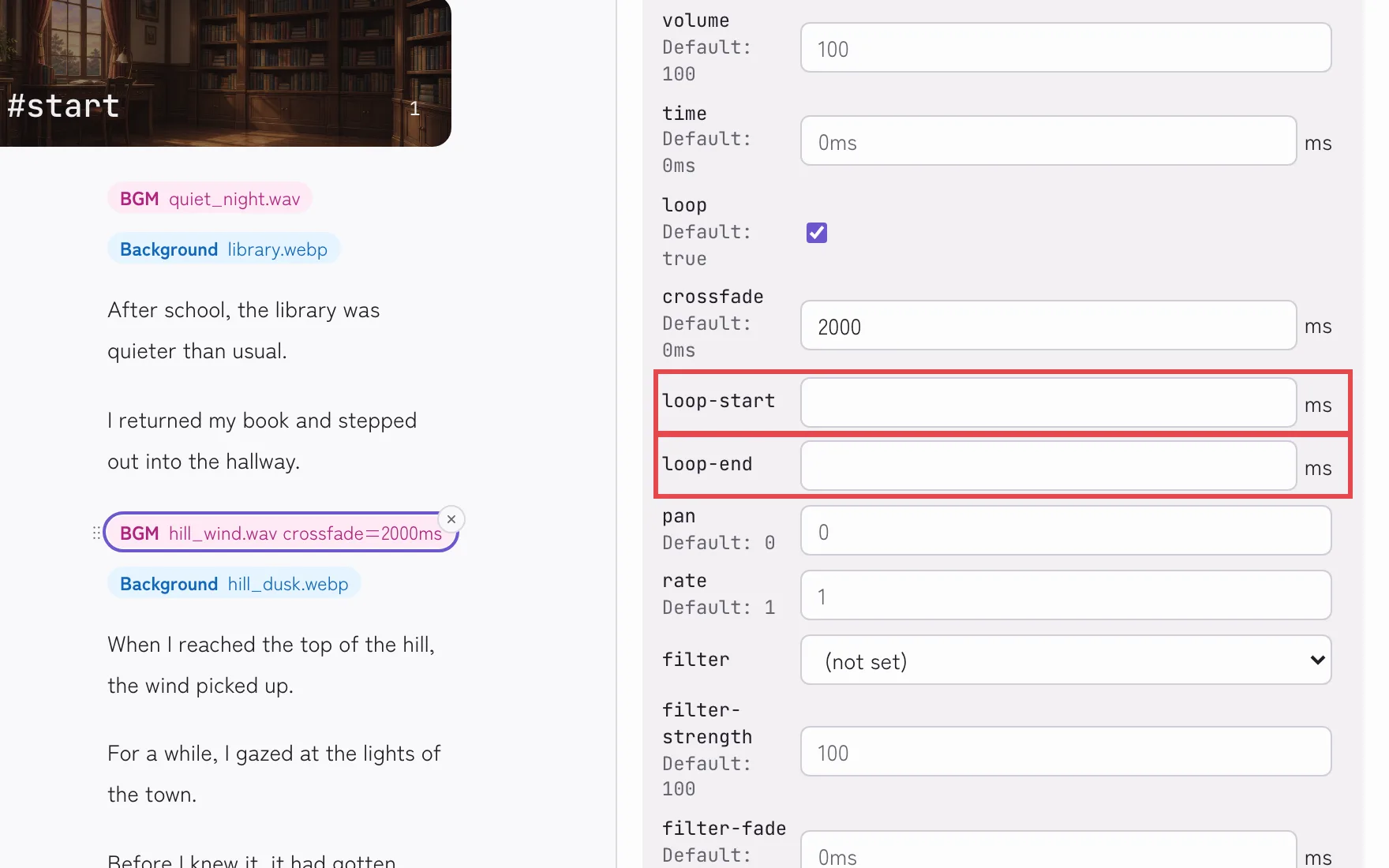
If loop points (LOOPSTART and LOOPLENGTH) are written into the track’s file, it loops at those points even if you don’t enter them.
BGM volume
- Select the line just before where the volume should change.
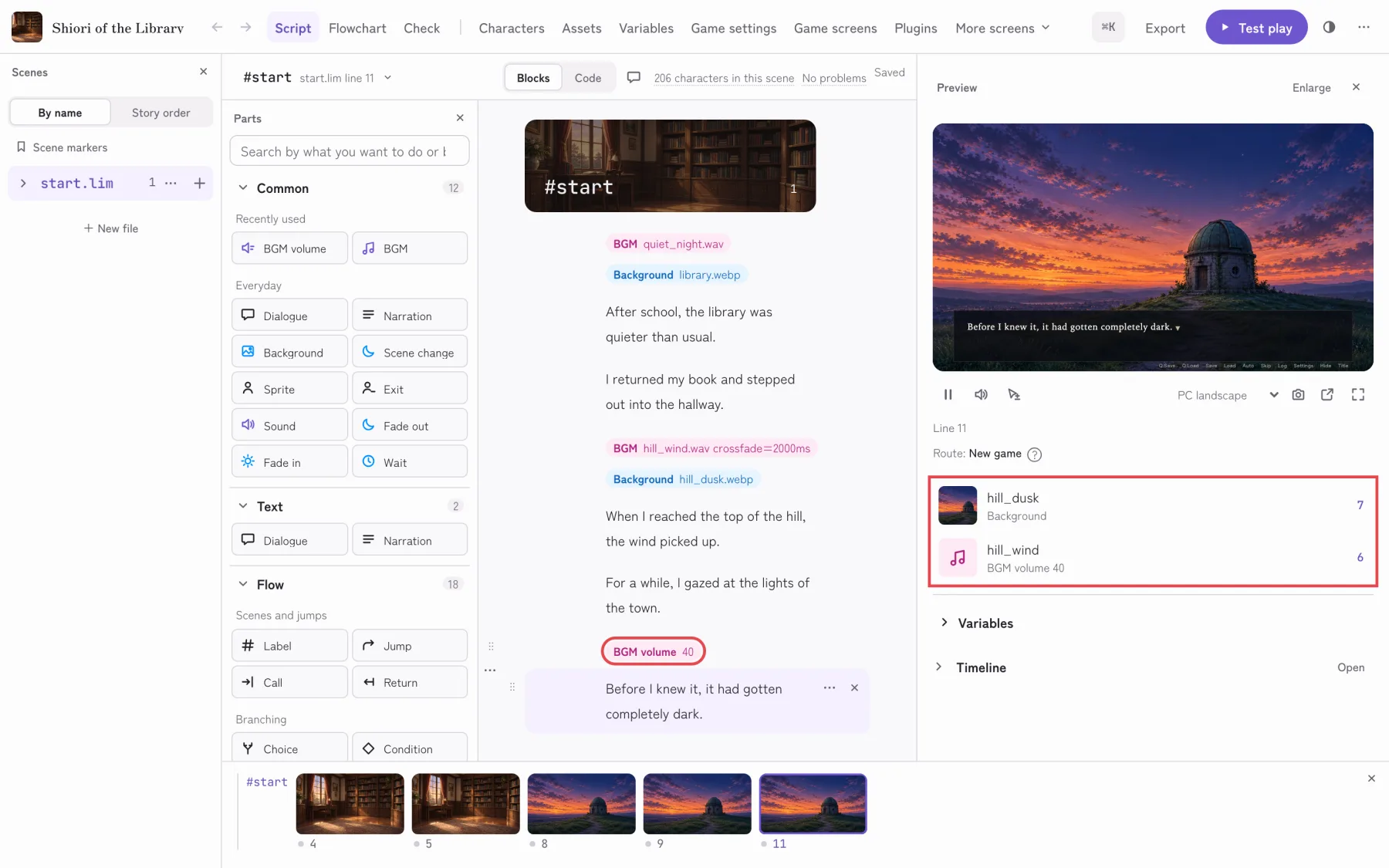
- Type “volume” in the search box at the top of the parts panel, and double-click “BGM volume” in the results.
- In the panel on the right, enter the volume (0 to 100) in
volume, and the time the change takes, in milliseconds, intime.
The lower part of the panel on the right shows the BGM playing as of the selected line, with its volume. In this example, the volume of hill_wind is 40.
Stop the BGM
- Select the line just before where the BGM should stop.
- Type “stop” in the search box at the top of the parts panel, and double-click “Stop BGM” in the results.
- To fade it out gradually, enter a fade-out time in milliseconds in
timein the panel on the right.
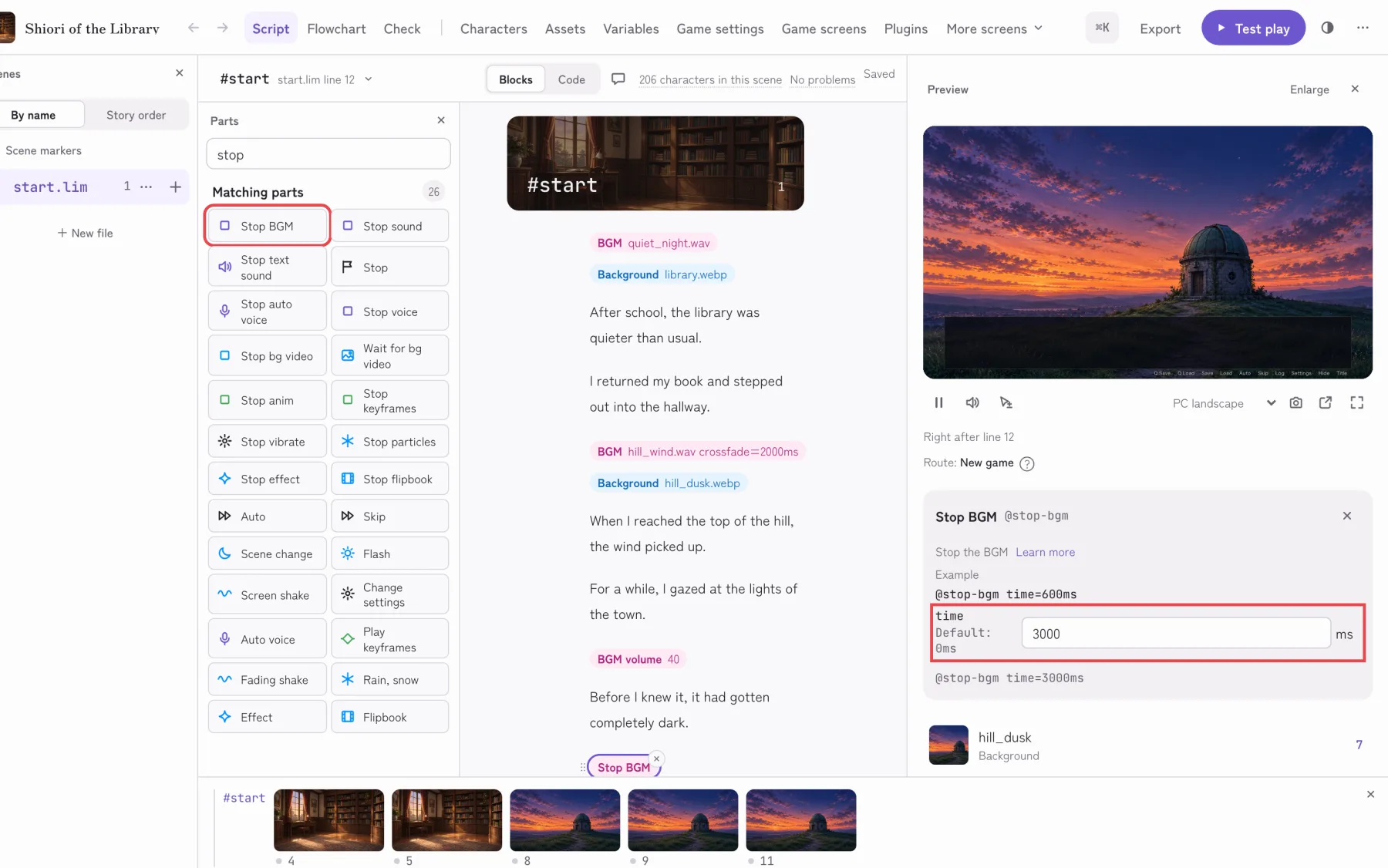
When you select a line after it stops, the BGM no longer appears in the panel on the right.
To continue later from the same point, use “Pause BGM” and “Resume BGM.”
In code
@bgm quiet_night.wav
@bg library.webp
After school, the library was quieter than usual.
I returned my book and stepped out into the hallway.
@bgm hill_wind.wav crossfade=2s
@bg hill_dusk.webp
When I reached the top of the hill, the wind picked up.
For a while, I gazed at the lights of the town.
@bgm-volume 40 time=1s
Before I knew it, it had gotten completely dark.
@stop-bgm time=3s