

Change the look of the whole game with a theme
On this page
Choosing a theme changes the look of the game all at once. It changes the text, the message window, the name box, the click-wait icon, the choices, the quick menu, the system screens such as the menu, Save, Load, Settings and Log, and the screen that shows the ending name. You choose the theme on the Game settings screen.
Choose and apply a theme
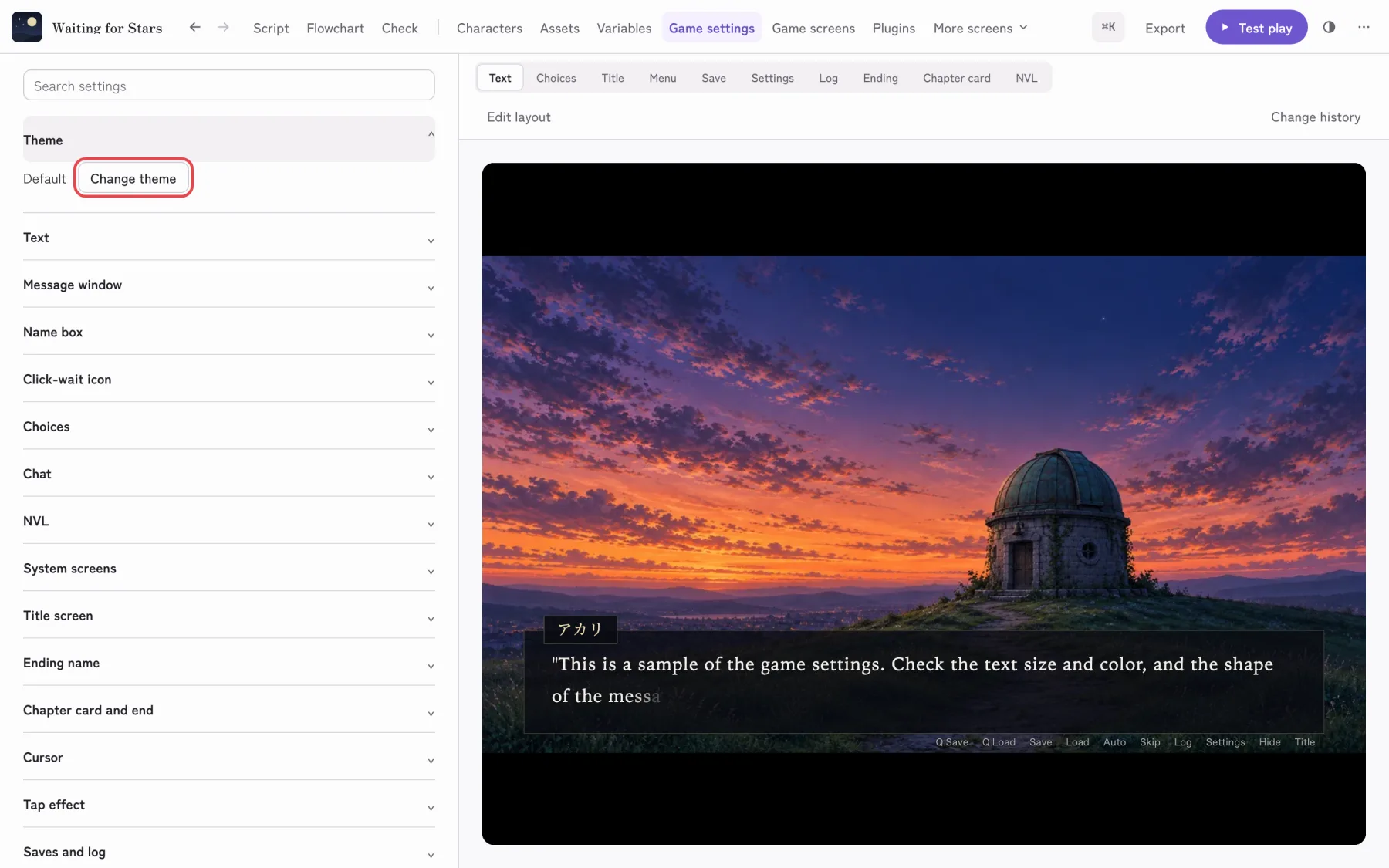
- Click “Game settings” at the top of the screen. “Theme” at the very top of the panel on the left shows the current theme’s name.
- Click “Change theme.”
- In the “Preset themes” list, click the theme you want to use, then click “Apply.”
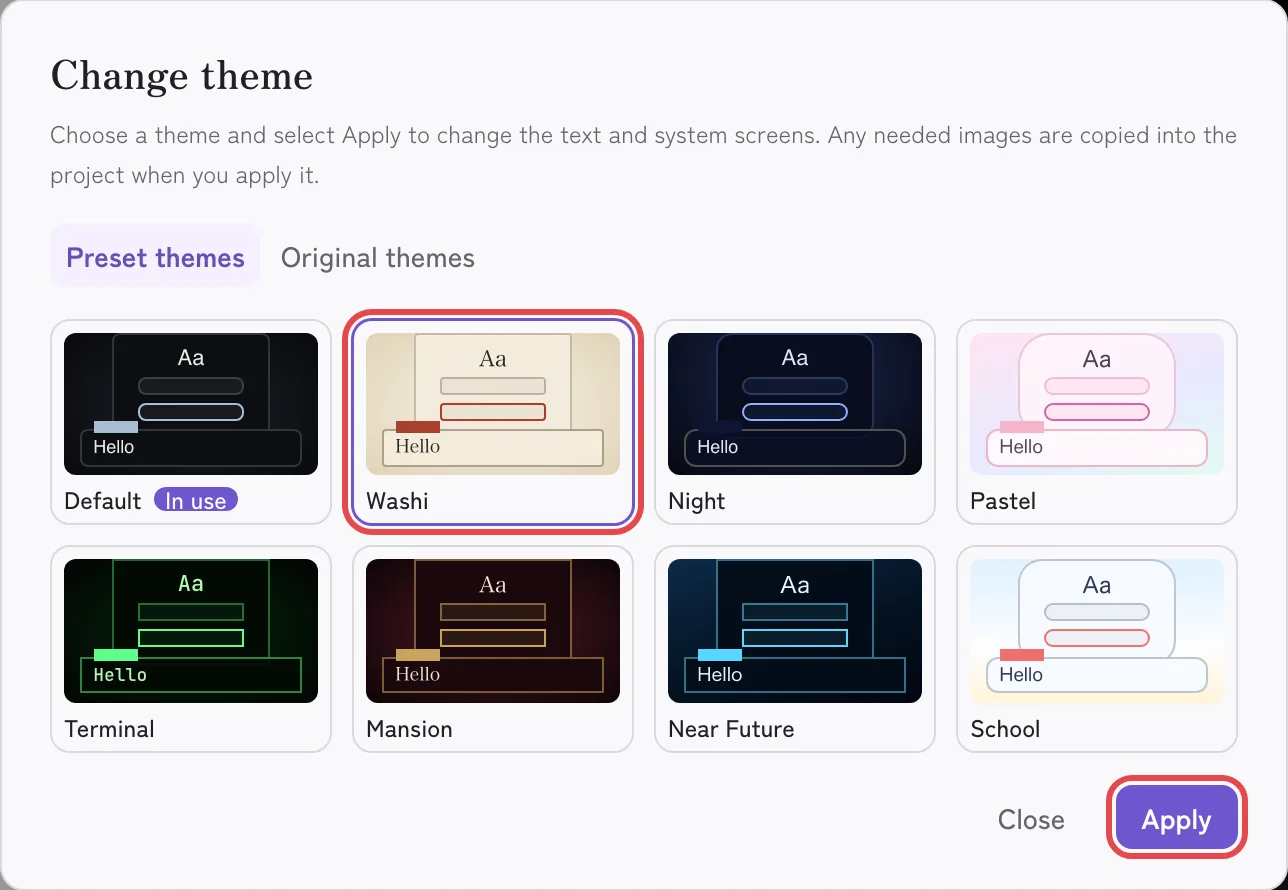
Neither the settings nor the assets change until you click “Apply.” When you apply a theme, its values go into the fields of the game settings. If the preview on the right was showing text or choices, it switches to the menu screen, where you can see the colors and shapes. Images the theme uses are copied into the project’s assets when you apply it.
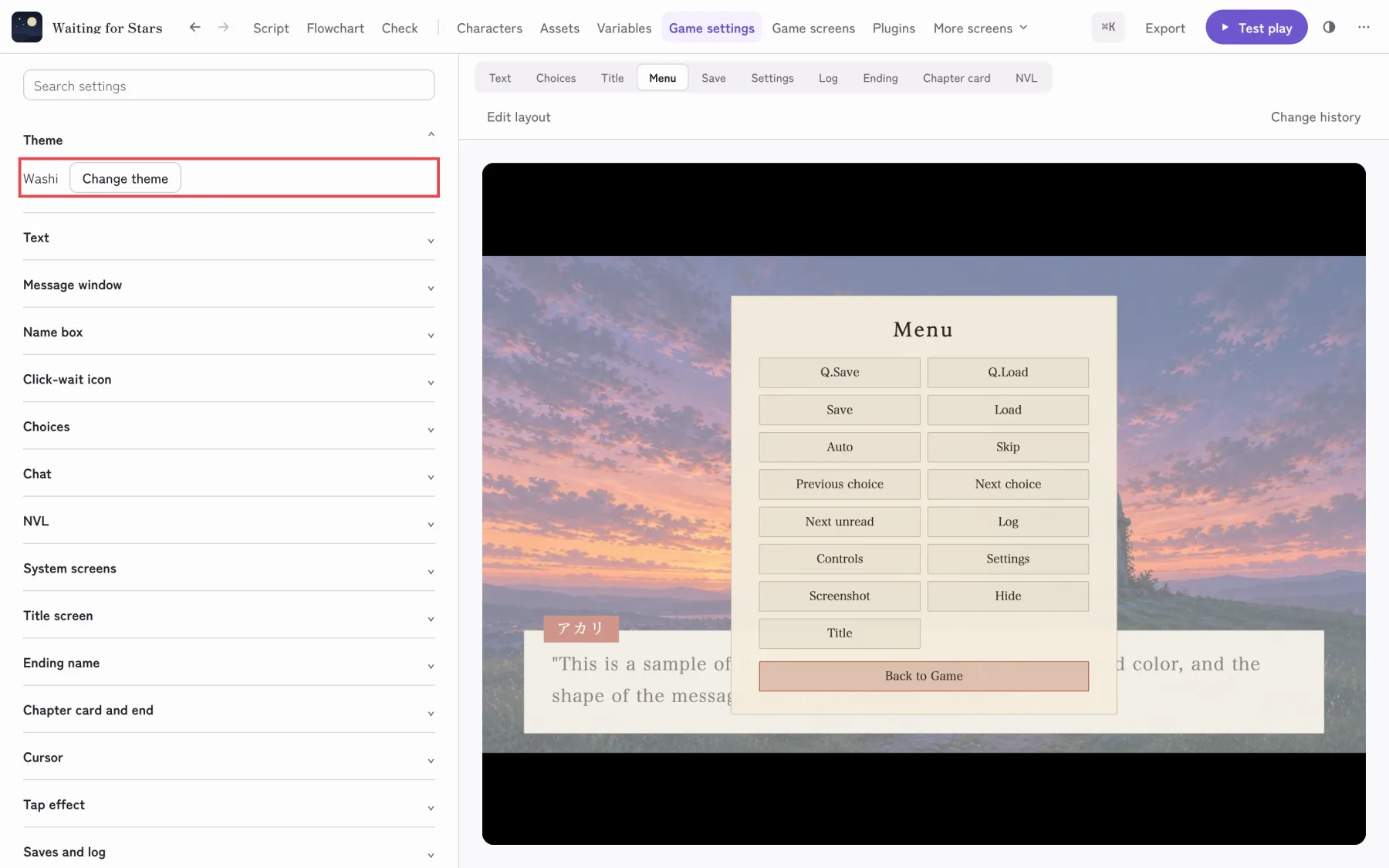
When you switch to another theme, the images the previous theme copied are moved to the trash if they haven’t been changed since and aren’t used anywhere else. You can restore them from the trash.
Adjust the fields one by one after applying
After applying a theme, you can adjust the fields of the game settings one at a time. How to change colors and shapes is described in Change the look of the message window and Set up the quick menu and system buttons.
If you choose another theme after adjusting fields, a screen appears asking whether to replace the current look with that theme’s values.
These settings stay when you change themes.
- Controls settings, such as key bindings, config defaults and the number of save slots
- How the text is set, such as the ruby size, characters per line, line breaking strictness and the shape of emphasis marks (ruby is the small reading aid printed above Japanese characters)
- Vertical text, and the setting that scrolls overflowing text inside the window
- The buttons placed in the quick menu, and its position
- The title screen’s background, BGM and title logo
- Fonts and images the theme doesn’t set that you chose in the project
Theme samples
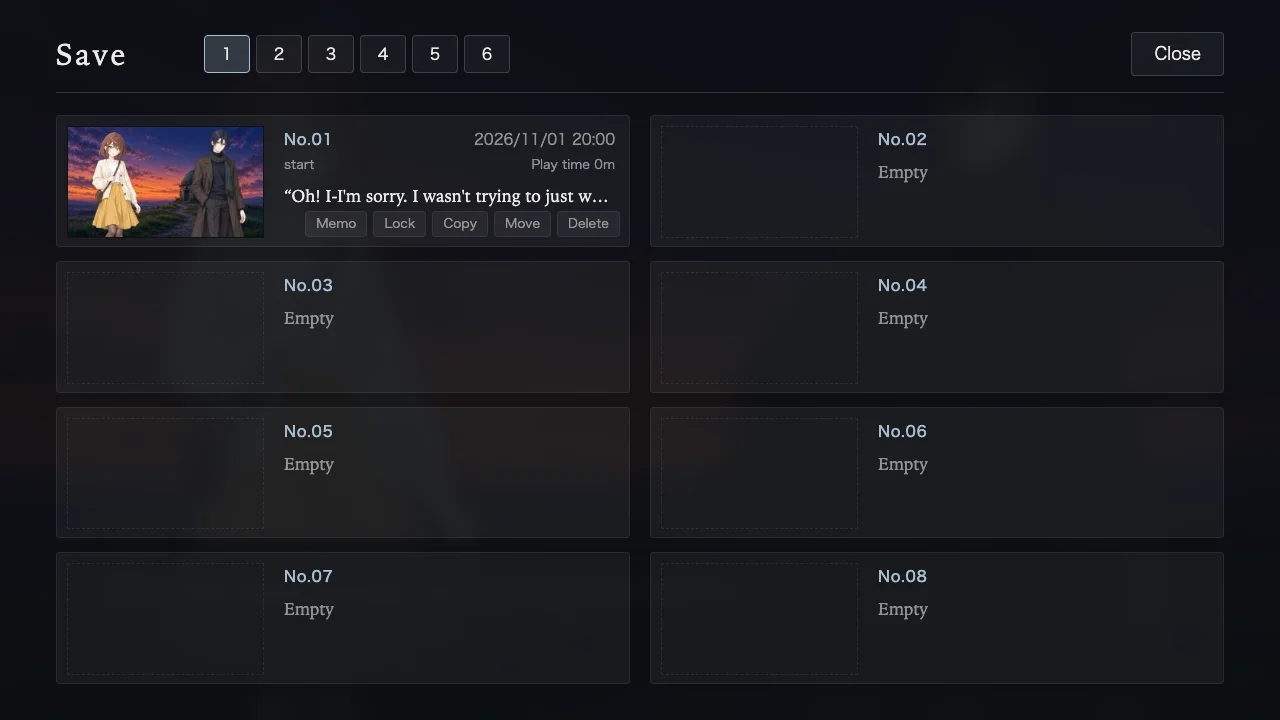
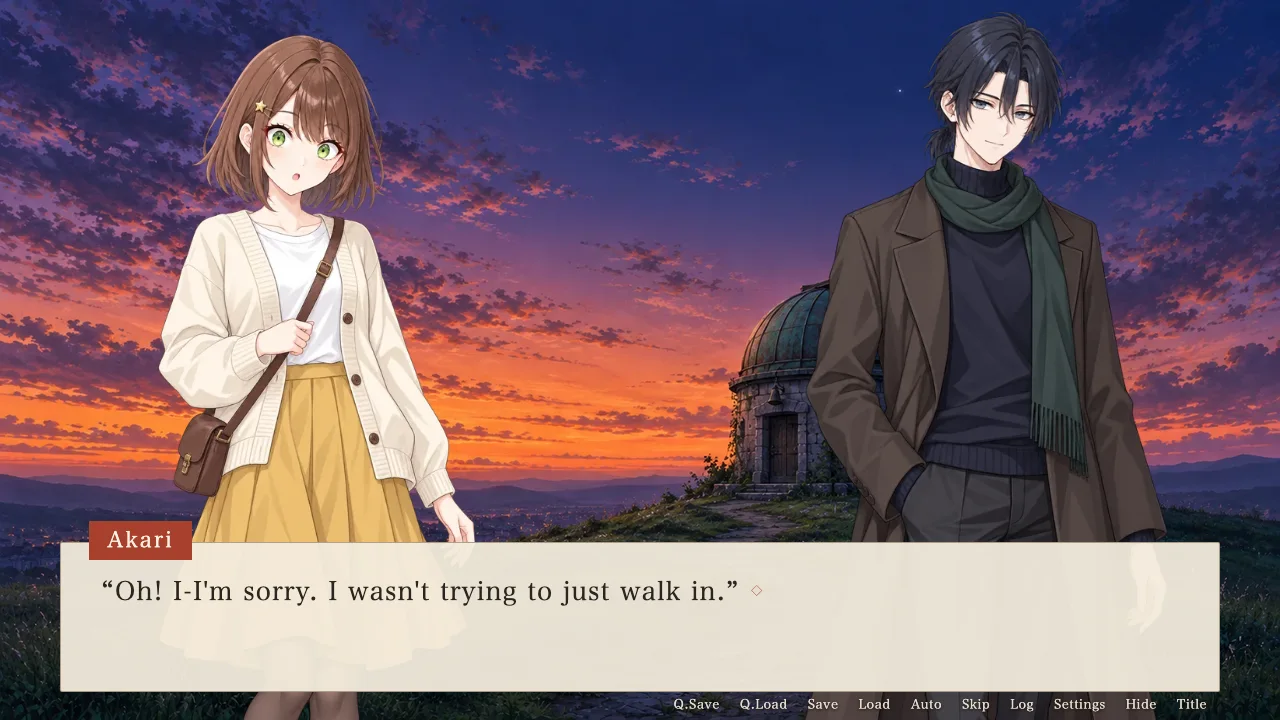
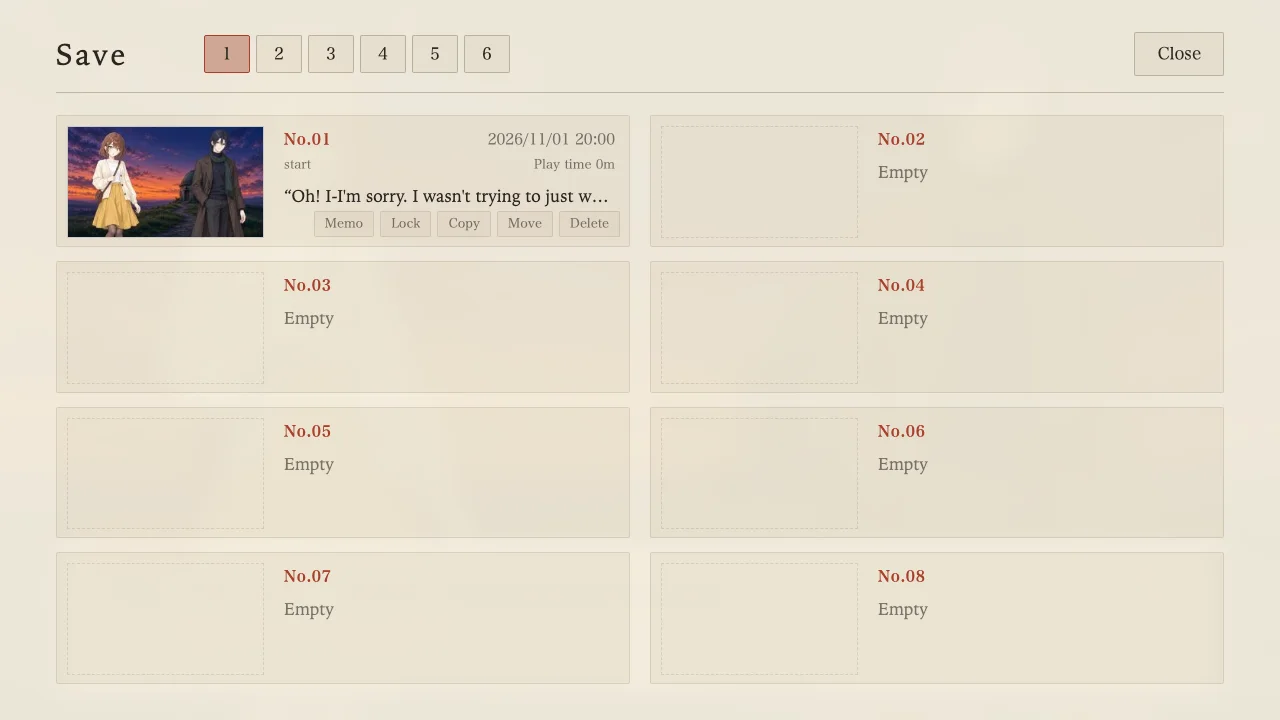
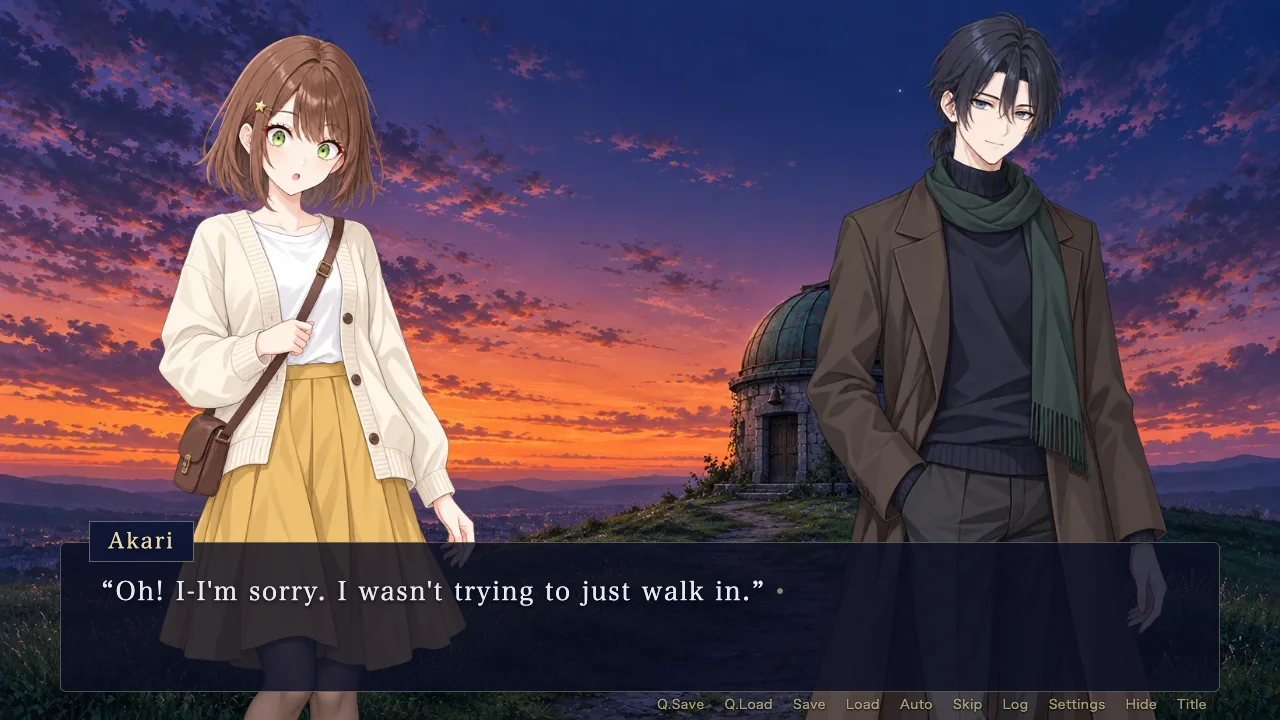
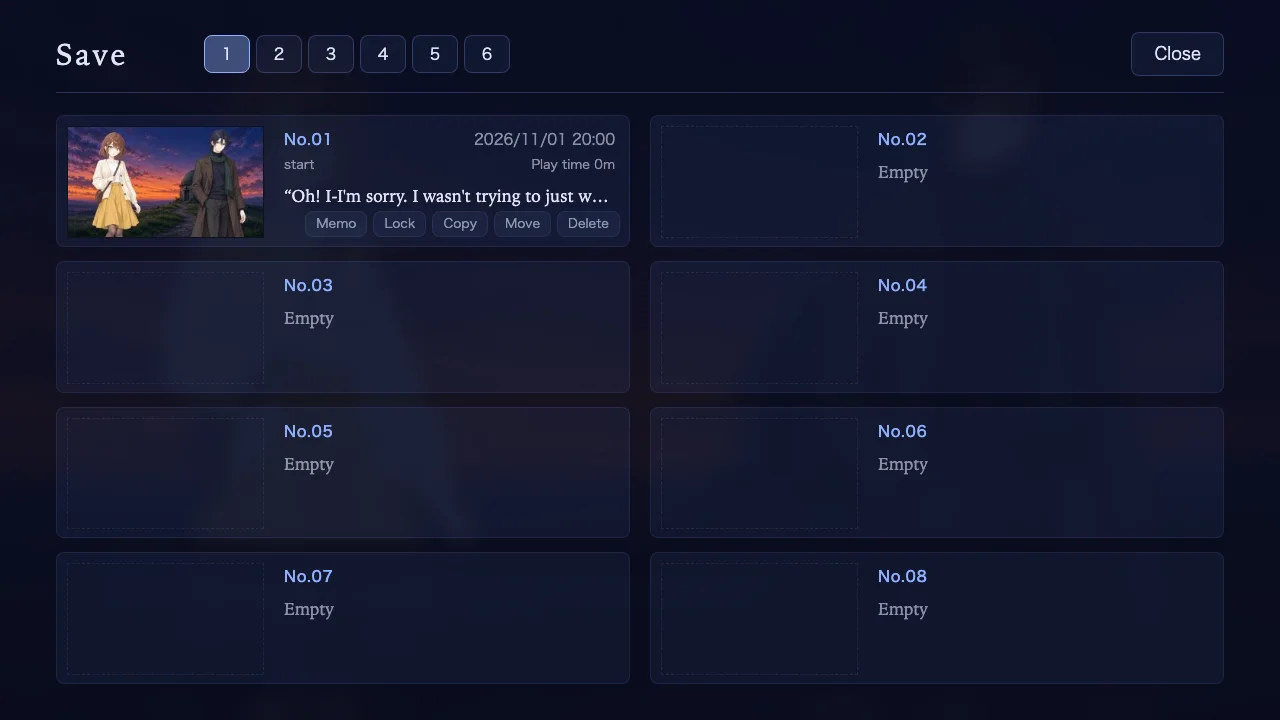
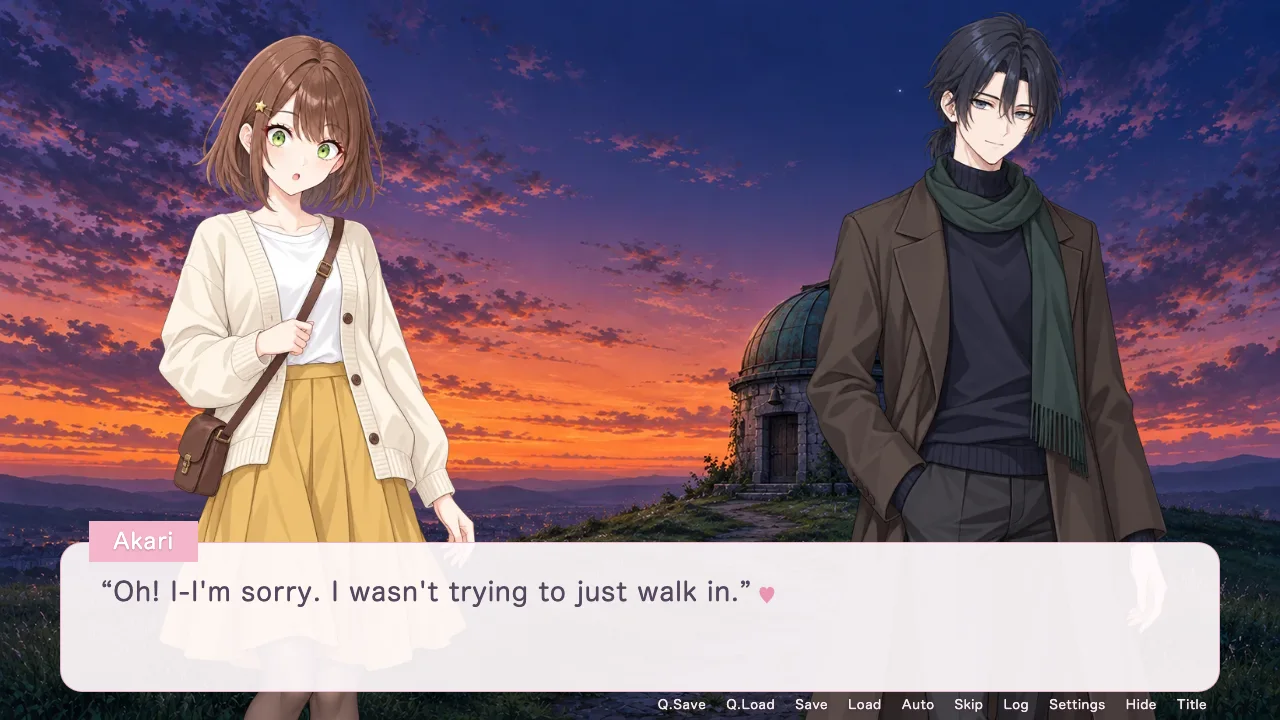
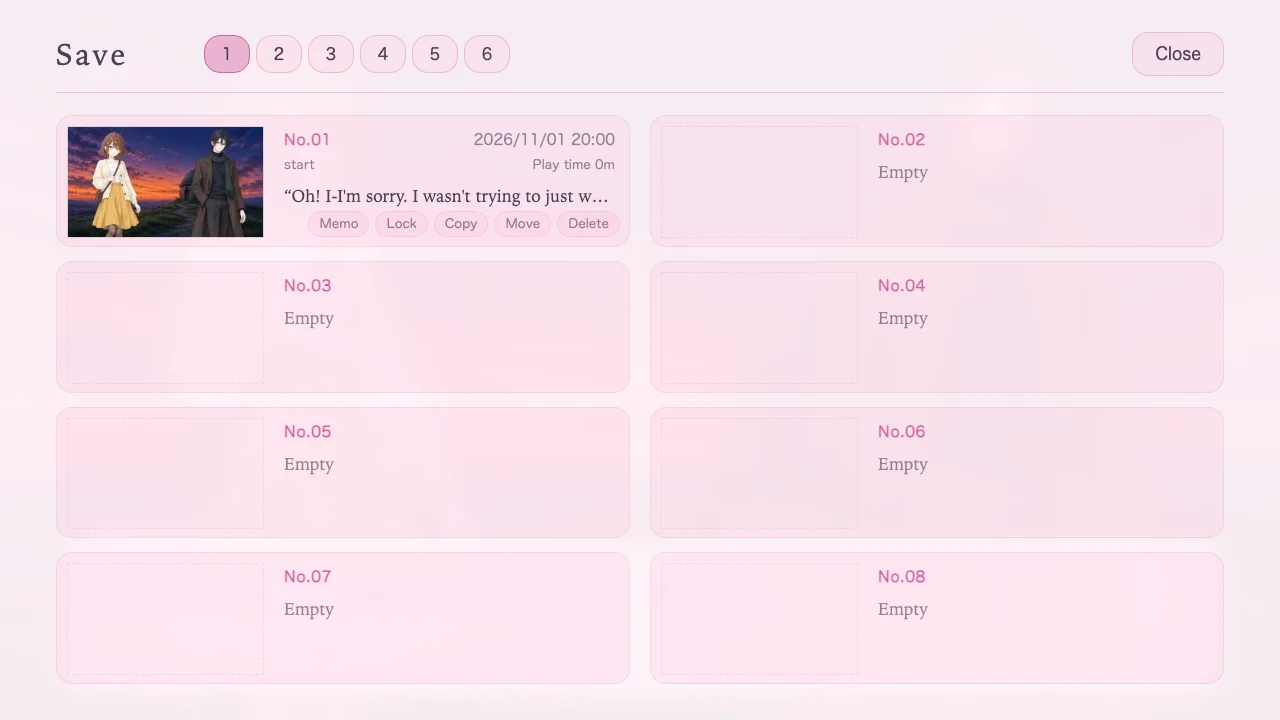
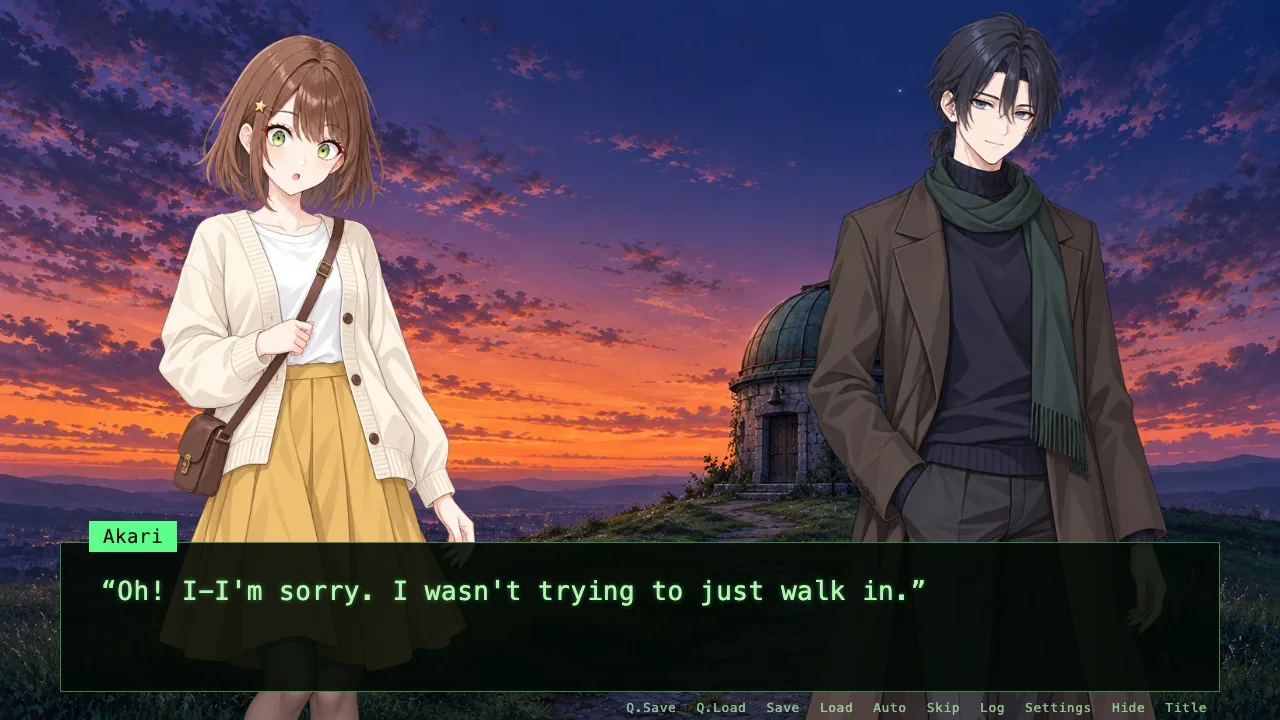
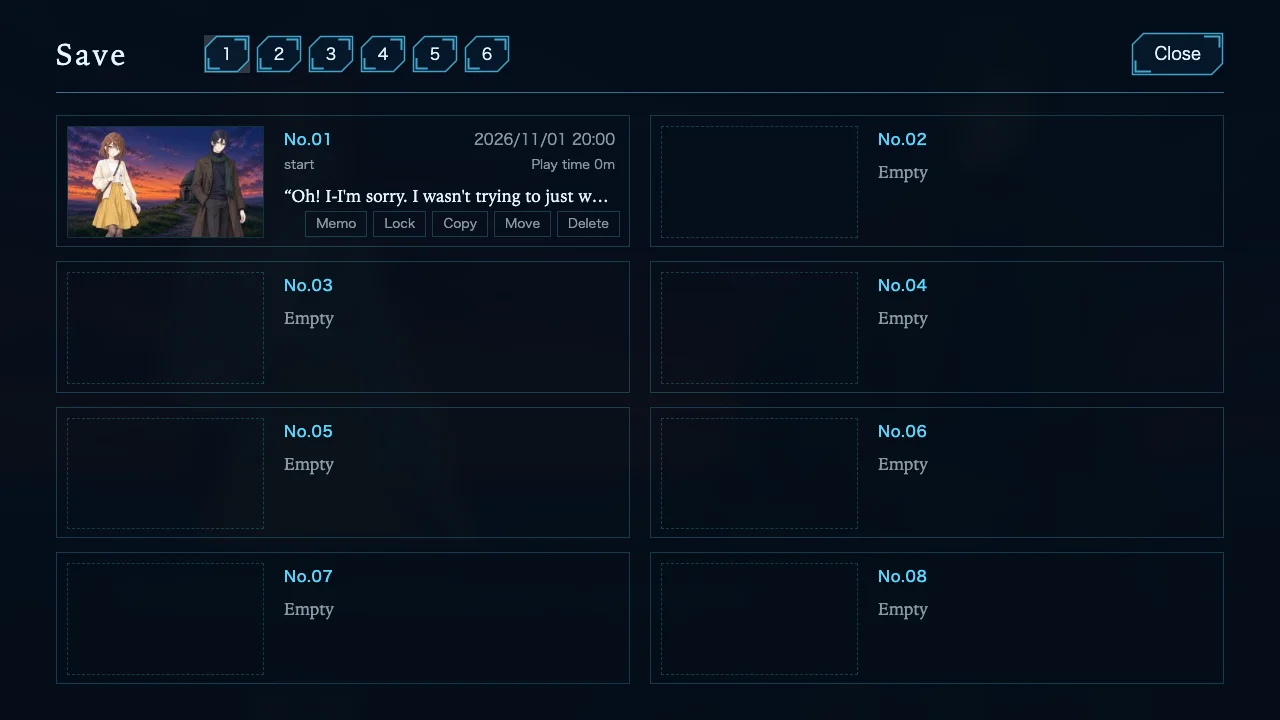
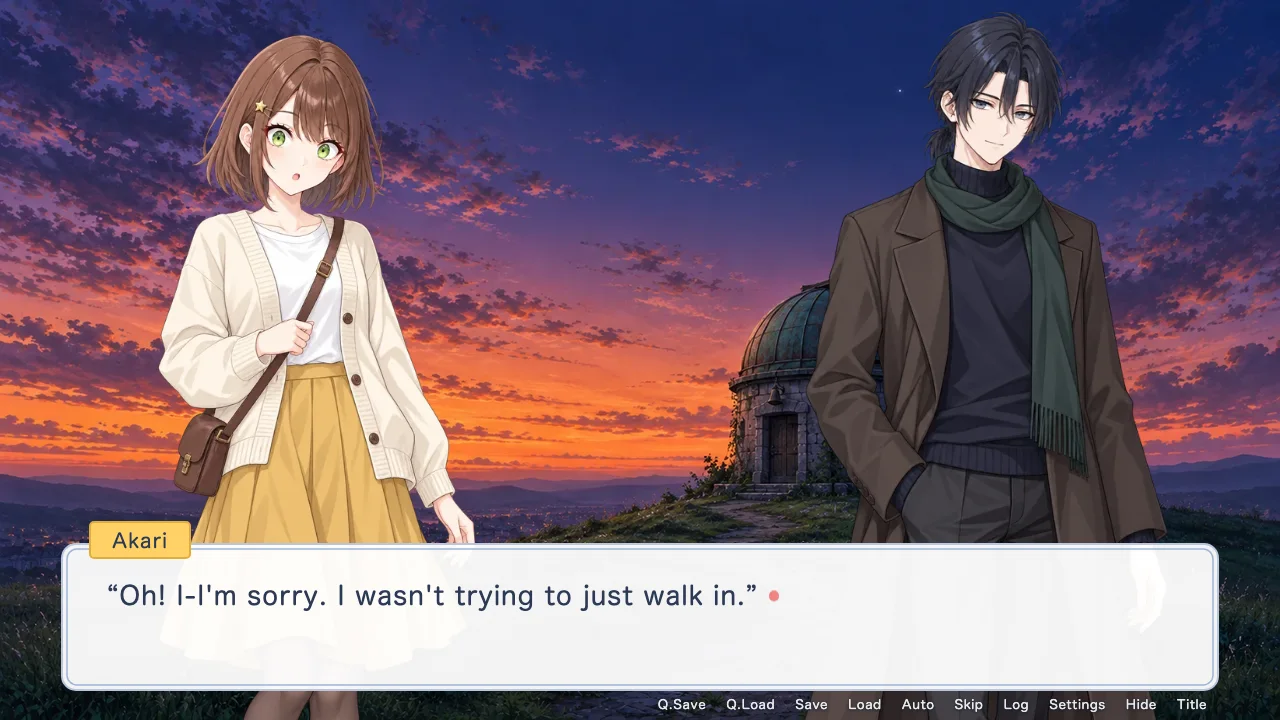
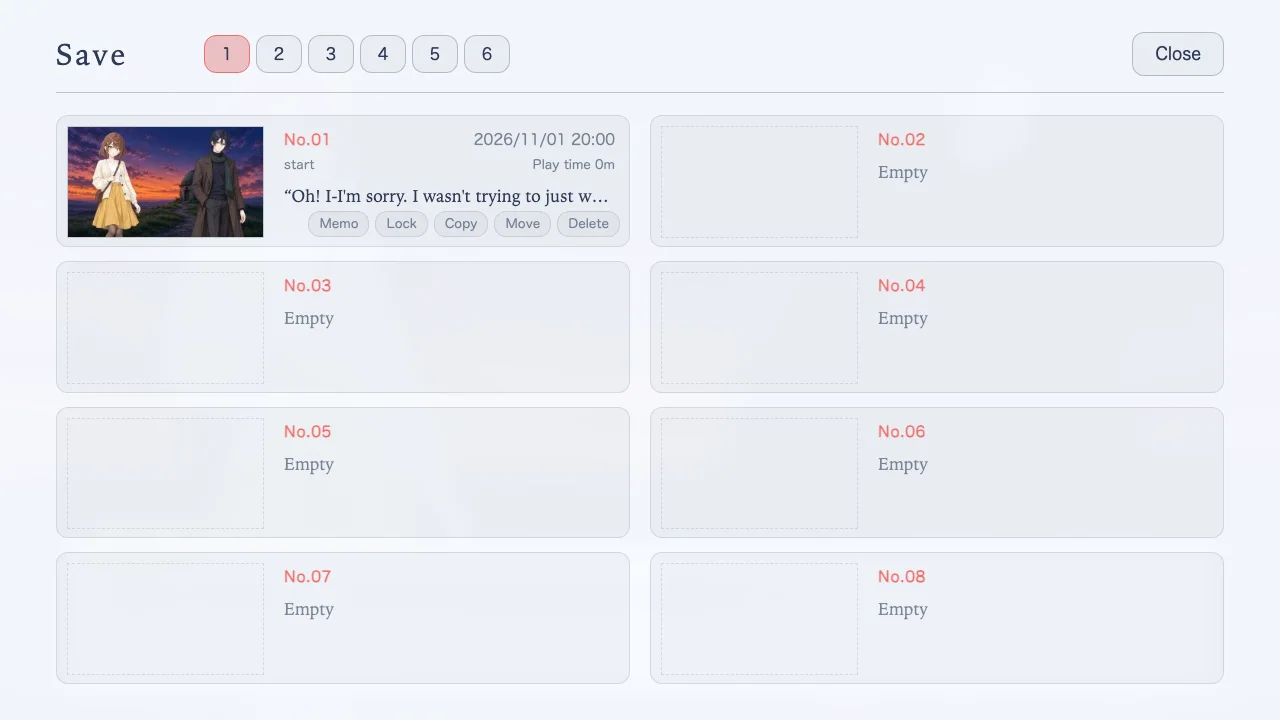
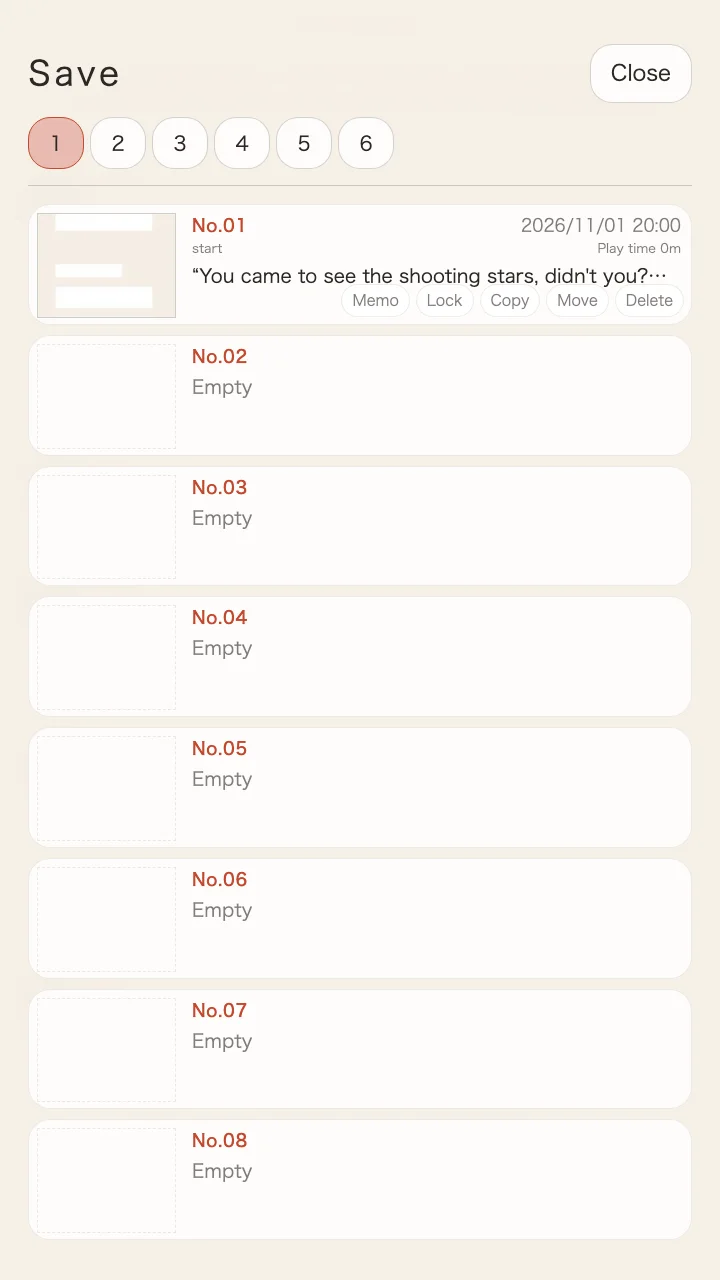
These were taken by applying each theme to the short scenario of a new project created with “A sample story.” On the left is the text screen, and on the right the save screen.
Default
White text on a dark background. Choose this also to go back to the original look from another theme.
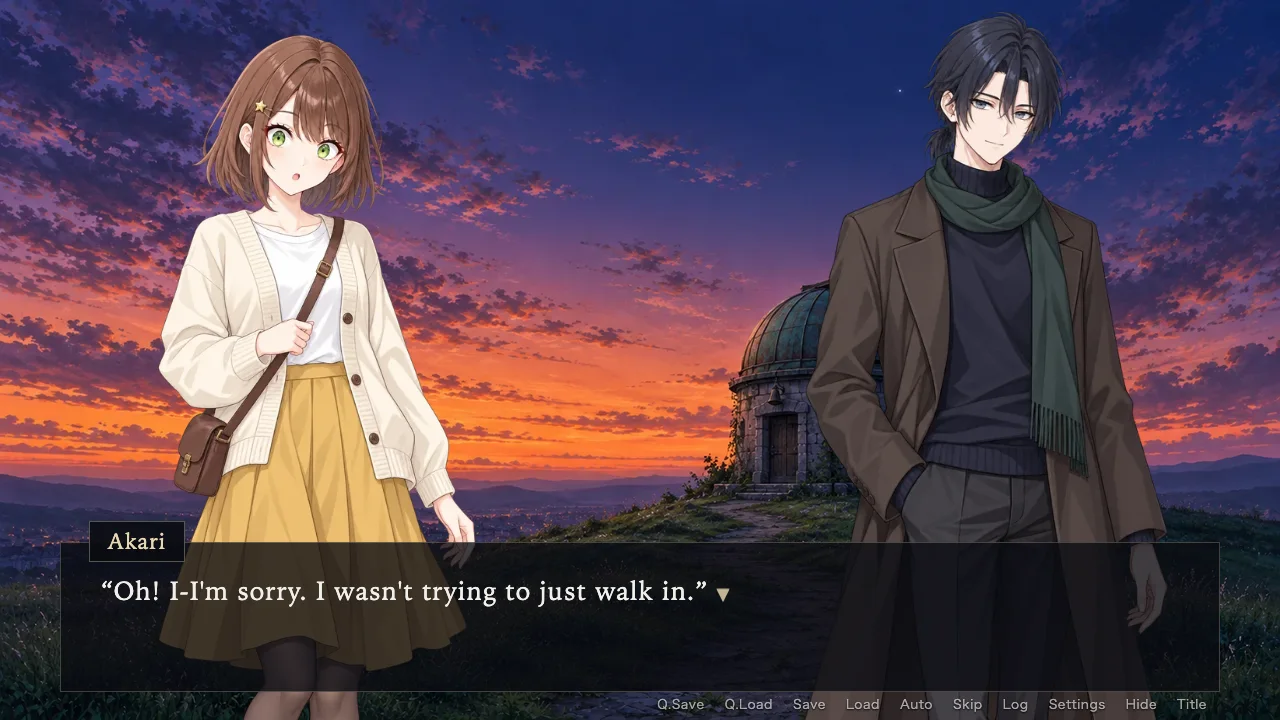
Washi
Ink-black text on a background the color of unbleached washi (Japanese paper). The name box and the click-wait icon are vermilion, and the font is serif.
Night
Pale blue serif text on a navy background. The corners are slightly rounded.
Pastel
Pale pink, with round-cornered buttons and a rounded sans-serif font. The message window is white, and the name box and the heart-shaped click-wait icon are pink.
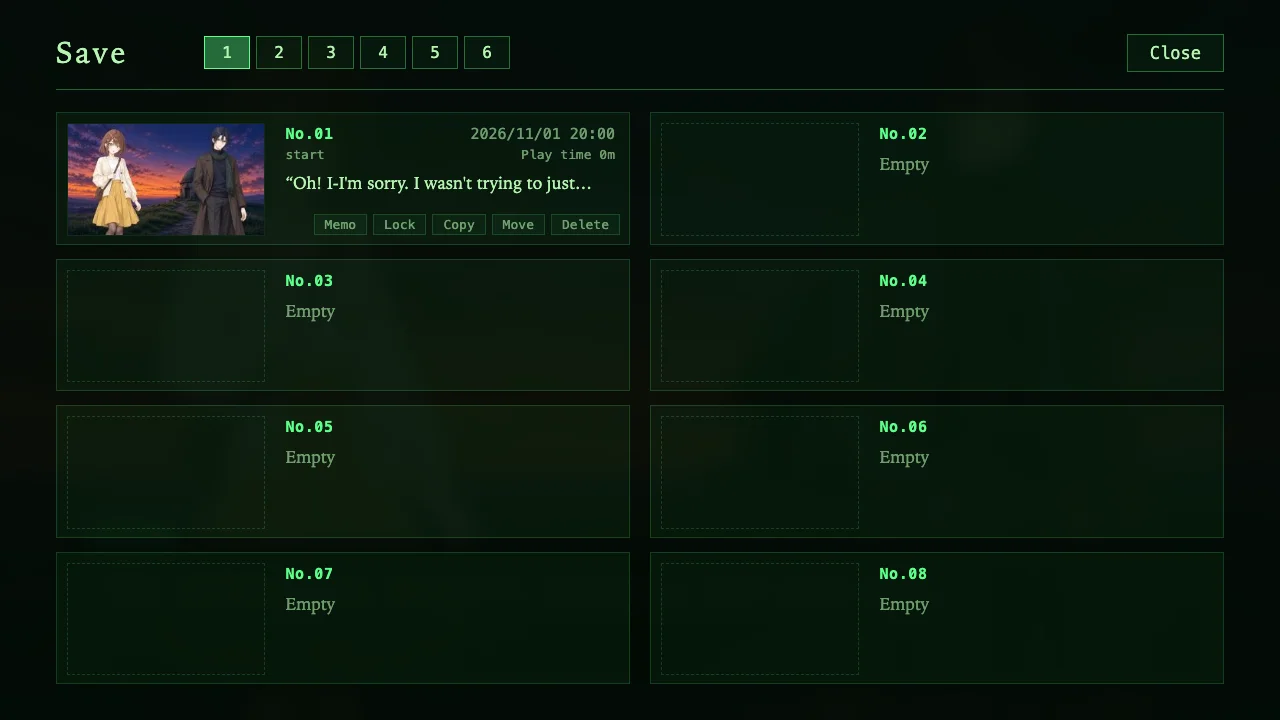
Terminal
Green text in a monospaced font on a black background. The corners aren’t rounded.
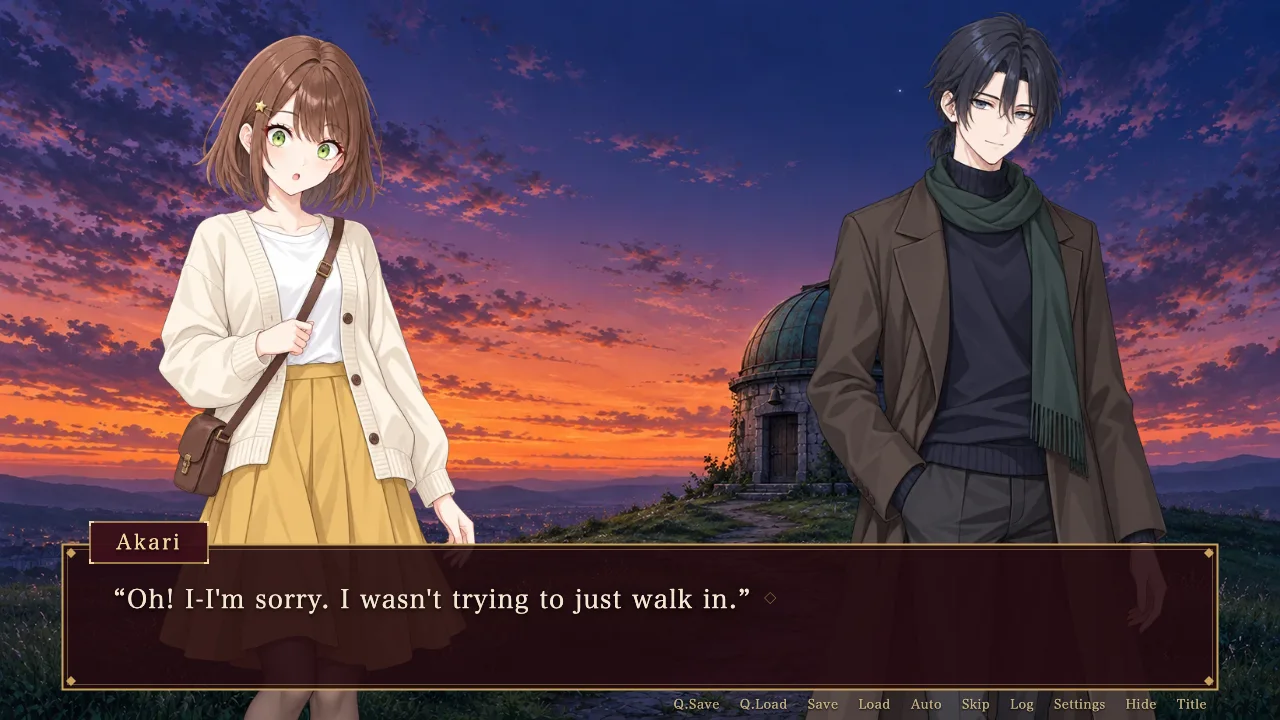
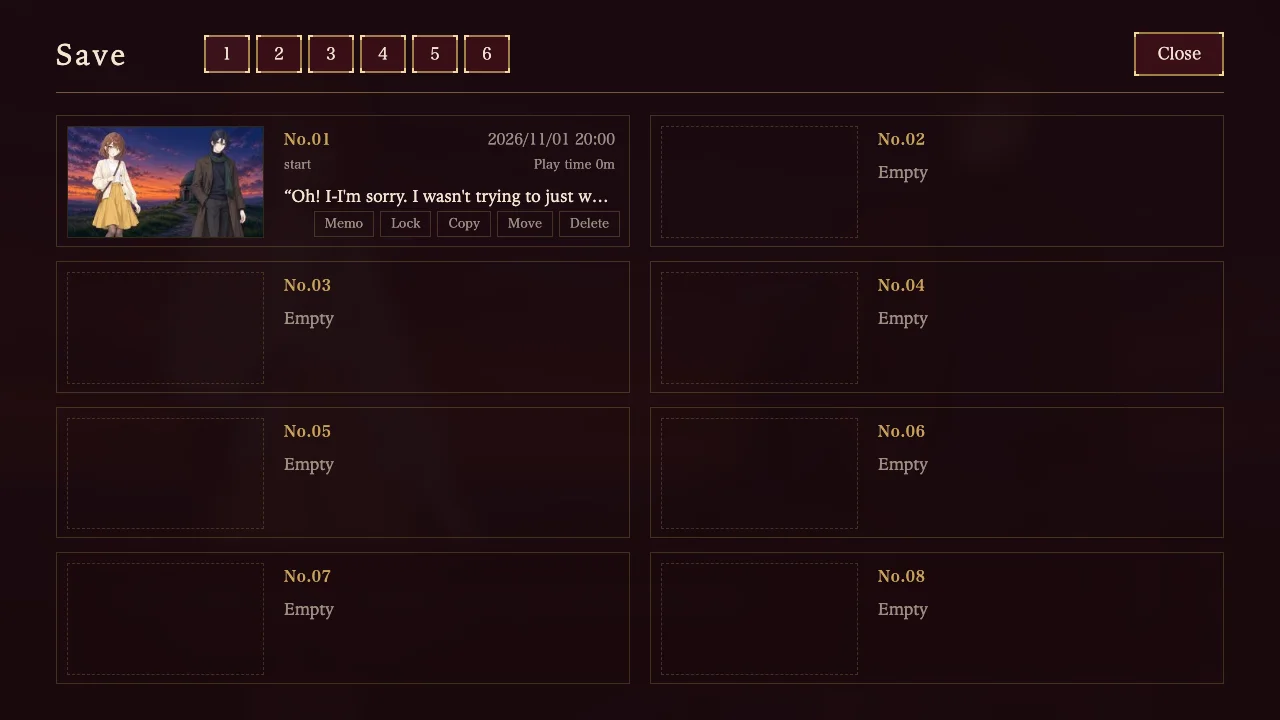
Mansion
Gold ornamental frames on a crimson background, with a serif font.
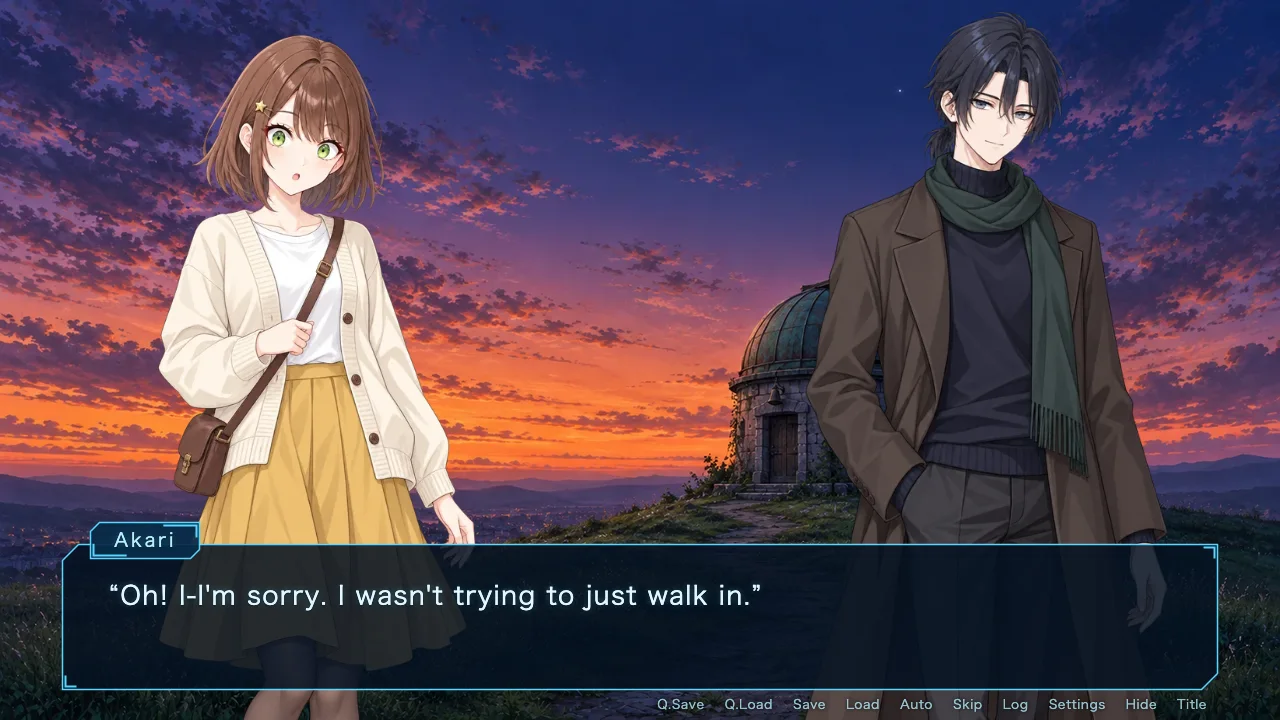
Near Future
Glowing blue lines and frames with cut corners on a dark navy background.
School
The bright color of notebook paper, with a name box shaped like a sticky note and a rounded font. It suits everyday stories.
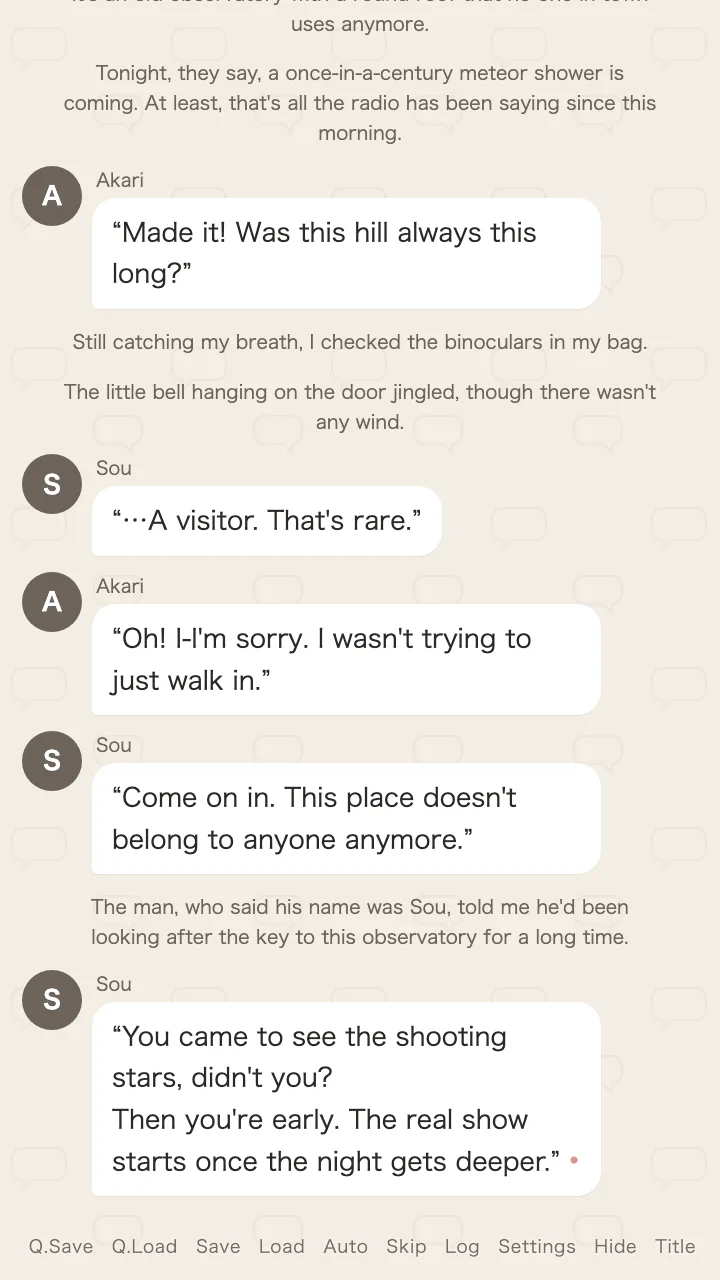
Chat (portrait only)
Dialogue appears in speech bubbles and narration as a small line in the center, stacked to fill the screen. The way you write the scenario doesn’t change. It can be chosen only in projects with a portrait screen, where it appears grouped as “Portrait only” at the top of the theme list. It doesn’t appear in the list for landscape projects. The samples were taken in a 720×1280 project.
Save the current look as an original theme
You can save a look you made by adjusting fields as a theme, and choose it again later.
- Click “Change theme” and choose “Original themes.”
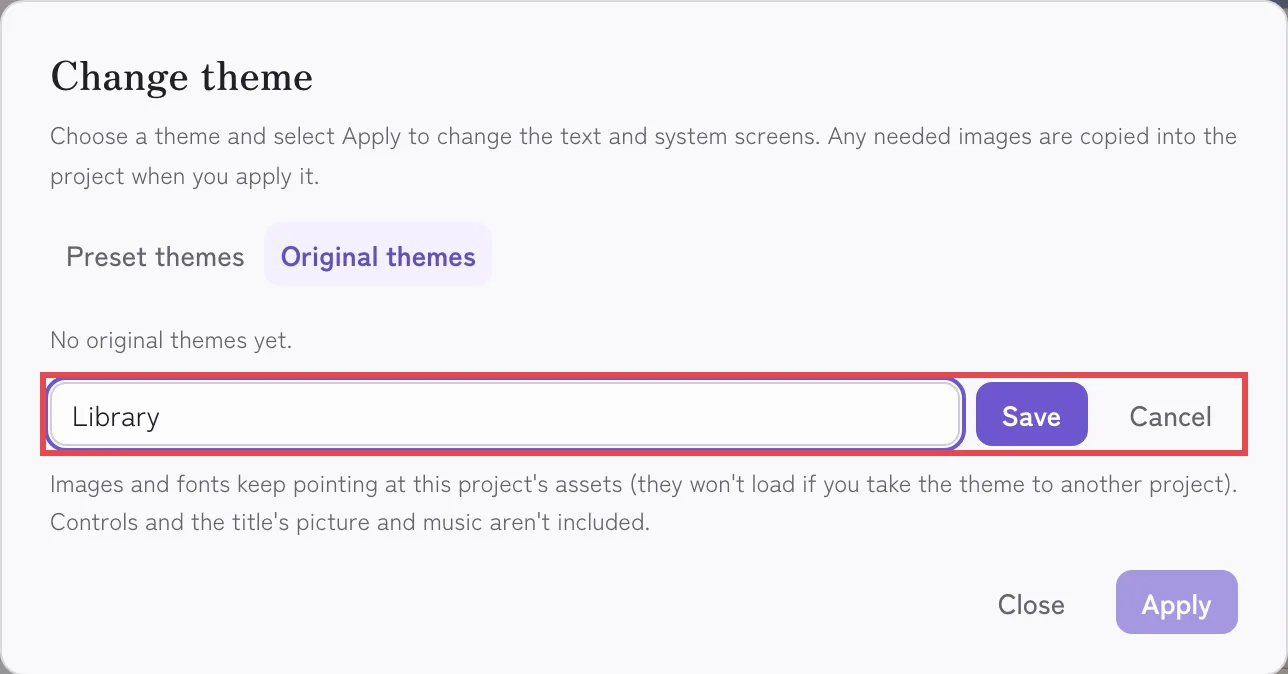
- Click “Save the current look as a theme,” enter a name for the theme and click “Save.”
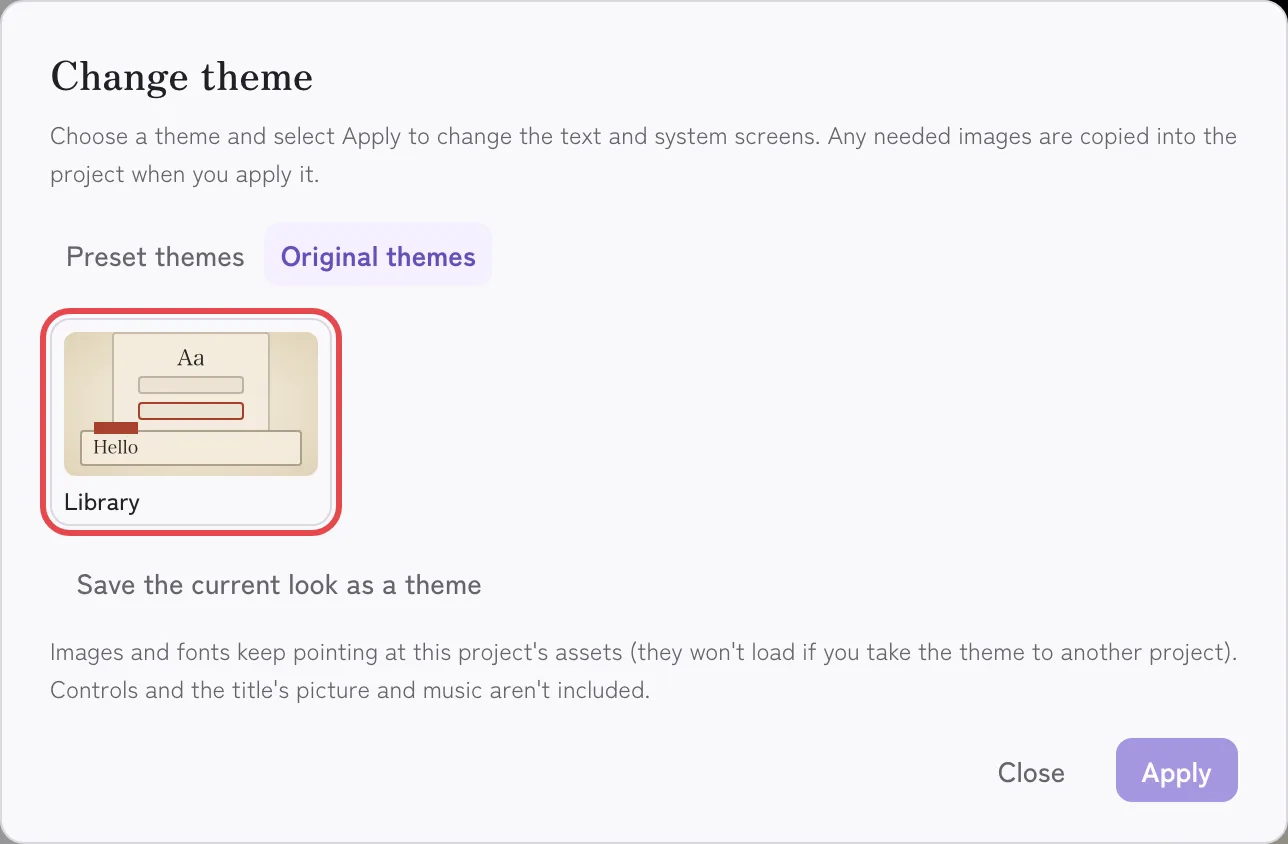
Saved themes are listed under “Original themes,” and you can choose and apply them just like the preset themes.
A theme holds only the values for the look; it doesn’t include the controls settings or the title screen’s images and sounds. Images and fonts are saved as references to the project’s assets, so use a saved theme within that project.
You can also ask an AI assistant to apply a theme (Connect an AI assistant).