

Make choices with image buttons
On this page
Write image= (the button image) on a choice line, and it becomes an image button instead of a text button. Use hover= for the image shown on mouse-over, and x= and y= for where to place it. Here, you turn the tutorial’s “Borrow the star atlas” and “Borrow the old book of fairy tales” choices into pictures of the two books’ covers.
The examples on this page use the project you make in the tutorial, “Shiori of the Library.”
Add the button images
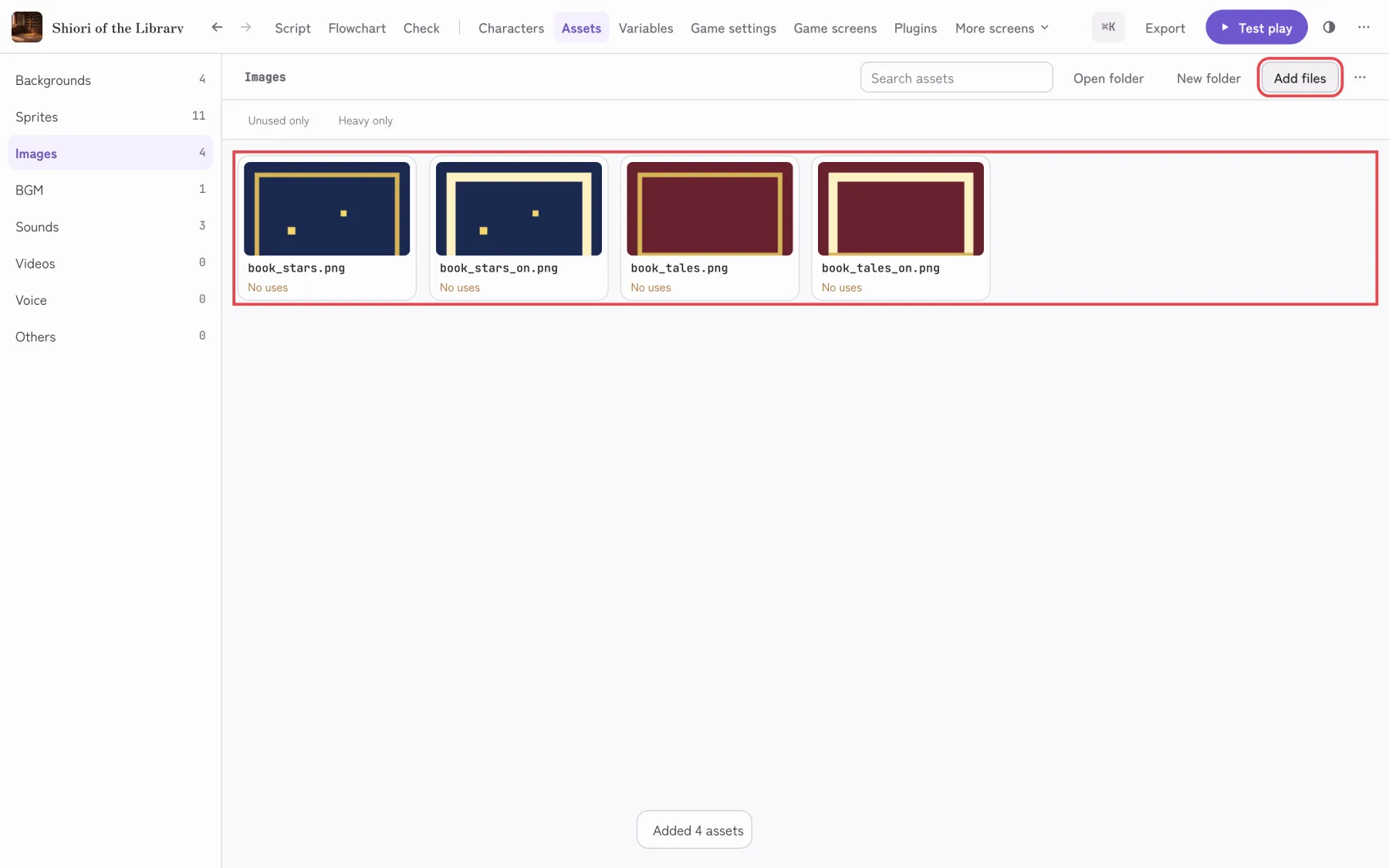
Button images go into “Images” in the assets. Here you use four images: the covers (book_stars.png, book_tales.png) and versions with a brighter edge for mouse-over (book_stars_on.png, book_tales_on.png). Each one is a PNG, 220 wide and 300 high.
- Click “Assets” at the top of the screen, and choose “Images” on the left.
- Click “Add files” and choose the four images (you can also drag and drop them onto the screen).
Write the image and position on the choice lines
- In the block view of the “Script” screen, click the “Borrow the star atlas” line on the choice card to select it.
- Click it again to open the input field for that line. The cursor is at the end of the line.
- Type a space followed by
image=book_stars.png hover=book_stars_on.png x=380 y=150, and press Enter.
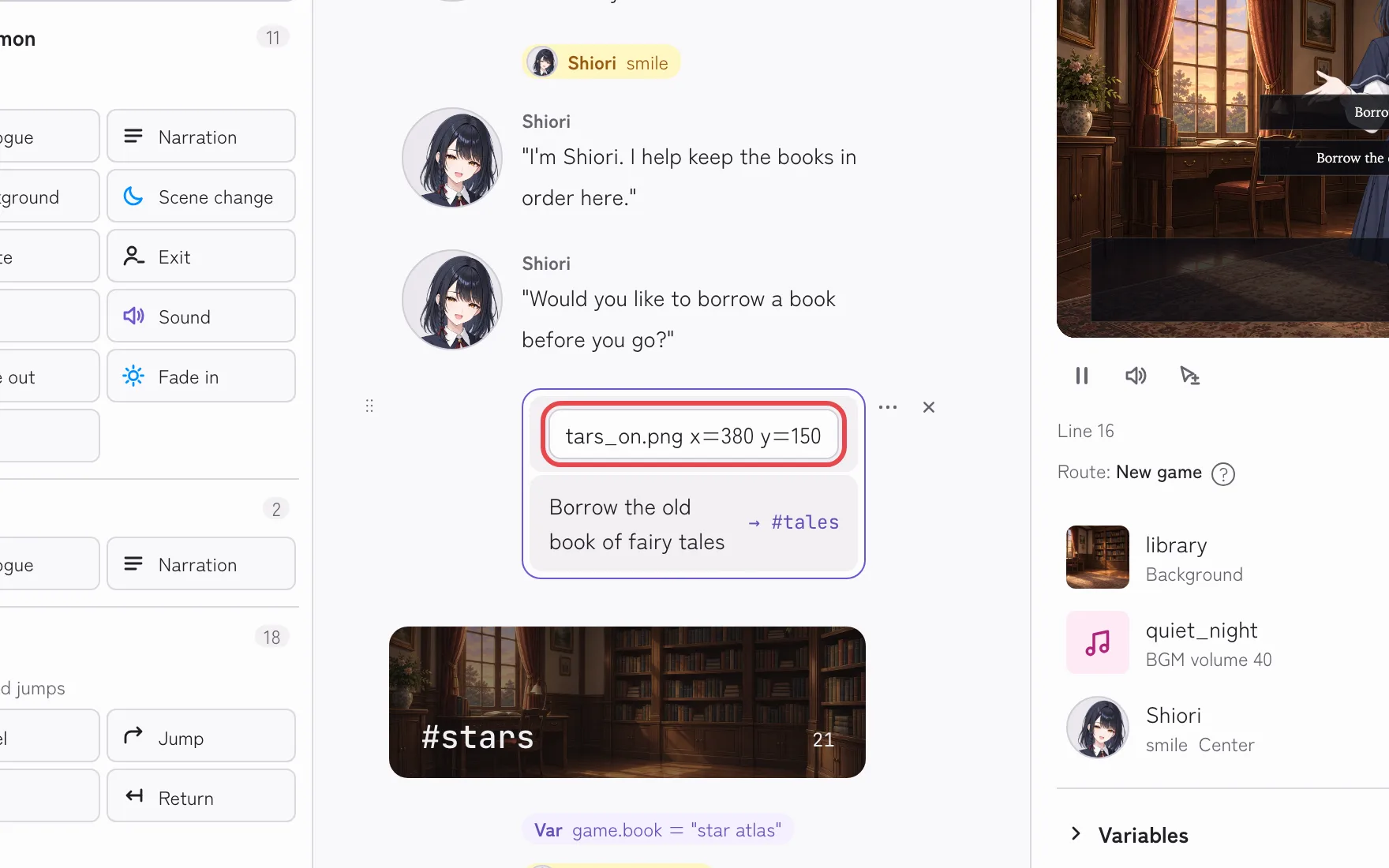
- Add
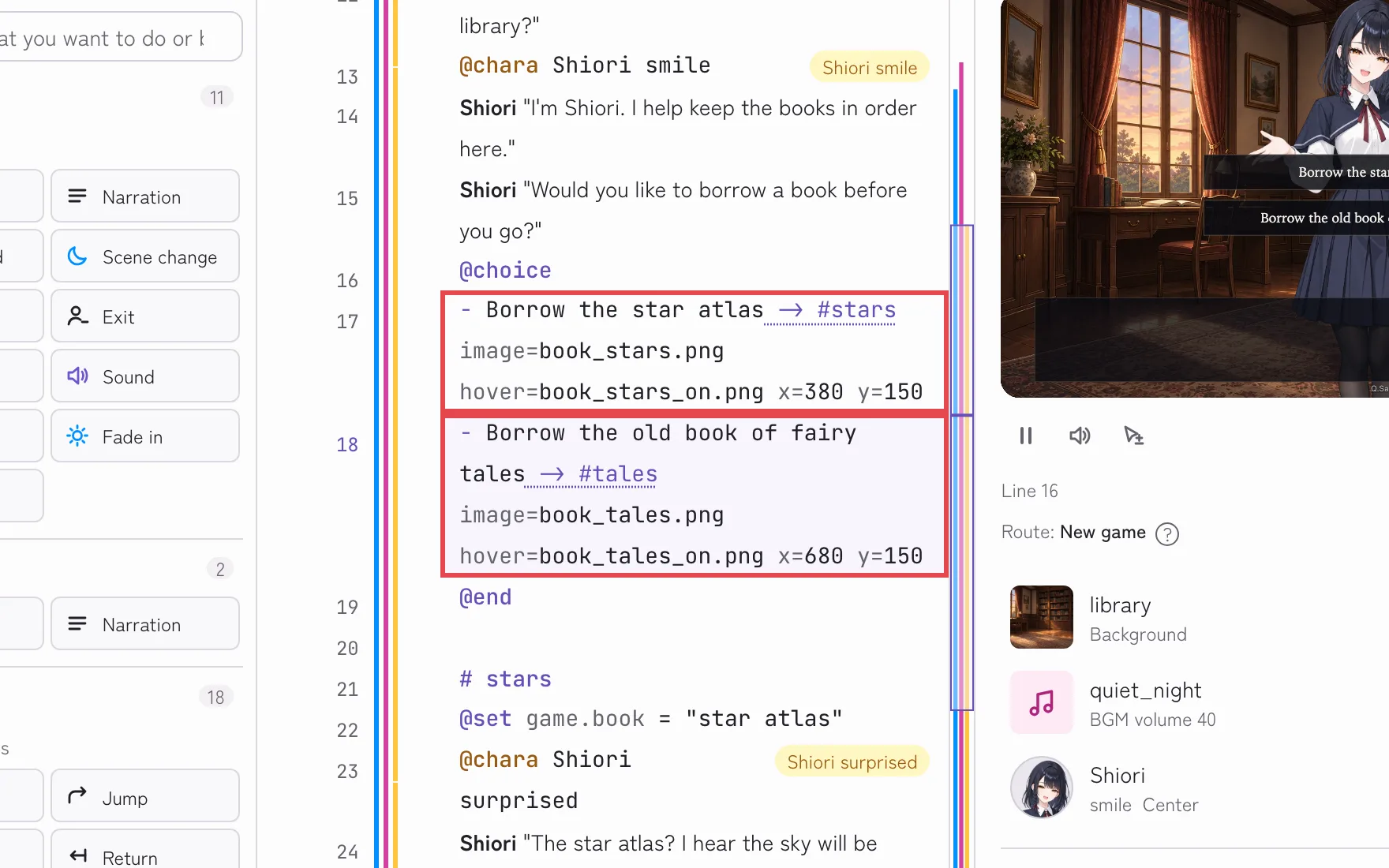
image=book_tales.png hover=book_tales_on.png x=680 y=150to the “Borrow the old book of fairy tales” line in the same way.
| Parameter | Meaning |
|---|---|
image | The button image (a path from the “Images” folder of the assets) |
hover | The image shown on mouse-over |
x, y | The position of the button’s top left corner (px from the top left of the game screen) |
width, height | The width and height of the button (px). For an image, leaving them out uses the image’s size |
If you put the images in a folder such as button, include the folder name, as in image=button/book_stars.png.
Check it by playing
The choices appear as image buttons where you placed them. Image buttons don’t show the choice text, so make sure the images make it clear what is being chosen (the choice text is still used for things like text-to-speech).
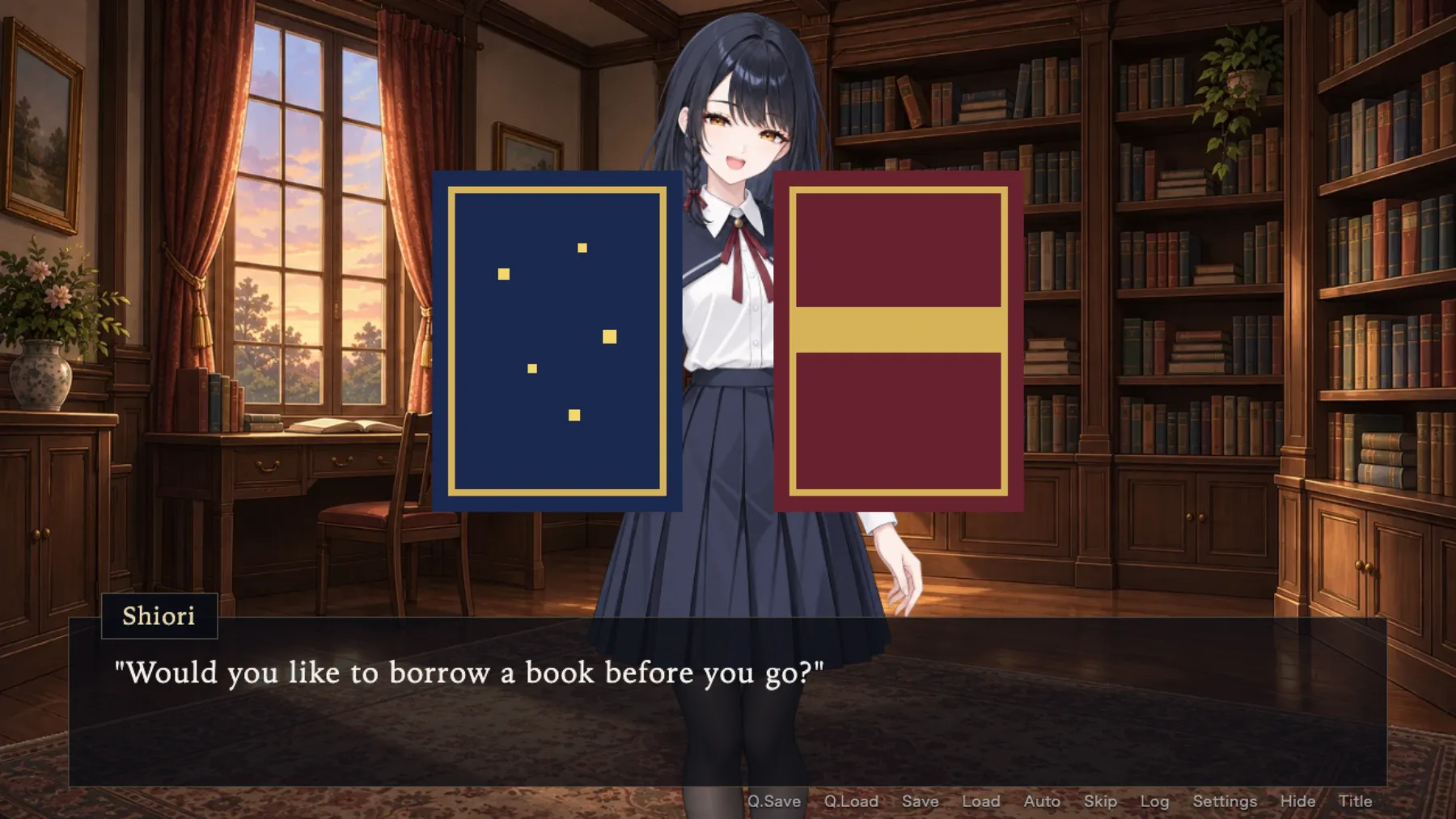
Move the mouse over a button, and it changes to the hover image.
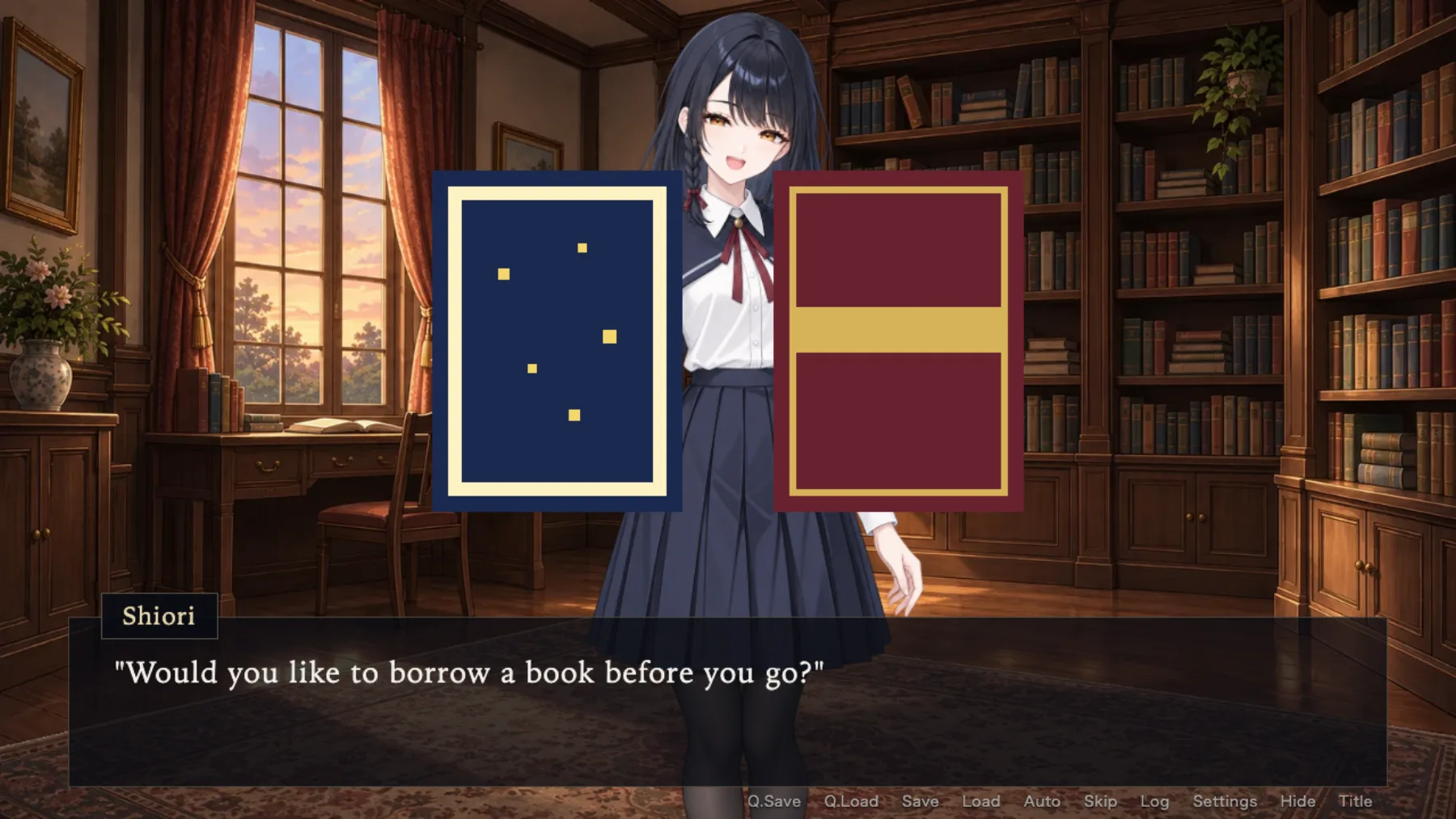
Click it, and the story goes to the jump target, just as with a text choice.
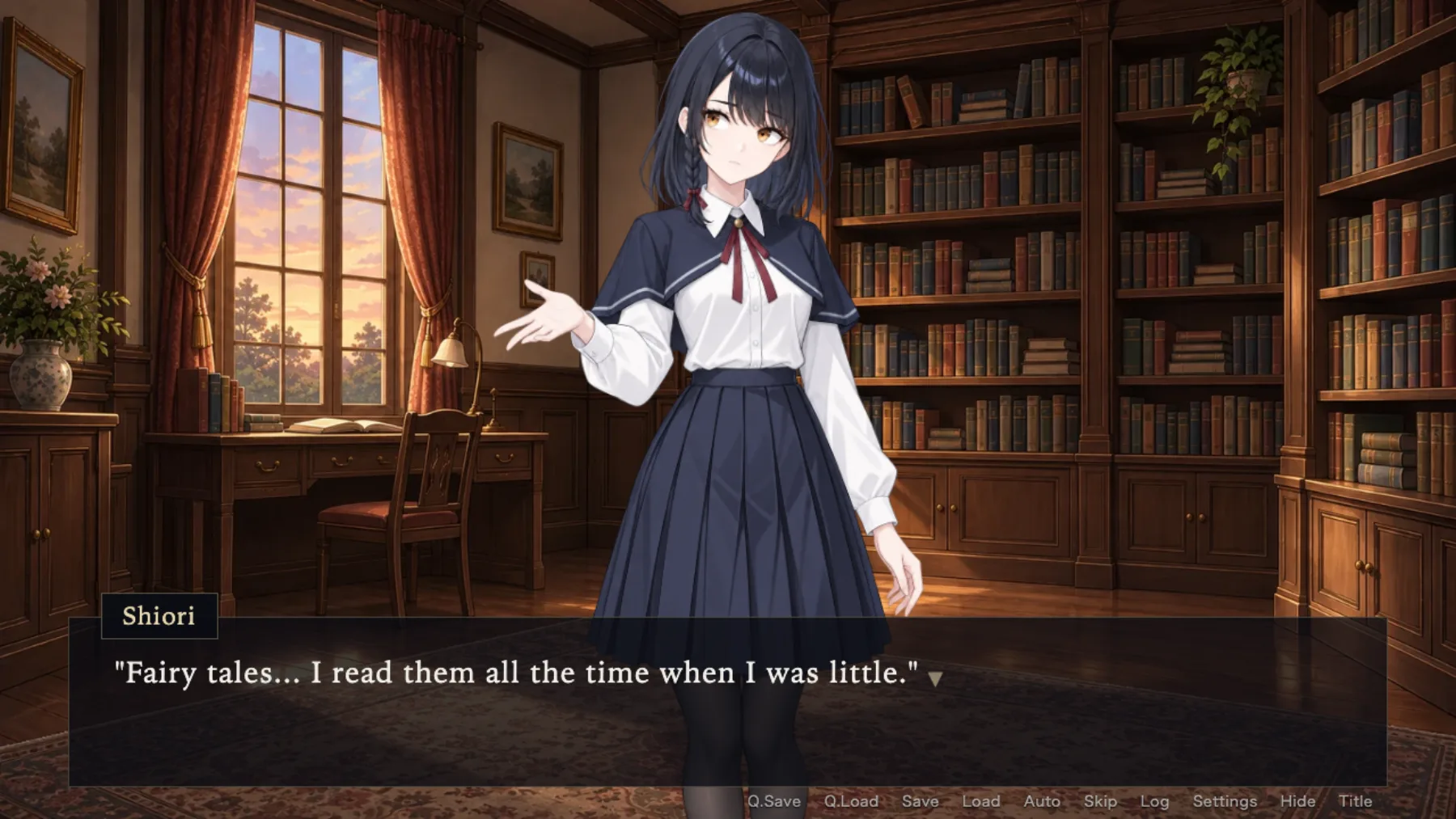
Write width= and height= without image=, and the choice becomes an invisible area that can be clicked. Use this to let the player click a door or window in the background. The list of parameters you can write on a choice line is in the @choice reference.
In code
@choice
- Borrow the star atlas -> #stars image=book_stars.png hover=book_stars_on.png x=380 y=150
- Borrow the old book of fairy tales -> #tales image=book_tales.png hover=book_tales_on.png x=680 y=150
@end