

How sprites enter, leave and overlap
On this page
Normally, a sprite gently fades in and fades out where it stands. With the parameters of the Sprite part, you can slide it in from the side or from below, slide it when it changes position, and decide which sprite is in front.
The examples on this page use the English sample story, “Waiting for Stars” (choose “A sample story” and English in New Project, or run lim new --lang en; the characters are Akari and Sou).
Slide in from the side
- Click a sprite tag to select it, then click it again to show its parameters in the panel on the right.
- Choose how it enters with
enterin the panel on the right.left,right,topandbottomslide in from that side, andzoomgrows from a small size. - Enter the time it takes to appear in
time. Set how far it slides withdistance(px; 160 by default).
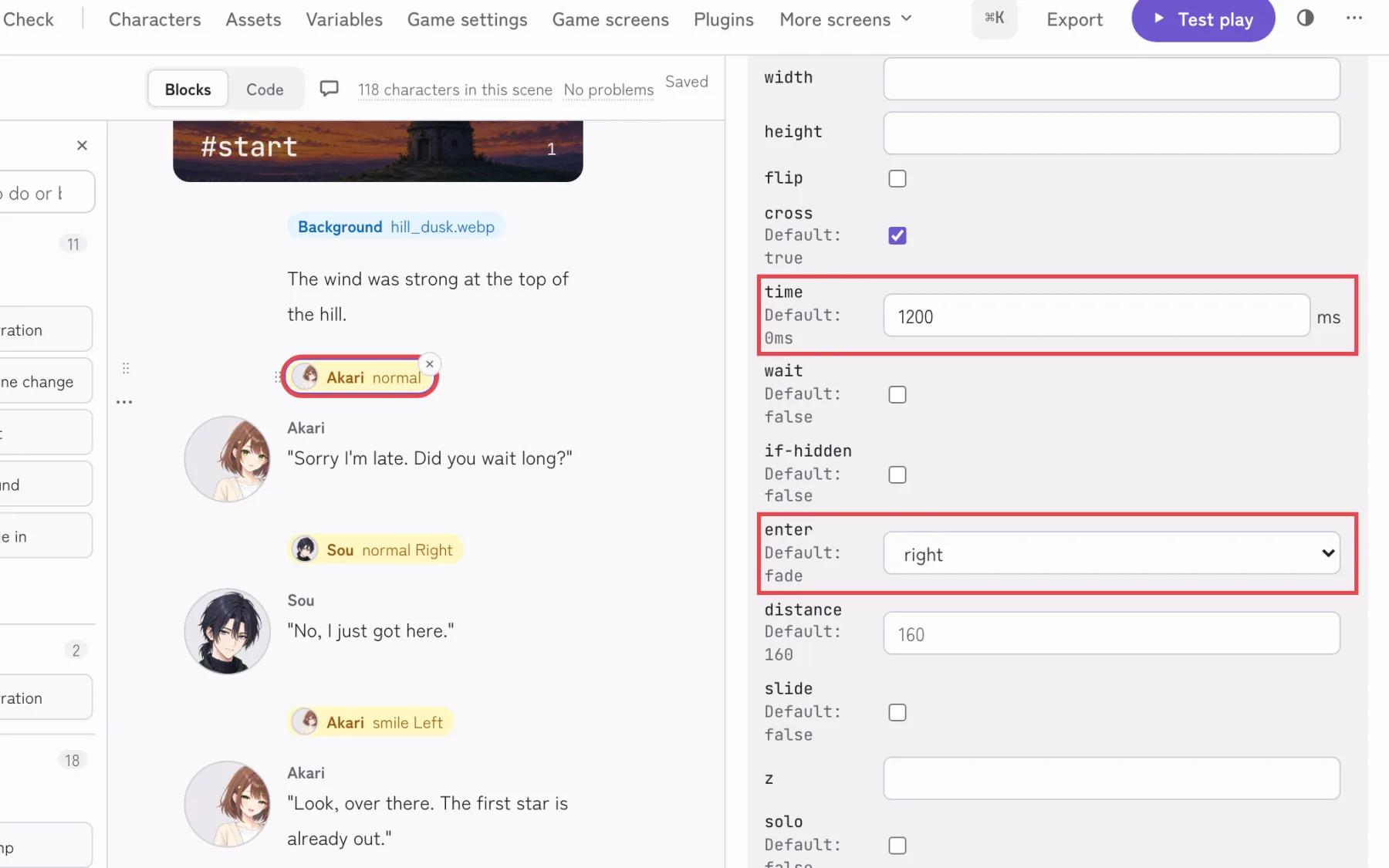
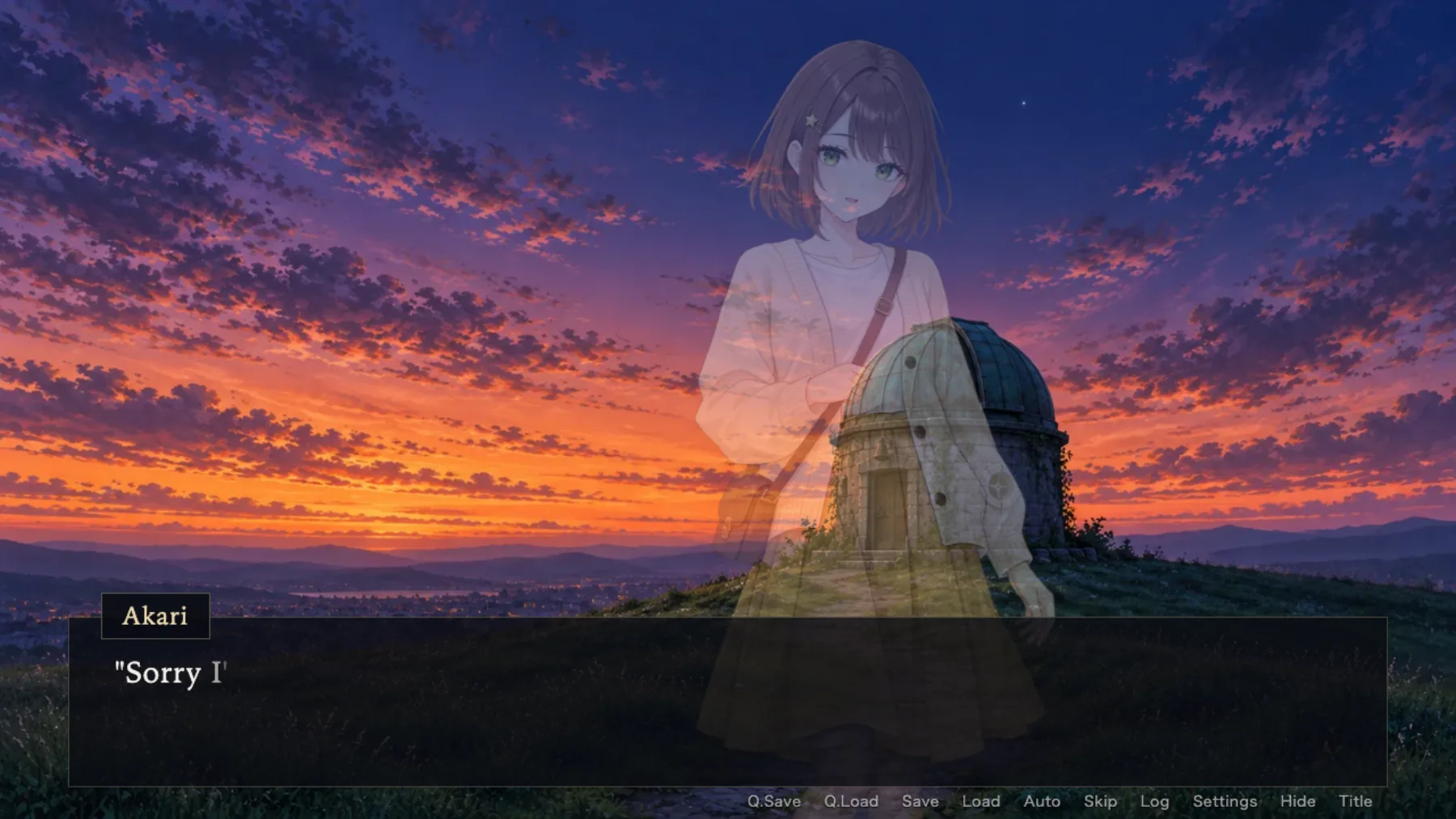
enter only applies when the character isn’t on screen yet. On a line that only changes the expression, the sprite doesn’t slide in even if you write enter.
Slide out to the side
Choose how a sprite leaves with exit on the “Exit” part. The choices are the same as for enter; with left, it slides out to the left. “All exit” has the same exit.
Slide to a new position
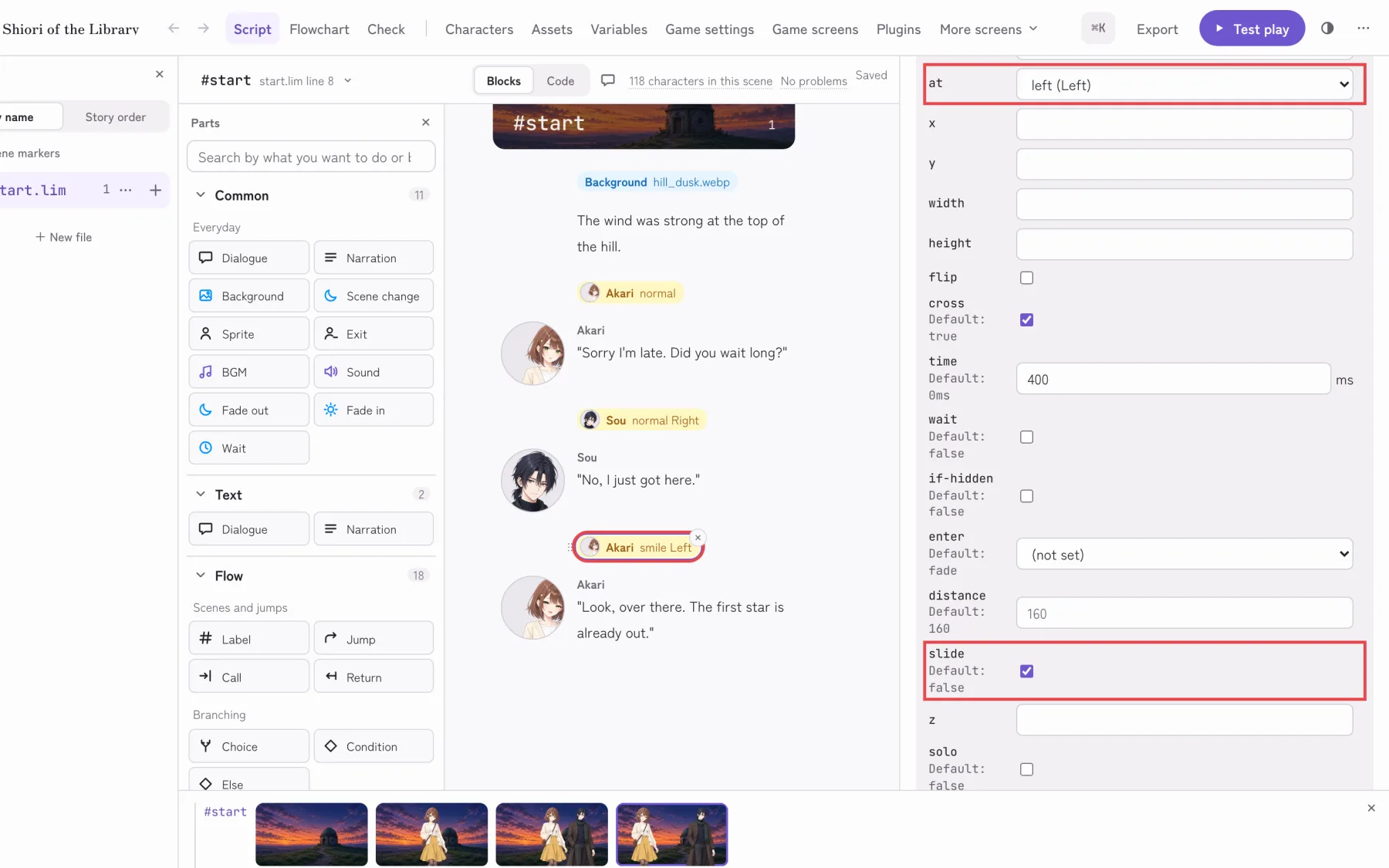
When you change at of a character on screen to a different position, the sprite normally disappears and then appears at the new position. Check slide, and it slides to the new position over the time time instead of disappearing.
Decide which is in front
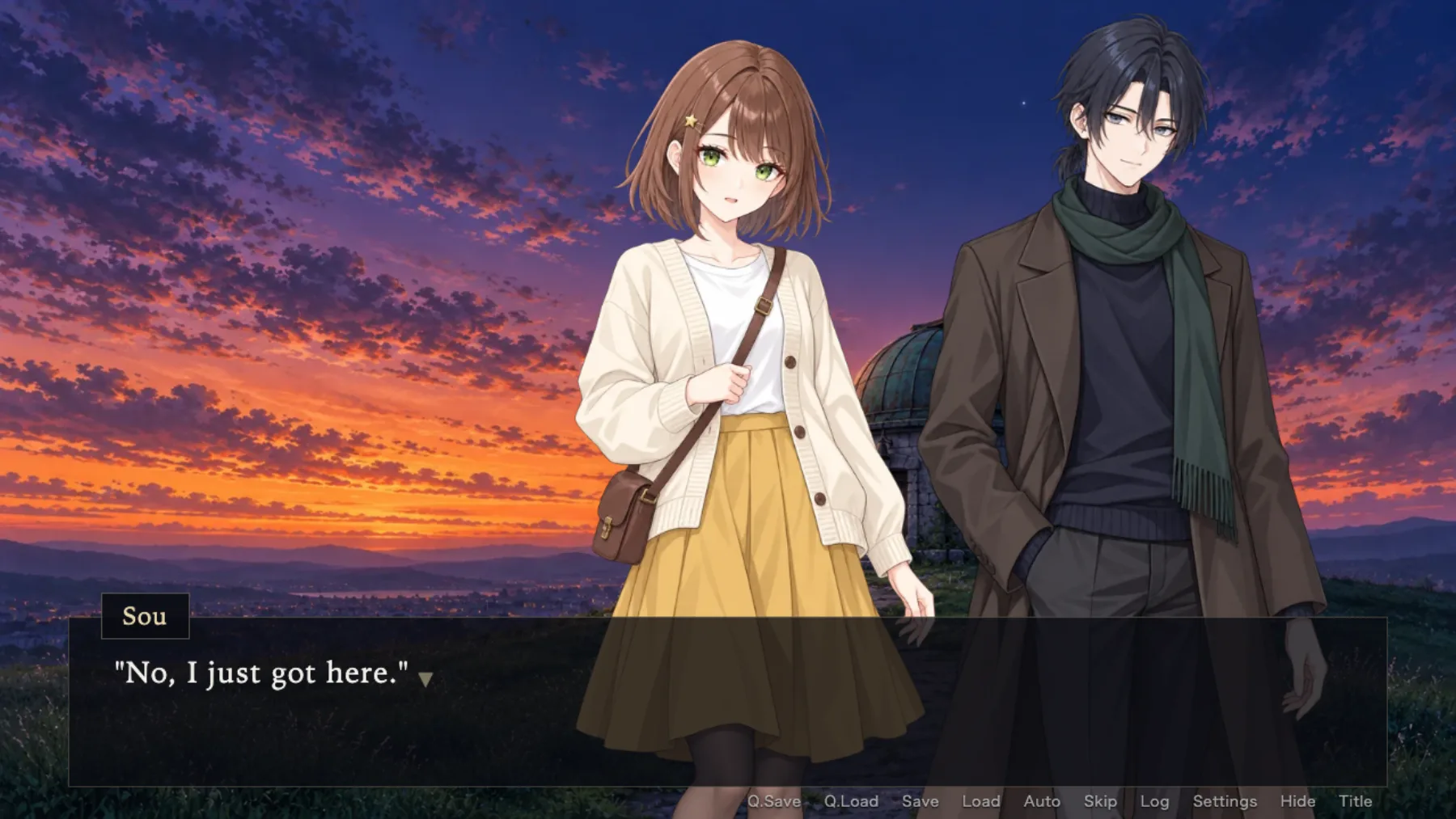
When two sprites overlap, the one shown later is in front. Enter a number in z, and higher numbers come to the front (a character that isn’t on screen starts at 0).
Show one at a time
Check solo, and the other characters’ sprites are hidden before this character appears (they swap over the time time). In a project that shows only the speaking character, one at a time, this saves you from adding “Exit” every time.
To show every sprite in the project one at a time, set solo of @chara to true in Command defaults.
In code
@chara Akari normal enter=right time=1200ms z=1
@chara Sou normal at=right
@chara Akari smile at=left slide=true time=400ms
@chara Sou smile solo=true time=300ms
@chara-hide Akari exit=left time=400ms
For details, see @chara and @chara-hide.