

Change the ending with flags
On this page
Record what the player chose in a variable (a flag), and use a condition in the ending to change the text. Here you add the choices “Promise to come back” and “Nod and leave the library” to the tutorial’s ending, and change the last sentence depending on whether the player promised and which book they borrowed (game.book).
The examples on this page use the project you make in the tutorial, “Shiori of the Library.”
@choice
- Promise to come back -> #promise
- Nod and leave the library -> #leave
@end

# promise
Shiori "Okay. I'll be waiting."

# leave
@scene-change hill_dusk.webp
On the way home, I walked down the hill, holding the {= game.book} to my chest.
Record the choice
- In the block view, select the
#promiselabel, and double-click “Variable” in the “Flow” section of the parts panel. - Change the input field to
@set game.promise = trueand press Enter.
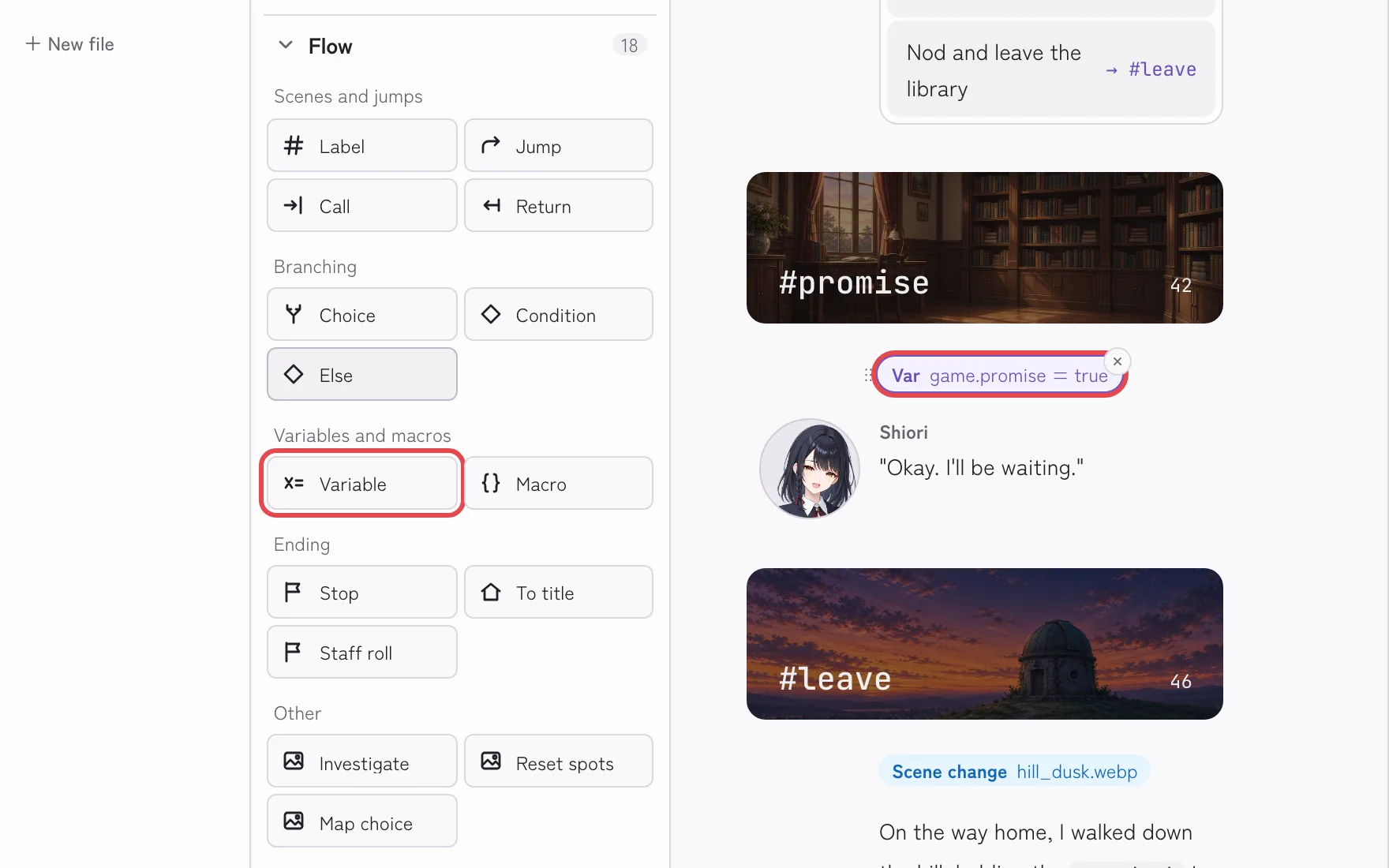
game.promise becomes true only when the story goes to the # promise scene.
Add a condition
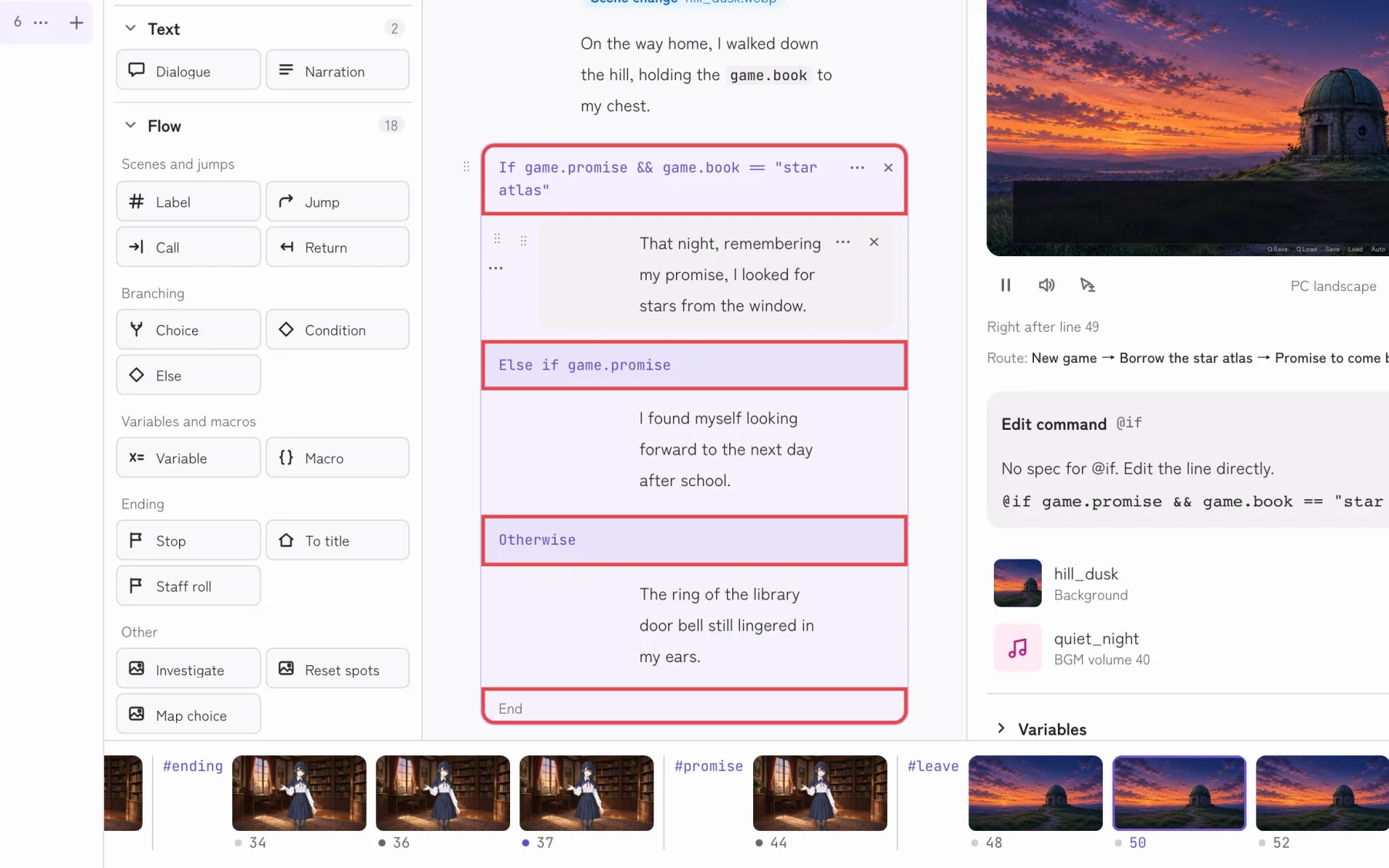
- Select the last narration line, “On the way home, I walked…,” and double-click “Condition” in the “Flow” section of the parts panel.
- Change the input field to
@if game.promise && game.book == "star atlas"and press Enter.
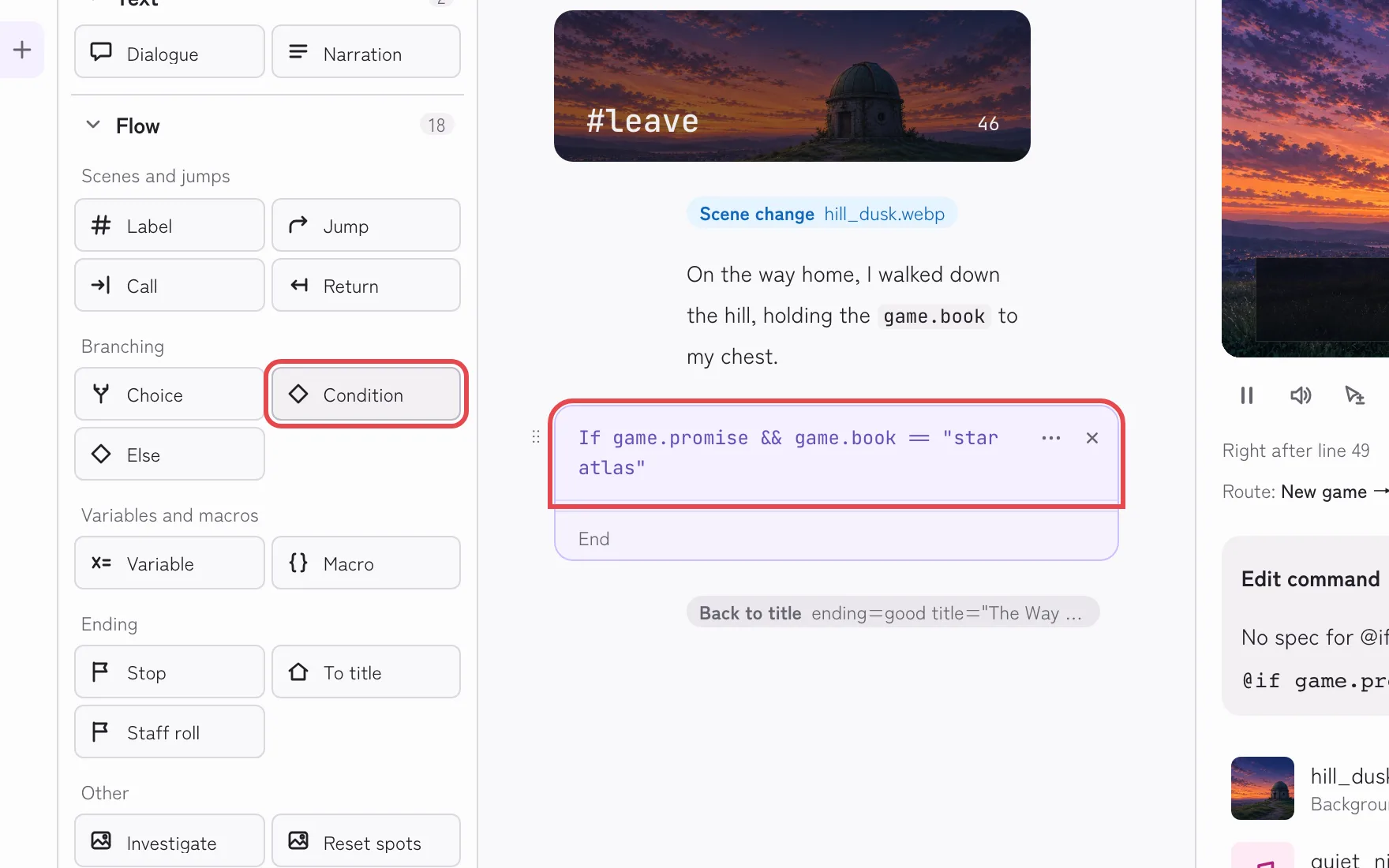
The Condition part adds two lines: the @if line (“If …” in the block view) and the @end line (“End”). In the condition, && means “and,” and == means “is equal to.”
- Select the “If …” line, double-click “Narration,” and write the text for when the condition is met. When you add a line with the
@ifline selected, it goes between@ifand@end.
Write the text for other cases
- Select the narration for when the condition is met, type “else if” in the search box at the top of the parts panel, and double-click “Else if” (
@elif) in the results (you can also find it by opening “More commands” under “Flow”). - In the input field, change the condition to
@elif game.promise.
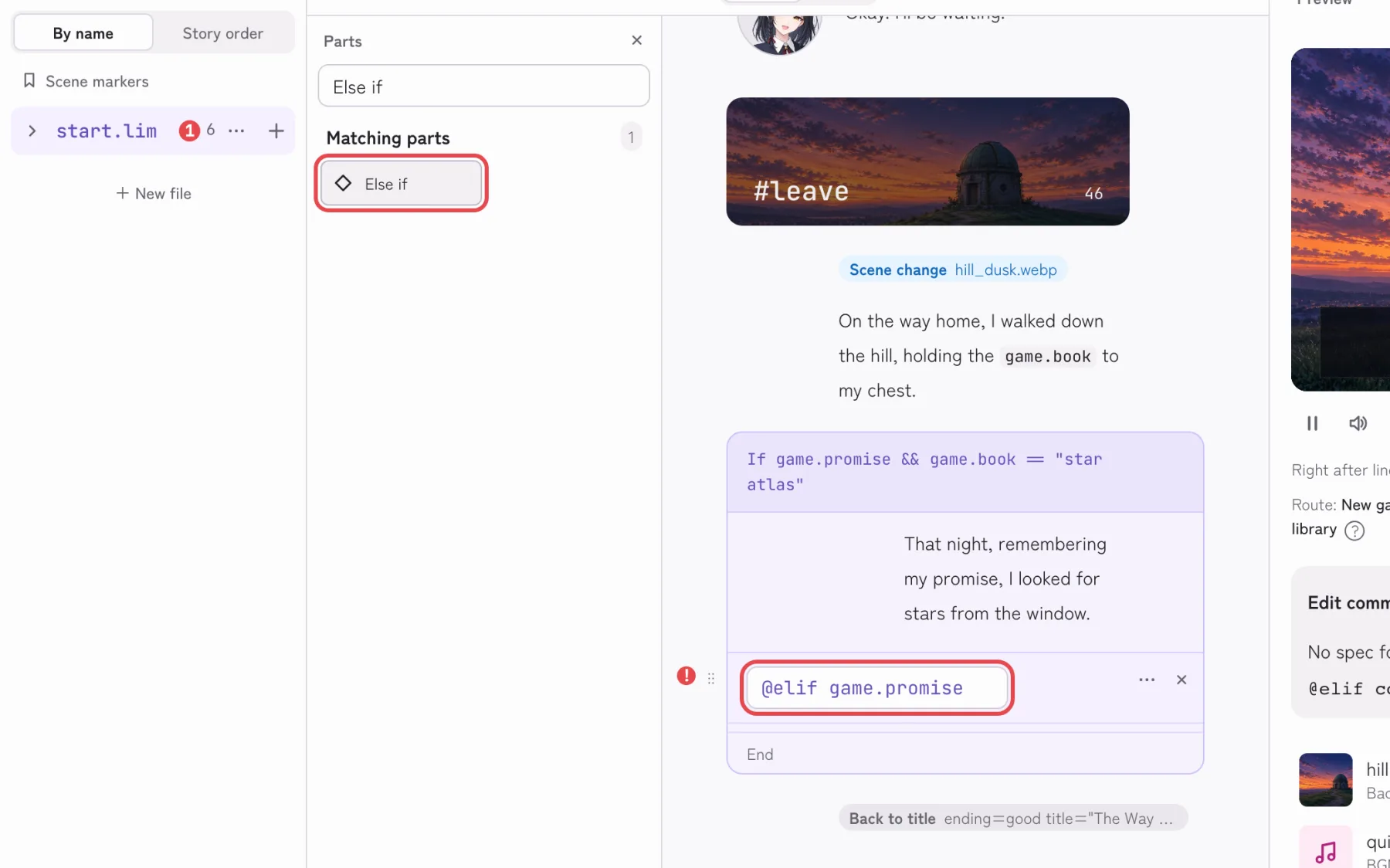
- Double-click “Narration” and write the text for when this condition is met (“I found myself looking forward to the next day after school.”).
- Double-click “Else” (
@else), and then use “Narration” to write the text for when no condition is met (“The ring of the library bell still lingered in my ears.”).
The line you just added stays selected, so if you keep double-clicking parts, each one goes in below it. In the code view, the lines are in this order.
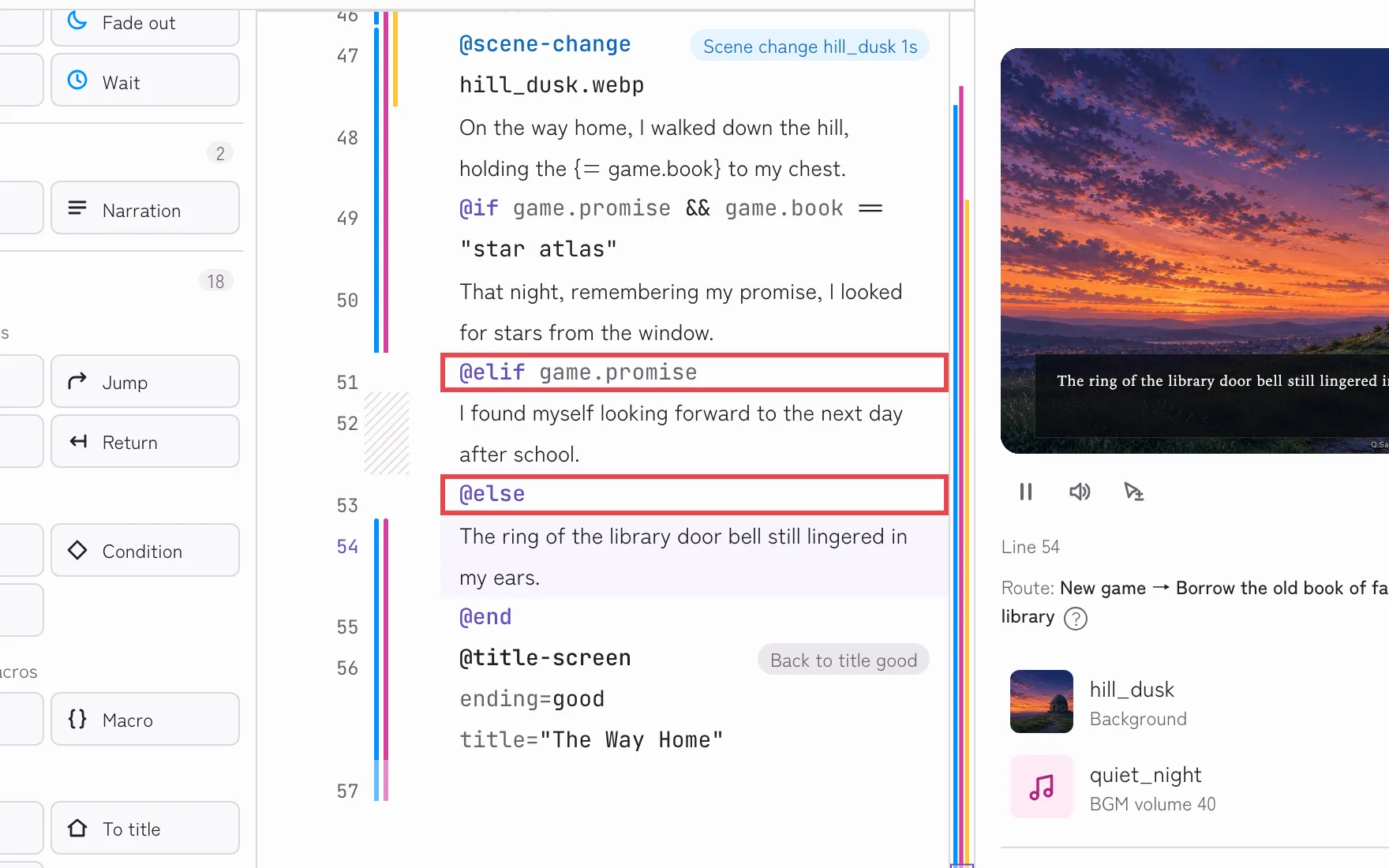
Back in the block view, the section is divided by the “If,” “Else if,” “Otherwise” and “End” lines. The conditions are checked from the top, and only the part under the first one that matches runs.
Set the initial value on the Variables screen
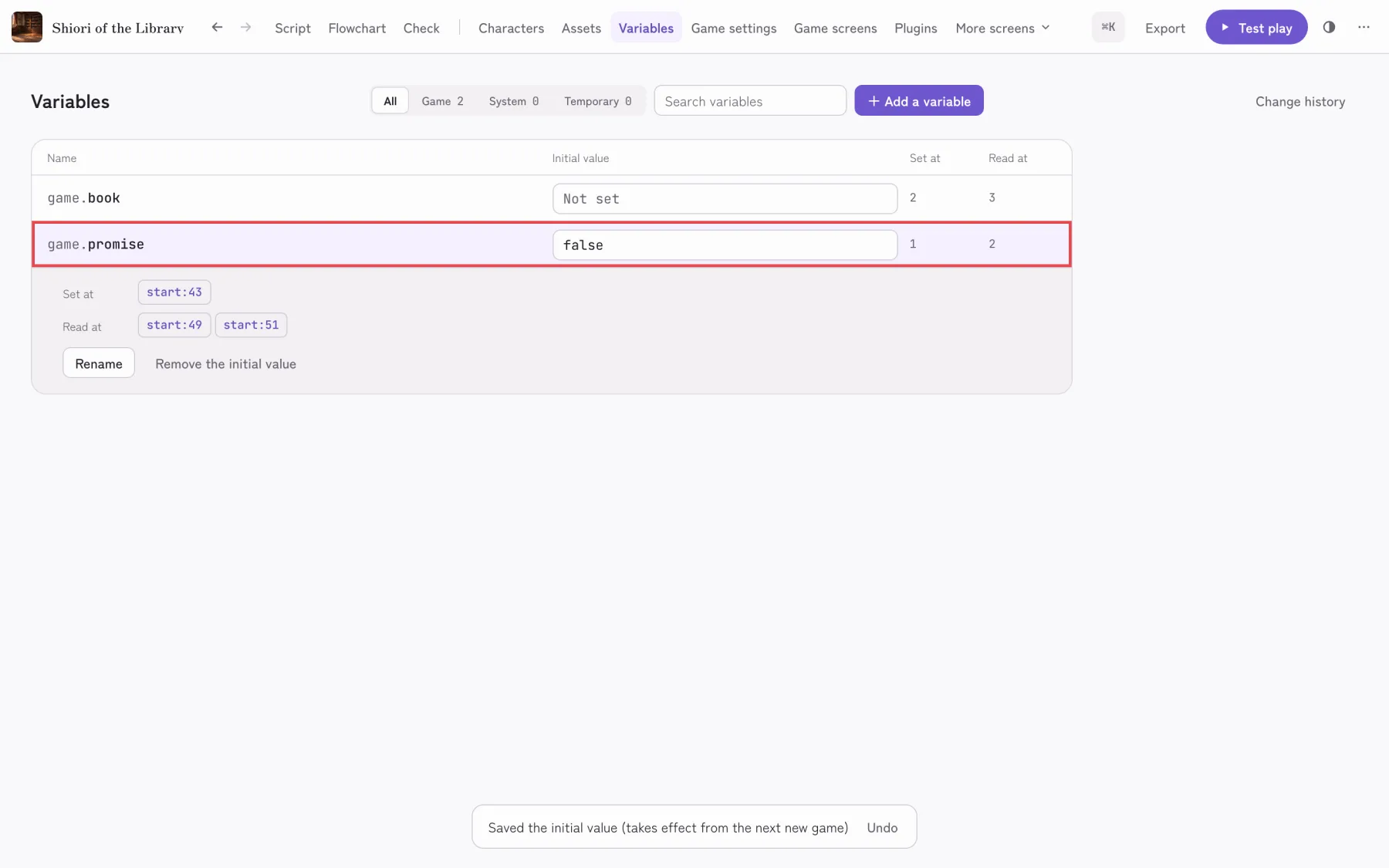
Click “Variables” at the top of the screen to see the list of variables used in the project. Type false in the “Initial value” field of game.promise and press Enter, and it starts at false every time the player chooses “New Game.” Click a row to see the lines that set the value (“Set at”) and the lines that read it (“Read at”), and click one of them to go to that line.
Check it by playing
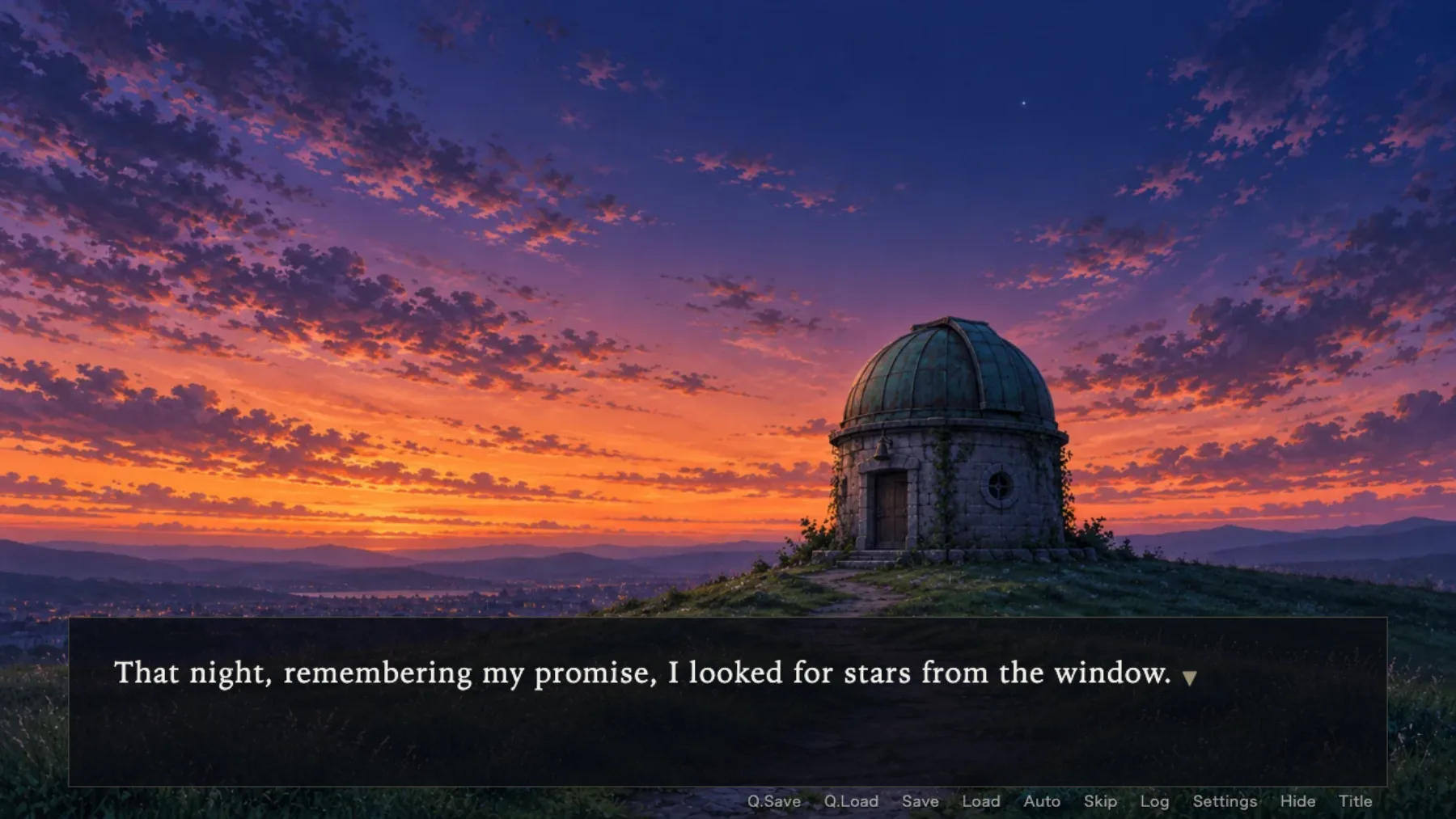
If the player borrowed the star atlas and promised, the @if text appears.
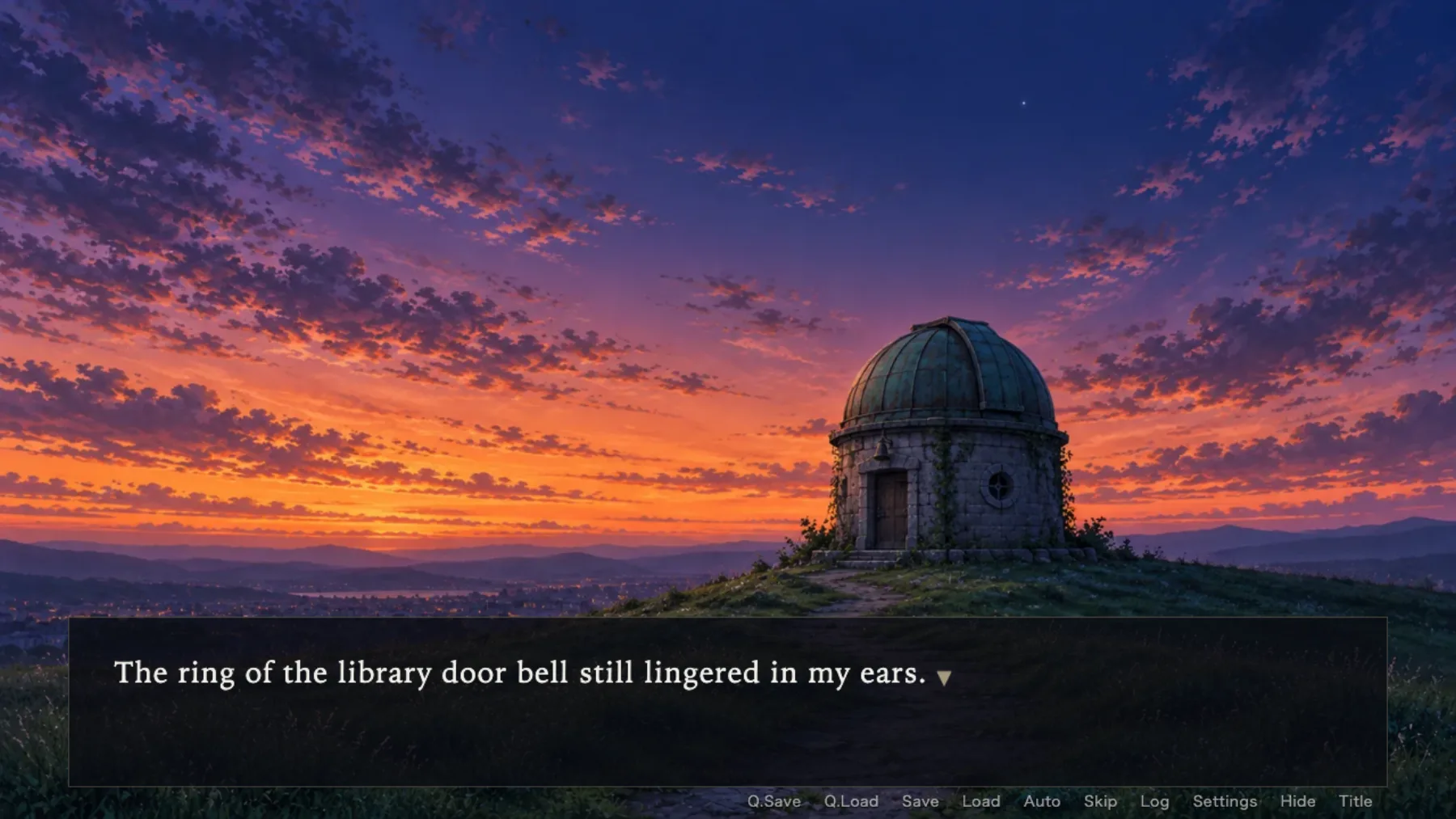
If the player didn’t promise, the @else text appears.
In code
# promise
@set game.promise = true
Shiori "Okay. I'll be waiting."

# leave
@scene-change hill_dusk.webp
On the way home, I walked down the hill, holding the {= game.book} to my chest.
@if game.promise && game.book == "star atlas"
That night, remembering my promise, I looked for stars from my window.
@elif game.promise
I found myself looking forward to the next day after school.
@else
The ring of the library bell still lingered in my ears.
@end
The initial value goes into variables in liminalia.json ("game.promise": false).