

An example of building with AI
On this page
This page is a record of actually running the MCP server (lim mcp) and calling its tools in the order given by the guidance the server sends to the assistant. The request we assumed was this.
Create a project with the sample story, titled “星を待つ丘” (Waiting for Stars). At the start of the story, add a short scene where the main character hears about the meteor shower on the morning radio, and check it with the syntax check and screenshots.
Here’s how the record was made.
- Instead of an assistant, a short Node.js script that only handles MCP communication (JSON-RPC over standard input and output) called the tools.
- The scenario content is something a person wrote for this page and passed to
write_scenario. It wasn’t written by an AI. - The results are exactly as output, except that long parts are cut with ”…”. Folder locations show the home folder as
~. - The MCP server’s guidance and results are in Japanese, and the project was made in Japanese too, so the tool arguments, the scenario and the results below are left in Japanese, with explanations in English.
In the results, 台本, 作品 and 場面 are the words the MCP server uses for AI. They correspond to script, project and scene in Studio.
The order of the calls
| Step | Tool | What it did |
|---|---|---|
| 1 | create_project | Created a project with the sample story |
| 2 | scenario_guide | Read the guide to writing scenarios |
| 3 | check_text | Checked before writing, and received an error for a variant the sprite doesn’t have |
| 4 | list_files | Checked the available variants in the list of assets |
| 5 | write_scenario | Wrote the scene with the variant fixed. The result of checking the whole project came back too |
| 6 | update_settings | Set where “New Game” starts to the added scene |
| 7 | check | Checked the whole project |
| 8 | screenshot | Took 2 screenshots and checked the screen |
| 9 | story_map | Checked how the scenes connect |
The guidance on connecting
The MCP server returns usage guidance in its initialize response. The table above follows that guidance: read the scenario guide before writing, check the text before and after saving, then verify the flow and visuals.
Full guidance from the server and English translation
Liminalia はビジュアルノベルのエンジン。台本(.lim)を初めて書く前に scenario_guide で書き方の手引き(台詞、ラベル、ルビ、選択肢、@if、式の関数)を読む。作品は create_project で作り、台本は read_scenario で読んで(hash も返る)、write_scenario(丸ごと。既にある台本は baseHash に読んだ hash)か edit_scenario(一部の行)で書く。読んだあとで制作画面などで直されていたら書かずに今の中身を返すので、合わせ直して書く。書く前に check_text、書いたら check で検査し、trace で流れ、screenshot で見た目を確かめる。命令の書き方は command_reference で調べる(query にやりたいことを入れる)。人が手で直すときは open_studio で制作画面を開く。
In English:
- Before writing a script for the first time, use
scenario_guideto look up dialogue, labels, ruby, choices,@if, and functions in expressions. - Create projects with
create_project. Read scripts withread_scenario, which also returns a hash. To replace an existing script withwrite_scenario, pass that hash asbaseHash. Useedit_scenarioto change selected lines. If someone edited the script after you read it, the server returns the current contents without writing. Reconcile the edits before trying again. - Use
check_textbefore writing andcheckafter. Usetraceto verify the flow andscreenshotto check the visuals. - Look up command syntax with
command_referenceby passing aquery. Useopen_studiowhen someone wants to edit by hand.
The tools/list that followed returned a list of 26 tools.
Create the project
{
  "name": "create_project",
  "arguments": { "name": "hoshi", "title": "星を待つ丘" }
}
Liminalia/hoshi に「星を待つ丘」(id: hoshi)を作成しました
制作画面: lim studio Liminalia/hoshi(制作アプリでは「プロジェクトを開く」でこのフォルダを開きます)
テストプレイ: lim dev Liminalia/hoshi
チェック: lim check Liminalia/hoshi
書き出し: lim build Liminalia/hoshi browser
作品のフォルダ: ~/Liminalia/hoshiThe result says that the project was created in Liminalia/hoshi, and lists the commands to open Studio (or, in the Studio app, to open the folder with Open Project), test play, check and export it.
The MCP server was started without --root, so the project was created inside ~/Liminalia. It contains the sample story (scenario/start.lim and scenario/epilogue.lim) along with backgrounds, sprites, BGM and sound effects.
Read the writing guide
scenario_guide takes no parameters. It returned 7,233 characters of Markdown, with these headings (translated from Japanese).
Kinds of lines, dialogue, labels and jump targets, writing inside the text, writing commands, sprites, voices, conditional branches (@if), choices (@choice), variables and expressions, macros (@define, @use), checking after writing, functions in expressions
The same guide is also in /llms-full.txt on this site.
Check before writing
check_text checks a scenario without writing it to a file. Here, the sprite variant on line 7 was set to sleepy, which the project doesn’t have. It’s a deliberate mistake.
{
  "name": "check_text",
  "arguments": {
    "project": "hoshi",
    "file": "prologue",
    "text": "…(line 7 is @chara アカリ sleepy at=center time=400ms)…"
  }
}
{
"file": "prologue",
"errors": 1,
"warnings": 0,
"diagnostics": [
{
"severity": "error",
"code": "unknown-variant",
"message": "アカリ の default に差分 sleepy はありません",
"file": "prologue",
"line": 7,
"column": 12
}
]
}The message says that the default sprite set of アカリ (Akari) has no variant sleepy. Errors come with a file, line and column. Looking at the project’s assets with list_files shows that Akari has three variants: normal, smile and surprised.
作品: ~/Liminalia/hoshi

# 台本
scenario/epilogue.lim
scenario/start.lim

# 素材
assets/bgimage/hill_dusk.webp
assets/bgimage/hill_morning.webp
assets/bgimage/hill_night.webp
assets/bgm/quiet_night.wav
assets/fgimage/akari/normal.webp
assets/fgimage/akari/smile.webp
assets/fgimage/akari/surprised.webp
…

# キャスト
アカリ、ソウ
The list is divided into scripts (台本), assets (素材) and cast (キャスト).
Write the scenario
With the variant on line 7 fixed to normal, write_scenario created scenario/prologue.lim. This is the scenario that was passed. It’s a morning scene: Akari, on the hill, hears about the meteor shower on the radio and decides to come back that night.
// その日の朝。丘の上で流星群の知らせを聞き、夜にまた来ると決める。

# prologue
@bg hill_morning.webp
@window show time=300ms
 丘のふもとの町は、まだ朝の{r 靄|もや}の中にあった。
@chara アカリ normal at=center time=400ms
アカリ「ふあ……。早く起きすぎたかな」
@se radio.wav
 鞄の中で、つけっぱなしのラジオが鳴った。
ラジオ「――今夜は、百年に一度の{r 流星群|りゅうせいぐん}が見られる見込みです」
@chara アカリ surprised
アカリ「百年に一度……?」
 振り向くと、古い天文台の丸い屋根が、朝日を受けて光っていた。
@chara アカリ smile
アカリ「決めた。今夜は、ここで見よう」
@chara-hide アカリ time=300ms
@jump start
scenario/prologue.lim を保存しました(hash: 876eb5763237d787)。
# 検査
3 ファイル、エラー 0 件、警告 0 件The result says that the file was saved, and that checking 3 files found 0 errors and 0 warnings.
After writing, write_scenario checks the whole project and returns that result too. It’s a new file, so no baseHash was passed. When rewriting an existing file, pass the hash from when you read it with read_scenario as baseHash. If the file was edited in Studio or elsewhere after you read it, the server returns the current content without writing.
Change where “New Game” starts
So that “New Game” on the title screen starts from the added scene, update_settings changed entry in liminalia.json.
{
  "name": "update_settings",
  "arguments": { "project": "hoshi", "settings": { "entry": "prologue" } }
}
設定を書きました(hash: 4e053d4464b321c5)。
制作画面を開いていれば、起動し直すと効きます。The result says that the settings were written, and that if Studio is open, the change takes effect once it’s restarted.
check then checked the whole project again (3 files, 0 errors, 0 warnings).
3 ファイル、エラー 0 件、警告 0 件Check with screenshots
screenshot returns an image of the screen after playing from the given position. skip is the number of pages to advance. The project wasn’t open in Studio, so the screenshots were taken with Chromium running without showing a window.
{
  "name": "screenshot",
  "arguments": { "project": "hoshi", "start": "prologue", "skip": 4 }
}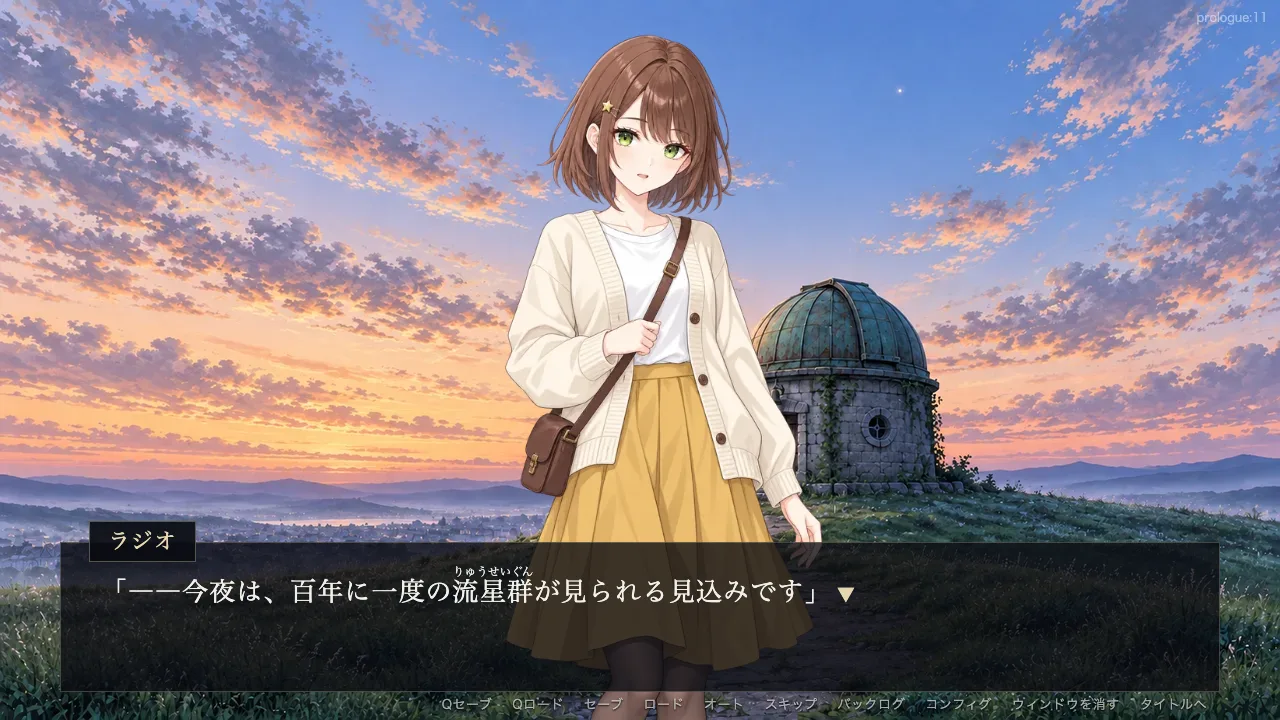
撮影: /var/folders/…/liminalia-mcp-zLlYeV/shot.png(prologue:11)Along with the image, it returns the line that was captured (line 11 of prologue.lim). You can see in the image that the speaker’s name and the ruby (small reading aids above the characters) are shown.
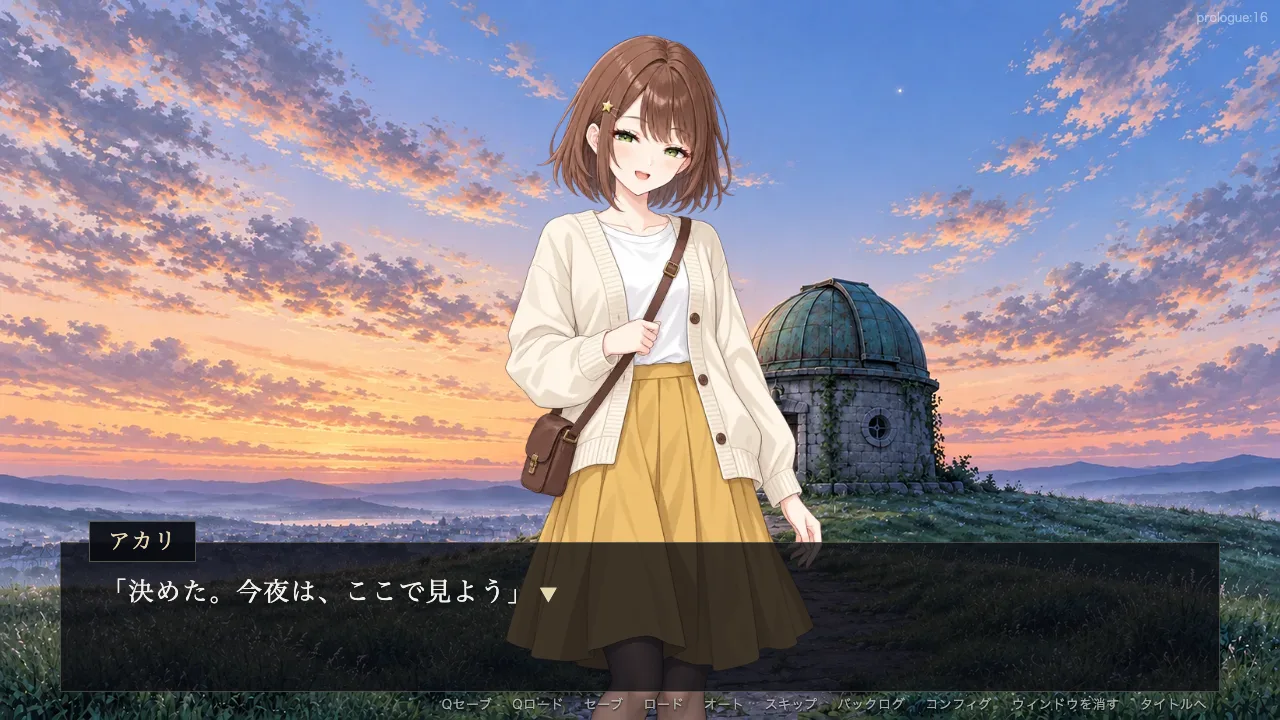
Set skip to 7, and you get the screen of the last line of dialogue in this scene. The sprite is the smiling variant set by @chara アカリ smile.
See how the scenes connect
story_map returns, as text, the same scene connections as the flowchart in Studio.
はじめから: prologue#prologue

# 場面
epilogue#dawn(epilogue.lim 3〜26 行、7 ページ、ファイルの終わり) 気がつくと、空の端が白みはじめていた。
prologue#prologue(prologue.lim 3〜19 行、7 ページ) 丘のふもとの町は、まだ朝の靄の中にあった。
start#start(start.lim 15〜42 行、13 ページ) 坂をのぼりきった先に、小さな天文台がある。
…(10 more scenes in start)

# つながり
prologue#prologue → start#start(@jump、18 行)
start#start → start#night(次へ、42 行)
…
start#ending → epilogue#dawn(@jump、153 行)
The first line is where “New Game” (はじめから) starts. Under 場面 (scenes), each scene is listed with its lines, number of pages and first line of text, and under つながり (connections), each connection is listed with how it leads on (@jump, or continuing to the next scene) and its line.
The added prologue scene is now where “New Game” starts, and it connects to start in the sample story with @jump.
Try it with your own assistant
To try the same flow, register the server as described in Connect an AI assistant, and send the request above. The assistant reads the guide and writes the scenario. The list of tools and the detailed rules are in Using Liminalia from AI assistants (MCP).