

Play videos
On this page
The “Movie” part plays a video across the whole screen, and waits until it ends before going on. Use it for an opening or a flashback video. To keep a video playing as the background, use the “Bg video” part.
The examples on this page use the project you make in the tutorial, “Shiori of the Library.”
Put the videos in “Videos” on the “Assets” screen beforehand. Here, a 4-second opening.mp4 and a looping night_sky.mp4 are used.
Play a video full screen
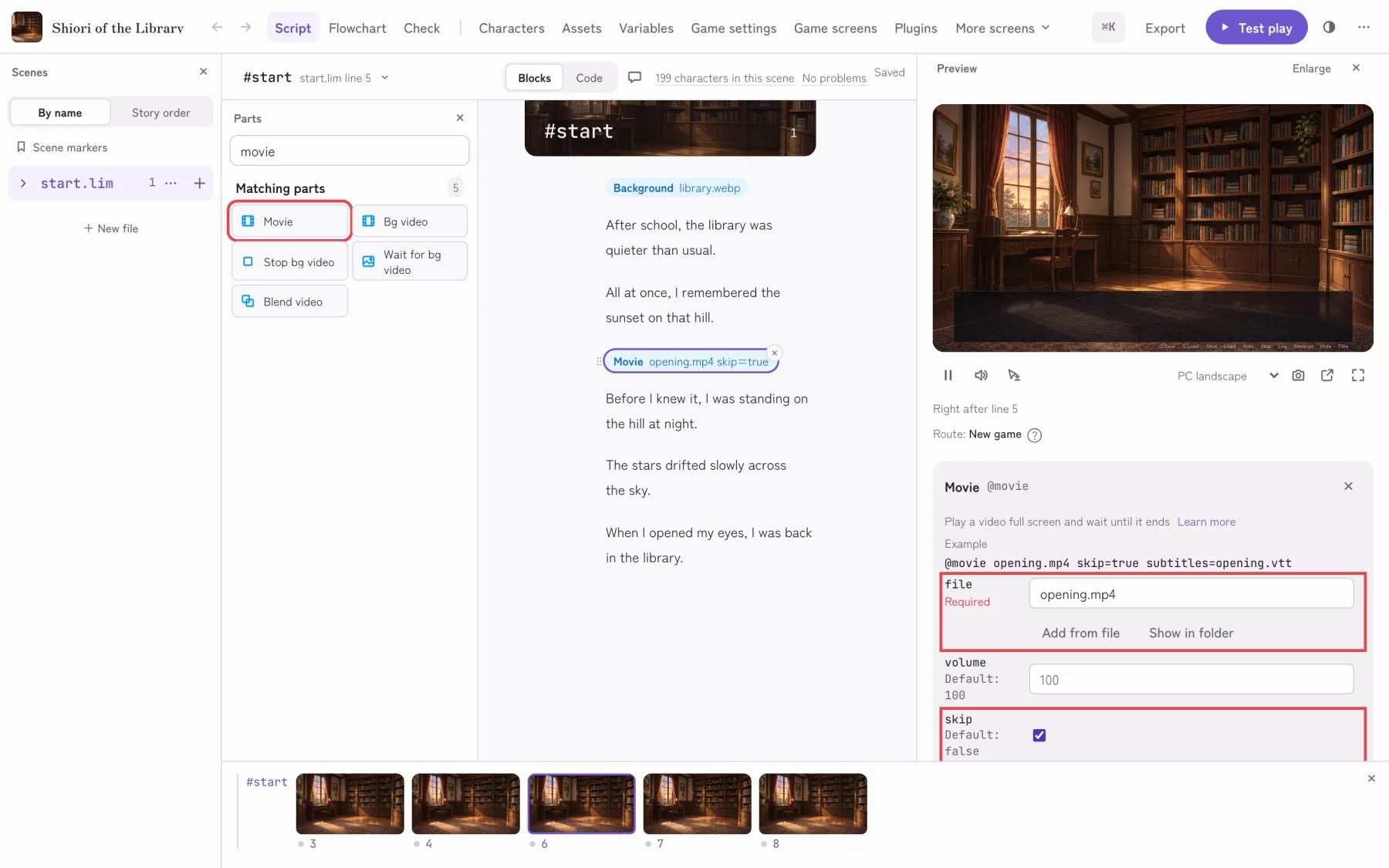
- Select the text block just before where the video should play (here, “All at once, I remembered the sunset on that hill.”).
- Type “movie” in the search box at the top of the parts panel, and double-click “Movie” in the results.
- In the parameter panel on the right, click the
filefield and chooseopening.mp4from the list. - So that players can skip it with a click, check
skip.
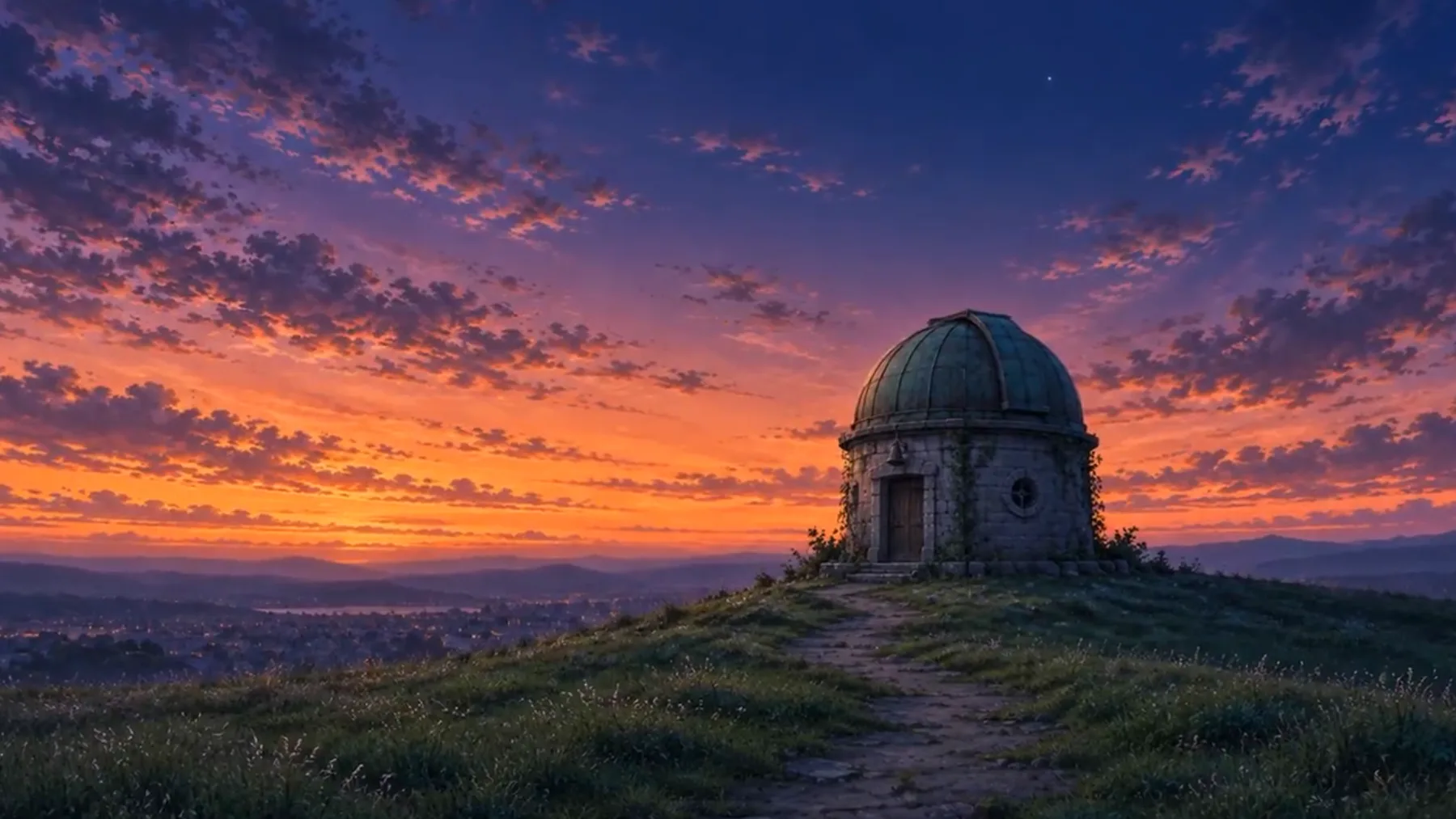
When the text moves on, the video plays across the whole screen. The message window is hidden while it plays. When the video ends (or when the player clicks, if skip is checked), the story goes on to the next text.
| Parameter | What it sets |
|---|---|
| volume | Volume (0 to 100; 100 by default) |
| skip | Can be skipped with a click (unchecked by default) |
| skip-seen | A video the player has watched to the end can be skipped with a click, even if skip isn’t checked (checked by default) |
| mute | No sound |
| time | Fade-in time |
| menu | Show the quick menu while it plays |
| subtitles | Subtitle file (a WebVTT .vtt file, chosen from “Videos” in the assets) |
Play a video as the background
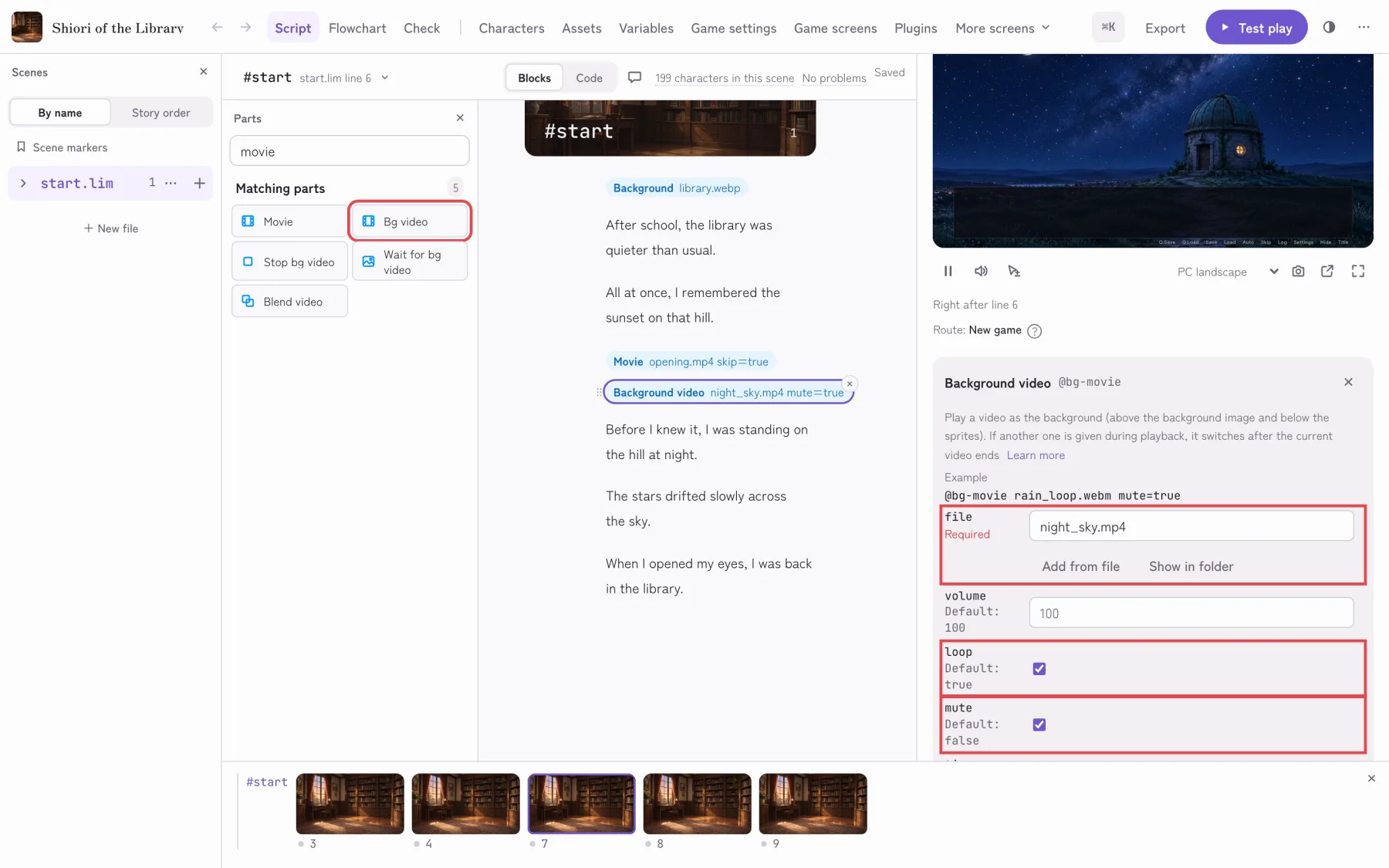
- Select the movie block (“Movie opening.mp4”). With “movie” still in the search box, double-click “Bg video.”
- Choose
night_sky.mp4infile. - It should loop, so leave
loopchecked. The video has no sound, so checkmute.
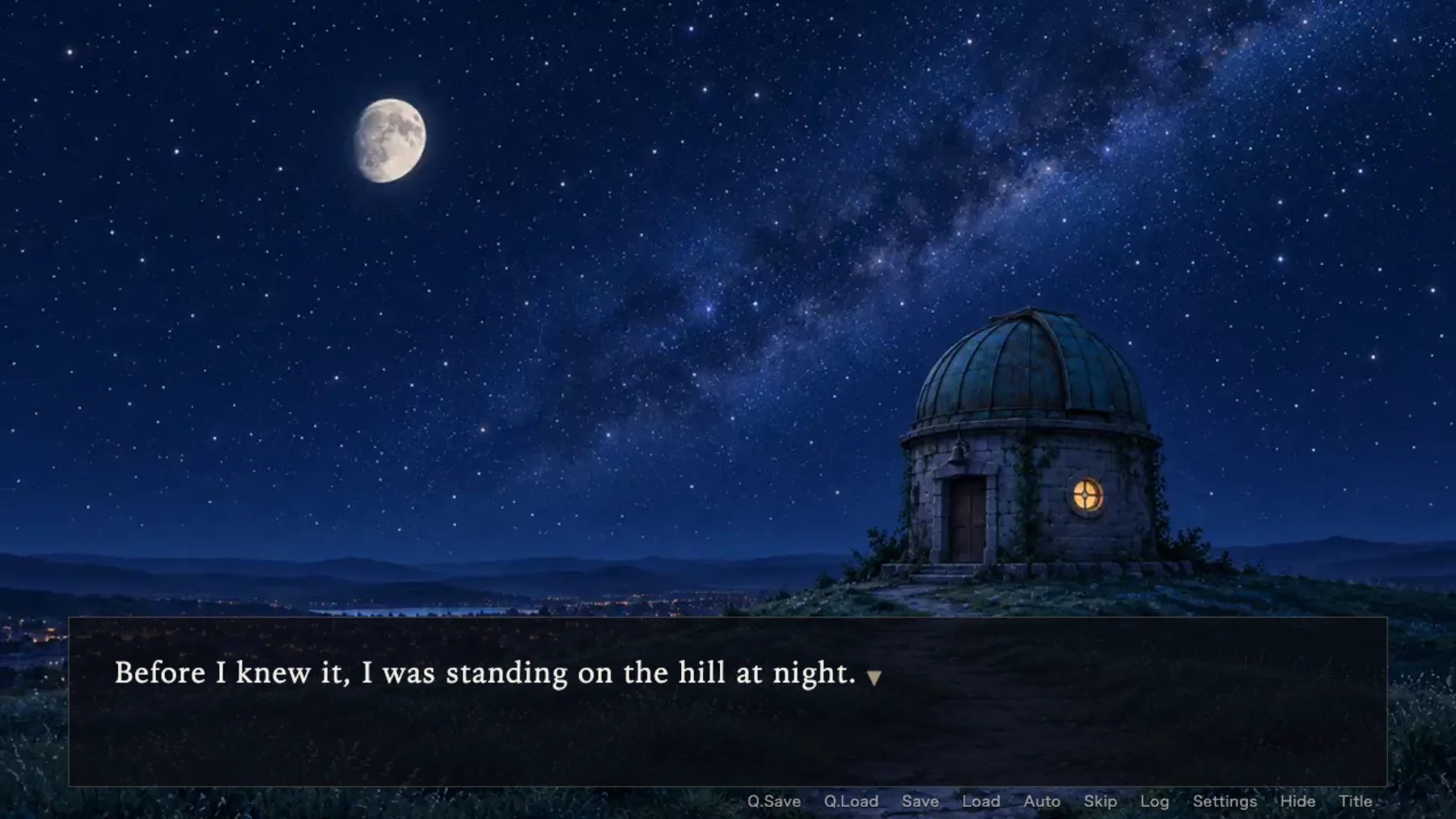
The video keeps playing above the background image and below the sprites. The text goes on as usual.
Remove the background video
- Select the text block just before where the video should be removed (here, “The stars drifted slowly across the sky.”).
- With “movie” still in the search box, double-click “Stop bg video” (
@stop-bg-movie). - Enter the time it takes to remove it,
1000, intime.
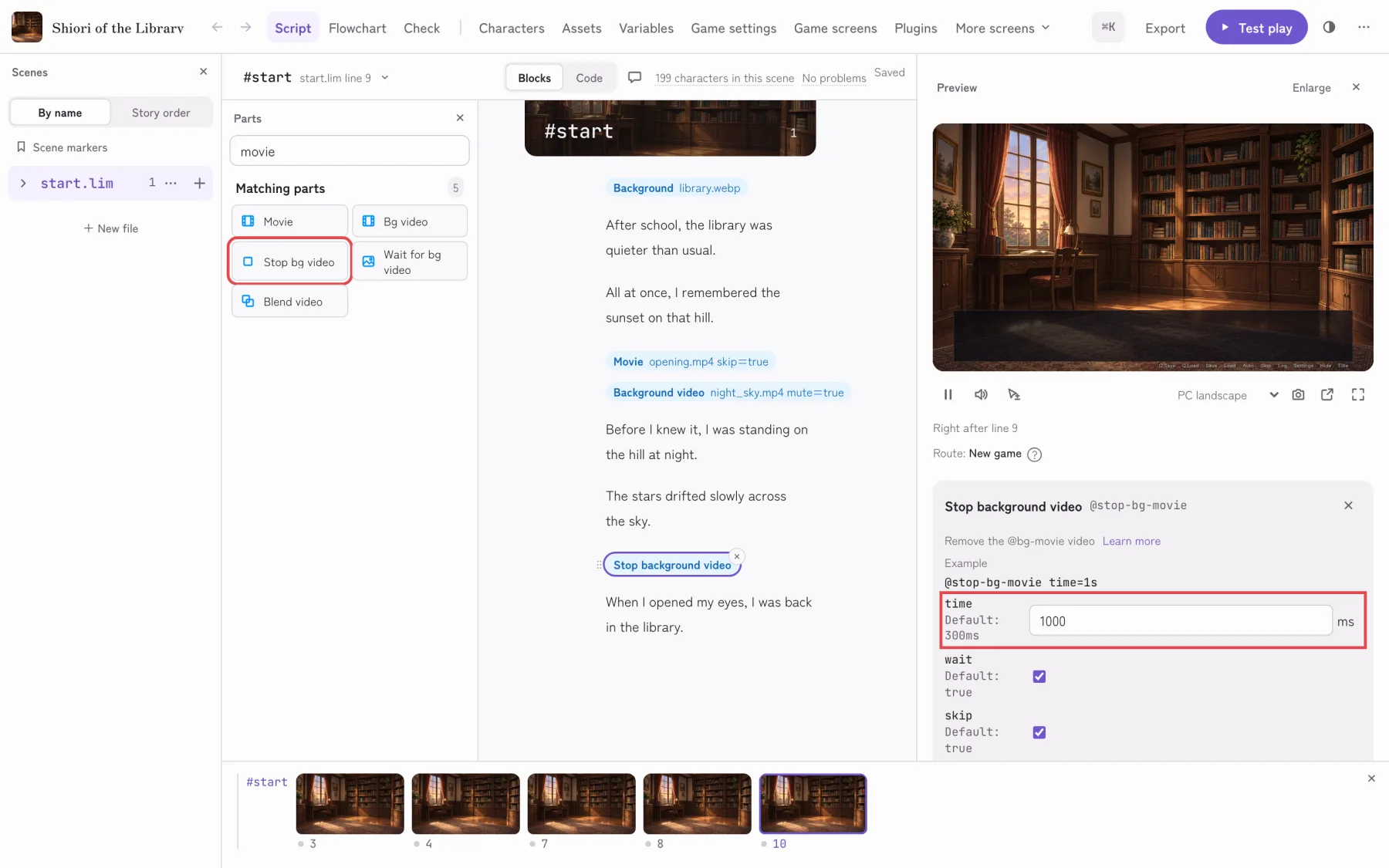
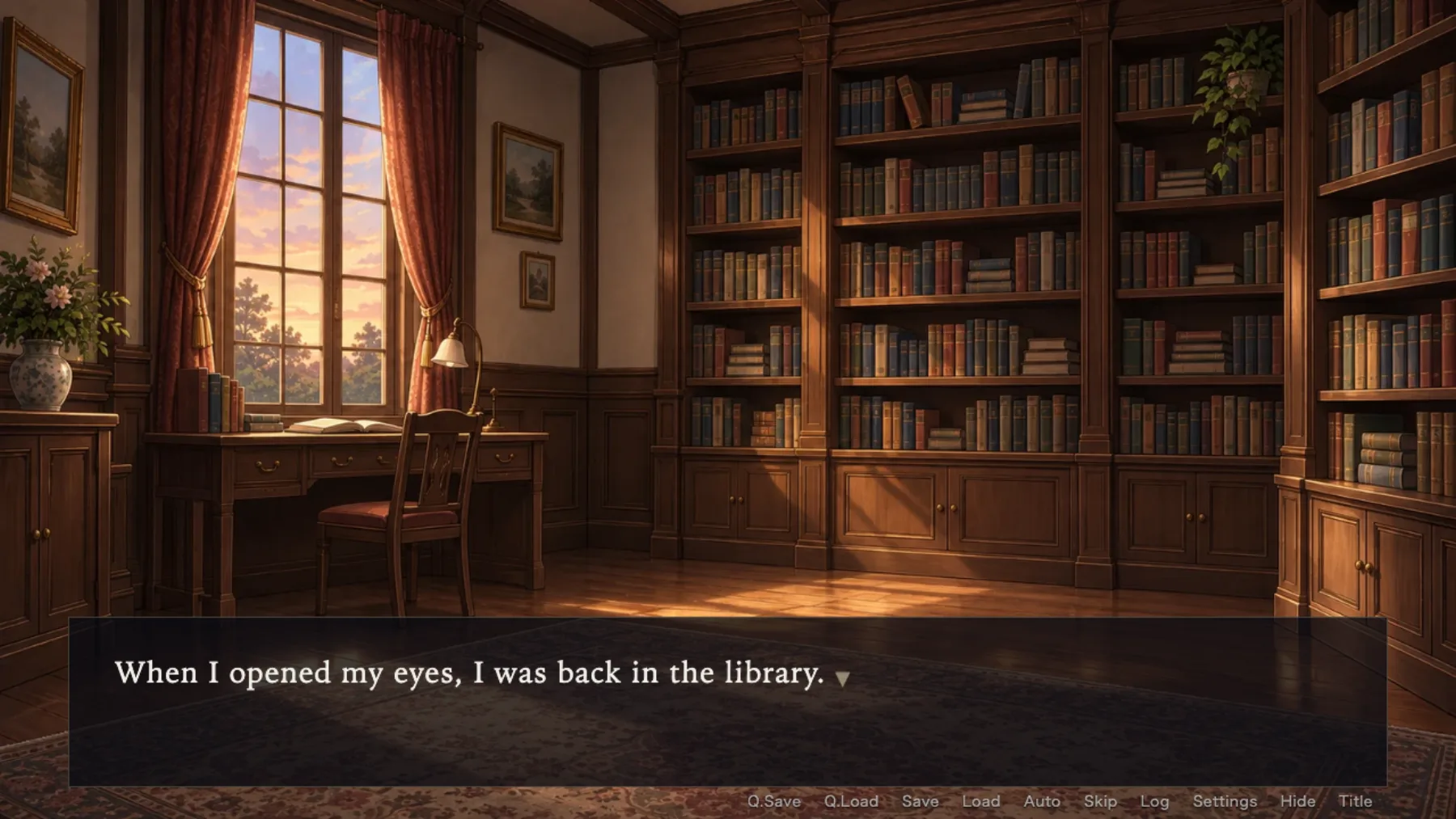
The video disappears, and the background underneath (the library) shows again.
To remove it after it has played through once, use “Await bg video” (@wait-bg-movie). It stops the loop and waits until the video plays to the end.
In code
All at once, I remembered the sunset on that hill.
@movie opening.mp4 skip=true
@bg-movie night_sky.mp4 mute=true
Before I knew it, I was standing on the hill at night.
The stars drifted slowly across the sky.
@stop-bg-movie time=1s
When I opened my eyes, I was back in the library.
For details, see @movie, @bg-movie and @stop-bg-movie.