

Decorate text
On this page
To add ruby to part of the text, or to change its color or size, put markup enclosed in { and } inside dialogue or narration. You don’t need to add lines or use parts.
The examples on this page use the project you make in the tutorial, “Shiori of the Library.”
Add ruby and emphasis dots
Ruby is the small reading aid printed above Japanese characters, and emphasis dots are marks placed over Japanese characters to stress them. The examples in this section are in Japanese.
- Select the dialogue or narration line you want to decorate, and click the text again to edit it in place.
- For ruby, write
rfollowed by the base text,|and the reading, as in{r 栞|しおり}. For emphasis dots, enclose the characters you want dotted, as in{dot 大事な}. - Press ⌘Enter to confirm, and save.
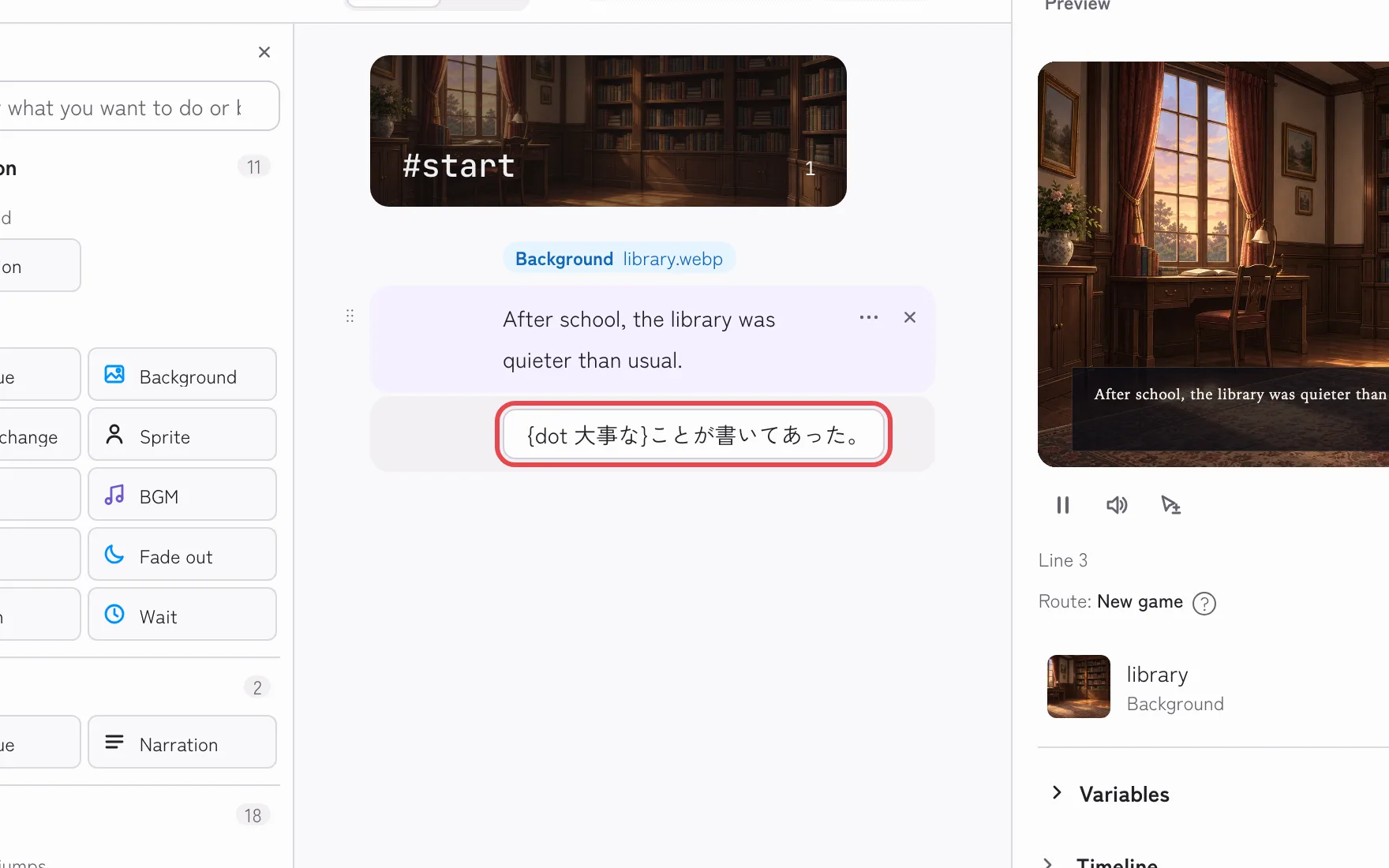
You can also add ruby by selecting characters while editing the text and pressing ⌘⌥R. The cursor moves to where the reading goes, so just type the reading. For a word whose reading is in the glossary, the reading is filled in too. Choose “Add ruby from glossary readings” in the menu on the script heading (the file name) to add ruby, scene by scene in the open file, to the first occurrence of each word that has a reading.
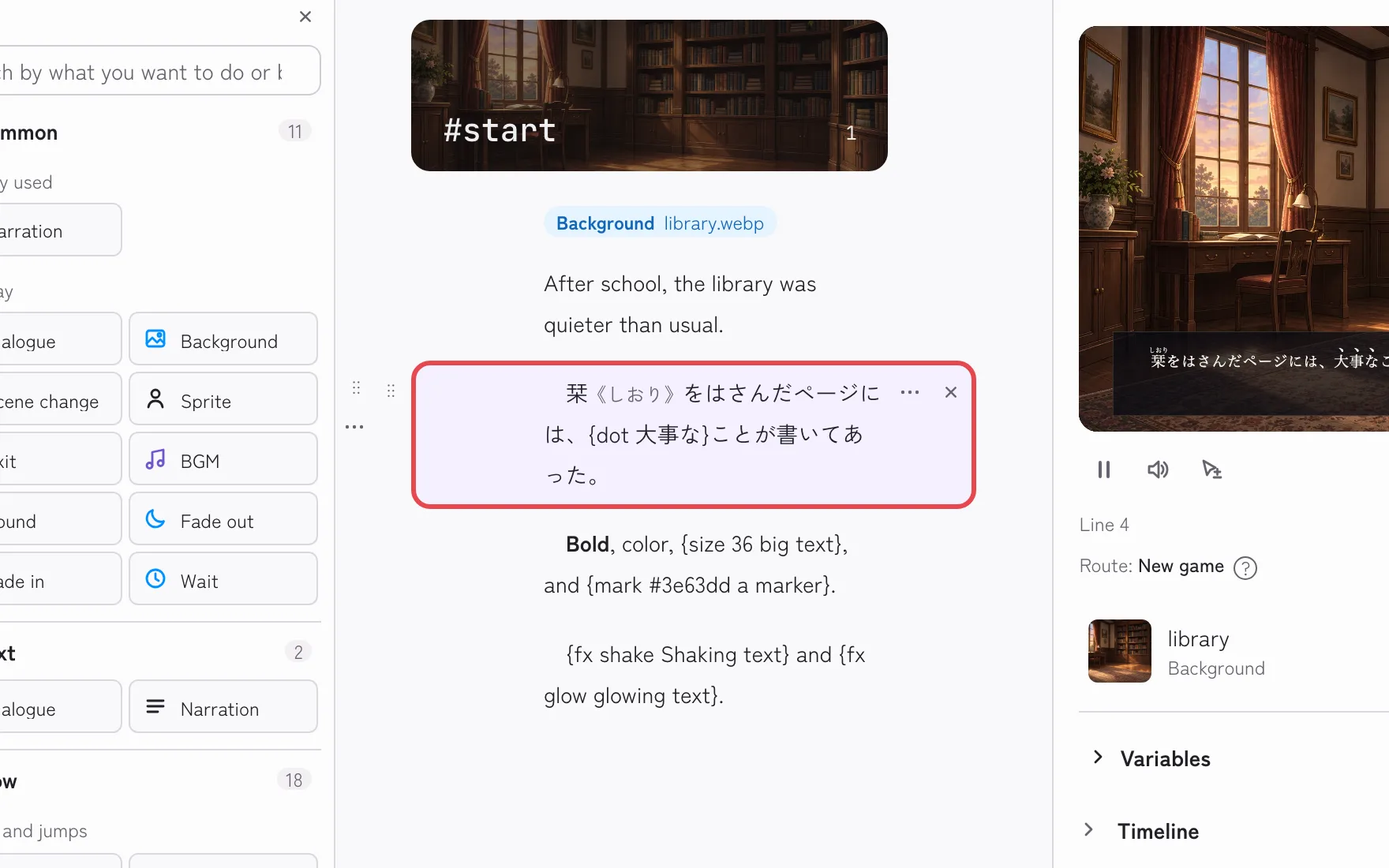
In the block view, ruby is shown with its reading added, as in “栞《しおり》.” Other markup is shown as written.
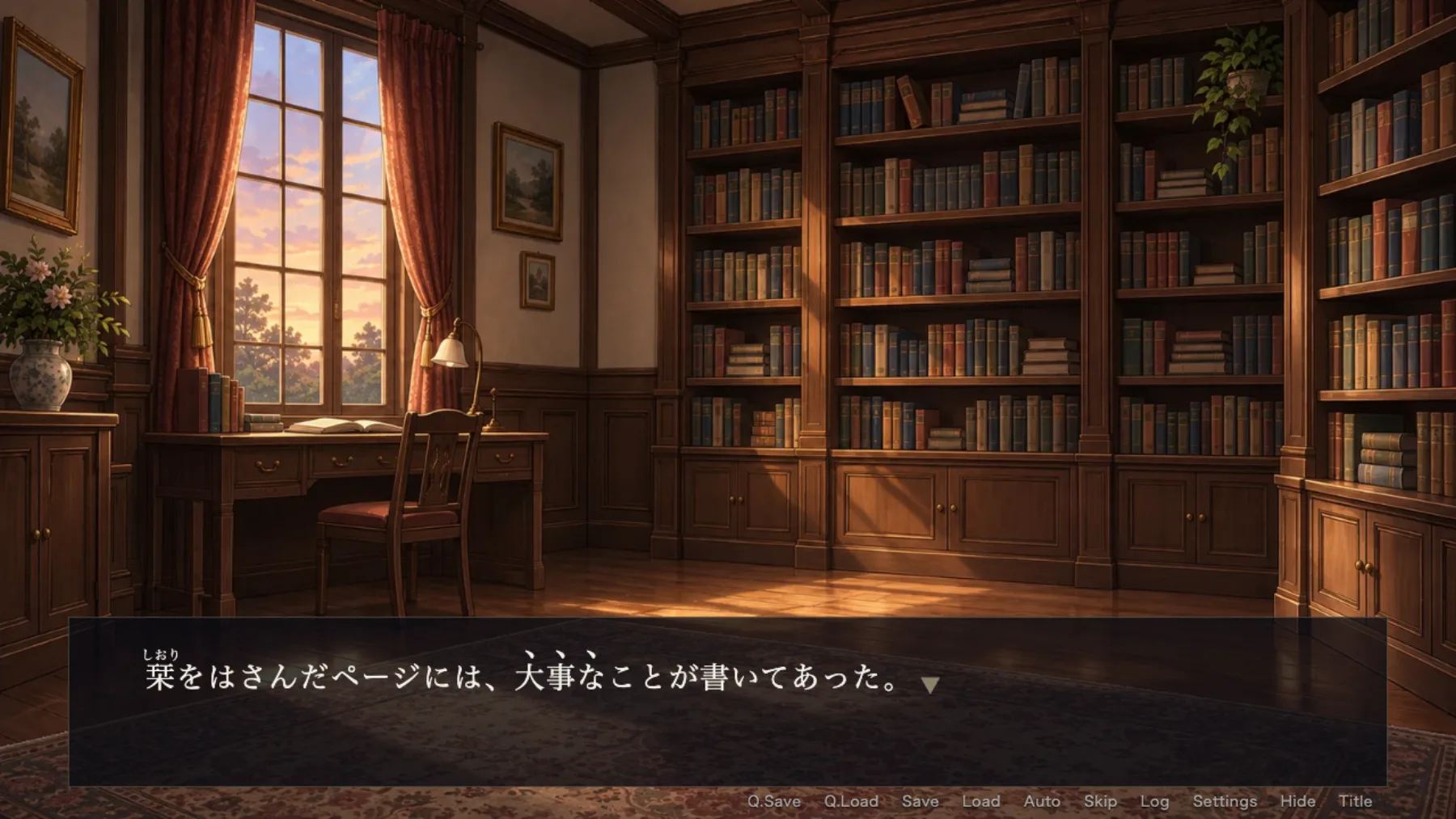
In the game, ruby appears in small type above the base text, and emphasis dots appear above the characters.
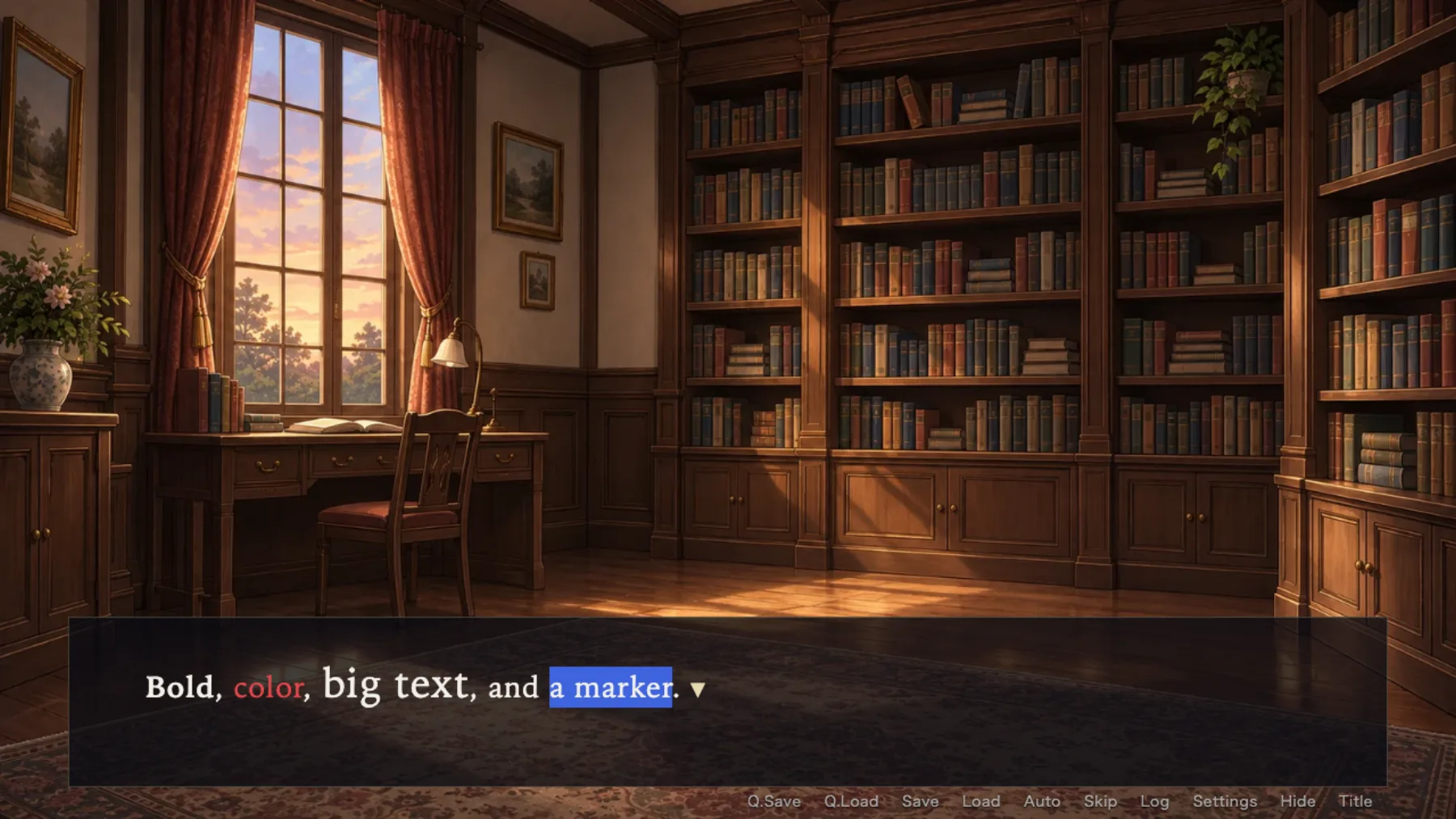
Bold, color, text size and highlighting
In the same way, enclose the text you want to decorate.
| Markup | How it looks |
|---|---|
{b bold} | Bold |
{i italic} | Italic |
{c #e5484d color} | Changes the text color (the color is # and six letters or digits) |
{size 36 large text} | Changes the text size (the number is in px) |
{mark #3e63dd highlight} | Paints color behind the text, like a highlighter pen |
Markup can be nested. {b {c #e5484d red bold}} gives red bold text. To make ruby bold, enclose the ruby from the outside, as in {b {r 栞|しおり}} (you can’t put other markup inside the base text or the reading of ruby).
Make text move
Write {fx motion text}, and the enclosed text moves.
| Motion | How it looks |
|---|---|
| shake | Trembles |
| wave | Waves, each character slightly behind the one before |
| pop | Pops in with a bounce |
| fade | Fades in slowly |
| glow | Glows softly |
After the motion name, you can write multipliers for size (strength=) and speed (speed=). 1 is normal: {fx shake strength=3 speed=2 scary} trembles hard and fast, and {fx wave strength=0.5 speed=0.5 gently} waves small and slowly. You can leave out either one.
Choose markup from suggestions
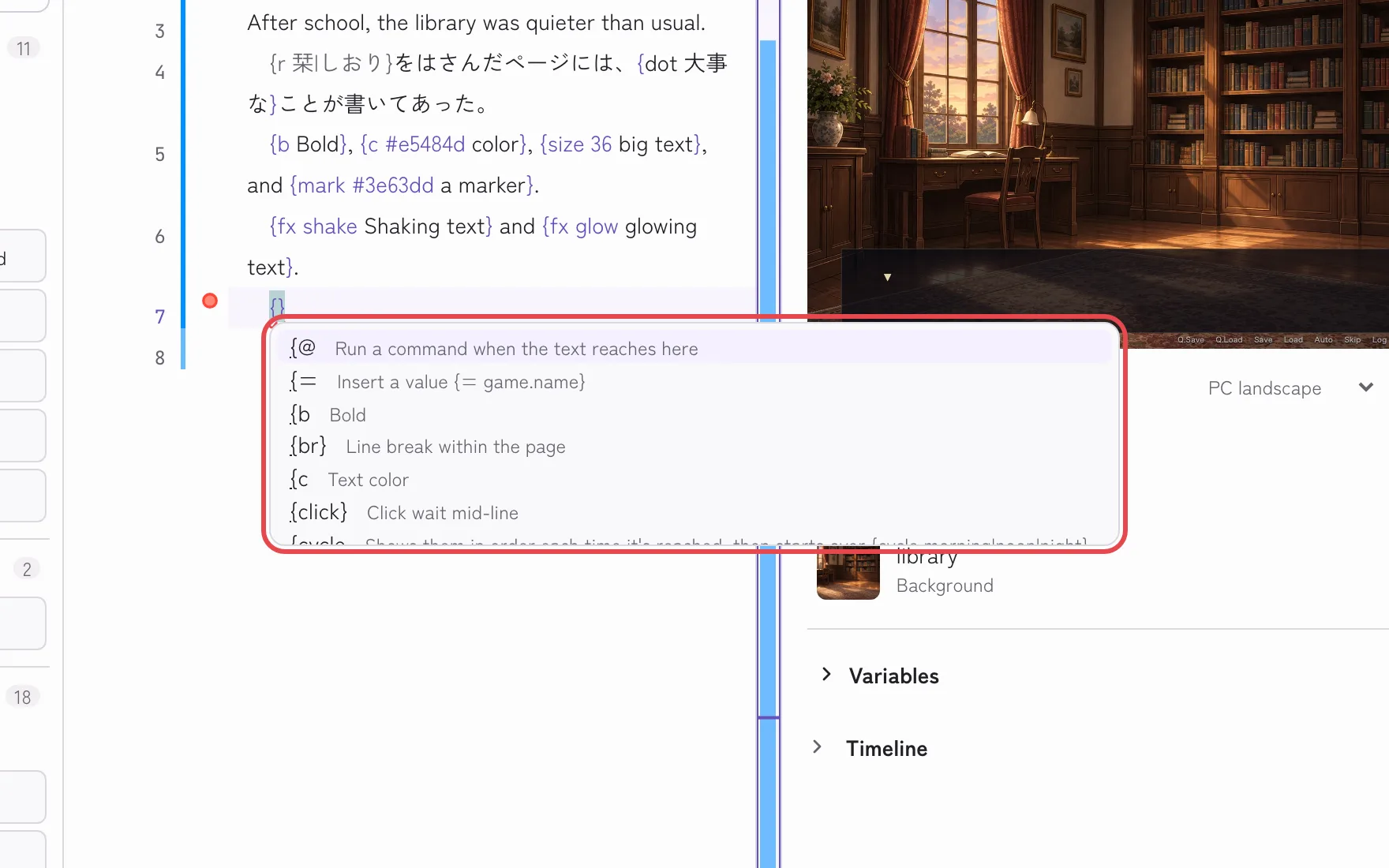
In the code view, type { in the text, and suggestions for markup appear with descriptions. Choose one to insert the start of that markup.
Emphasis dot shape and ruby size
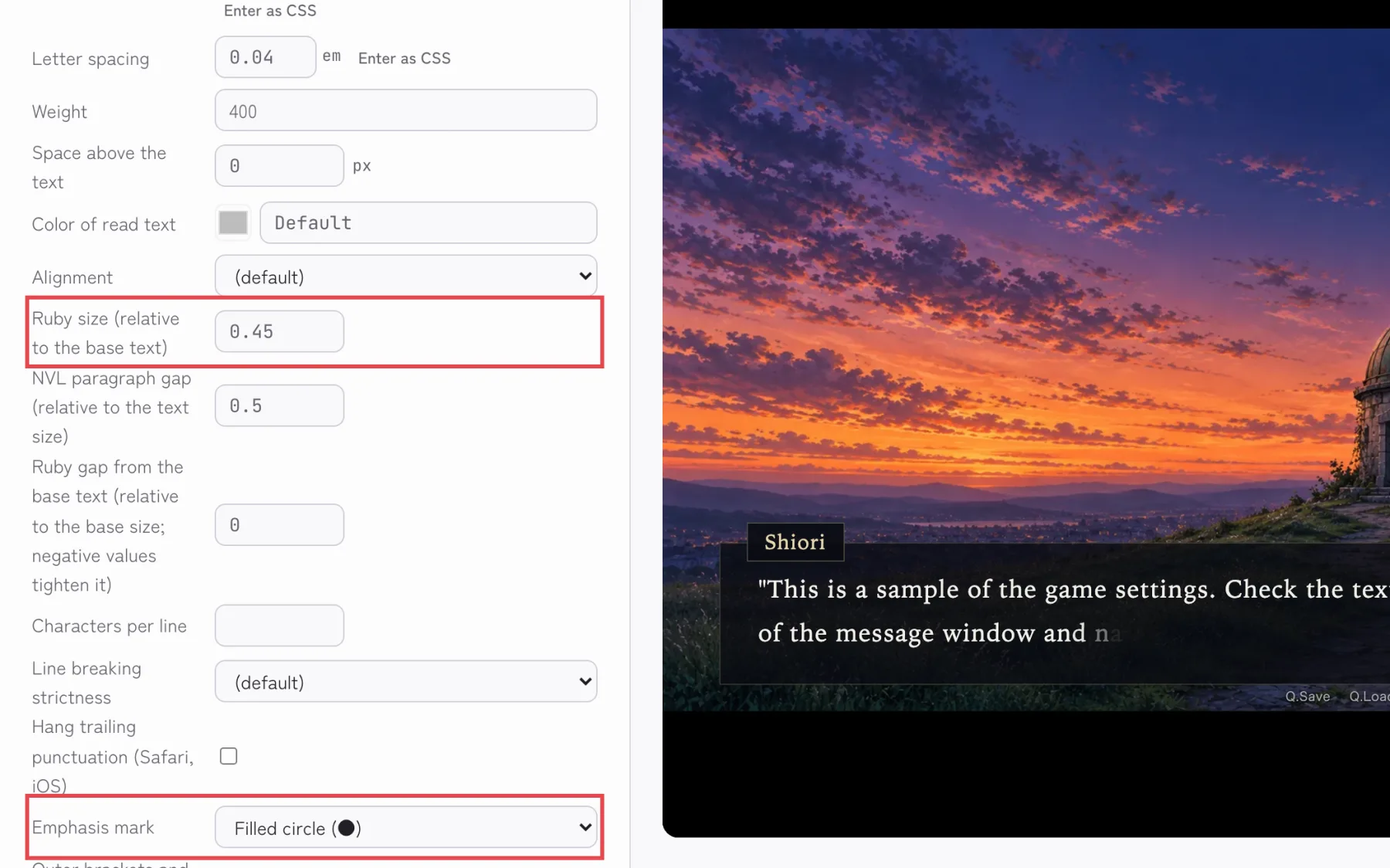
The shape of emphasis dots (sesame, dot, open circle, filled circle, triangle) and the size of ruby are set for the whole project. Open “Game settings” at the top of the screen, and change “Emphasis mark” and “Ruby size (relative to the base text)” under “Text.”
To show {, } or \ as ordinary characters in the text, put \ in front of them: \{, \} and \\.
In code
 {r 栞|しおり}をはさんだページには、{dot 大事な}ことが書いてあった。
 {b Bold}, {c #e5484d color}, {size 36 large text}, {mark #3e63dd highlight}.
 {fx shake trembling text} and {fx glow glowing text}.
 {fx shake strength=3 speed=2 text that trembles hard}
The first line is the Japanese example from above, with ruby on 栞 (bookmark) and emphasis dots on 大事な (important).