

Screen effects
On this page
With the Effect part, you can warp the screen, make it look like the video is glitching, or apply a mosaic. A screen effect lasts until you place the part that removes it. To keep a character in focus and blur the background, use the depth of field part.
The examples on this page use the English sample story, “Waiting for Stars” (choose “A sample story” and English in New Project, or run lim new --lang en; the characters are Akari and Sou).
Screen effects
- Select the block just before where the effect should start (here, “Good evening. Is it all right if I come in?”).
- Type “screen effect” in the search box at the top of the parts panel, and double-click “Effect” in the results.
- In the parameter panel on the right, set
typeto “glitch.”
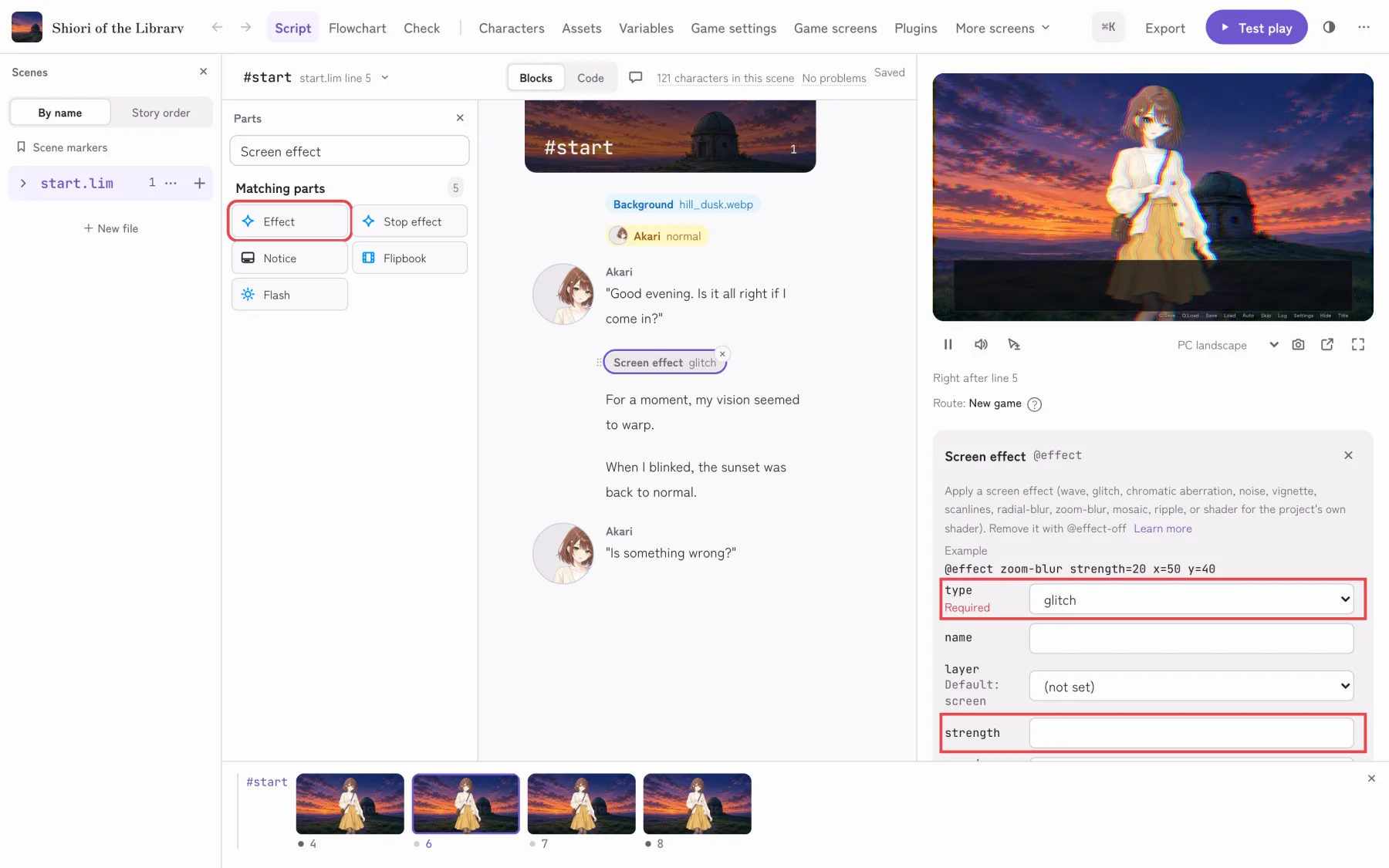
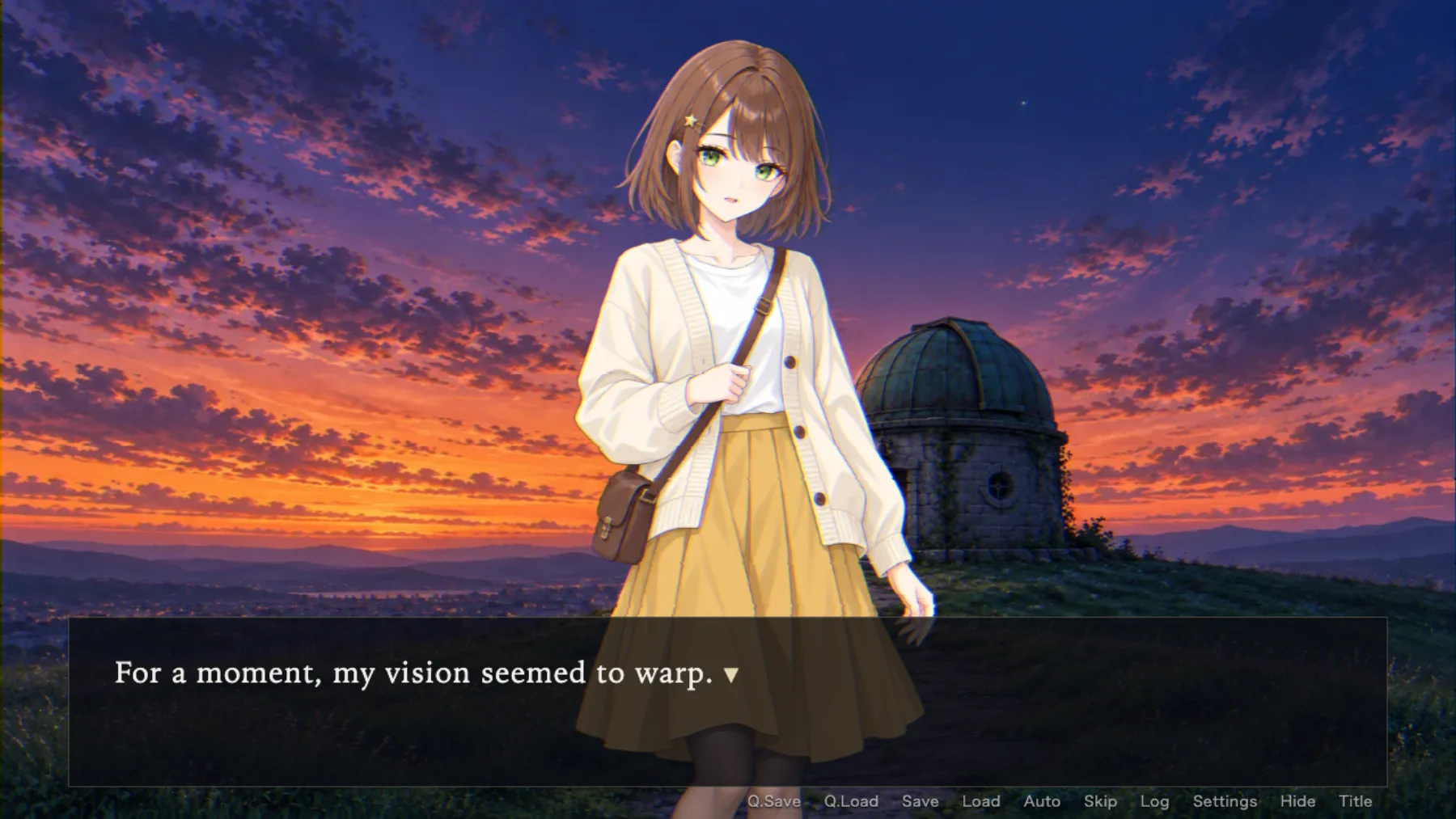
From the next text on, the whole screen looks glitched.
| type | Effect | Unit and default for strength |
|---|---|---|
| wave | Wavering | px, 12 |
| glitch | Video distortion | px, 30 |
| chromatic | Color fringing | px, 4 |
| noise | Grain (static) | %, 25 |
| vignette | Darkened edges | %, 60 |
| scanlines | Scanlines | %, 30 |
| radial-blur | Rotational blur | Rotation angle, 8 |
| zoom-blur | Zoom blur | %, 15 |
| mosaic | Mosaic | px, 16 |
| ripple | Ripple | px, 6 |
| shader | The project’s own shader | Value passed to the shader, 1 |
Change the strength
Set the strength with strength. If you leave it out, each kind uses its default strength.
- In the same parameter panel, set
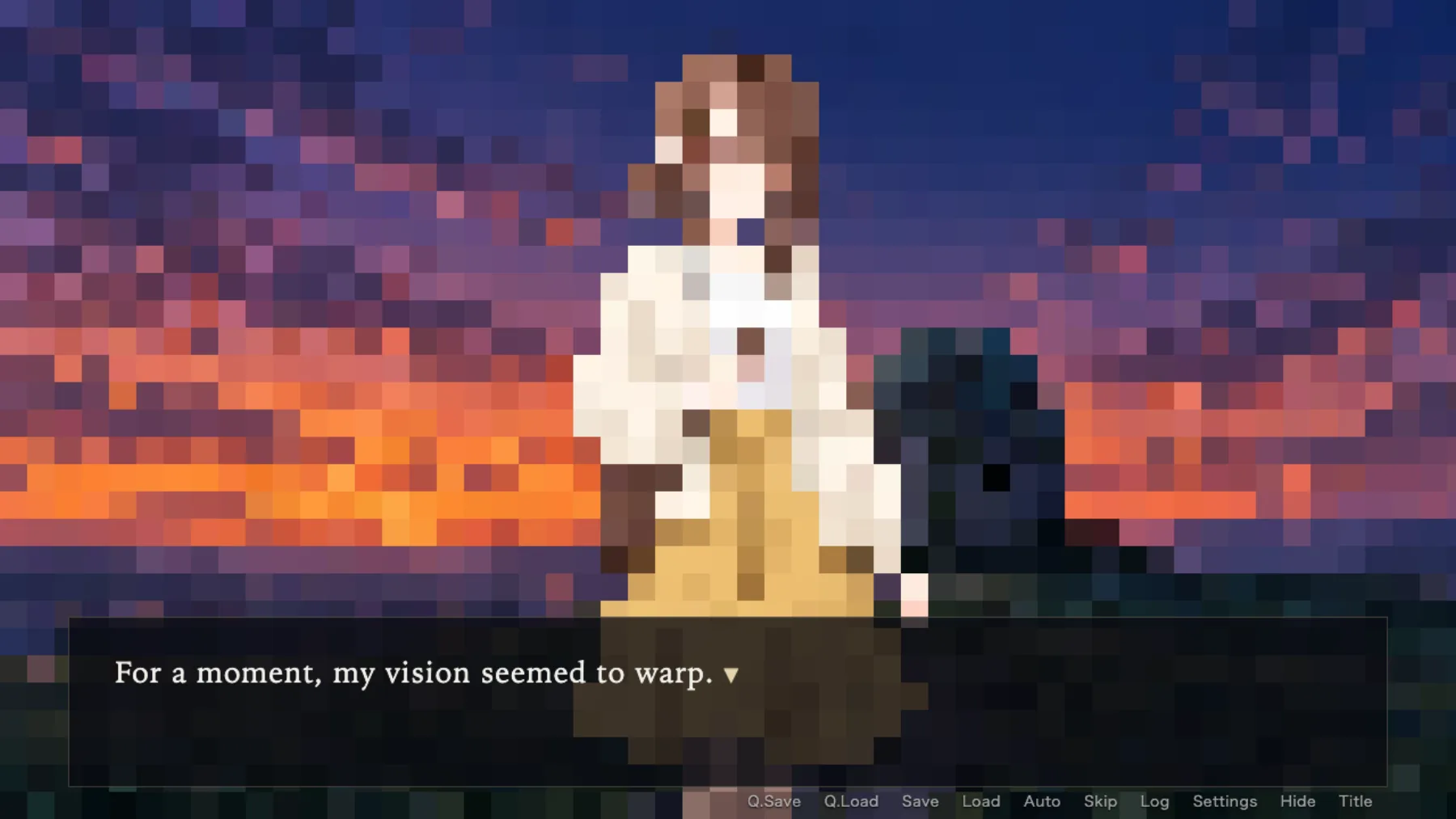
typeto “mosaic” and enter24instrength.
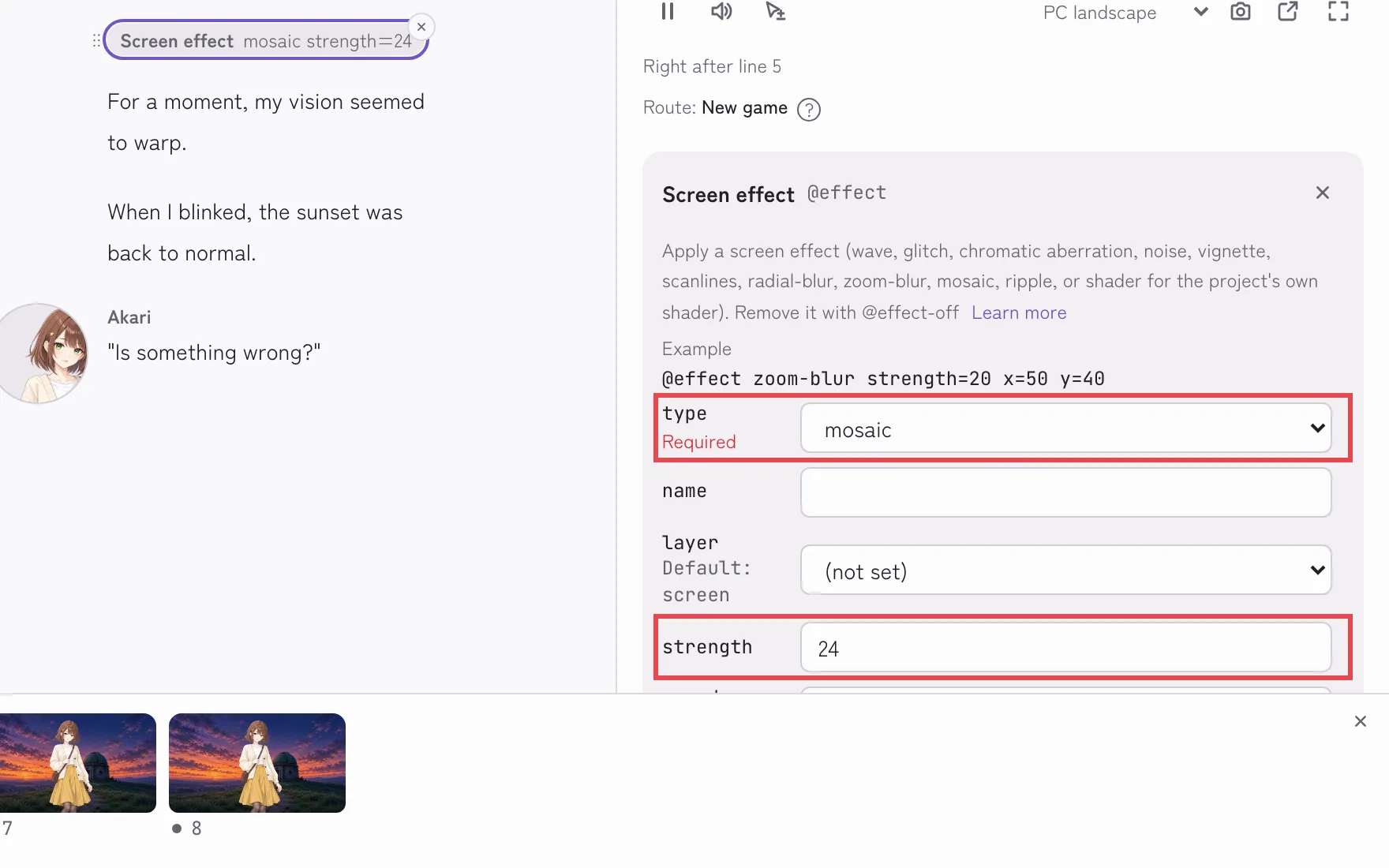
Each square of the mosaic is 24px.
These parameters are also available.
| Parameter | What it sets |
|---|---|
| layer | Where to apply it (screen is the whole screen, base is the background, fg0 to fg2 are the layers that show images; noise, vignette and scanlines work only on the whole screen) |
| speed | Speed factor of the motion (0 stops it; 1 by default) |
| color | Color (vignette and scanlines only; black if left out) |
| x, y | Position of the center (radial-blur, zoom-blur, ripple, shader; % from the top left) |
| name | Name (applying one with the same name replaces it; used to remove just one with the part that removes effects) |
Remove screen effects
- Select the block just before where the effect should be removed (here, “For a moment, my vision seemed to warp.”).
- With “screen effect” still in the search box, double-click “Stop effect” (
@effect-off).
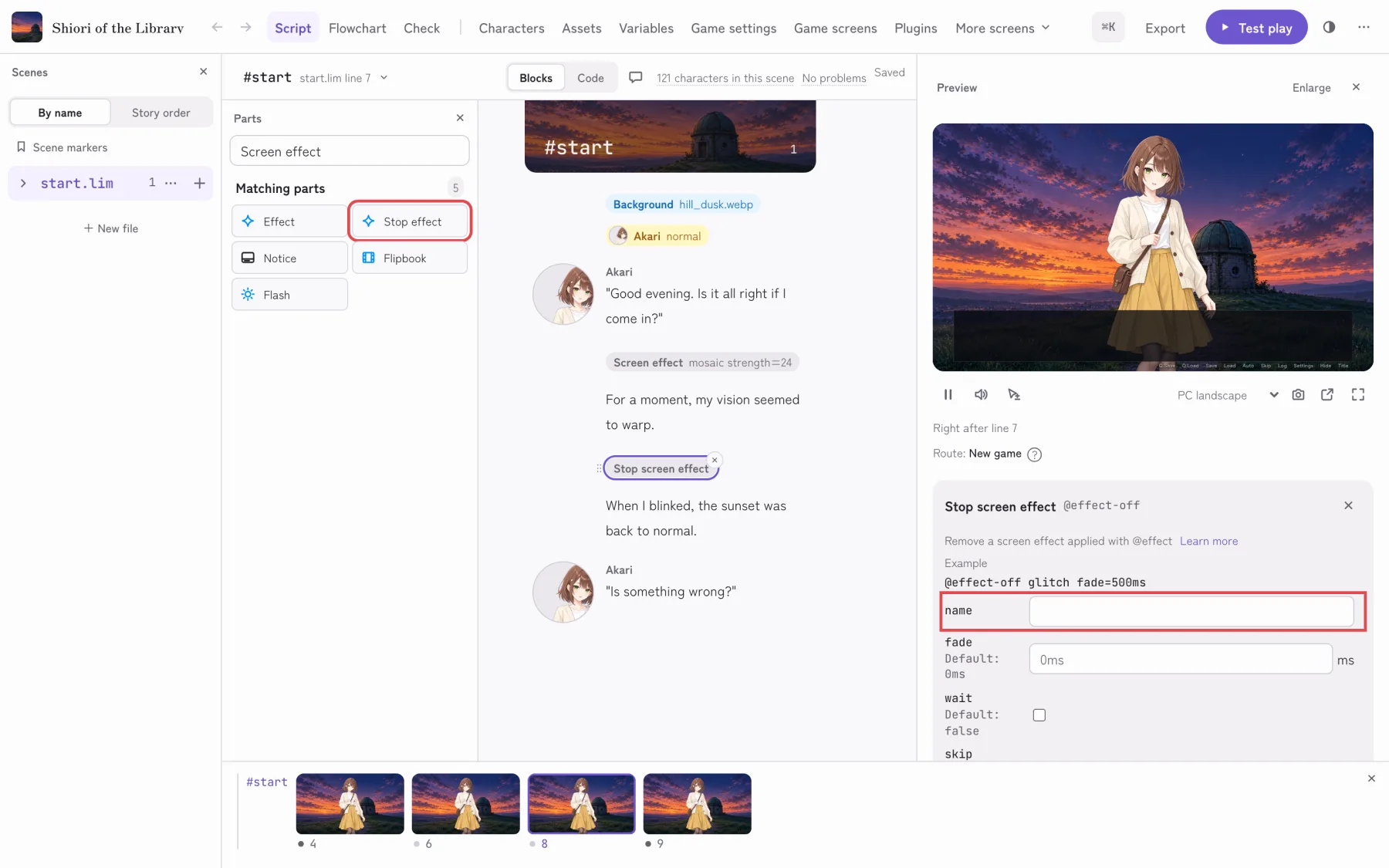
If you leave name empty, every screen effect that’s applied is removed.
To apply an effect for a set time and have it remove itself, enter a time in time of “Effect.” Then you don’t need “Stop effect” (Add one-shot effects).
Blur the background with depth of field
Depth of field keeps one part of the screen in focus and blurs the rest. In the parts panel, it’s listed as “Depth blur.”
- Select the block just before where the blur should start (here, “When I blinked, the sunset was back to normal.”).
- Type “blur” in the search box, and double-click “Depth blur” in the results.
- Set
onto “sprites” (focus on the sprites), and enter the blur strength8(px) inblurand600intime.
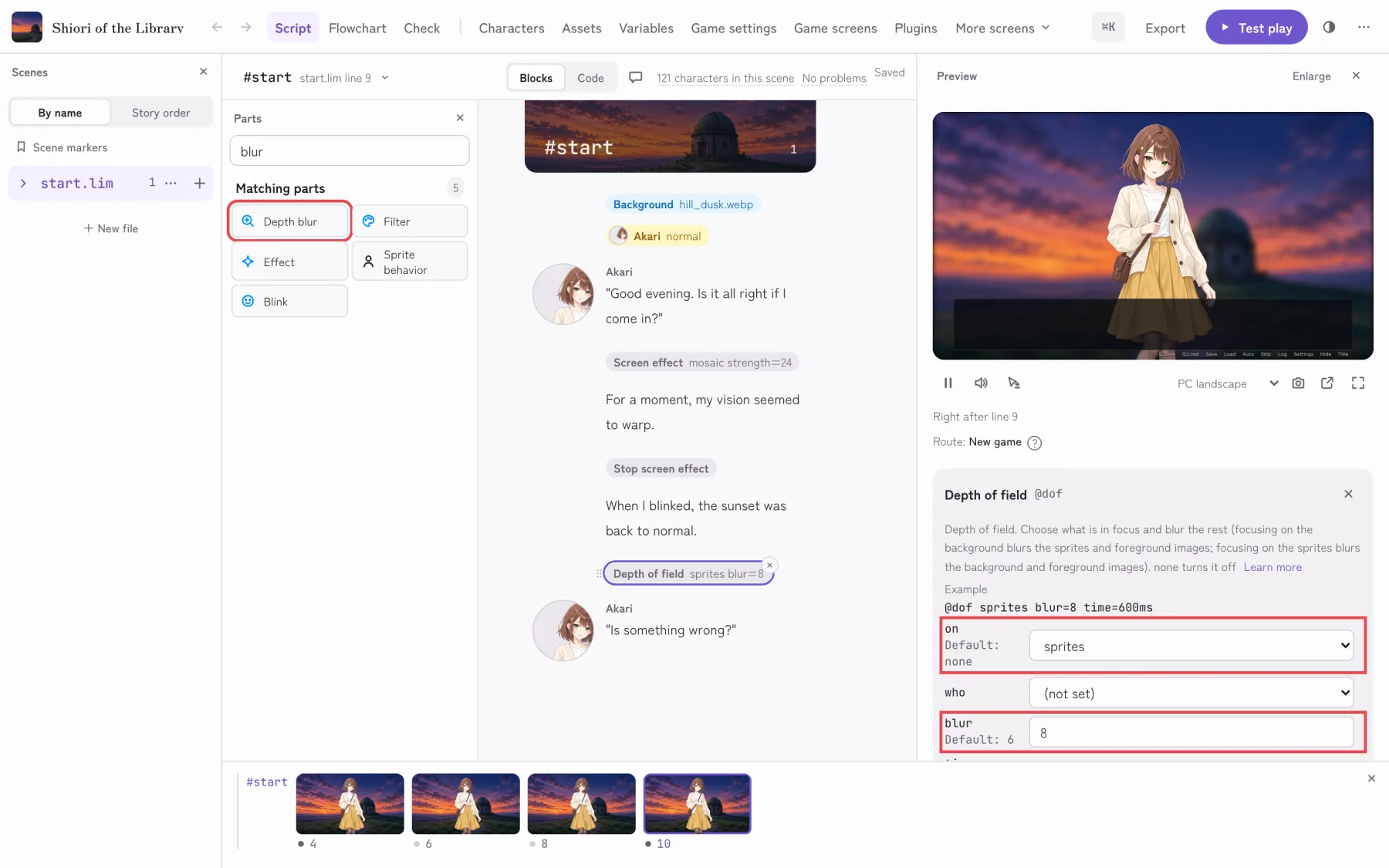
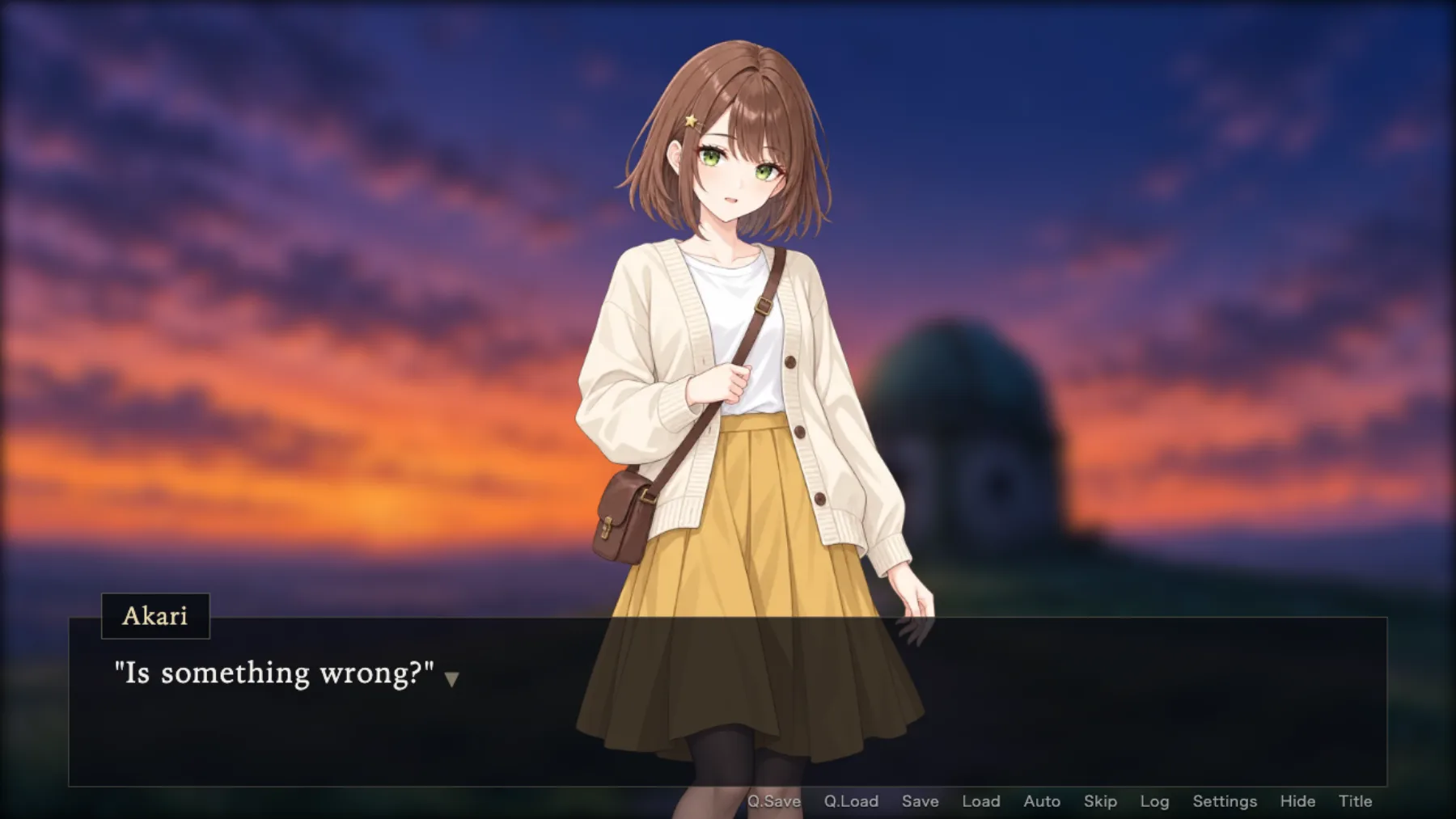
Over 0.6 seconds, the background blurs and Akari comes into focus.
| on | What’s in focus |
|---|---|
| sprites | The sprites (blurs the background and the layers that show images) |
| background | The background (blurs the sprites and the layers that show images) |
| none | No blur (to go back to normal) |
If you choose a character in who, that character is in focus, the background is blurred, and the other sprites are blurred at half the strength. To go back to normal, add “Depth blur” again and set on to “none.”
In code
Akari "Good evening. Is it all right if I come in?"
@effect mosaic strength=24
For a moment, my vision seemed to warp.
@effect-off
When I blinked, the sunset was back to normal.
@dof sprites blur=8 time=600ms
Akari "Is something wrong?"
For details, see @effect, @effect-off and @dof.