

Click waits, line breaks and text speed
On this page
Each line of dialogue or narration is one page, which moves on with one click. To pause, break lines or change how fast the text appears within a page, put markup in the text.
The examples on this page use the English sample story, “Waiting for Stars” (choose “A sample story” and English in New Project, or run lim new --lang en; the characters are Akari and Sou).
Wait for a click partway through a line
- Select a dialogue or narration line, and click the text again to edit it in place.
- Write
{click}where you want it to stop, and press ⌘Enter to confirm.
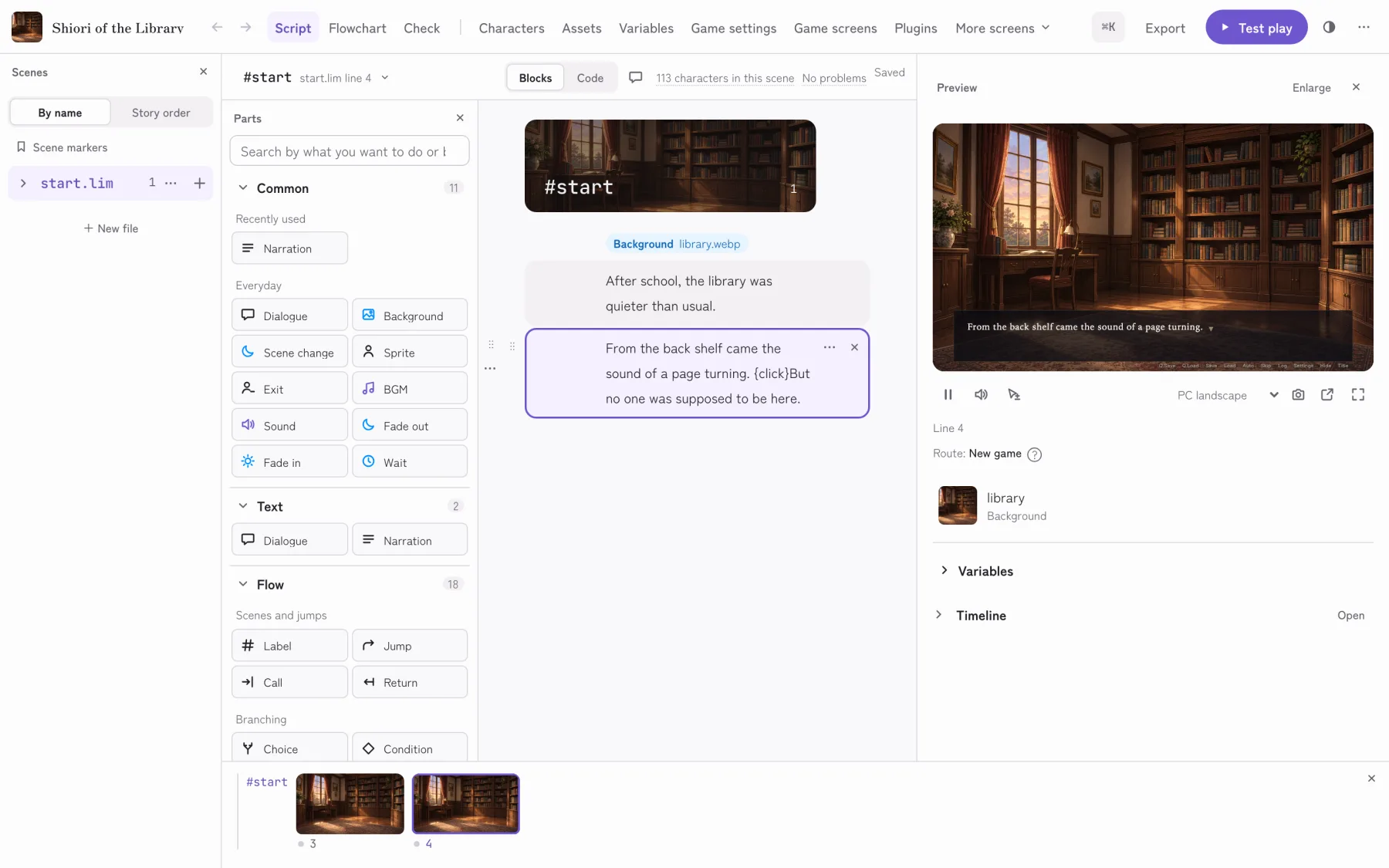
In the game, the text stops once it has shown everything up to {click}, and the click-wait icon appears.
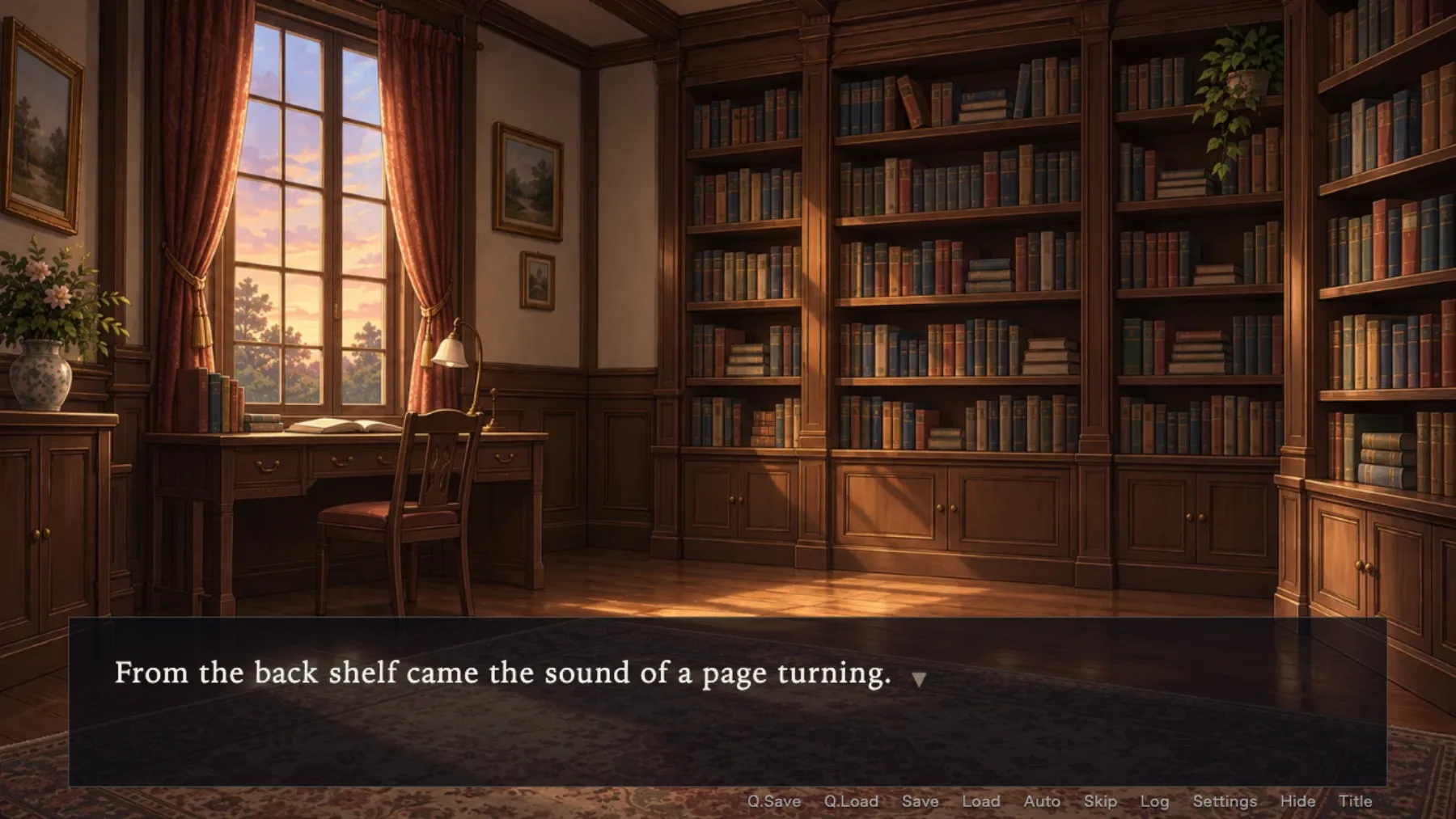
Click, and the rest appears on the same page. On the other hand, to go on to the next line without waiting for a click after a line finishes, write {noclick} at the end of the line (Continue without waiting for a click).
Break a line within the same page
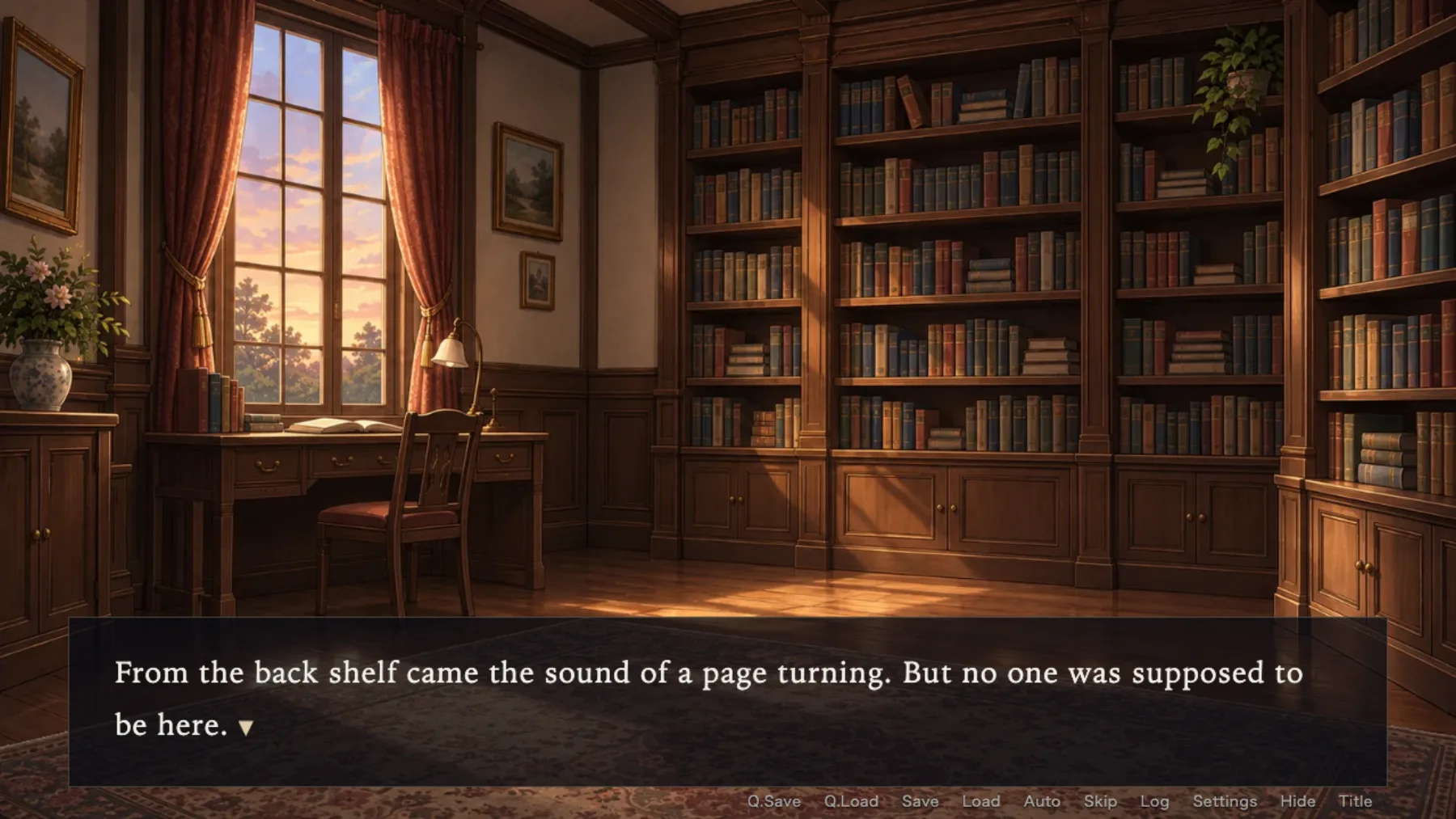
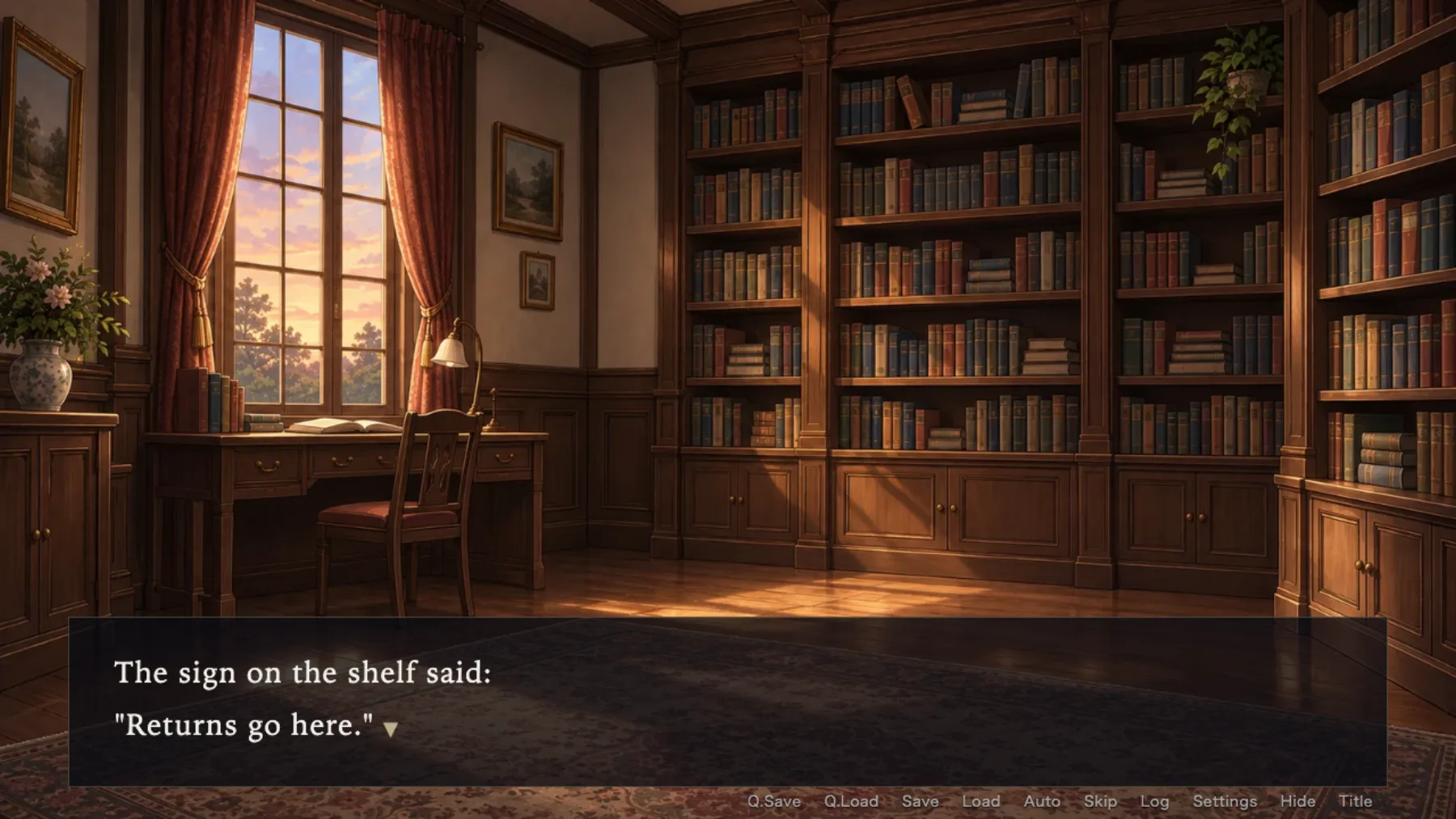
Write {br} where you want the line break. The page stays the same, and the text continues on the next line.
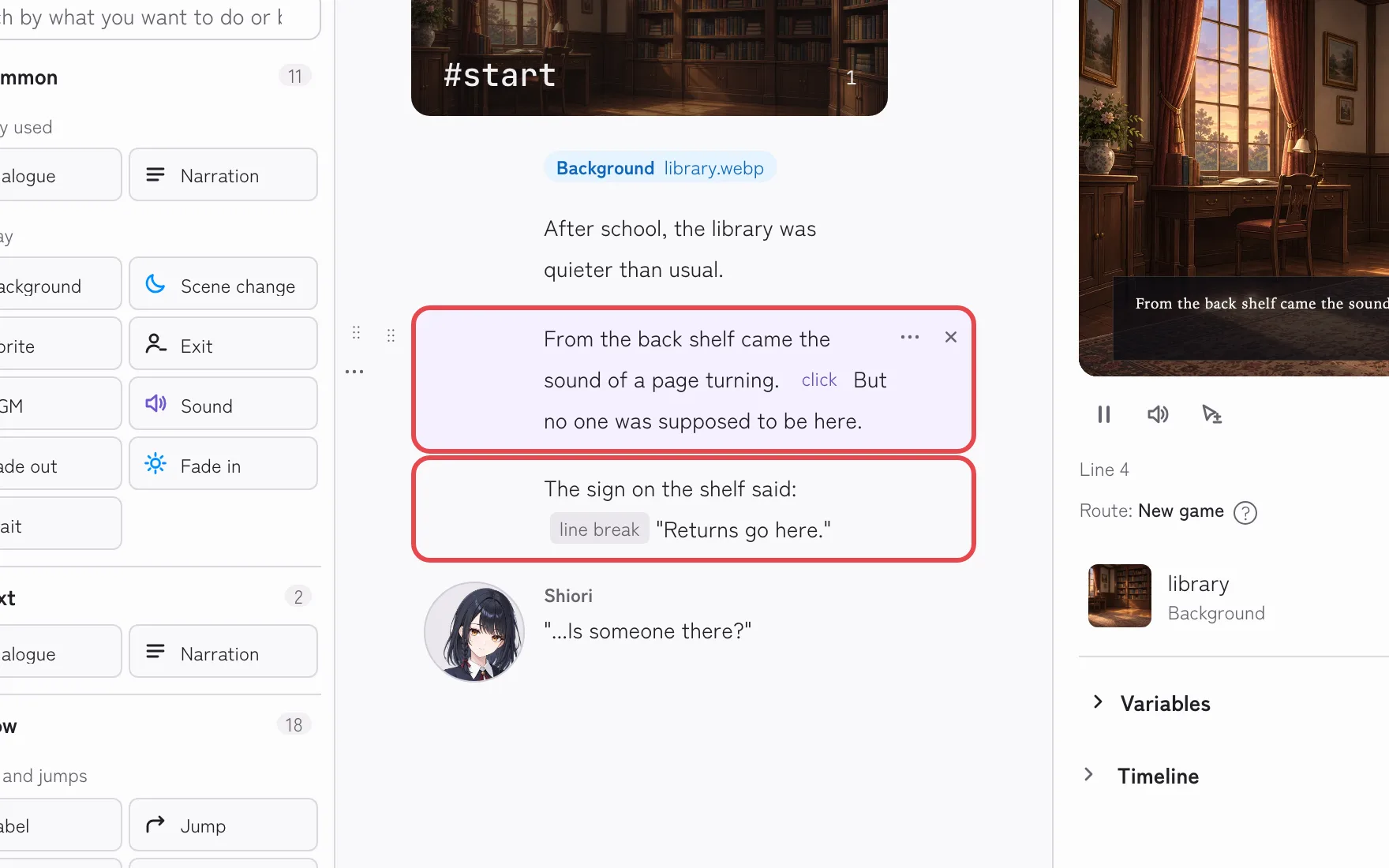
In the block view, {click} appears as a small “click” tag, and {br} as a small “line break” tag.
Change the text speed for part of a line
Write {speed time text}, and only the enclosed text appears at that time per character. Akari "{speed 300ms ...}Is someone there?" shows only the ”…” slowly. Add ms (milliseconds) or s (seconds) to the time.
Change the text speed from here on
- Type “text speed” in the search box at the top of the parts panel, and double-click “Text speed” in the results.
- In
per-char(the time per character) in the right panel, enter a time in milliseconds.
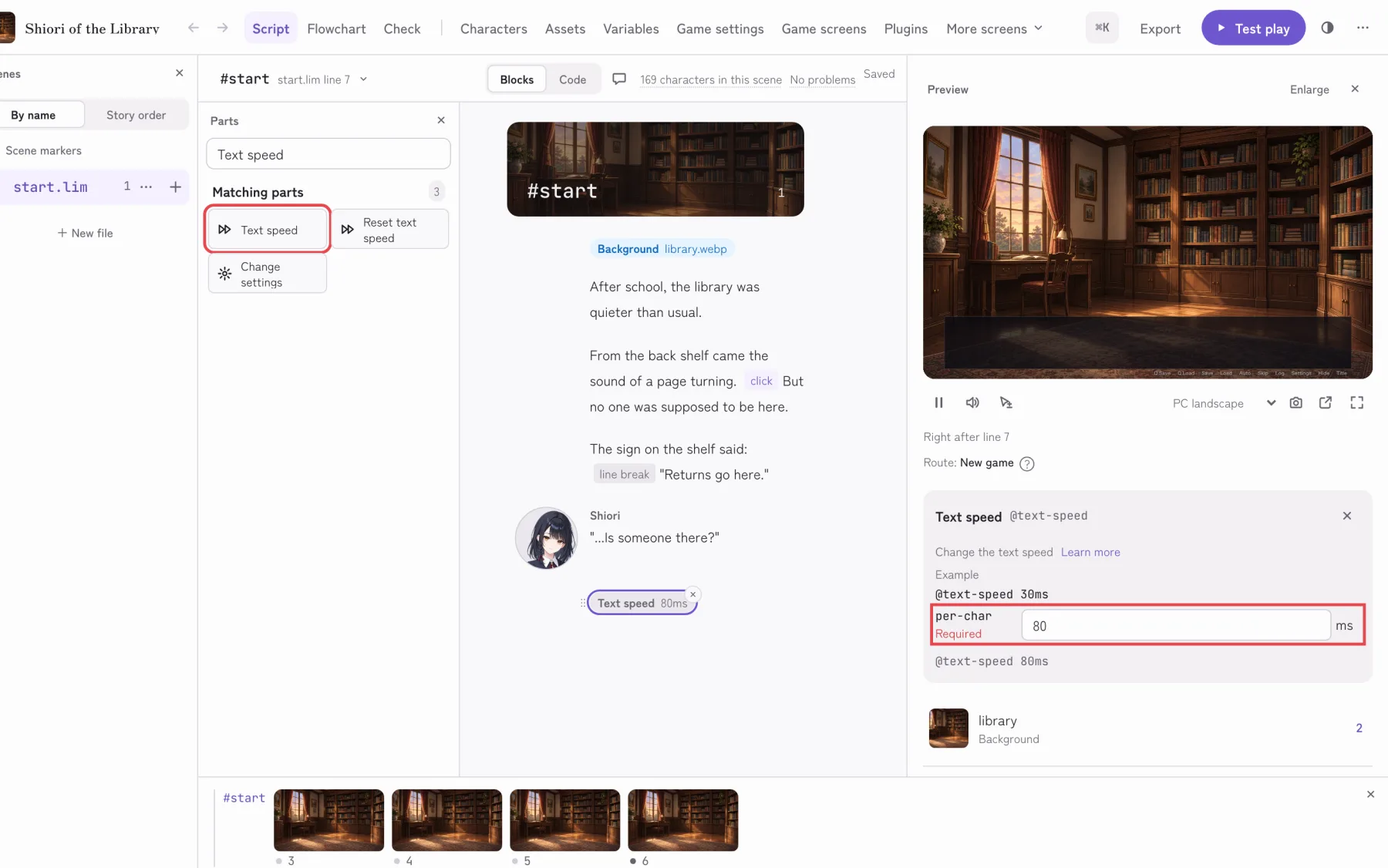
From then on, text appears at this speed instead of the text speed the player chose in the game’s Settings screen. To go back, search the same way and add “Reset speed.”
The text speed used the first time a player plays is set with “Text speed (ms per character)” under “Config defaults” in Game settings.
Wait for a click without showing text
This waits for the player’s click without showing new text. Use it, for example, when you want to pause once after the background changes, before the next text appears.
- Select the line just before where you want to stop (here, the background line).
- Type “wait for click” in the search box at the top of the parts panel, and double-click “Await click” in the results.
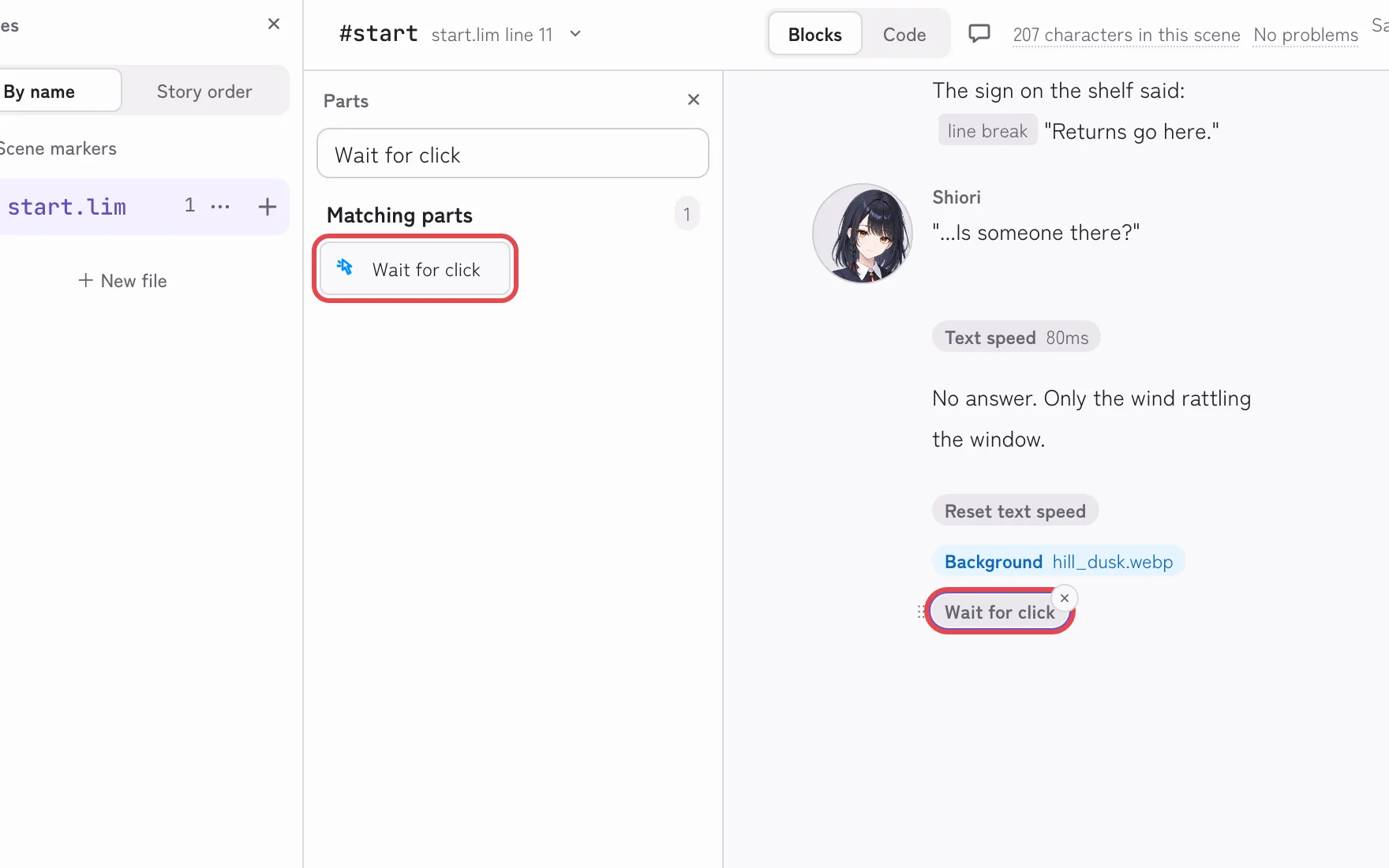
In this example, after switching to the background of the hill at dusk, the game stops until the player clicks. The message window keeps showing the text of the previous page.
In code
Somewhere in the back shelves, a page turned.{click} But no one should have been there.
The sign on the shelf said:{br}"Returns go here."
Akari "{speed 300ms ...}Is someone there?"
@text-speed 80ms
No answer. Only the wind rattling the window.
@text-speed-reset
@bg hill_dusk.webp
@wait-click