

Make extras (CG, replays, music room)
On this page
“Extras” on the title screen can list CGs, replays and music. You make the lists on the Project screen and write where they become viewable (unlocked) in the scenario. The “Extras” button appears on the title screen once at least one of them is unlocked.
The examples on this page use the project you make in the tutorial, “Shiori of the Library.” The background hill_night.webp is from the sample assets (“Add sample assets” in the ”…” menu of the Assets screen adds it).
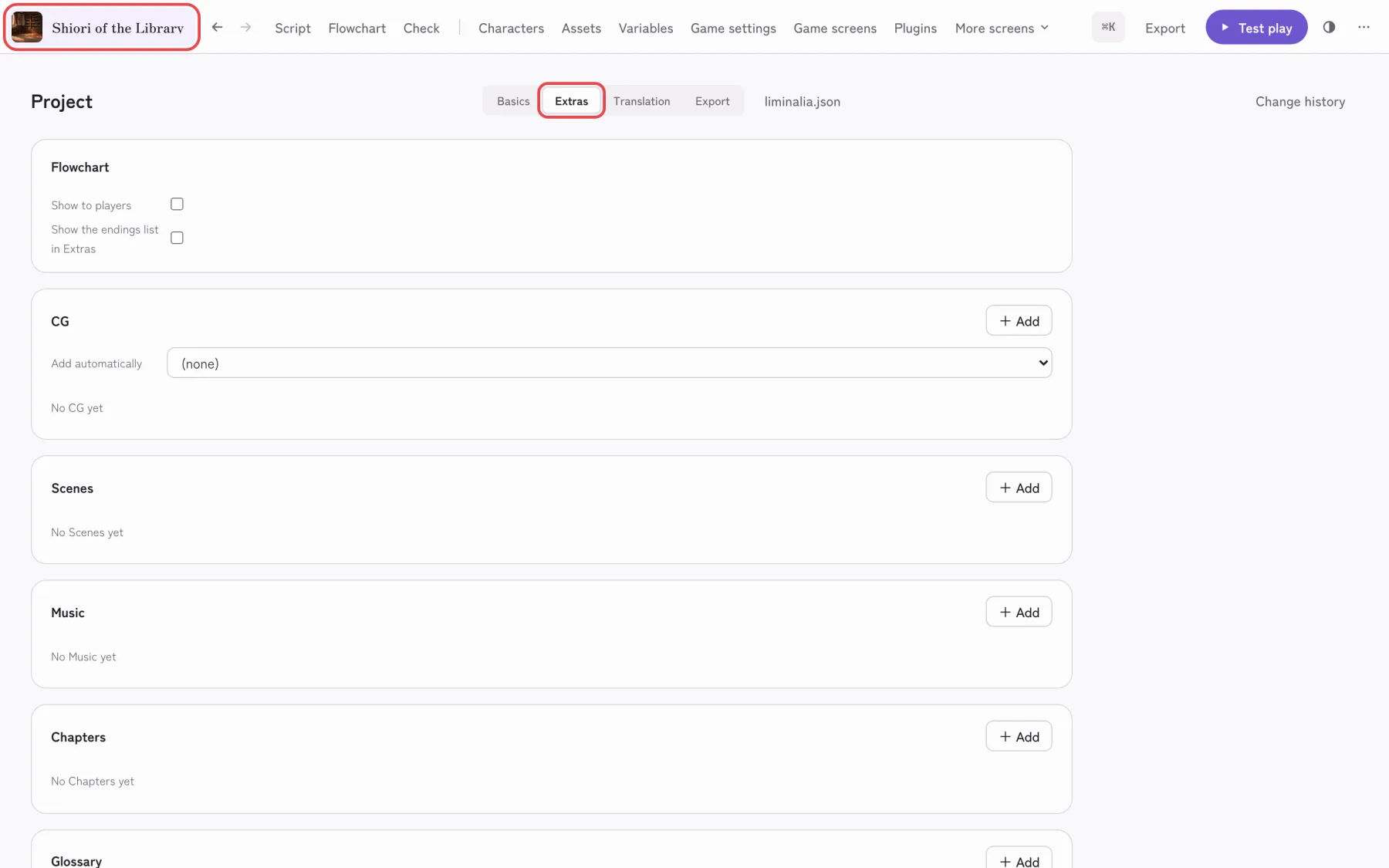
Open the Extras screen
- Click the project button at the top left of the screen (the cover image and the project name).
- Click “Extras” at the top right.
Register CGs
- Click ”+ Add” under “CG.”
- Enter “Name” and “Title.” The title appears under the CG in Extras.
- Choose the CG image with ”+ Add an image” under “Images.” Choose more images to add variants; in Extras, clicking moves to the next variant.
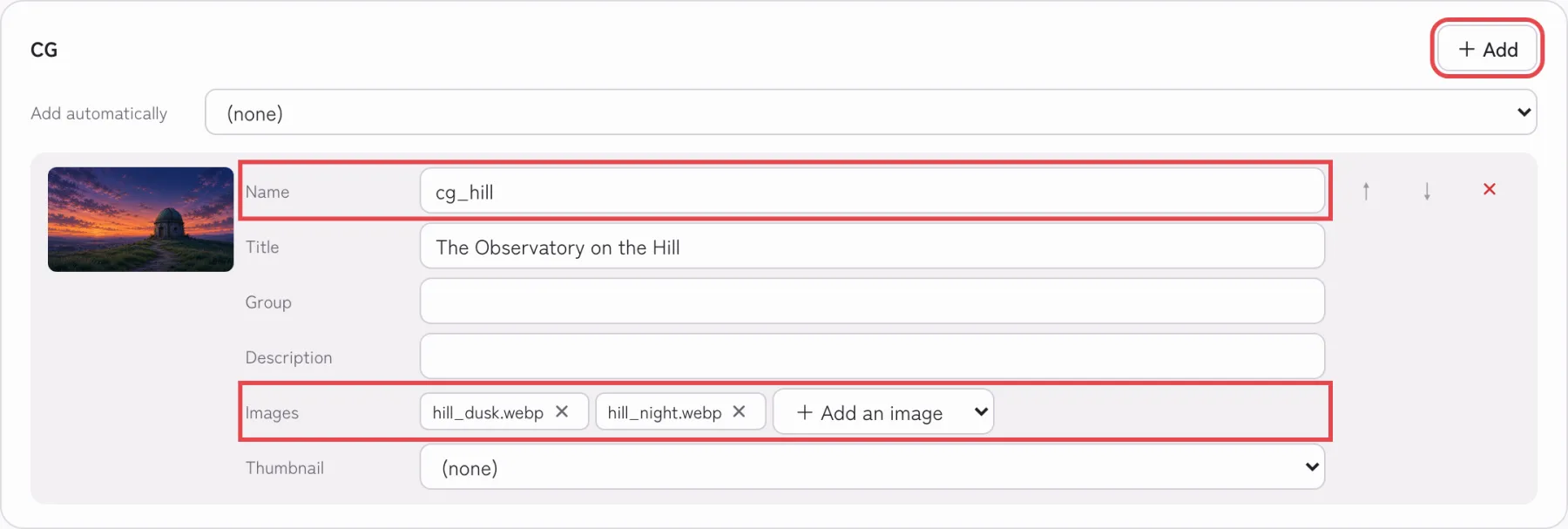
Images are chosen from the “Backgrounds” assets. A CG is unlocked when its image is shown as a background. To make variants that are never shown viewable, use the “Unlock CG” part described below.
Register replays
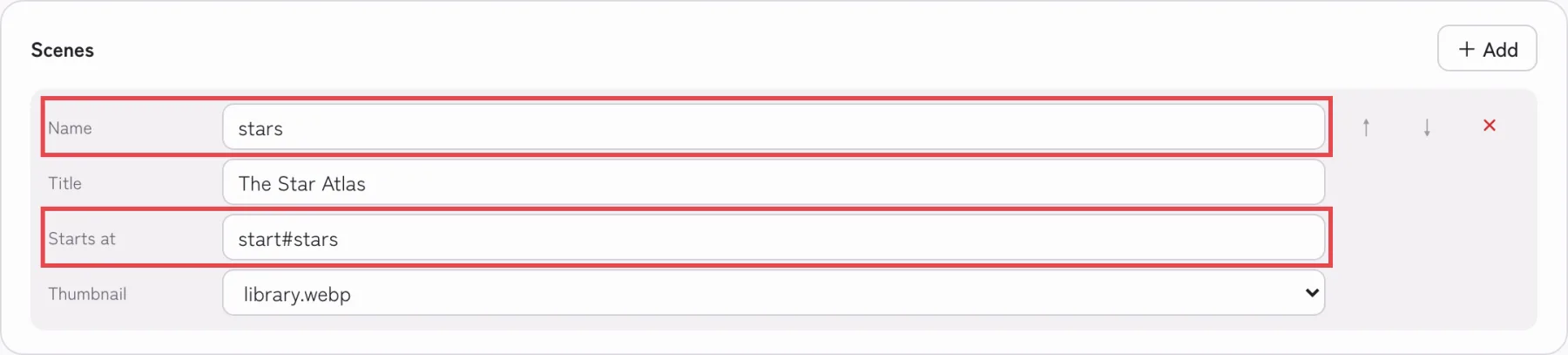
- Click ”+ Add” under “Scenes” (replays).
- Enter the replay’s name in “Name.” You use it when you unlock the replay in the scenario.
- In “Starts at,” enter the scene where the replay begins, in the form “file#label.” Here it’s
start#stars. - Enter “Title” and “Thumbnail” for it to appear in the list in Extras.
Register music
- Click ”+ Add” under “Music.”
- Choose the BGM in “Track,” and enter the song title in “Title.”
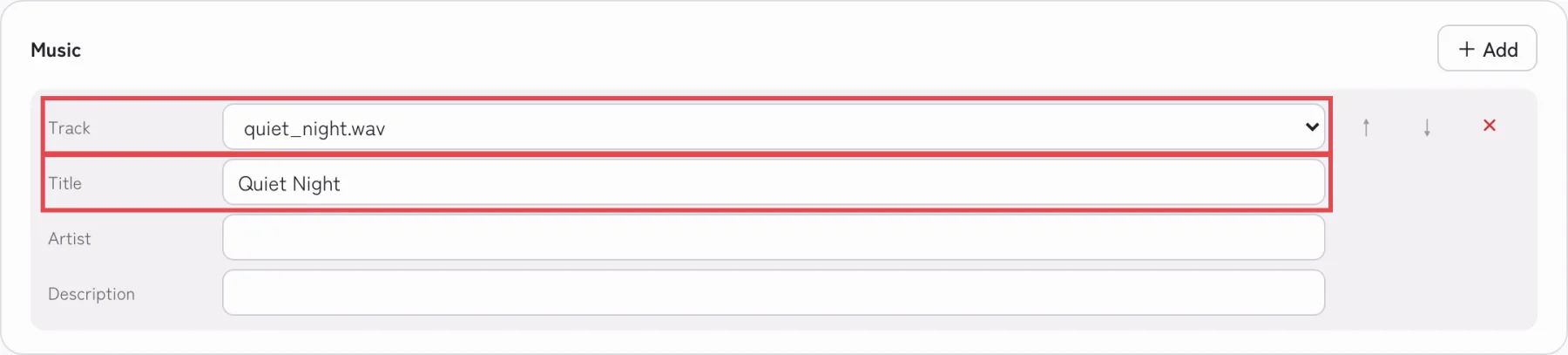
Only tracks that have played at least once in the game can be listened to in Extras.
Unlock replays
A replay can’t be chosen in Extras until it’s unlocked in the scenario.
- On the “Script” screen, switch to the block view and select the first line of the scene you want as a replay.
- Type “replay” in the search box at the top of the parts panel, and double-click “Unlock replay” in the results.
- In the panel on the right, enter the replay’s name (
starshere) inid.
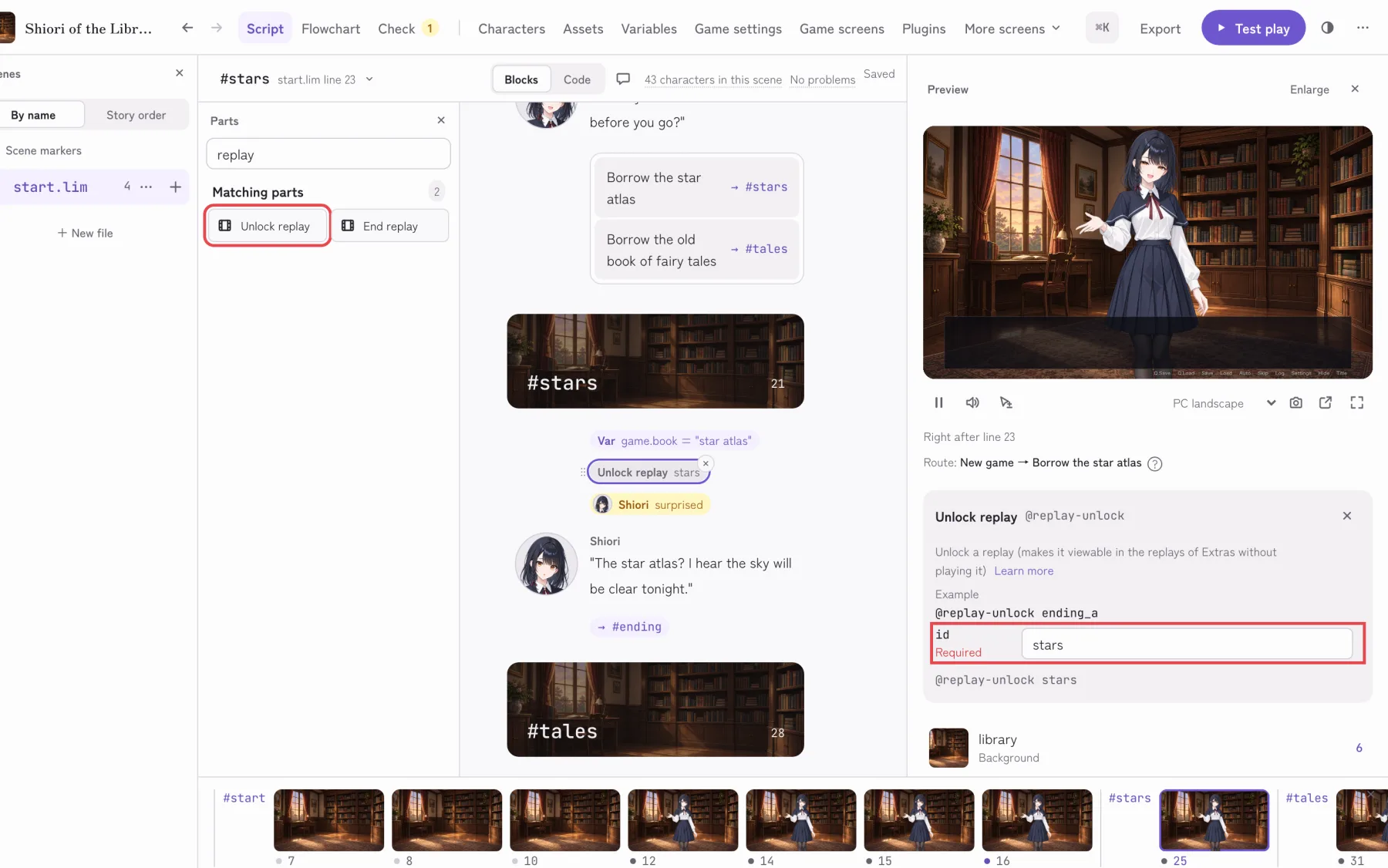
- Select the line where you want the replay to end, and double-click “End replay.”
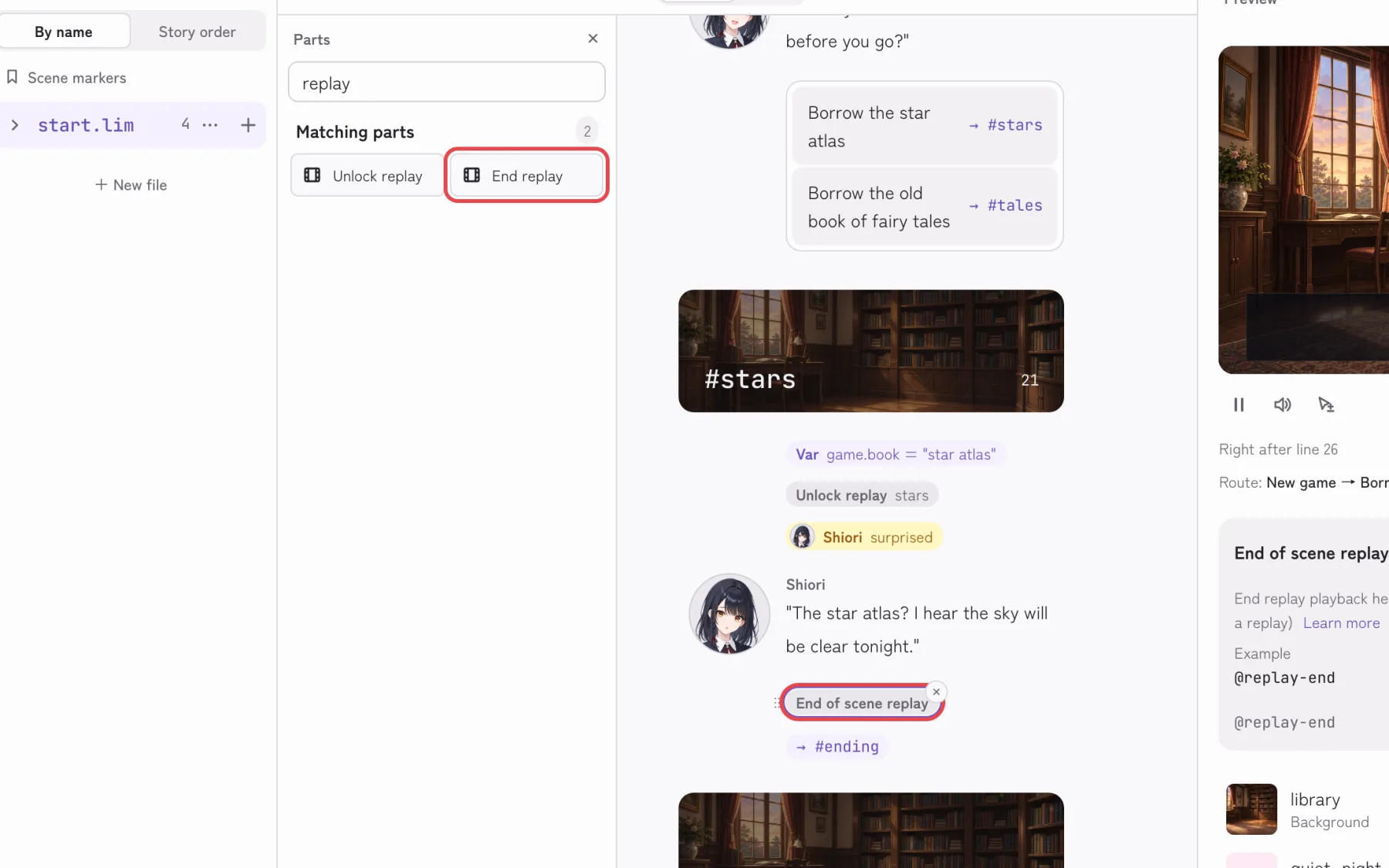
When a replay is chosen in Extras, it plays from where it starts and returns to Extras at “End replay” or at the end of the scenario. In the main story, “End replay” does nothing, so you can leave it in the flow of the main story. Saving and loading aren’t available during a replay.
Unlock CG variants
Variants that are never shown as backgrounds are unlocked with the “Unlock CG” part. It shows nothing on the screen.
- Select the line where you want to unlock it, type “CG” in the search box at the top of the parts panel, and double-click “Unlock CG.”
- In the panel on the right, choose the image in
image.
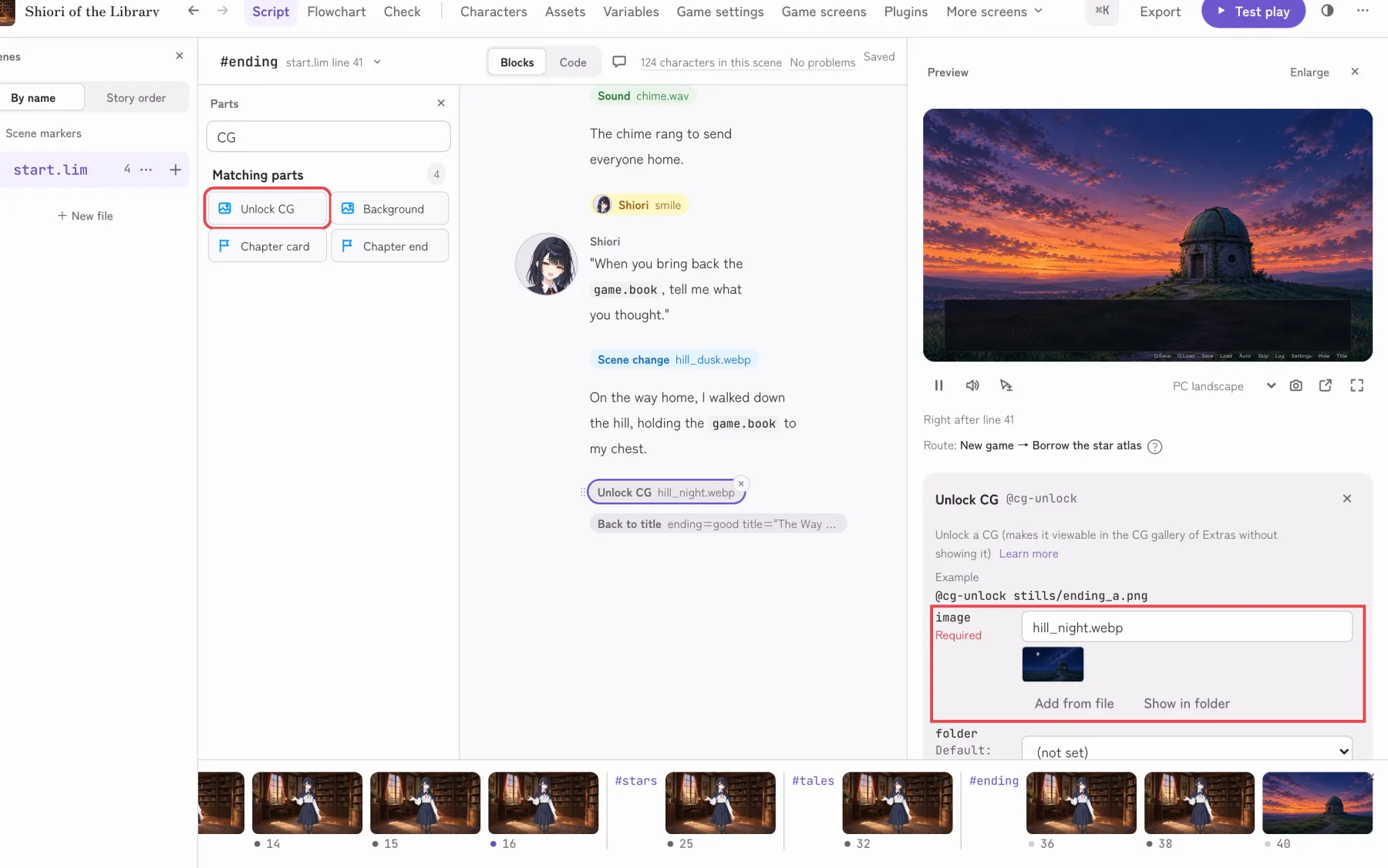
Check it in the game
After you play to the end and return to the title screen, the “Extras” button appears.
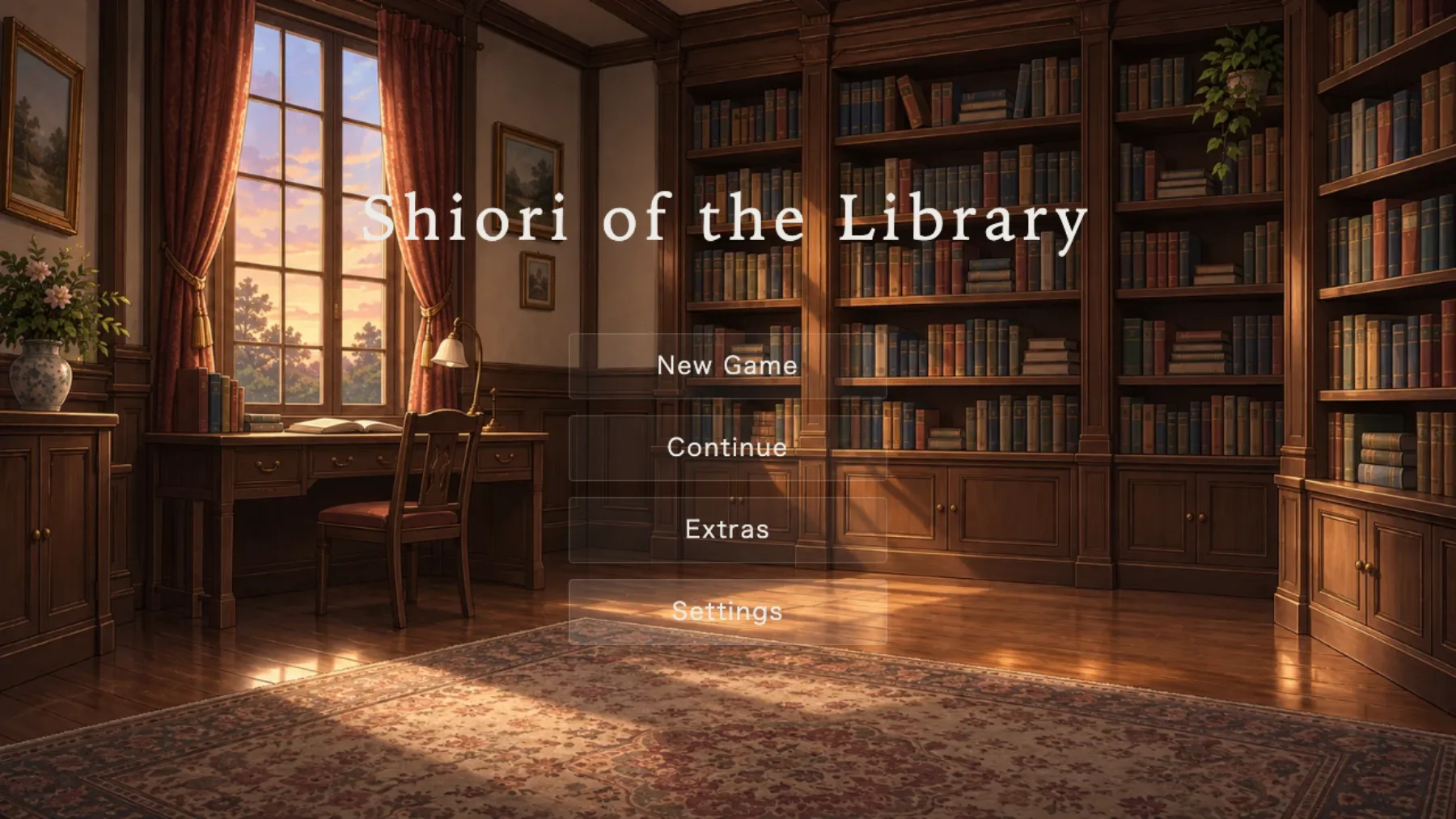
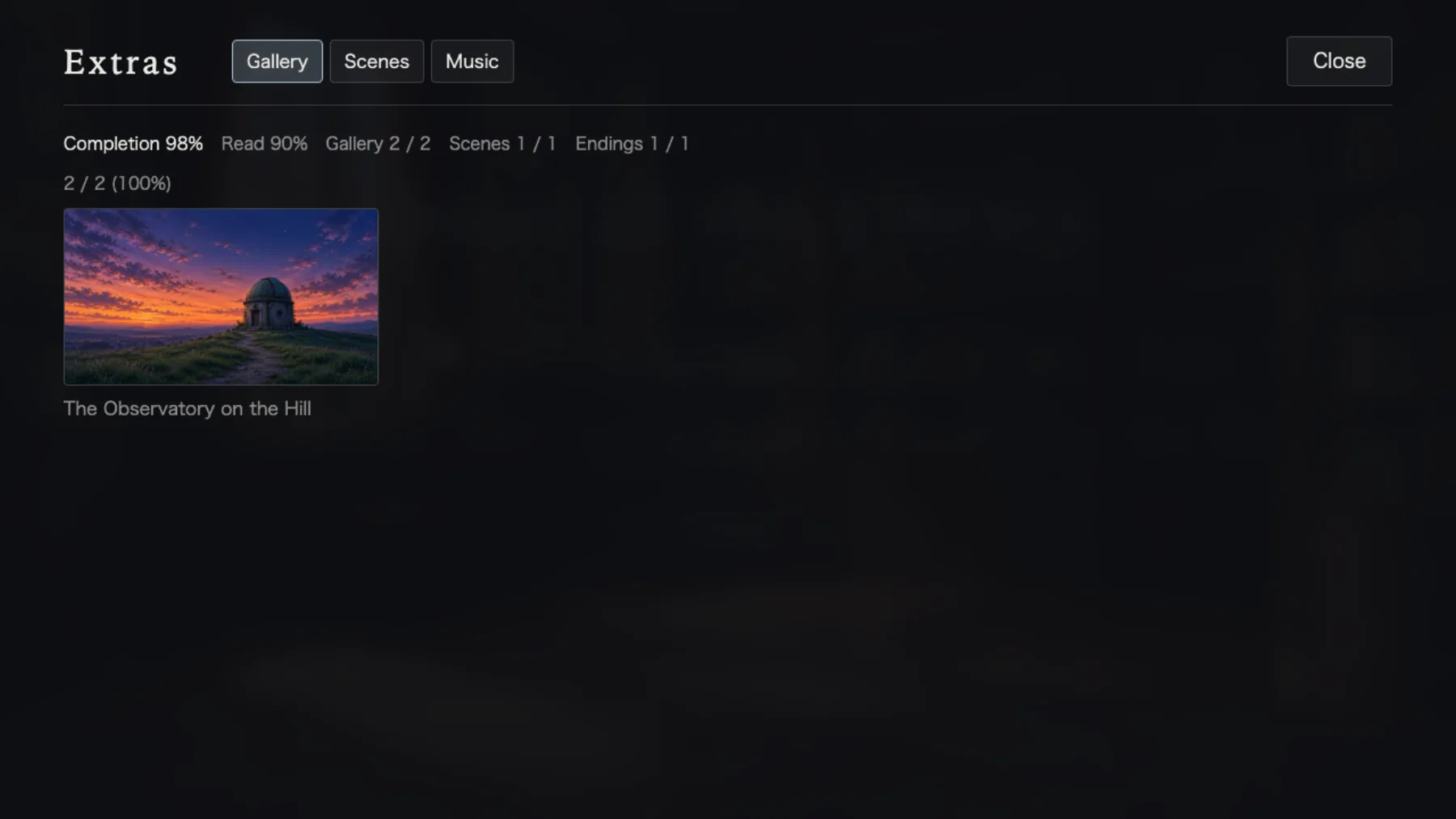
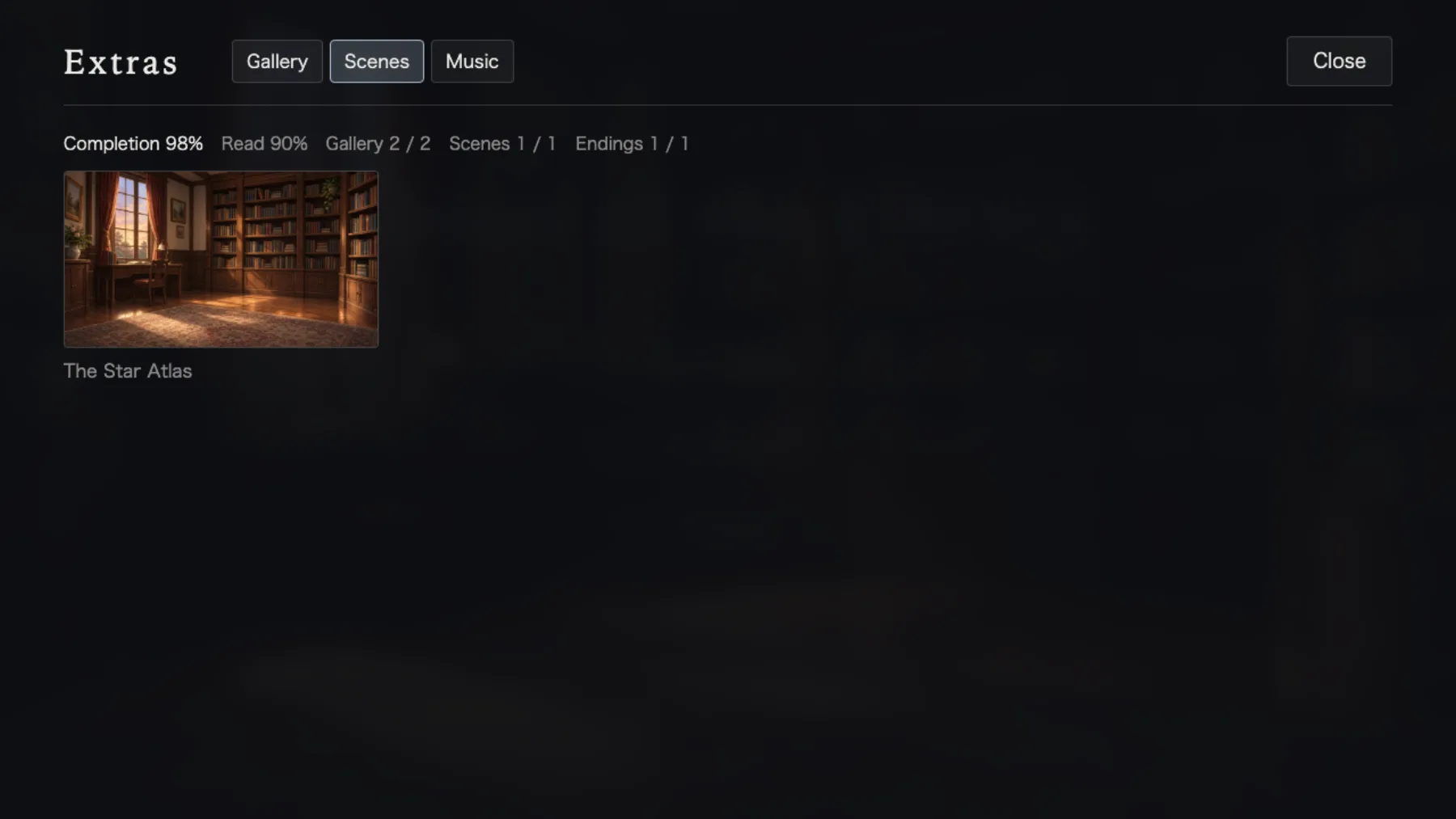
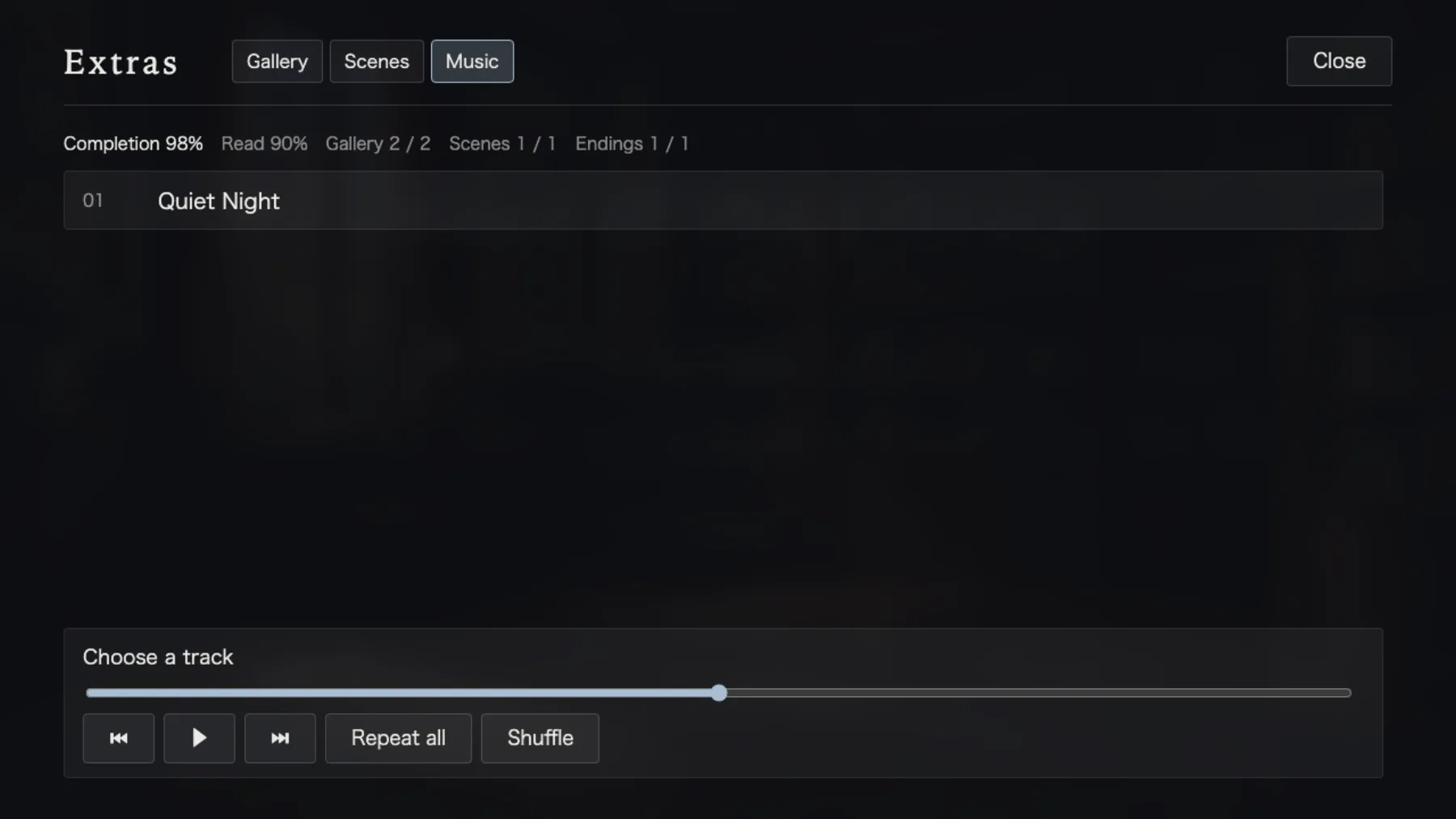
“Achievements” on the Extras screen is explained in Add achievements.
In code
# stars
@set game.book = "star atlas"
@replay-unlock stars
@chara Shiori surprised
Shiori "The star atlas? I hear the sky will be clear tonight."
@replay-end
@jump #ending
@bg hill_dusk.webp
On the way home, I walked down the hill, holding the {= game.book} to my chest.
@cg-unlock hill_night.webpFor details, see @replay-unlock, @replay-end and @cg-unlock.