

Show notifications at the edge of the screen
On this page
Short notifications such as “Added to the notebook” or “Got the key” can be shown at the top right of the screen with the “Notice” part. Notifications don’t stop the text from advancing, and they disappear after the time you set. If you show several in a row, they stack downward.
The examples on this page use the project you make in the tutorial, “Shiori of the Library.”
Show a notification
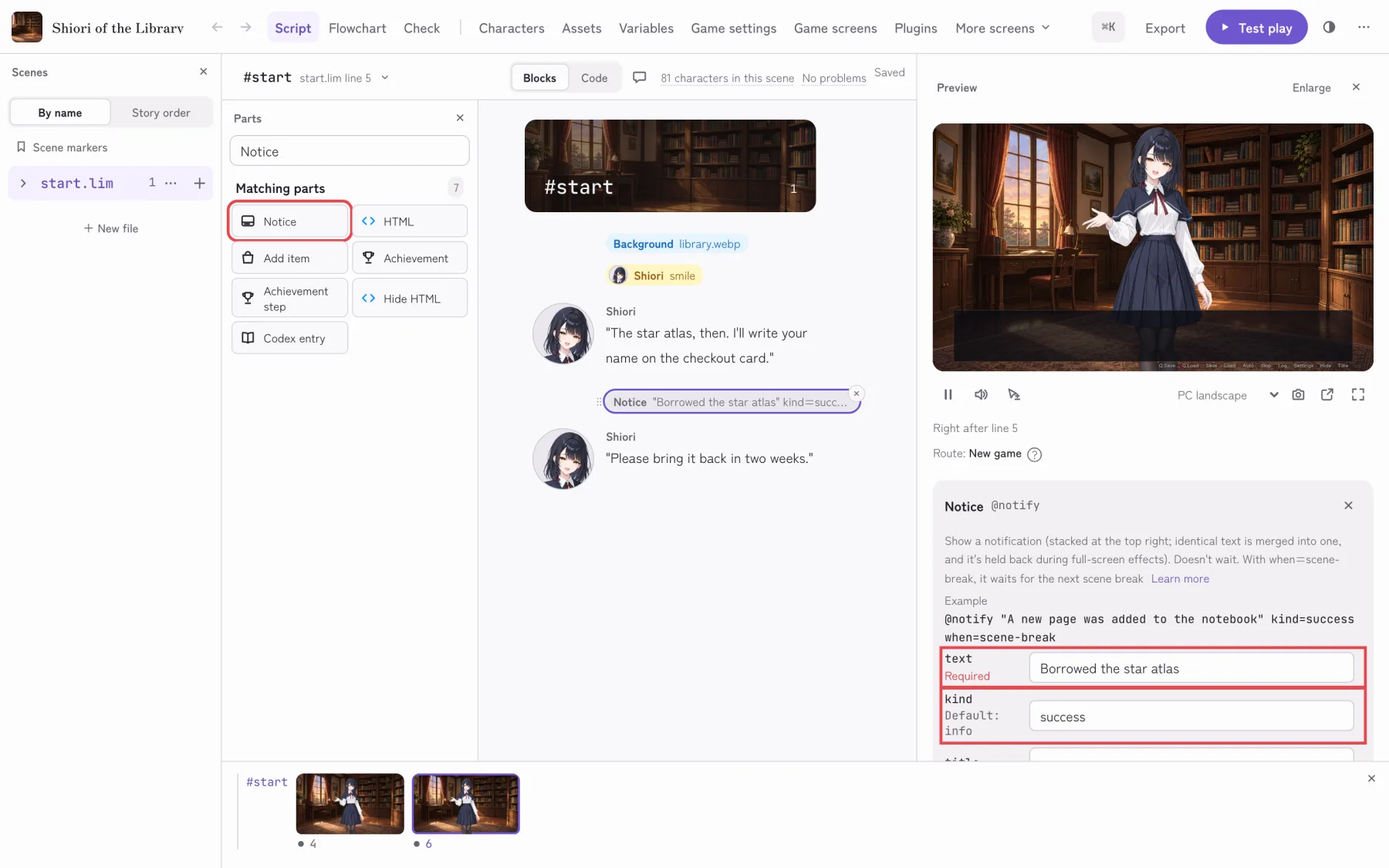
- Select the line just before where you want the notification to appear.
- Type “notice” in the search box at the top of the parts panel, and double-click “Notice” in the results.
- In the panel on the right, enter the notification text in
text. To add a heading, enter it intitle. - Enter the kind of notification (
info,success,warningorerror) inkind. Each kind has its own color.
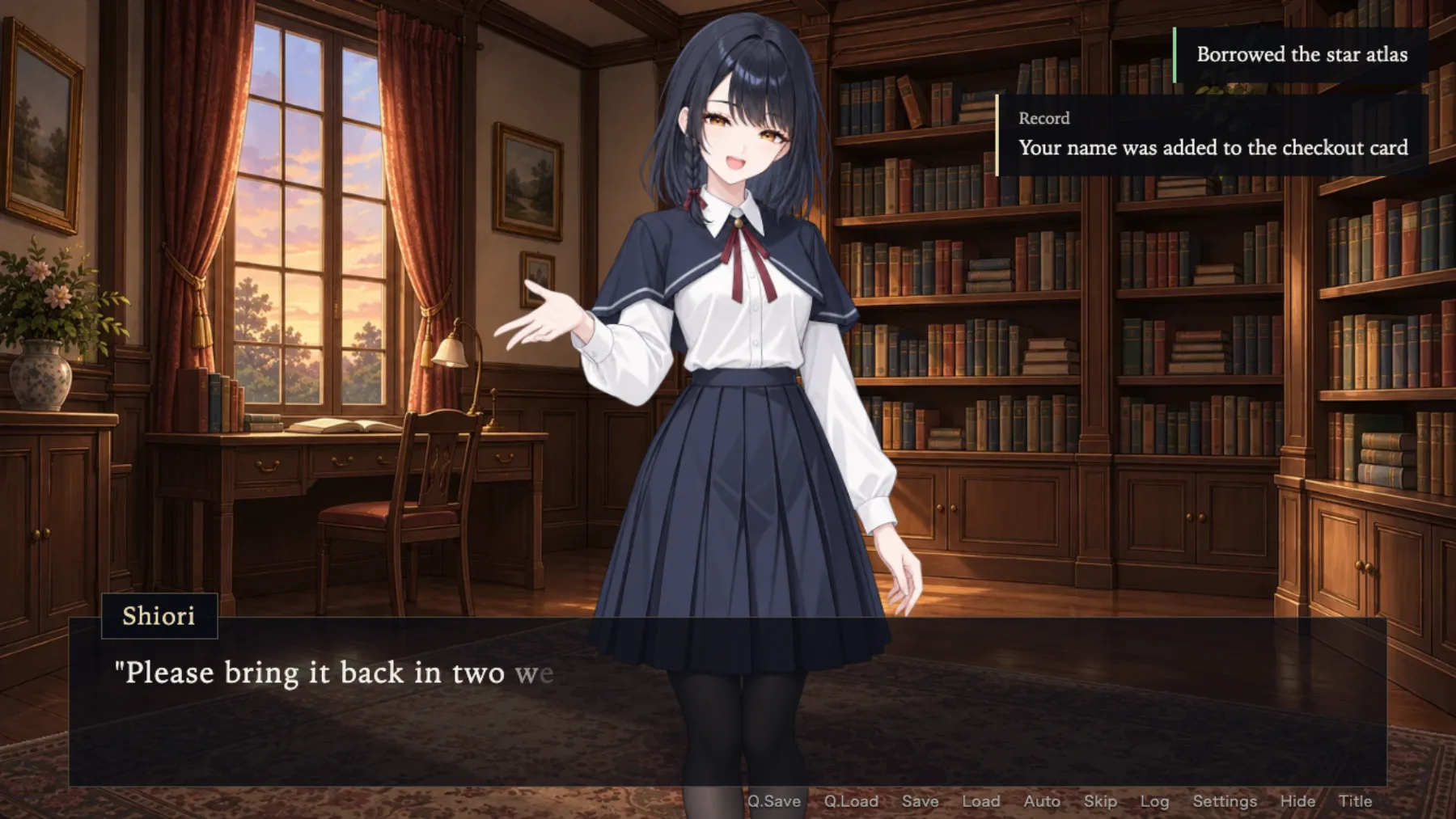
In the game, the notification appears at the top right when the game reaches that line.
Set how it appears
| Parameter | What it sets | Default |
|---|---|---|
| time | How long it stays | 3s |
| delay | Time before it appears | 0ms |
| se | Sound effect to play when it appears | None |
| max | How many stack at once (beyond that, the oldest ones disappear) | 3 |
| key | Name that groups identical notifications | The notification text |
When a notification with the same text is still showing, the two are merged into one instead of shown side by side, and the time it stays is extended. During effects that cover the whole screen, such as fading to black or a movie, it waits until they end before appearing.
Wait for a scene break
A notification that cuts into the middle of a conversation, or right after an emotional line, breaks the flow of reading. Set when to scene-break, and the notification doesn’t appear when the game passes that line. It waits and appears at the next scene break.
- Select the line with the Notice part.
- In the panel on the right, choose
scene-breakforwhen.
A held notification appears after the scene break has been passed, before the first text or choice is shown. It doesn’t appear during a fade out or fade in. These are scene breaks:
| Break | What it covers |
|---|---|
Scene change (@scene-change) | Including one without a background (one that only hides the sprites) |
Changing the background (@bg) | When it shows a picture different from the current one. Showing the same picture again isn’t a break |
Fade to black (@mask) | |
| Moving to another file | When @jump or a choice moves to another script file. Chapter breaks are included here. Calls (@call) and returns (@return) aren’t breaks |
Haru "...I'll borrow this one."
@notify "Your name was added to the library card" title=Record when=scene-break
Yuika "Sure. It's due back in two weeks."
@scene-change hill_dusk.webp
// After the fade in, the notification appears before the next narration
On the way home, I walked down the hill, holding the book to my chest.- A waiting notification is kept in the save. It isn’t lost when you save and load while it’s waiting. Loading a save made after it was shown doesn’t show it twice.
- If the playthrough ends before passing a scene break (for example, when it returns to the title screen), the waiting notification isn’t shown.
- If you leave out
when, it’snow, and the notification appears right at that line.
In code
@notify "Borrowed the star atlas" kind=success
@notify "Your name was added to the library card" title=Record se=chime.wav
@notify "Got the map of the library" when=scene-break
For details, see @notify.