

The Studio screen
On this page
In Studio, you switch between screens with the buttons across the top. The one you use most is “Script,” where you write the story.
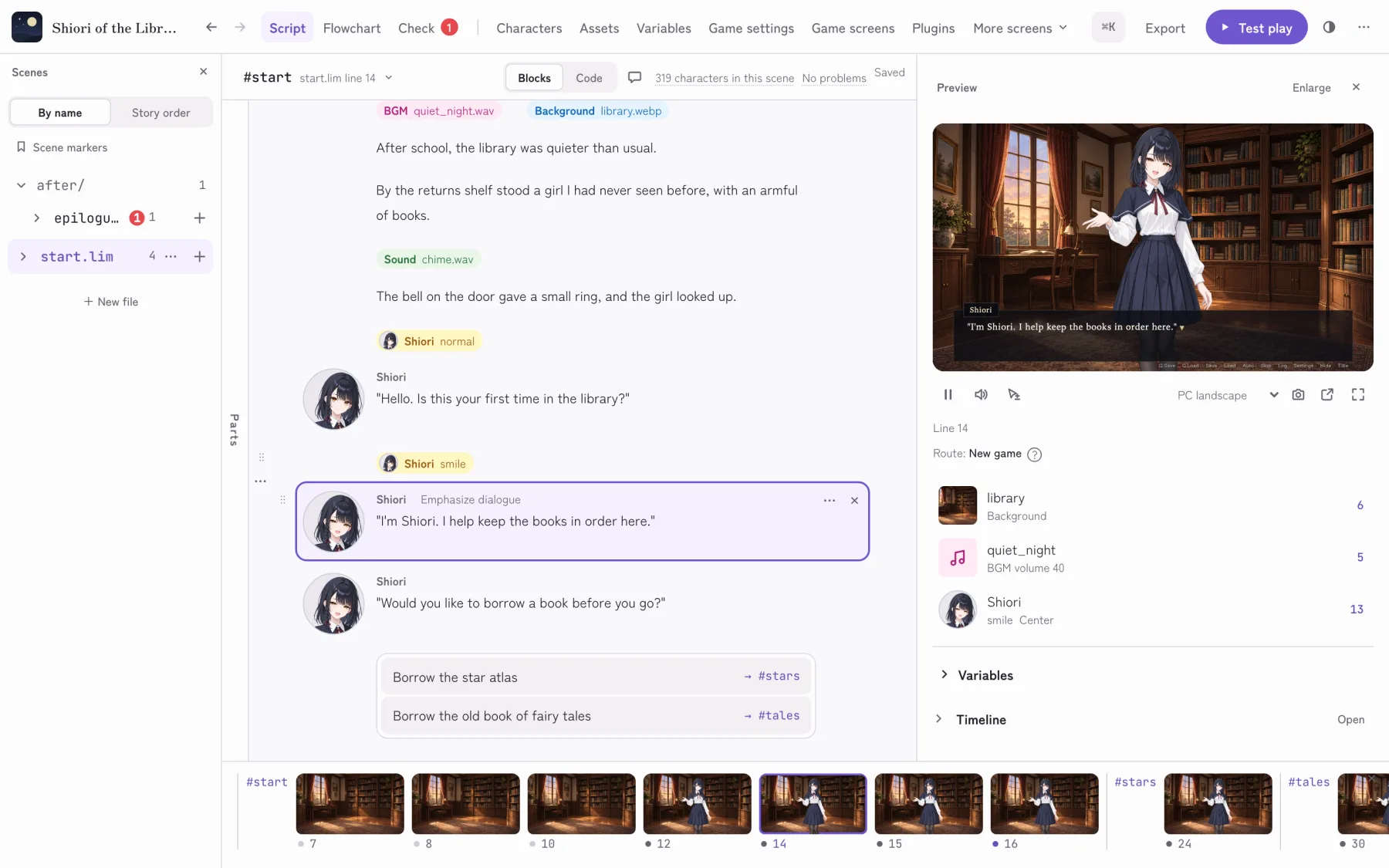
The top bar
From left to right, the top bar has the following.
| Item | What it does |
|---|---|
| Project name | Opens the “Project” screen (basics, extras, translation and export settings) |
| ← → | Goes back or forward to the screen or line you were on (⌘[, ⌘]) |
| Script | Write the script. Scenes on the left, the script in the middle, the preview on the right and thumbnails at the bottom |
| Flowchart | See how scenes connect, and draw lines to build branches |
| Check | The list of problems, the all-routes test, and character counts and progress. The number on the tab is the number of problems |
| Characters | Manage characters, their sprites and expressions (variants) |
| Assets | Manage files such as backgrounds, sprites, BGM and sound effects |
| Variables | The variables used in the script and their initial values |
| Game settings | The look of the message window, title screen and so on, and command defaults |
| Plugins | The plugins you have added and the screens they add |
| More screens | “Timeline,” “Comments,” “Voices,” “Trash” and screens that don’t fit in the top bar |
| ⌘K | Opens Search and commands |
| Export | Export the game |
| Test play | Play the game from the beginning |
⌘1 to ⌘9 switch screens in the order of the top bar (Script, Flowchart, Check, Characters, Assets, Variables, Game settings, Plugins, Project). On Windows, use Ctrl instead of ⌘.
The ”…” menu at the right end switches the screen language (Japanese and English), shows or hides panels, and turns the backgrounds in scene headings on or off. “Refresh” (⌘⇧R) reloads files that were changed in another editor or by Git. “Getting started tour” shows the tour from the first launch again. The button to its left switches the color scheme between auto, light and dark, in that order.
Search and commands
Press ⌘K to open “Search and commands.” Type a name to search files, scenes, bookmarks, screens, characters, assets, variables and commands in a single list. The kind of each result appears on the right.
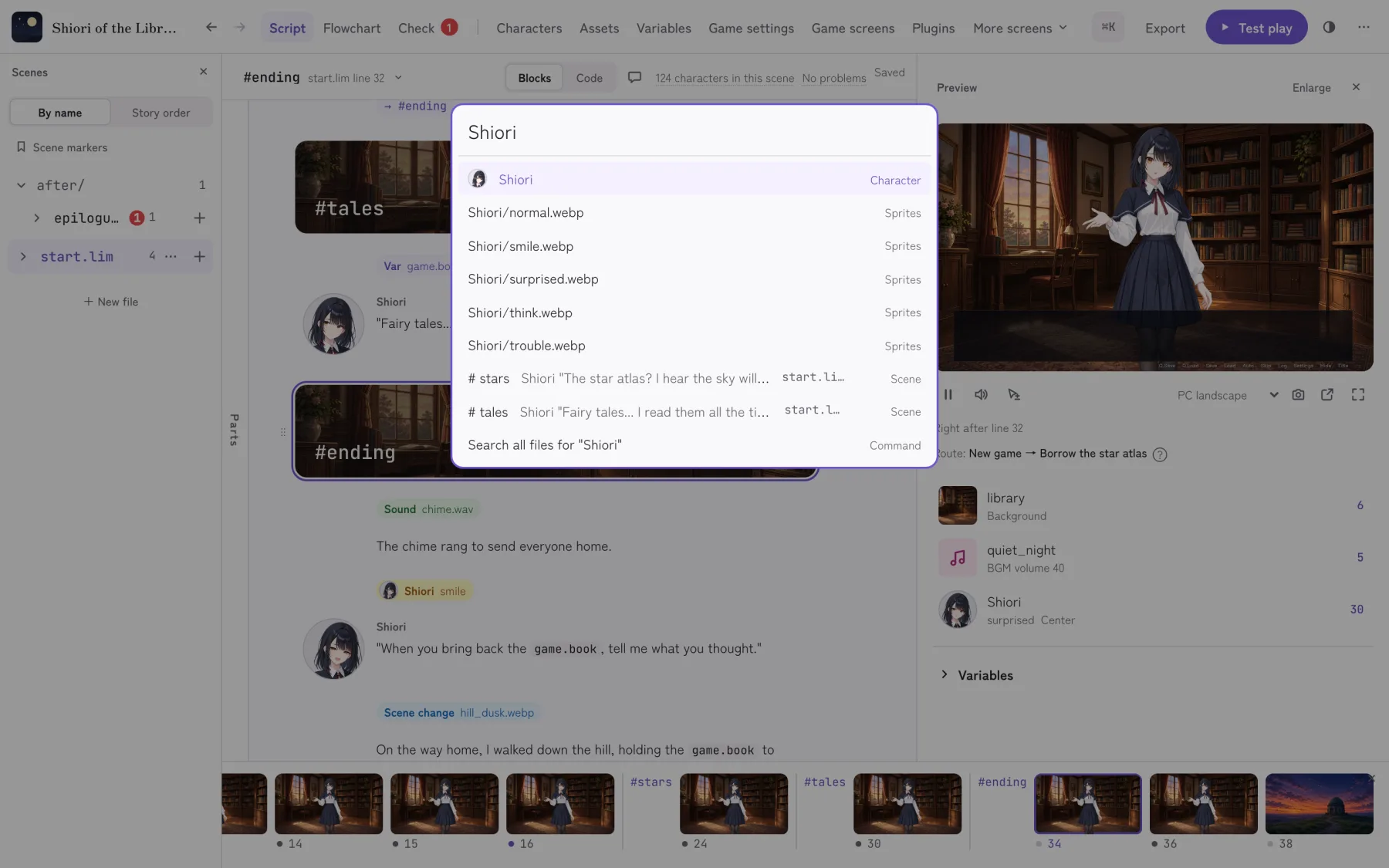
| What you choose | Where it opens |
|---|---|
| File, scene, bookmark | That line in the script |
| Screen | That screen |
| Character | That character on the Characters screen |
| Asset | That file on the Assets screen |
| Variable | That variable on the Variables screen |
| Command | Test play, play from the cursor line, the all-routes test, search all files, import text, change history and more. Keys, where there are any, appear on the right |
The search ignores the difference between hiragana and katakana (the two Japanese kana scripts), between full-width and half-width characters, and between upper and lower case.
Keyboard shortcuts
Press ? while you aren’t typing, or press ⌘/, to show the list of keyboard shortcuts. You can also open it from “Keyboard shortcuts” in the ”…” menu.
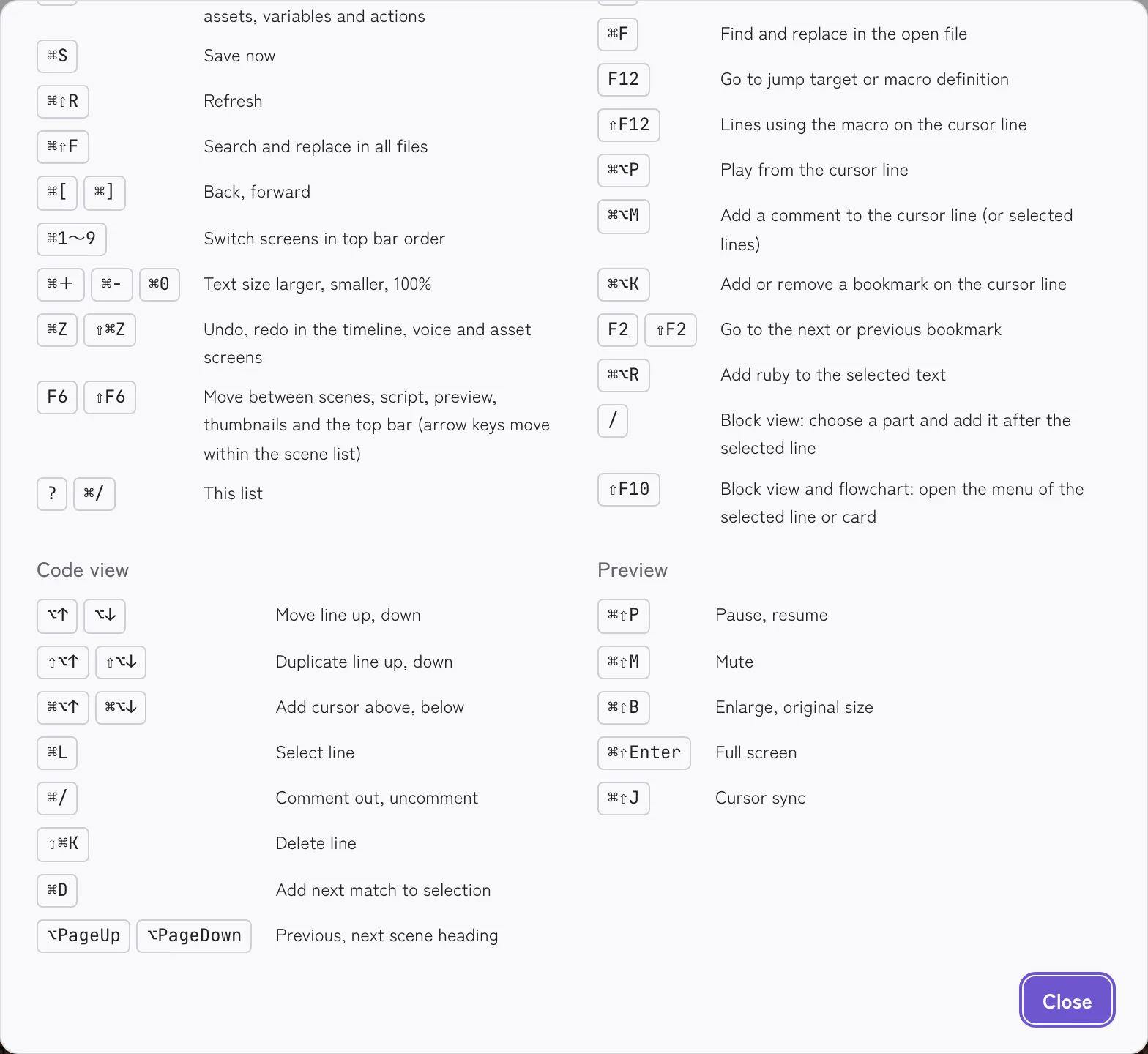
The list is divided into “General,” “Scenario,” “Code view” and “Preview.” The main keys are the following.
| Key | What it does |
|---|---|
| ⌘K | Search and open files, scenes and more |
| ⌘S | Save now |
| ⌘F | Find and replace in the open file |
| ⌘⇧F | Search and replace in all files |
| ⌘[, ⌘] | Back, forward |
| ⌘E | Switch between block view and code view |
| F12 | Go to the jump target or macro definition |
| ⇧F12 | Lines using the macro on the cursor line |
| ⌘⌥P | Play from the cursor line |
| ⌘⌥M | Add a comment to the cursor line |
| ⌘⌥K | Add or remove a bookmark on the cursor line |
| ⌘⌥R | Add ruby to the selected text |
| ⌘⇧P | Pause or resume the preview |
| ⌘+, ⌘−, ⌘0 | Make the text larger, smaller, or 100% |
Ruby is the small reading aid printed above Japanese characters.
Save and undo
The script is saved automatically whenever you stop typing. To save right away, press ⌘S. Press ⌘Z to undo and ⌘⇧Z to redo. On the Timeline, Voices, Assets and Flowchart screens, ⌘Z undoes the changes you made on that screen.
Each save keeps the previous content in the change history (Change history and trash).
Open and close panels
Close the Scenes, Parts, Preview and Thumbnails panels with the × in their headings. A closed panel leaves just its name on the edge of the screen; click it to open the panel again. Drag the border between panels to change their width, and double-click it to go back to the original width.