

09 / 10
Check and export
Liminalia Studio is in beta. You can get it from the Download page.
Check the finished game for problems, then export it in a form others can play.
Check
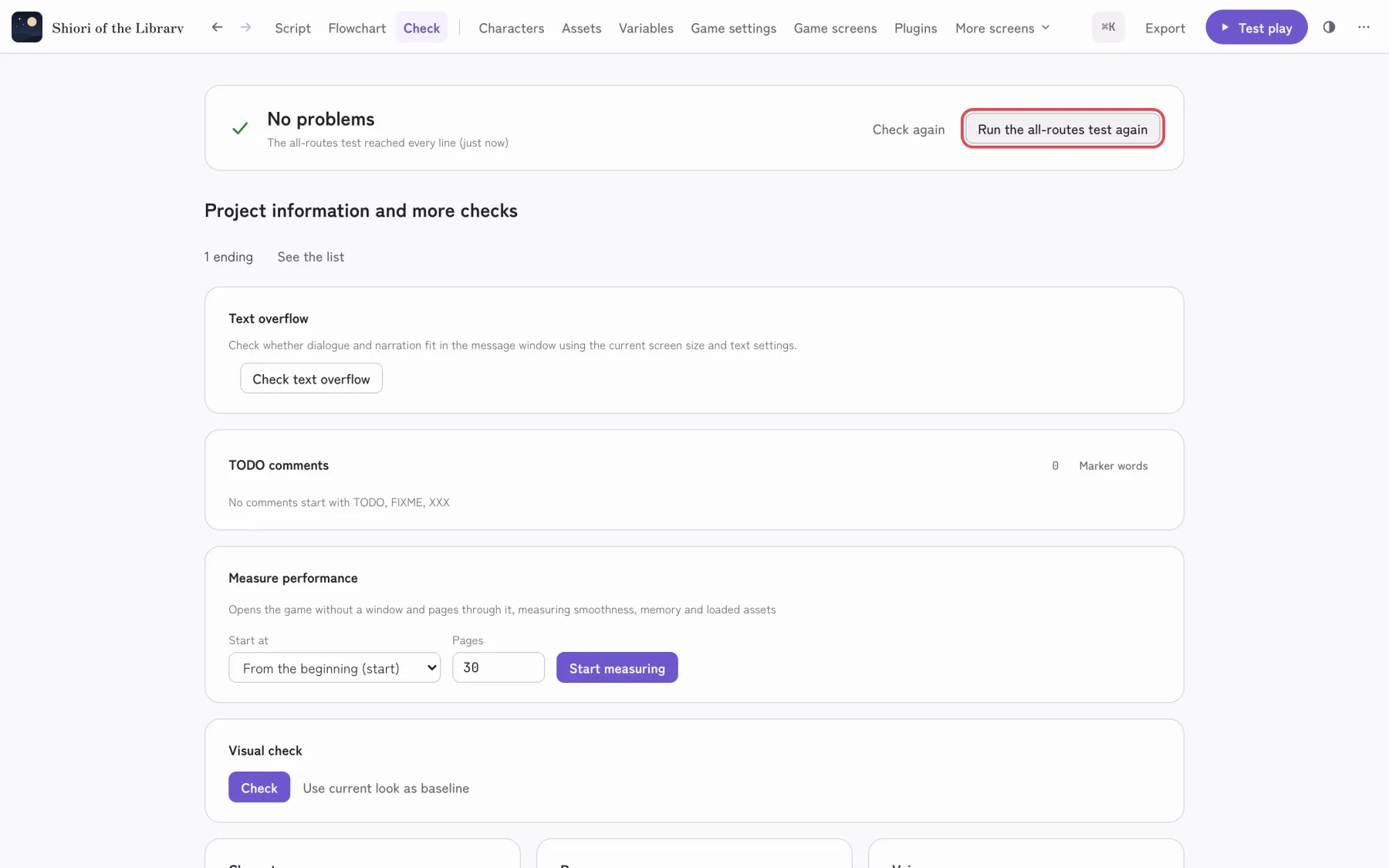
Click “Check” at the top of the screen to see a list of problems in the script. It tells you about jumps to labels that don’t exist, assets that haven’t been added, variants a character doesn’t have and so on, with the line and a suggested fix. When the suggested fix can be used as is, click “Fix” on the right of the line to apply it.
Click “Run the all-routes test” to play automatically from the start, picking every choice in turn, and see which lines are reached and what goes wrong along the way. If nothing does, it says “No problems.”
Export
Click “Export” at the top of the screen to open the export screen. Check what to export under “Platforms,” and click “Export.”
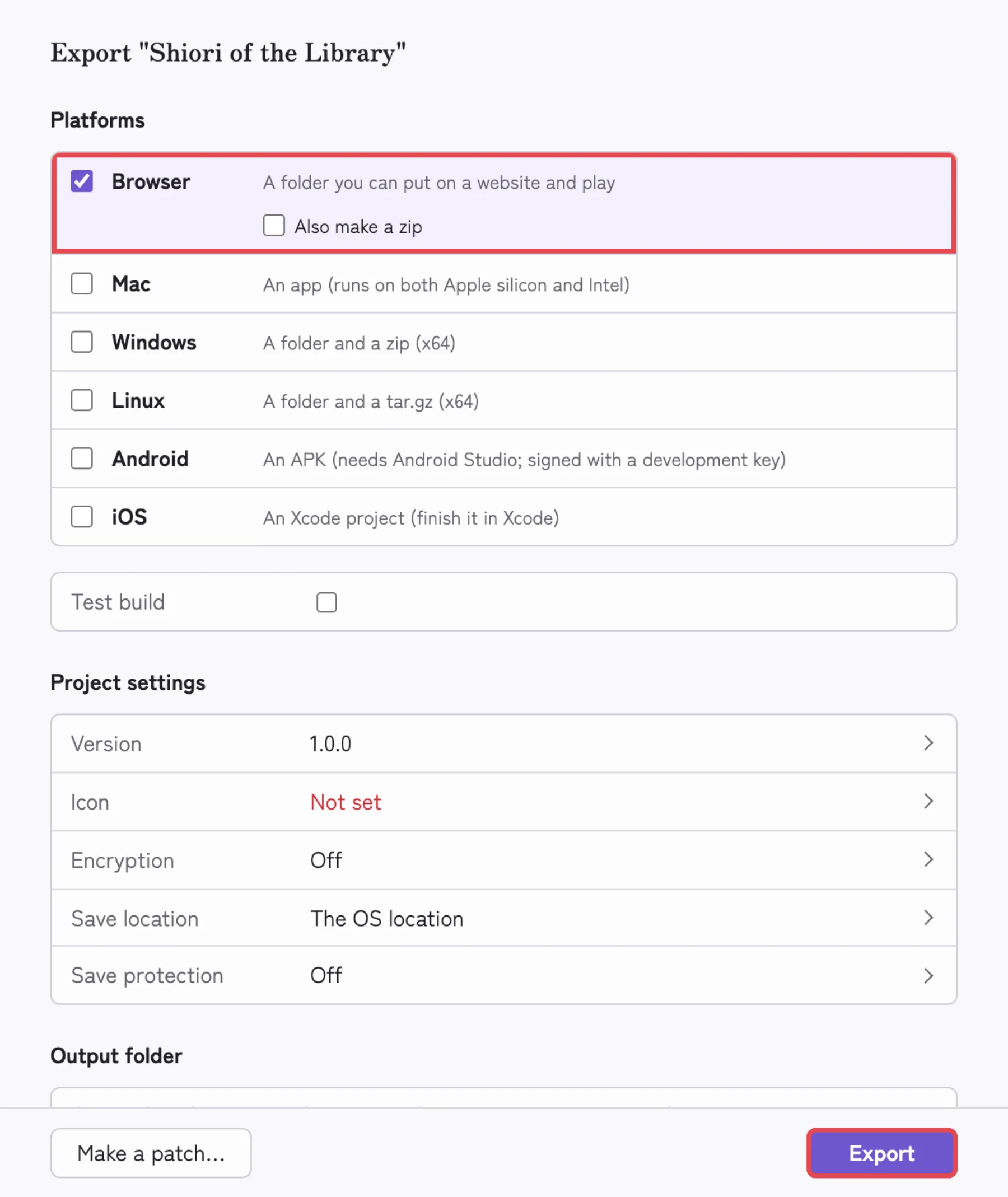
- Browser: put the folder on a website, and the game can be played in a browser. You can also upload it as is to sites for sharing visual novels.
- Mac, Windows, Linux: you get an app you can distribute as is.
- Android, iOS: with each platform’s development tools, you get a smartphone app.
To make different versions, such as a trial and a full version, you can choose an edition when you export (Export and distribution).
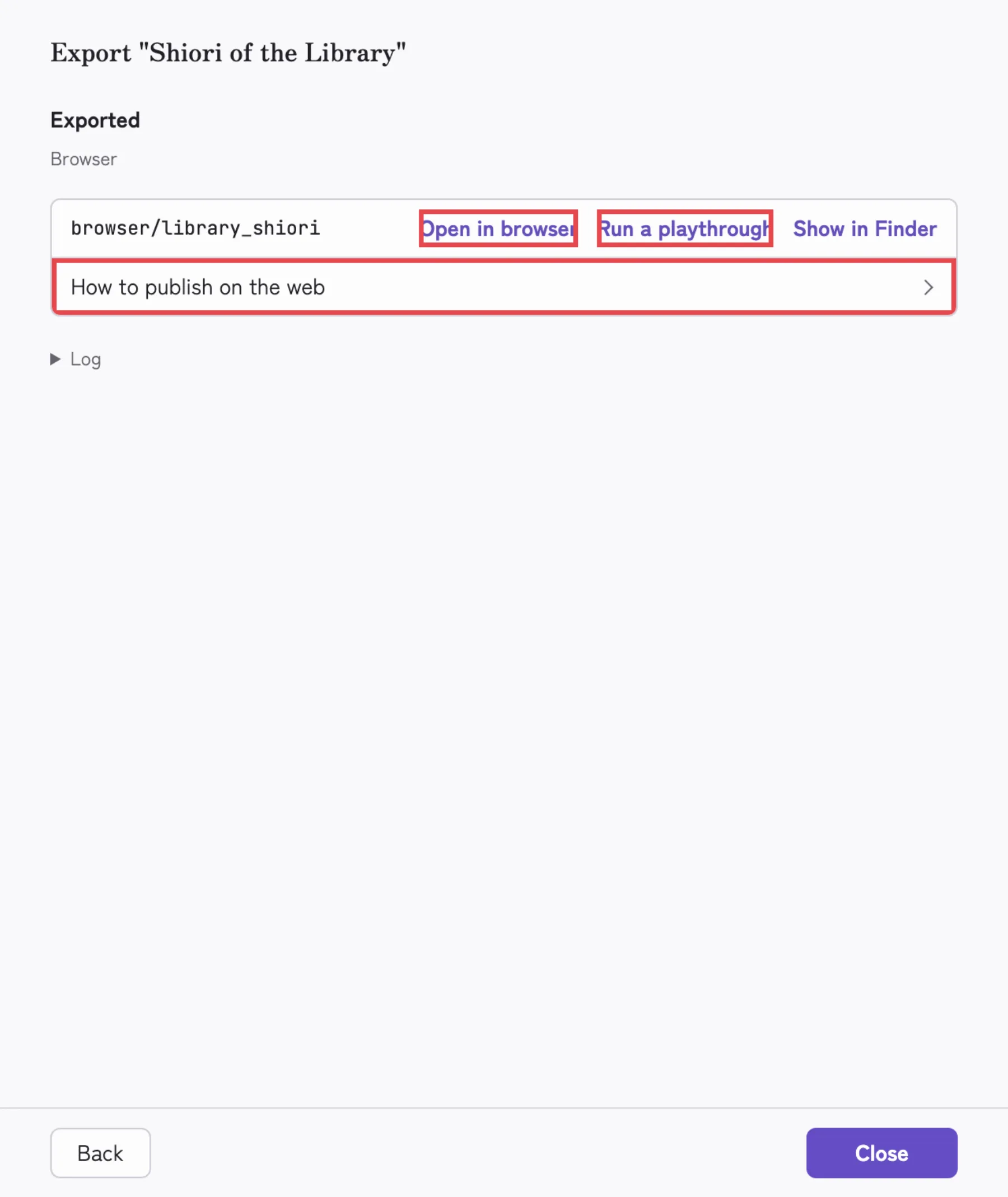
When the export finishes, what was exported is listed. “Open in browser” on the browser version’s row lets you play the exported game in a browser on this computer. “Run a playthrough” plays the exported game from the start to the end automatically and checks that it finishes without stopping on the way. Below them, “How to publish on the web” and “How to distribute” open pages describing what to do next.
In the next chapter, you publish the exported game by putting it on the web and distributing it.
The project at the end of this chapter
This is the project as it stands after the steps in this chapter. Unzip it and open the folder with Open Project in Studio to start from the next chapter. You can also use it to compare with your own project.
Download the project (zip, 1.4 MB)Play this state in the browser