

08 / 10
Set up the title screen and the ending
Liminalia Studio is in beta. You can get it from the Download page.
On this page
Finally, set up the title screen that appears when the game starts, and how the story ends.
Title screen background and BGM
- Click “Game settings” at the top of the screen, and choose “Title” on the right.
- In the panel on the left, choose
library.webpfor “Background” andquiet_night.wavfor “BGM.”
The preview on the right shows the result right away.
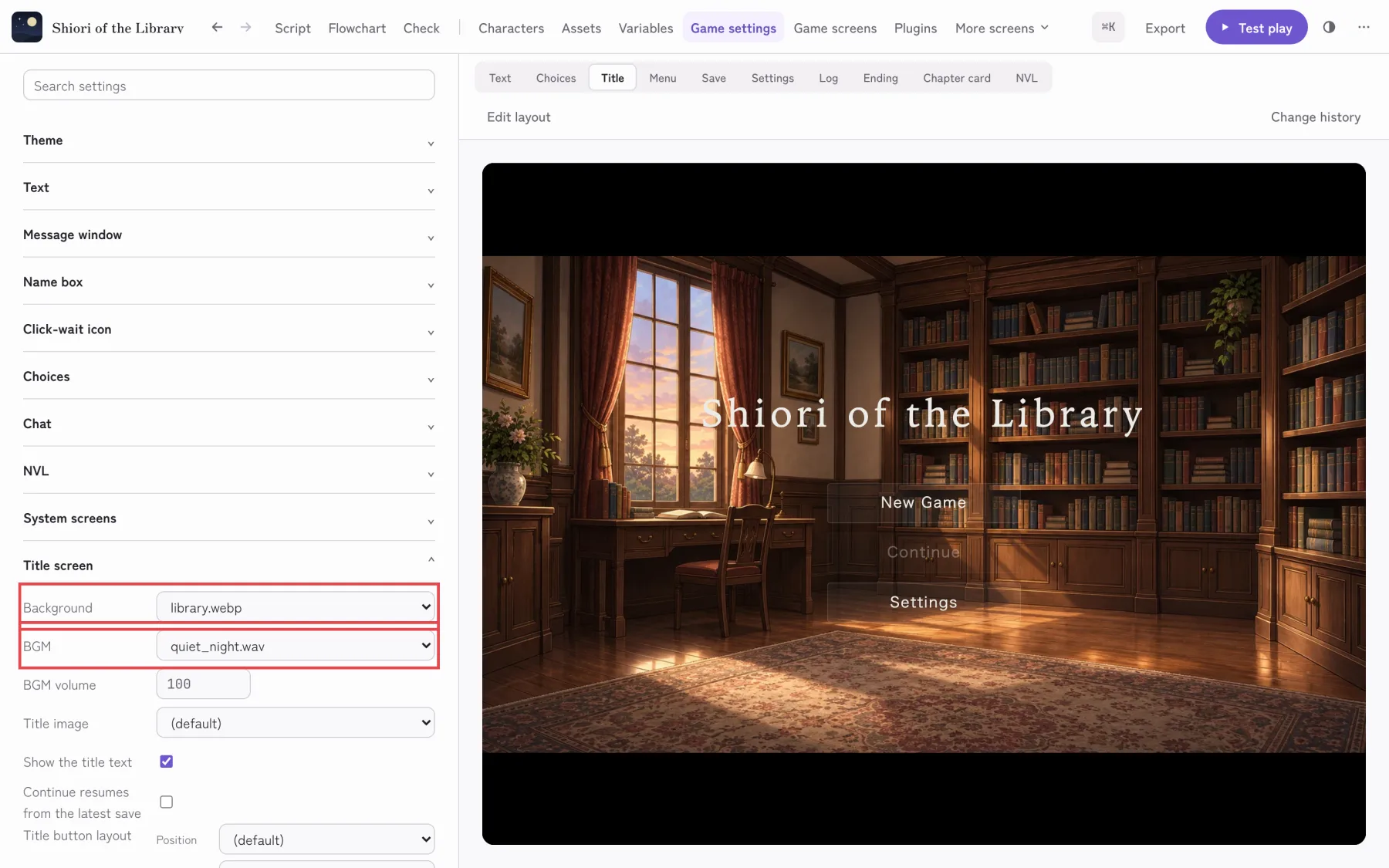
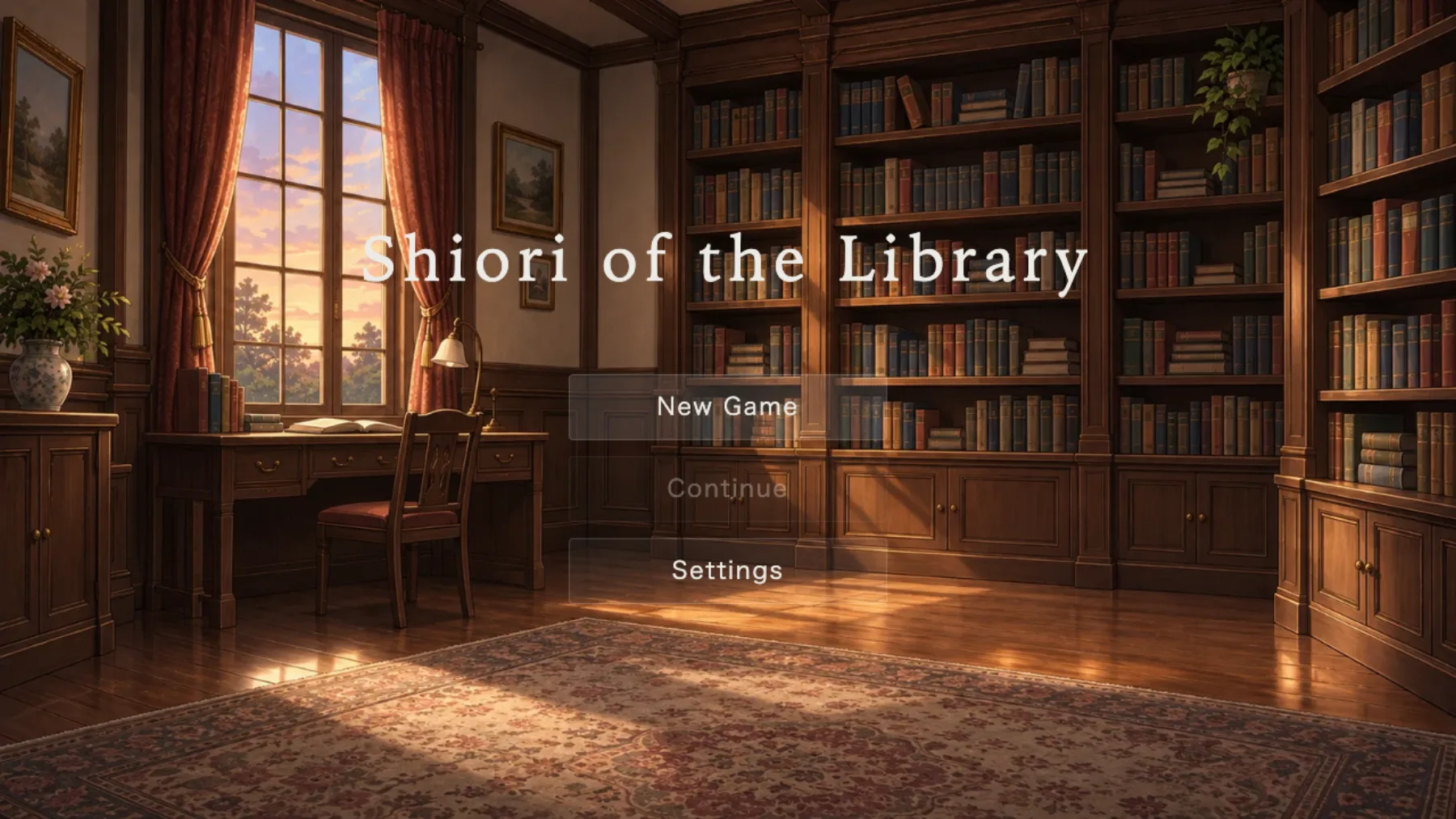
In the game settings, you can also change the color and shape of the message window, the text size, the choice buttons, and the save and settings screens. You can check each one in the preview on the right as you choose.
End the story
As it is, the game goes straight back to the title screen after the last line of narration, with nothing in between. Make it show an ending screen at the end of the story before going back.
- In “Script,” select the last line of narration (“On the way home, …”), and double-click “To title” in the “Flow” section of the parts panel.
- Enter
goodforendingandThe Way Homefortitle.
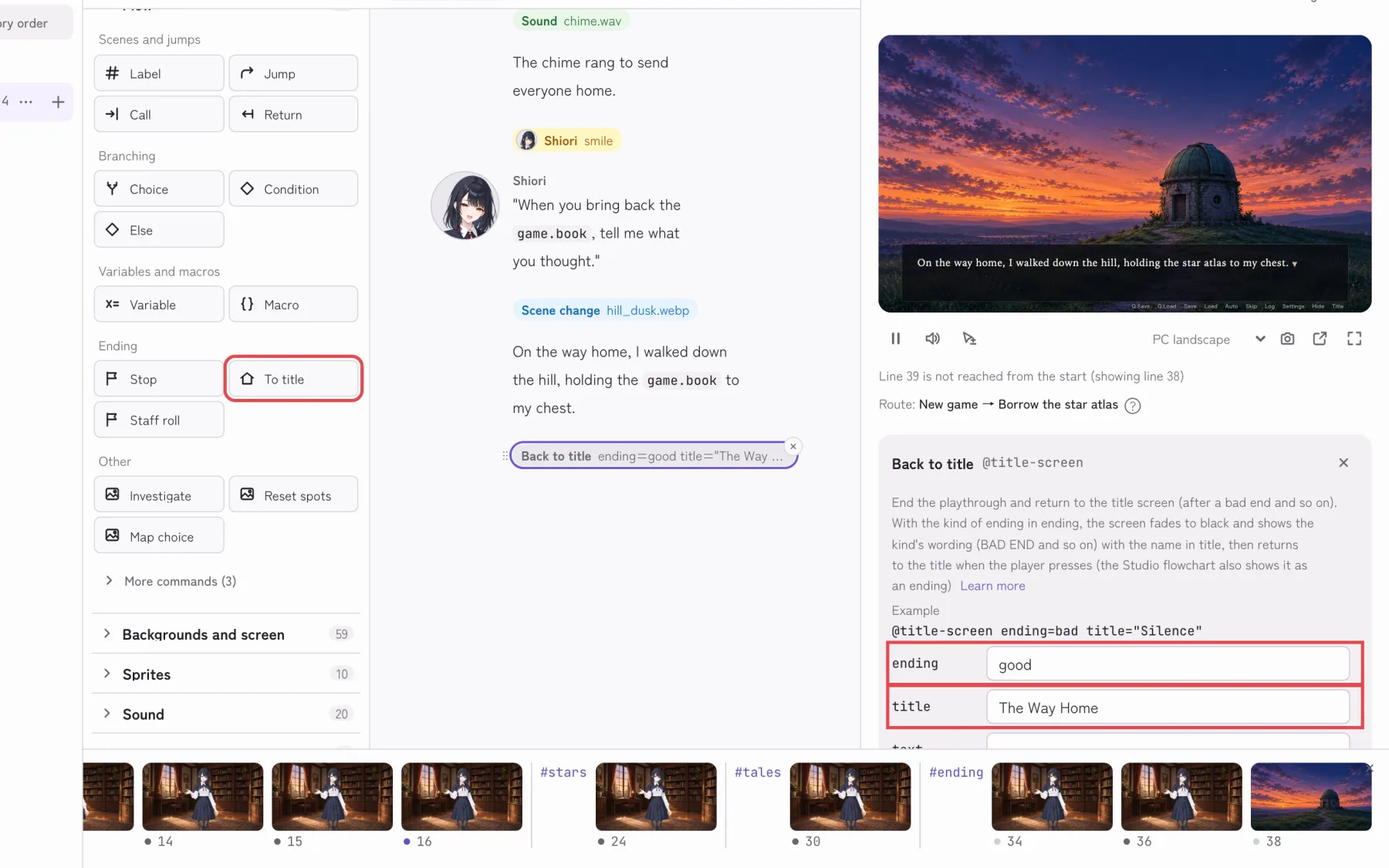
ending is the kind of ending: choose from bad, normal, good, true and other. The screen shows the words for the kind (GOOD END for good). title is the name of that ending, shown large under the words for the kind. In a game with several endings, write this line at each ending, with its own kind and name. The flowchart also shows the kind and name on the ending scene.
In code, one line is added after the last line of narration.
@scene-change hill_dusk.webp
On the way home, I walked down the hill, holding the {= game.book} to my chest.
@title-screen ending=good title="The Way Home"
Play to the end
Play from the title screen to the end in a test play. At the ending, the screen goes dark for a moment and changes to the hill on the way home.
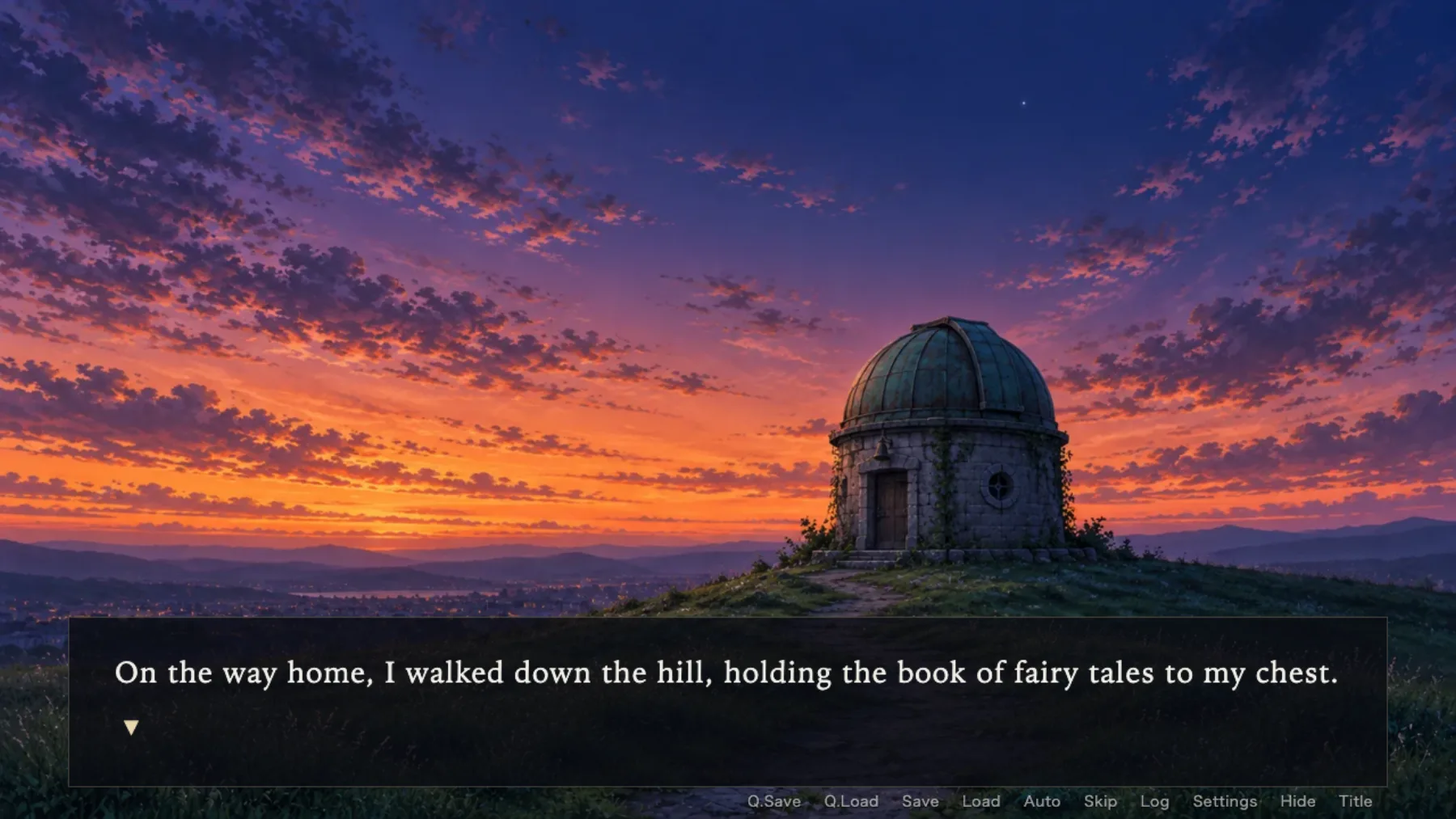
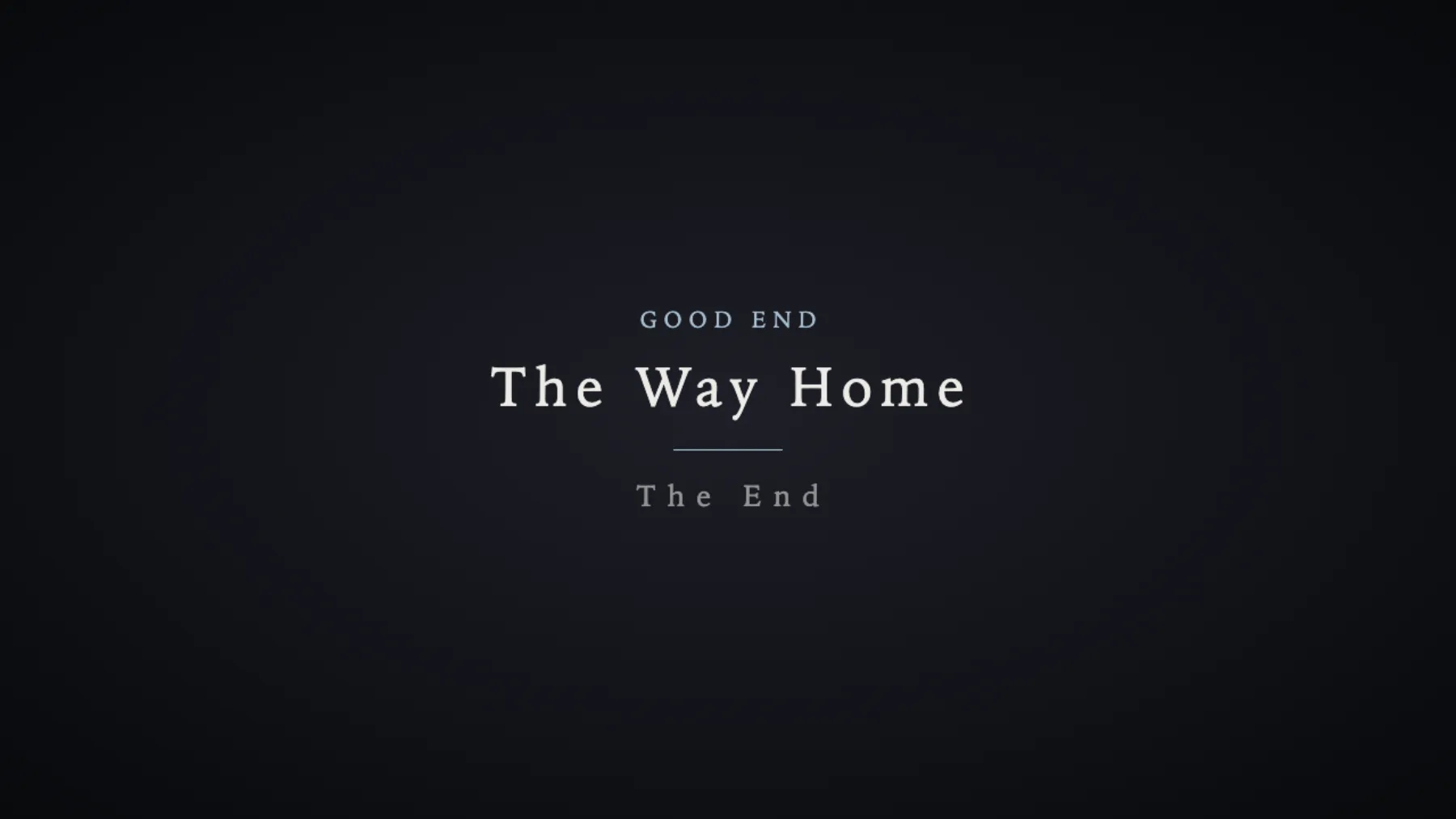
After the last line, the screen goes dark and shows “GOOD END” and “The Way Home.” Click to go back to the title screen.
If you close the window partway through, the game keeps your place in an autosave. Next time, click “Continue” on the title screen and pick it up from the “A” tab of the load screen that opens.
The project at the end of this chapter
This is the project as it stands after the steps in this chapter. Unzip it and open the folder with Open Project in Studio to start from the next chapter. You can also use it to compare with your own project.
Download the project (zip, 1.4 MB)Play this state in the browser