

06 / 10
Branch with choices
Liminalia Studio is in beta. You can get it from the Download page.
On this page
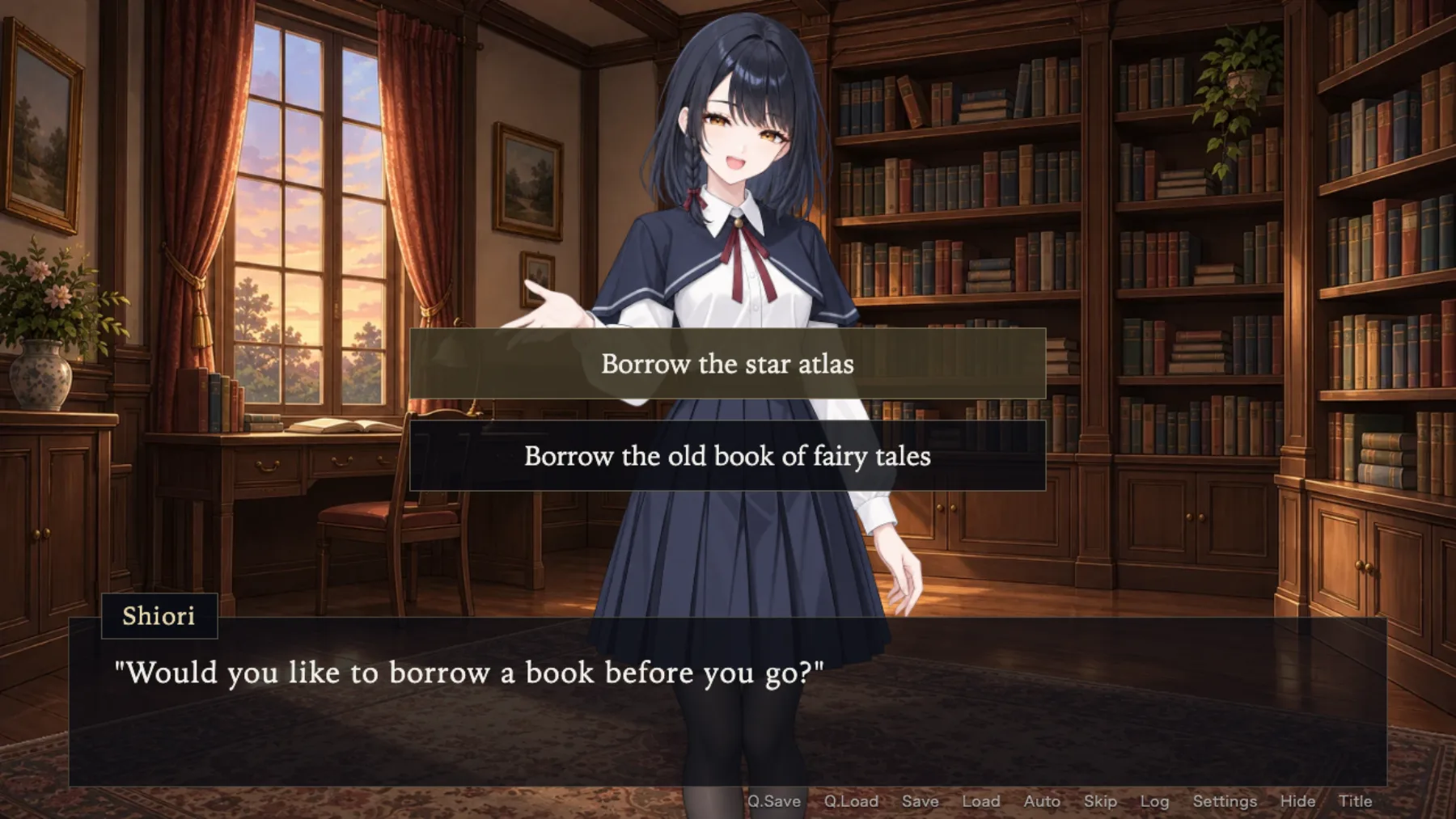
When Shiori asks “Would you like to borrow a book before you go?”, show choices for which book to borrow. Shiori reacts differently depending on the book you pick.
Add a choice
- Select the last line of dialogue, and double-click “Choice” in the “Flow” section of the parts panel.
- In the input field on the choice line, type
- Borrow the star atlas -> #starsand press Enter.
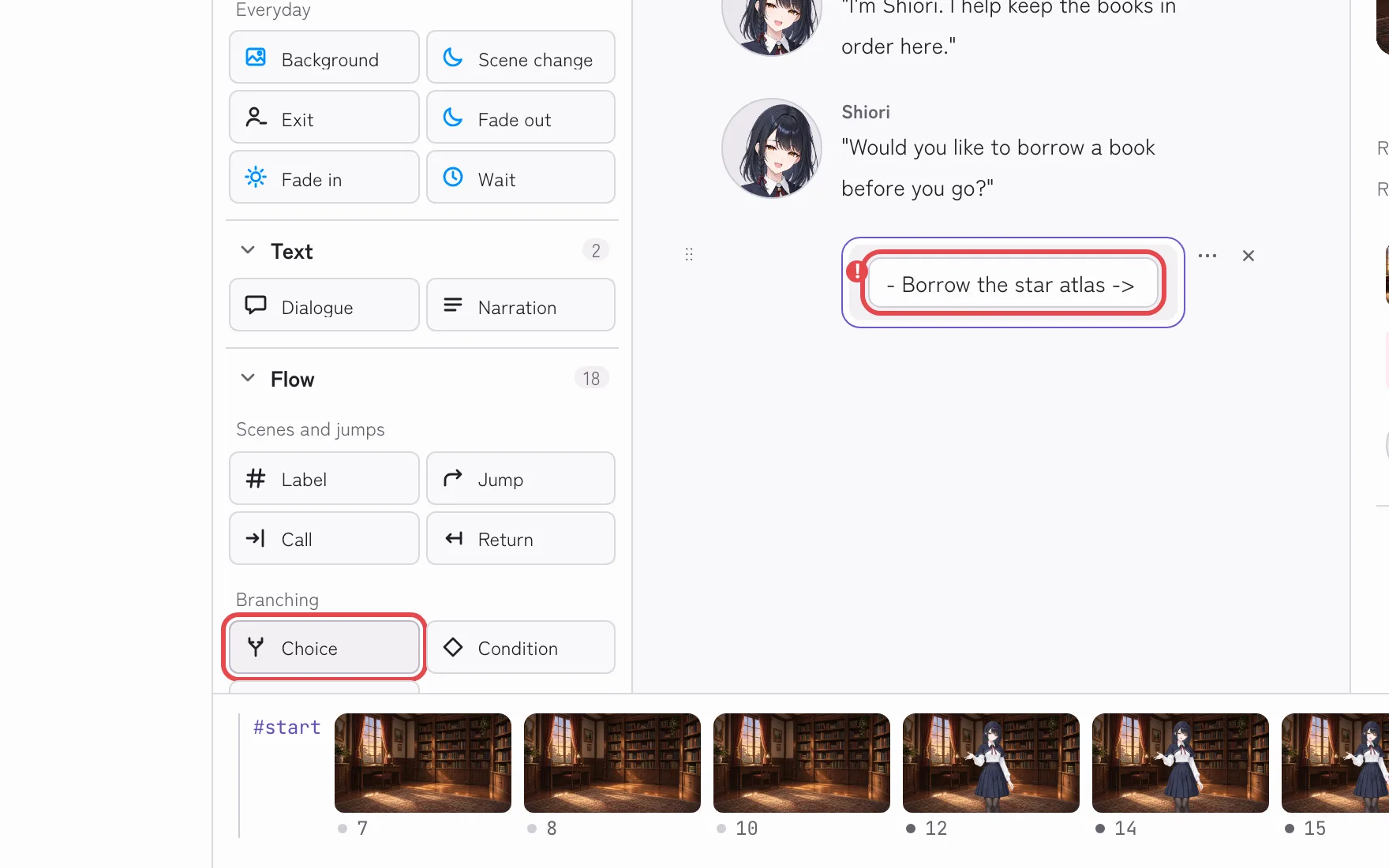
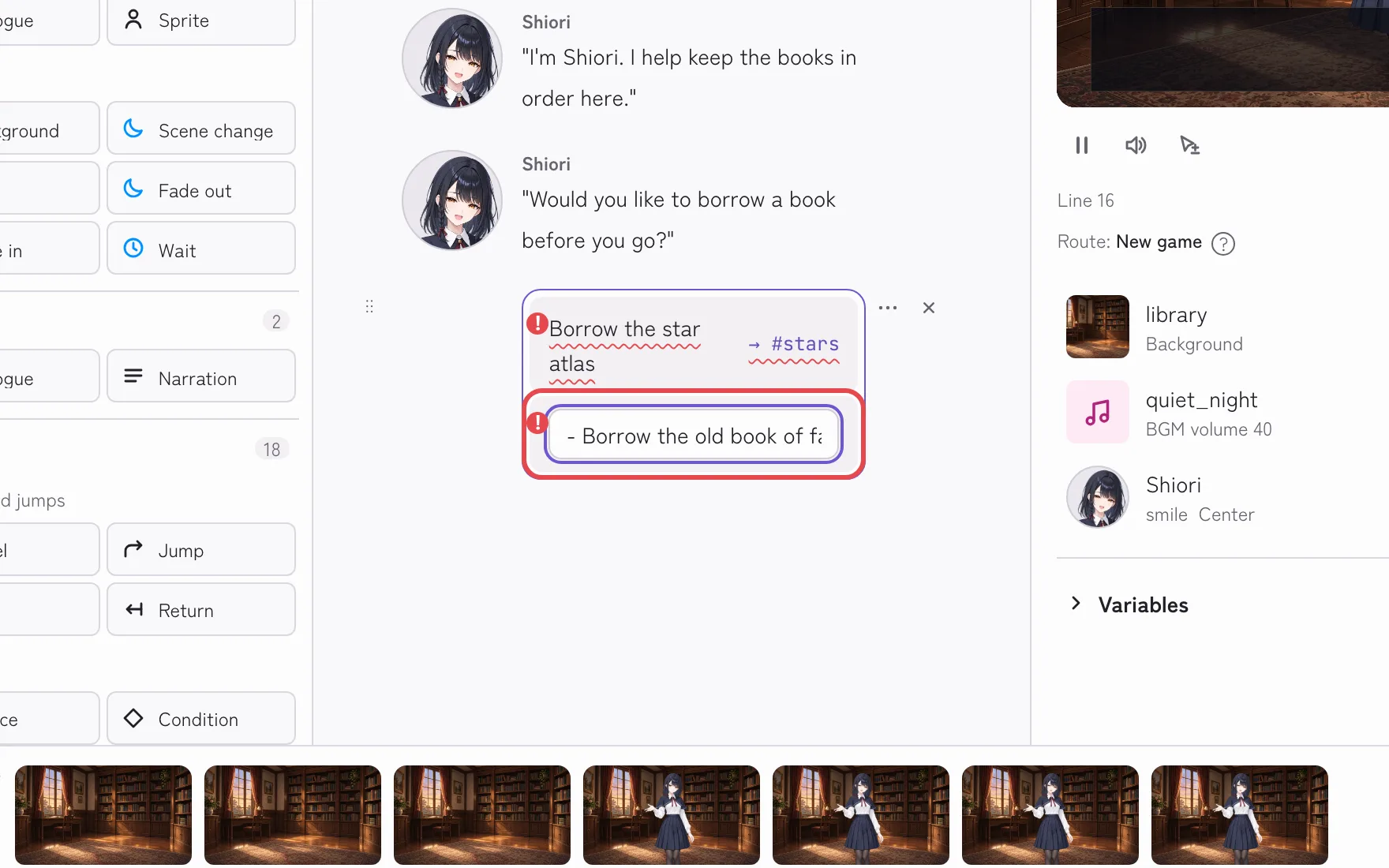
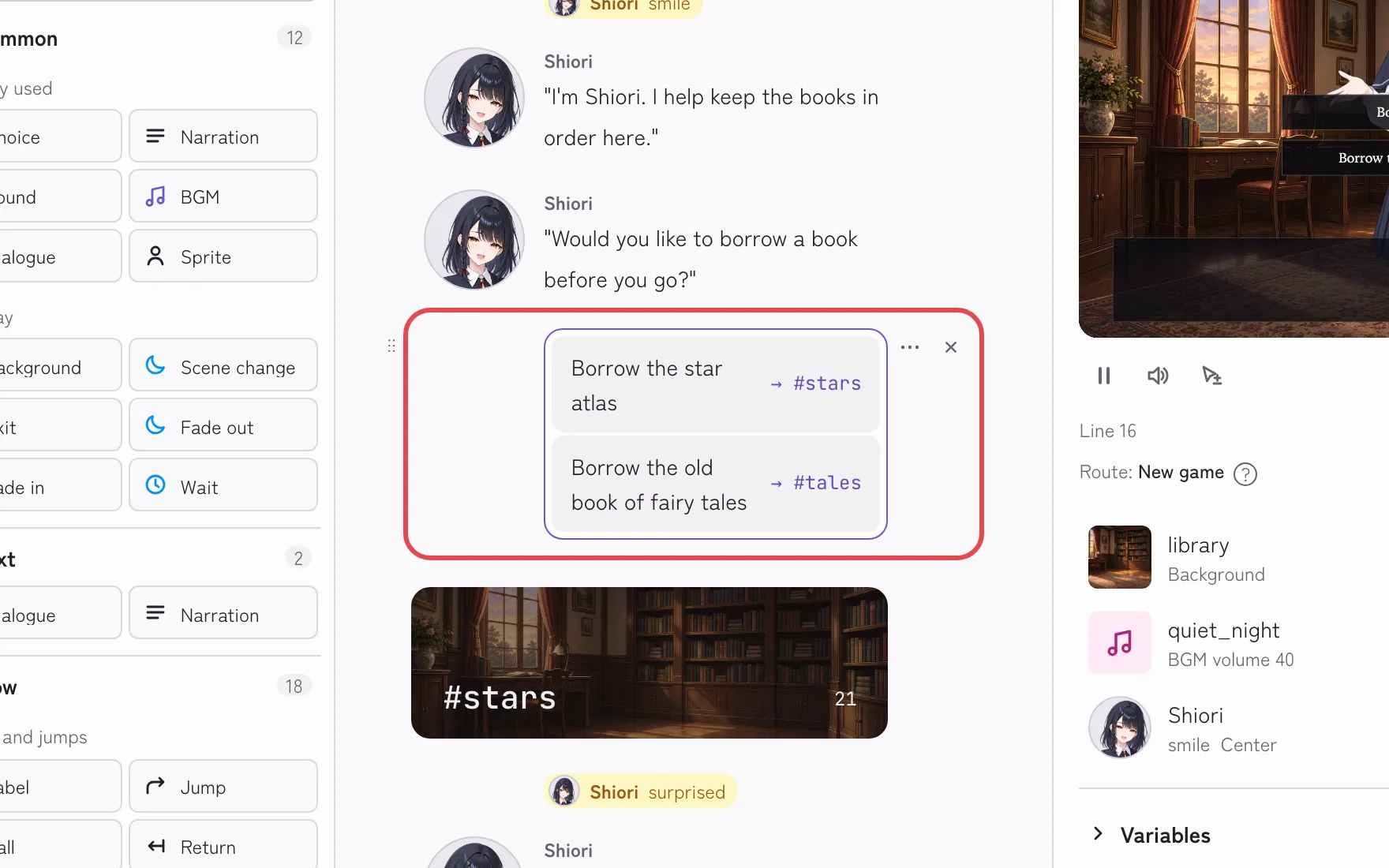
A choice line has the form - text shown on screen -> #label to jump to. For the second choice, select the choice line and press ⌘D (Ctrl+D on Windows) to duplicate it, then click the copy and change it to - Borrow the old book of fairy tales -> #tales.
Write where the choices lead
Each choice leads to a label. Use the “Label” part to add three labels, # stars, # tales and # ending, and add a sprite and dialogue under each one. At the end of # stars, add @jump #ending with the “Jump” part to go to the ending. # tales simply continues into # ending below it.
When there is a lot to write, you can switch to “Code” and paste the following lines as they are.
# stars
@chara Shiori surprised
Shiori "The star atlas? I hear the sky will be clear tonight."
@jump #ending

# tales
@chara Shiori think
Shiori "Fairy tales... I read them all the time when I was little."

# ending
@se chime.wav
The chime rang to send everyone home.
@chara Shiori smile
Shiori "When you bring it back, tell me what you thought."
@scene-change hill_dusk.webp
On the way home, I walked down the hill, holding the book to my chest.
@scene-change changes the scene (“Scene change” in the parts panel). In one line, it darkens the screen, removes all sprites, changes the background and brightens the screen again.
Check it in the flowchart
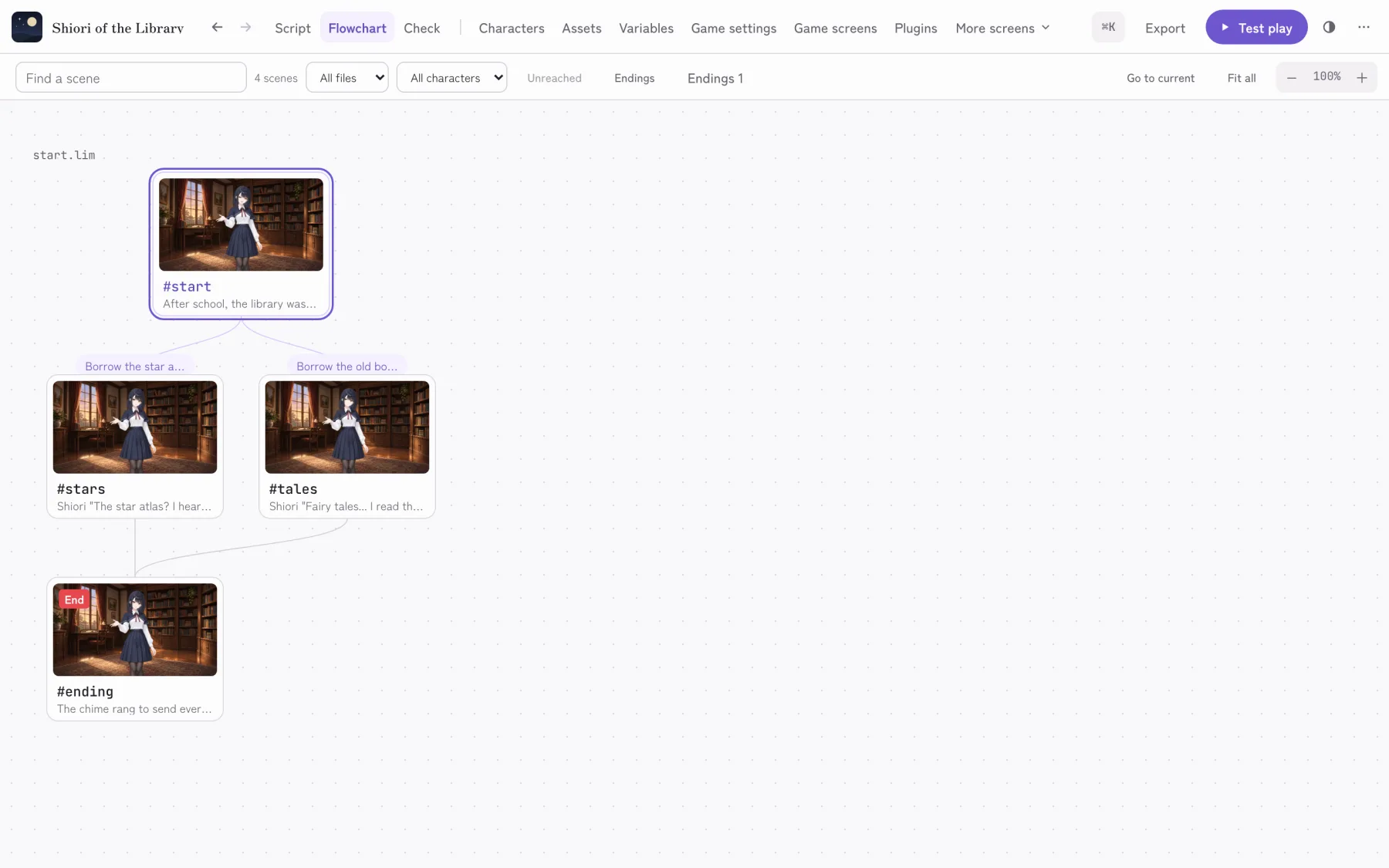
Click “Flowchart” at the top of the screen to see how the labels connect. You can see the story split in two at the choice and come back together at the ending.
The project at the end of this chapter
This is the project as it stands after the steps in this chapter. Unzip it and open the folder with Open Project in Studio to start from the next chapter. You can also use it to compare with your own project.
Download the project (zip, 1.4 MB)Play this state in the browser