

01 / 10
Get set up
Liminalia Studio is in beta. You can get it from the Download page.
On this page
In this tutorial, you make a short game called “Shiori of the Library.” After school, the player meets Shiori, who helps out in the library, and chooses a book to borrow. There are 10 chapters in all, and by the end you will have tried each of the basic steps of making a visual novel once.
What you need
- Liminalia Studio: the app for making games. You can get the beta from the Download page.
- The tutorial assets: 2 backgrounds, 5 sprites of Shiori, a BGM track and a sound effect. Download the assets and unzip them. The assets are released under CC0 1.0, so you can use them freely in your own games too. The images were made with AI image generation (templates and sample assets).
Create a new project
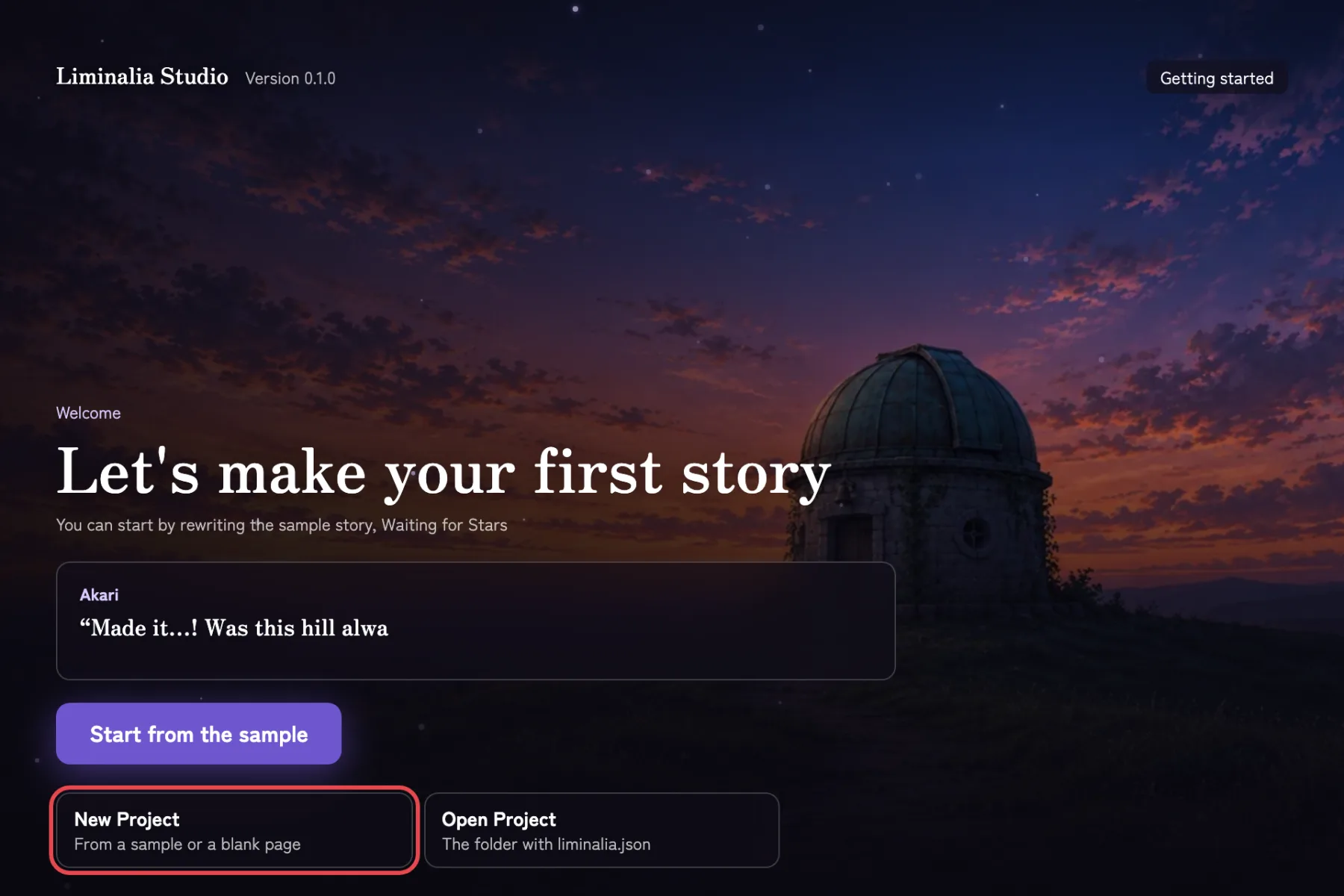
When you open Studio, the start screen appears. Click “New Project.”
On the next screen, choose the following and click “Create.”
- Title: Shiori of the Library
- Start from: A blank page
- Text style: Adventure
- Screen size: 1280×720 (landscape)
- Show a title screen: leave it checked
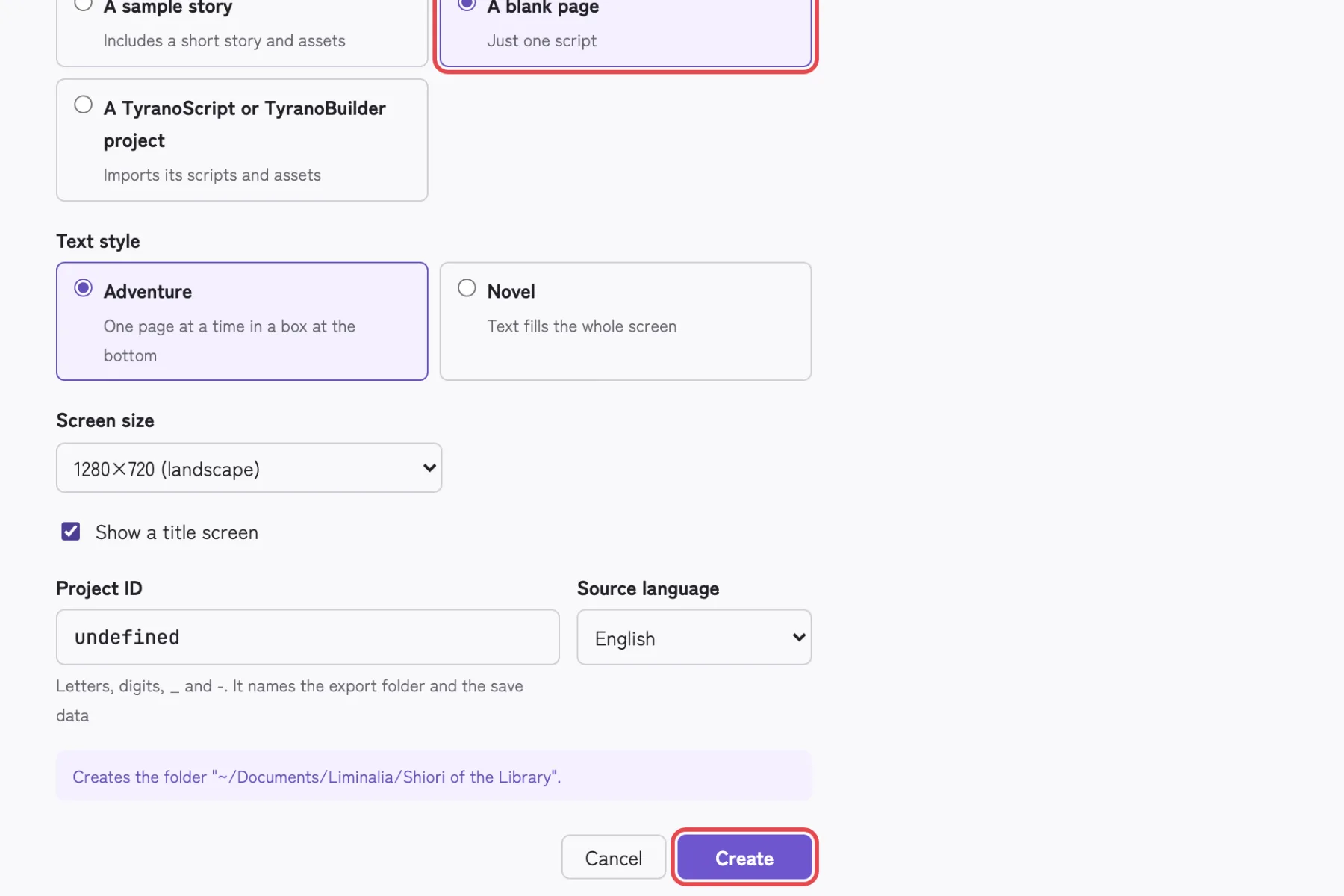
If you choose “A sample story” instead, you get a project with a short story and assets. Looking through it after the tutorial is a good way to pick up other ways of writing.
Find your way around
Once the project is created, the main Studio screen opens. The first time you open it, a tour walks you through the main areas. Click “Next” to continue, or “Close” or Esc to stop. You can take the tour again from “Getting started tour” in the ”…” menu at the top right.
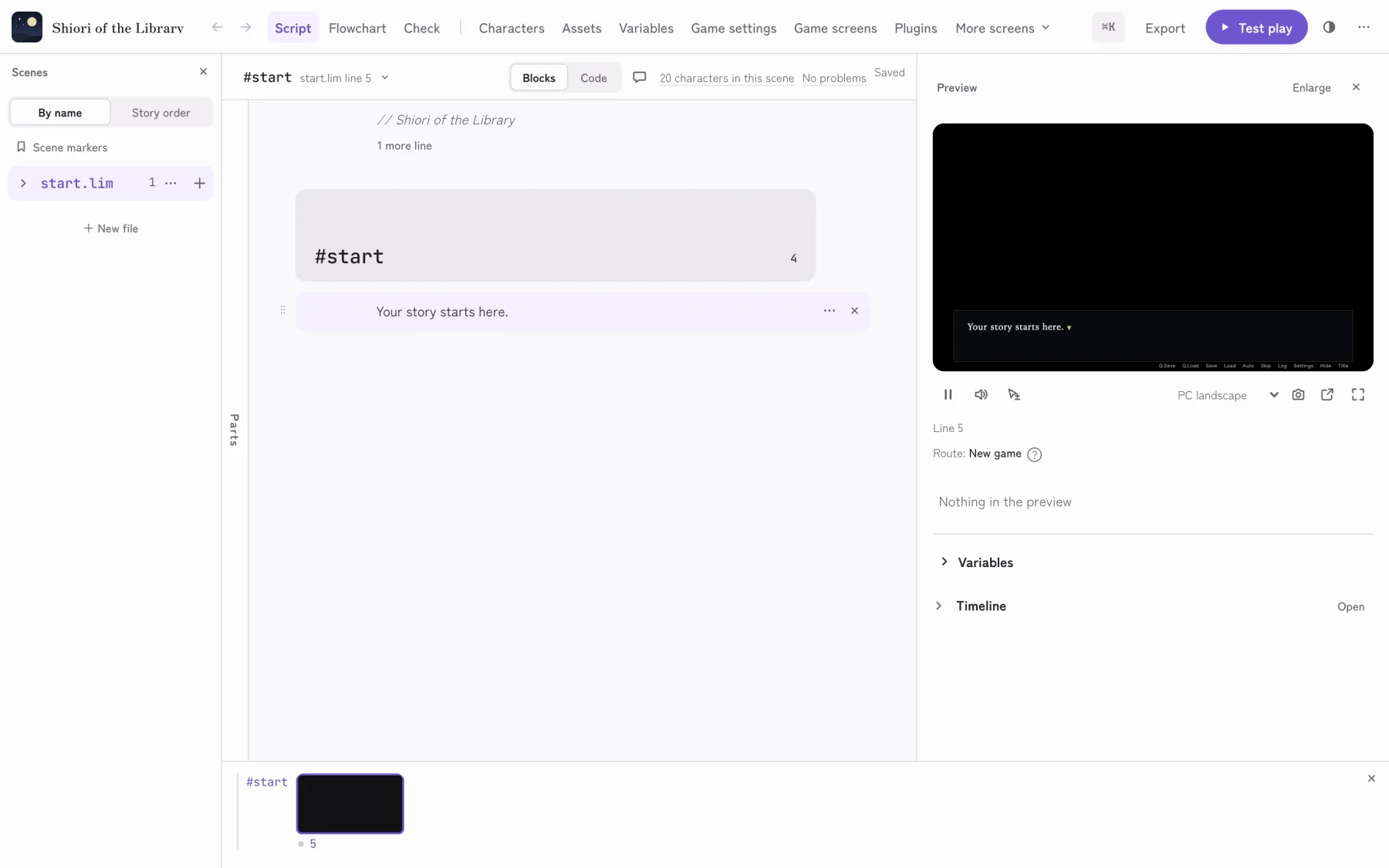
- Top: switch between screens such as “Script,” “Flowchart,” “Check,” “Characters” and “Assets.” “Test play” on the right plays the game from the beginning.
- Left: the scenes panel. It lists your script files; at first there is just one,
start.lim. - Middle: the script. This is where you write the story.
- Right: the preview. It instantly shows the game screen at the line you have selected in the script.
From the next chapter on, you write the story in the script in the middle.
The project at the end of this chapter
This is the project as it stands after the steps in this chapter. Unzip it and open the folder with Open Project in Studio to start from the next chapter. You can also use it to compare with your own project.
Download the project (zip, 31 KB)Play this state in the browser