

03 / 10
Show a background
Liminalia Studio is in beta. You can get it from the Download page.
On this page
Next, show the library background.
Add backgrounds to the assets
- Click “Assets” at the top of the screen.
- Choose “Backgrounds” on the left and click “Add files.”
- From the
bgfolder of the assets you downloaded, chooselibrary.webpandhill_dusk.webp.
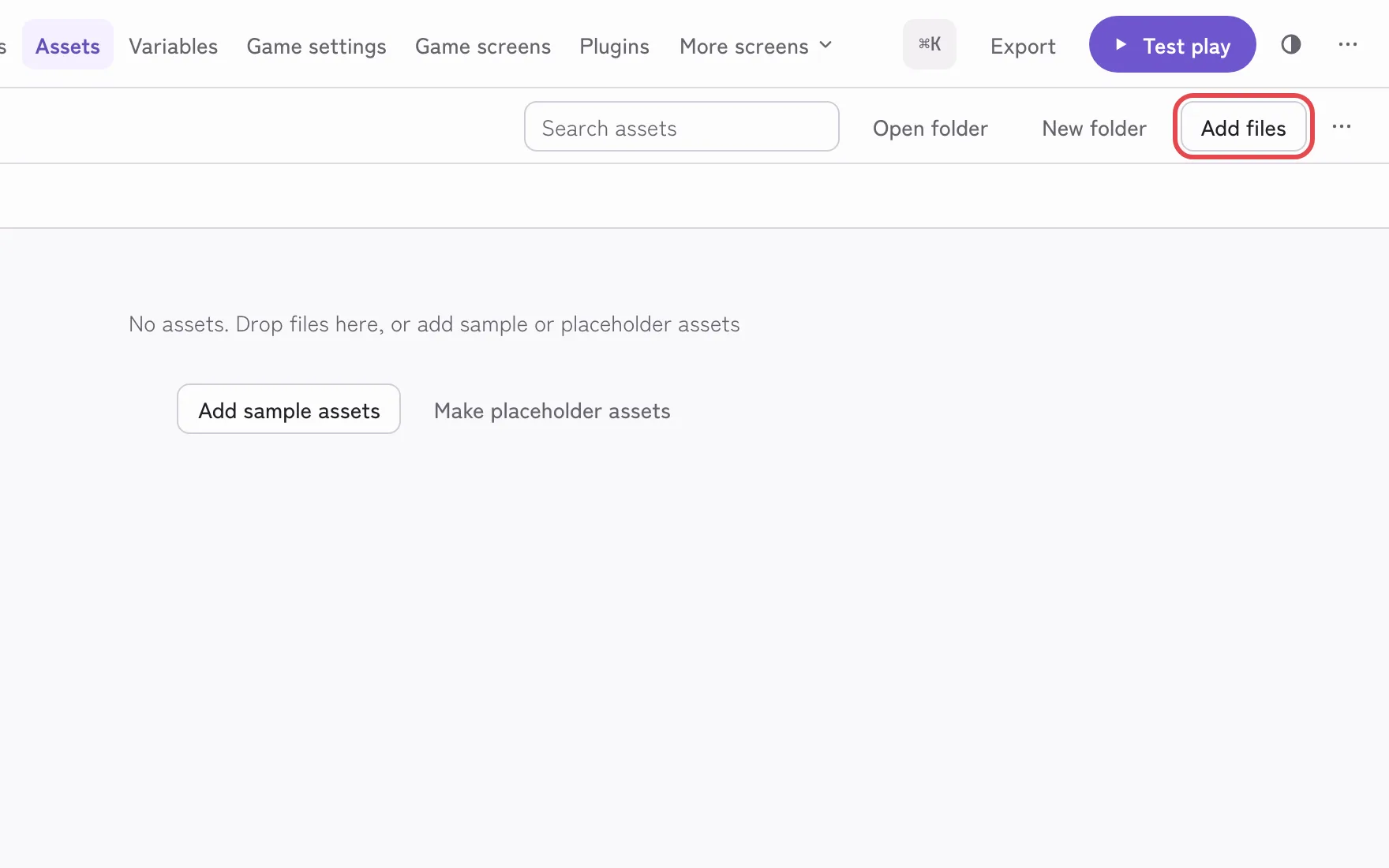
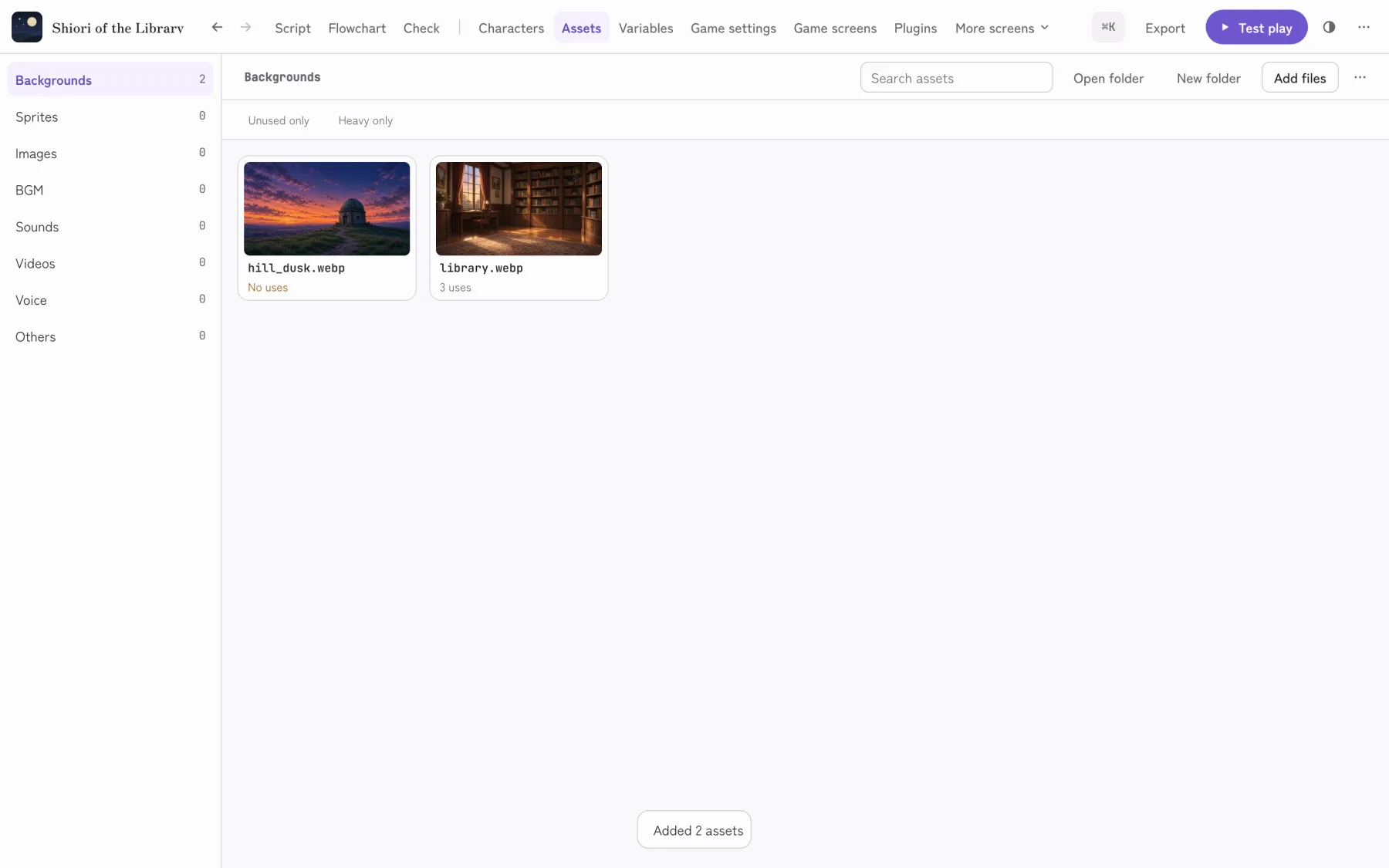
You can also drop image files anywhere in Studio to add them. A screen opens to confirm their kind, with a guess of whether each is a background or a sprite. Click “Add.”
Add the Background part
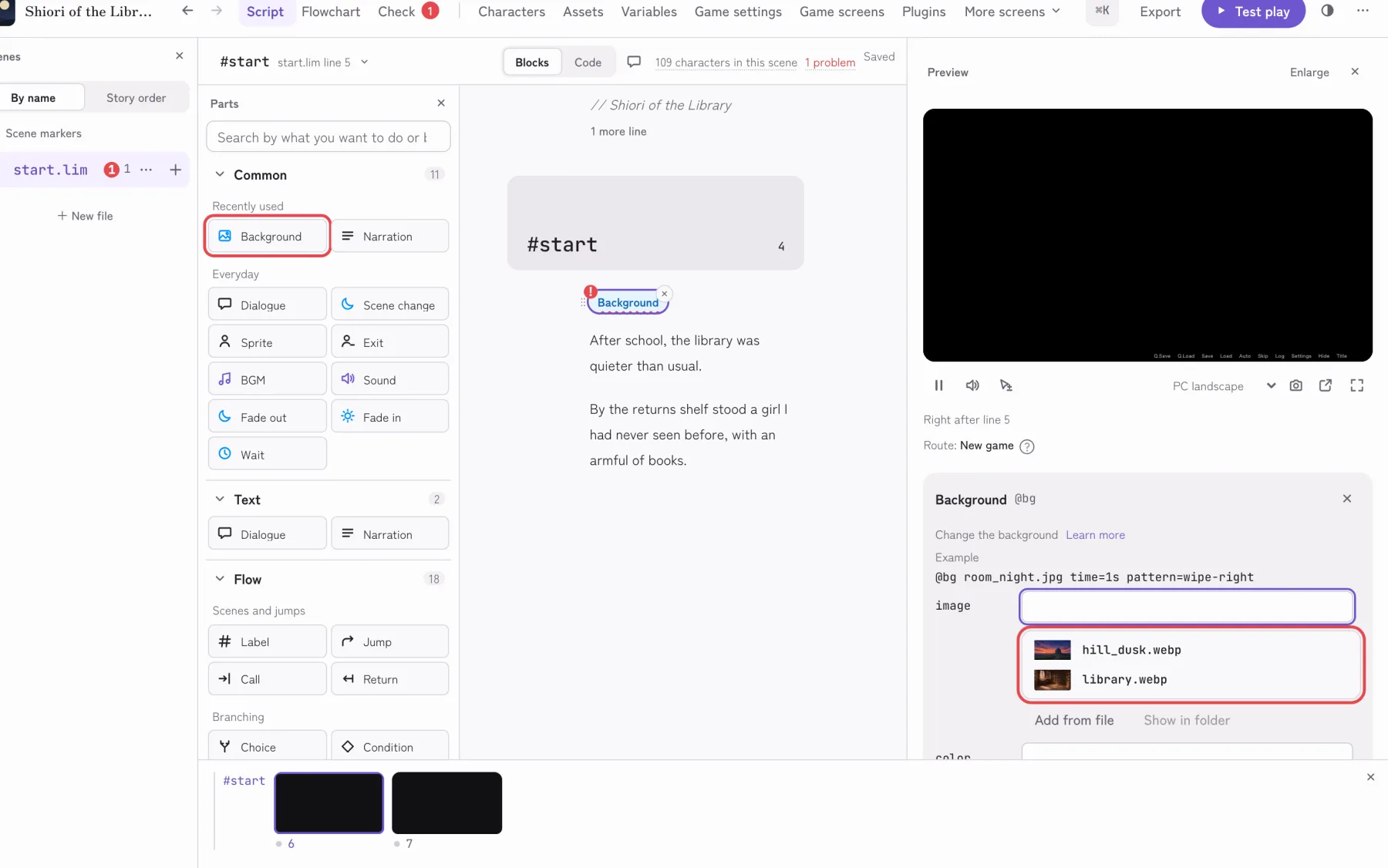
- Go back to “Script” and select the
#startblock. - Double-click “Background” in the parts panel.
- A parameter panel appears on the right. Click the
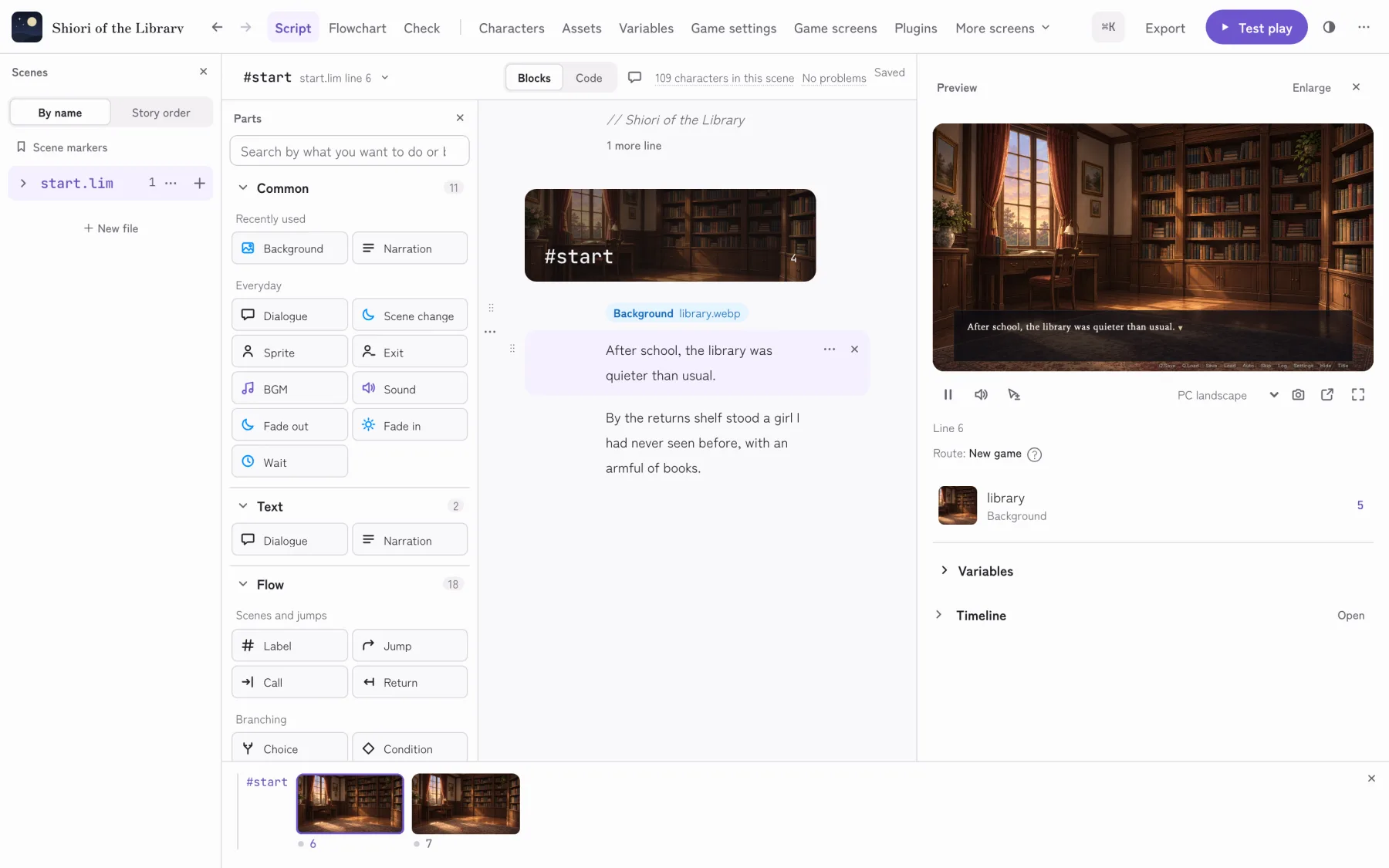
imagefield to list the assets, and chooselibrary.webp.
Select the line below the background block, and the library appears in the preview.
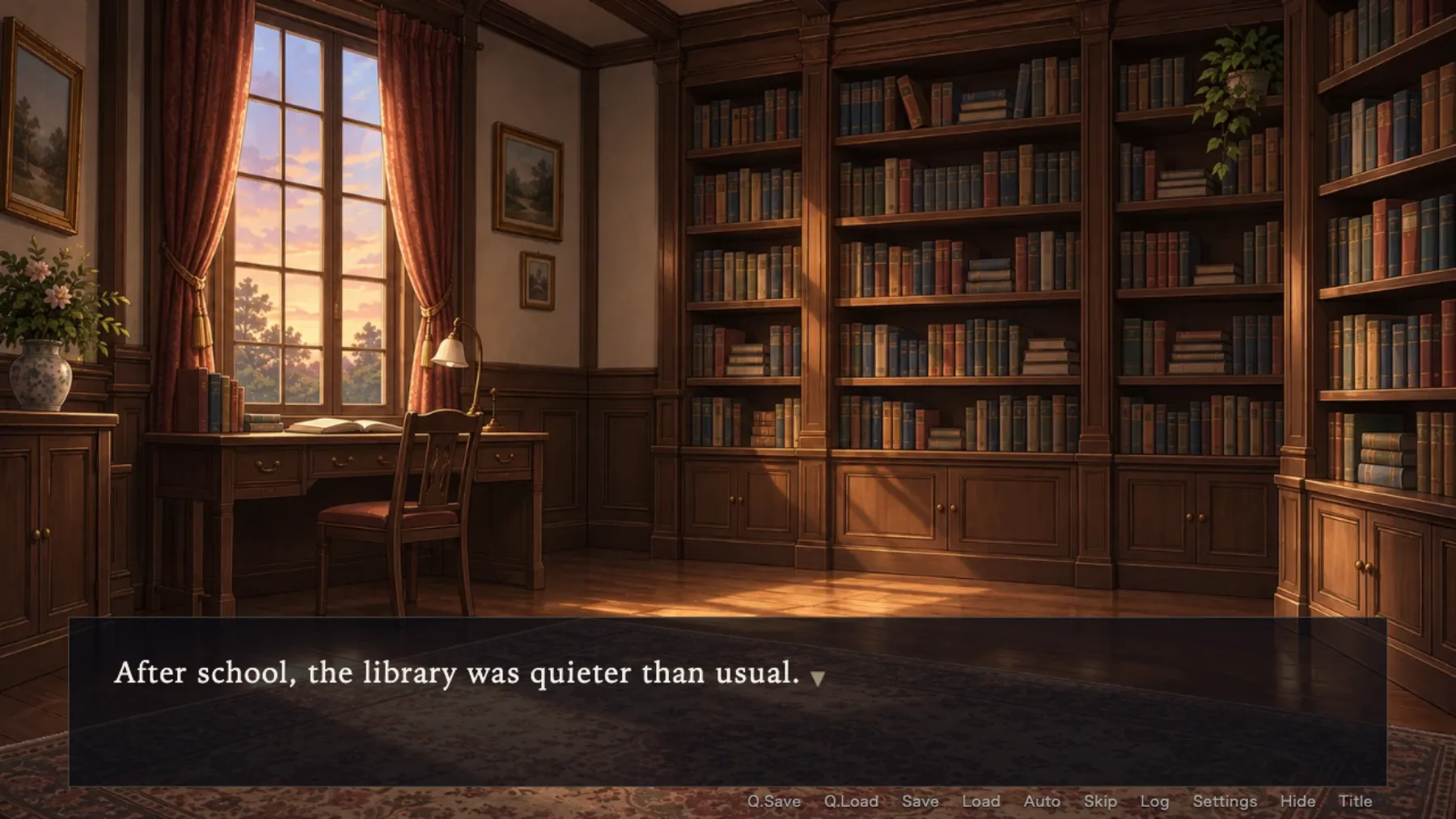
In code
# start
@bg library.webp
After school, the library was quieter than usual.
A line that starts with @ is a command. @bg shows a background. Add a parameter such as time=1s to make the change take one second. You can change parameters in the same panel on the right.
The project at the end of this chapter
This is the project as it stands after the steps in this chapter. Unzip it and open the folder with Open Project in Studio to start from the next chapter. You can also use it to compare with your own project.
Download the project (zip, 0.5 MB)Play this state in the browser