

05 / 10
Play sound
Liminalia Studio is in beta. You can get it from the Download page.
On this page
Play quiet BGM in the library, and ring the bell on the door with a sound effect.
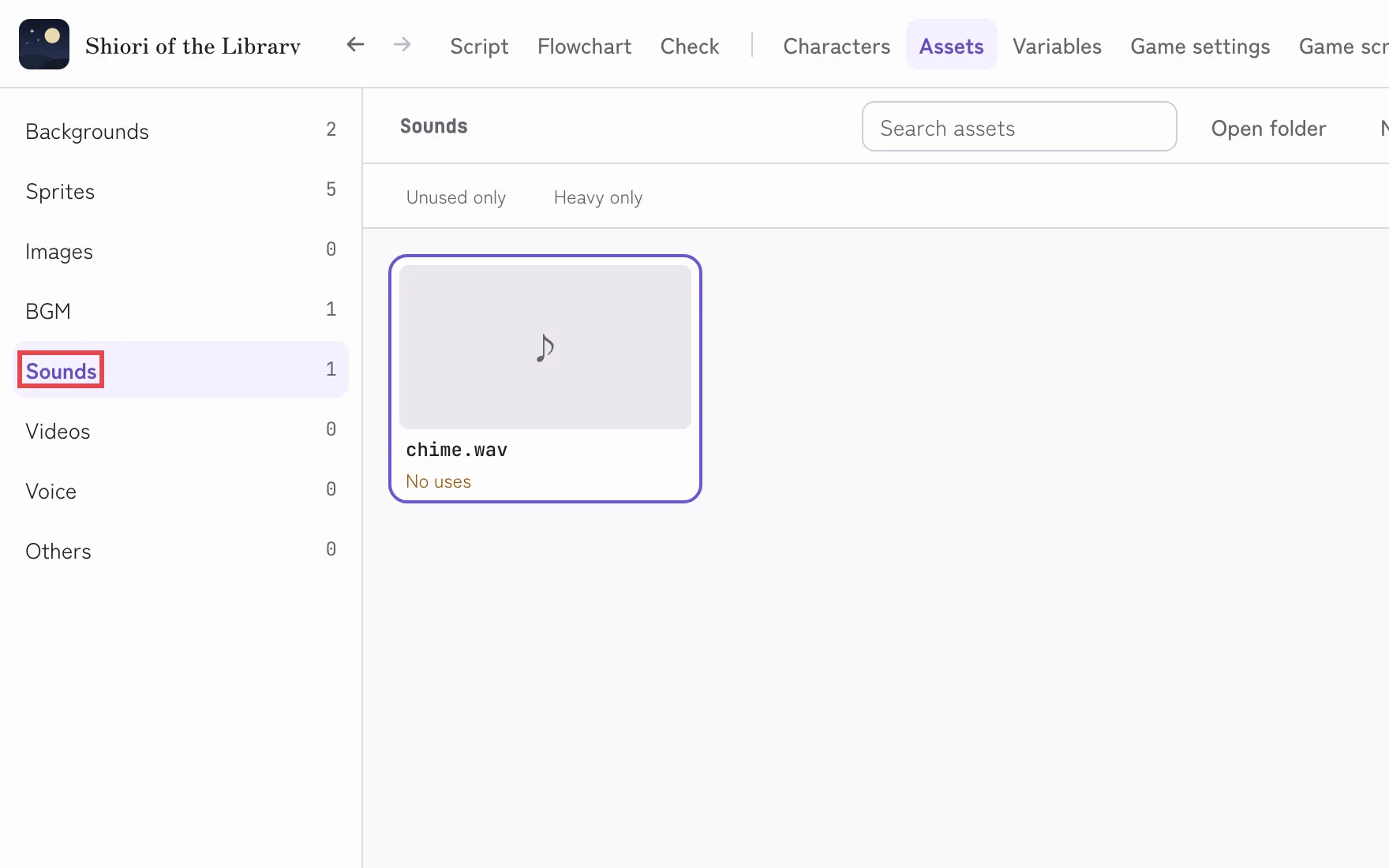
Add sounds to the assets
On the Assets screen, choose “BGM” on the left and add bgm/quiet_night.wav, then choose “Sounds” and add se/chime.wav.
Play BGM
- In “Script,” select the
#startblock. - Double-click “BGM” in the parts panel.
- Choose
quiet_night.wavforfile, and enter 40 forvolume.
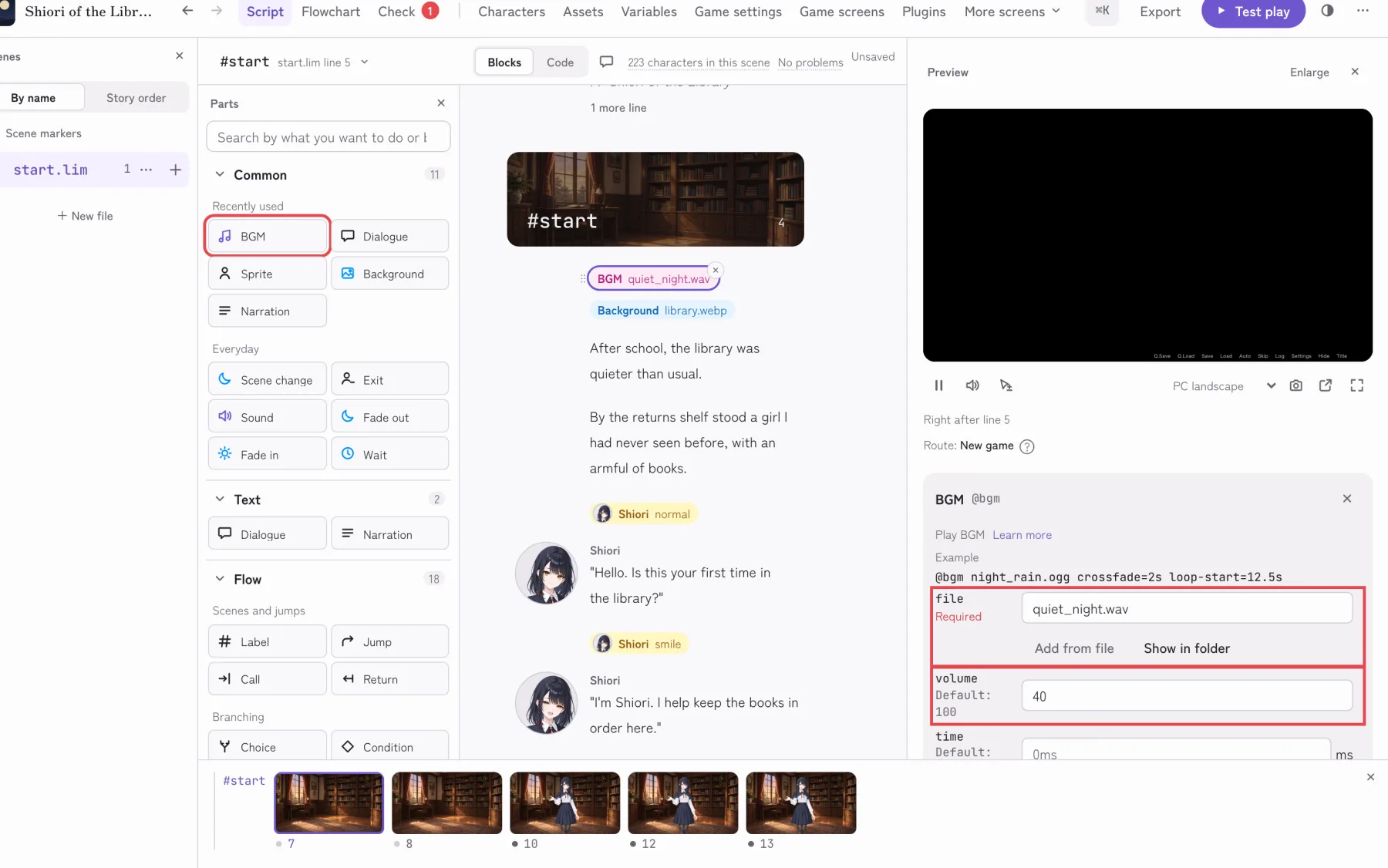
BGM loops until you stop it. To stop it, use @stop-bgm.
Play a sound effect
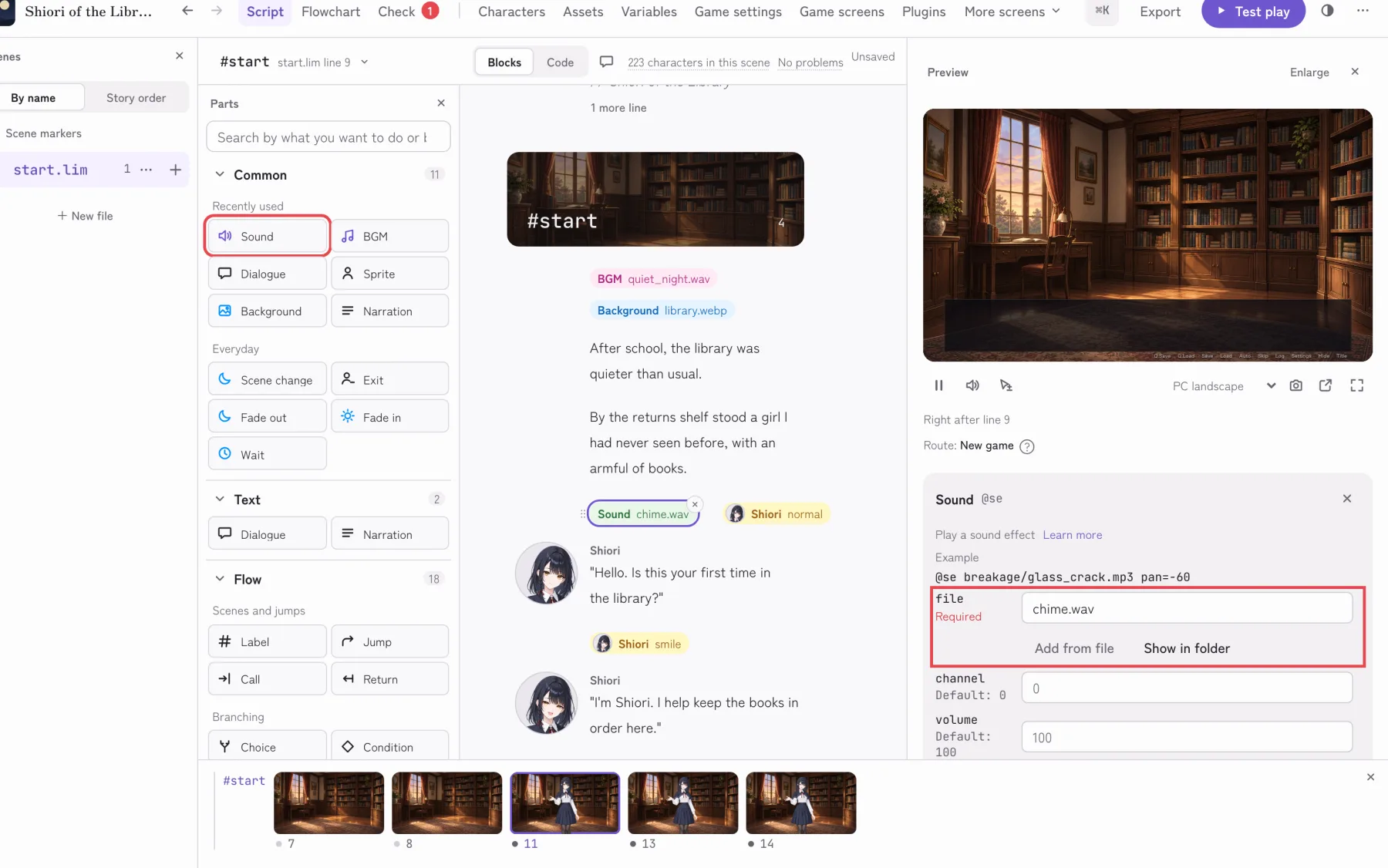
Select the second narration line, add the “Sound” part, and choose chime.wav for file. Then add one more line of narration after it.
In code
# start
@bgm quiet_night.wav volume=40
@bg library.webp
After school, the library was quieter than usual.
By the returns shelf stood a girl I had never seen before, with an armful of books.
@se chime.wav
The bell on the door gave a small ring, and the girl looked up.
Check the sound in a test play. “Mute” in the preview silences sound only while you edit.
The project at the end of this chapter
This is the project as it stands after the steps in this chapter. Unzip it and open the folder with Open Project in Studio to start from the next chapter. You can also use it to compare with your own project.
Download the project (zip, 1.4 MB)Play this state in the browser