

02 / 10
Write text
Liminalia Studio is in beta. You can get it from the Download page.
On this page
First, write two lines of narration for the story.
Open the parts panel
The script starts out in the “Blocks” view. Click “Parts” on the left edge of the script to open the parts panel. You add dialogue, backgrounds, sprites and more from this panel.
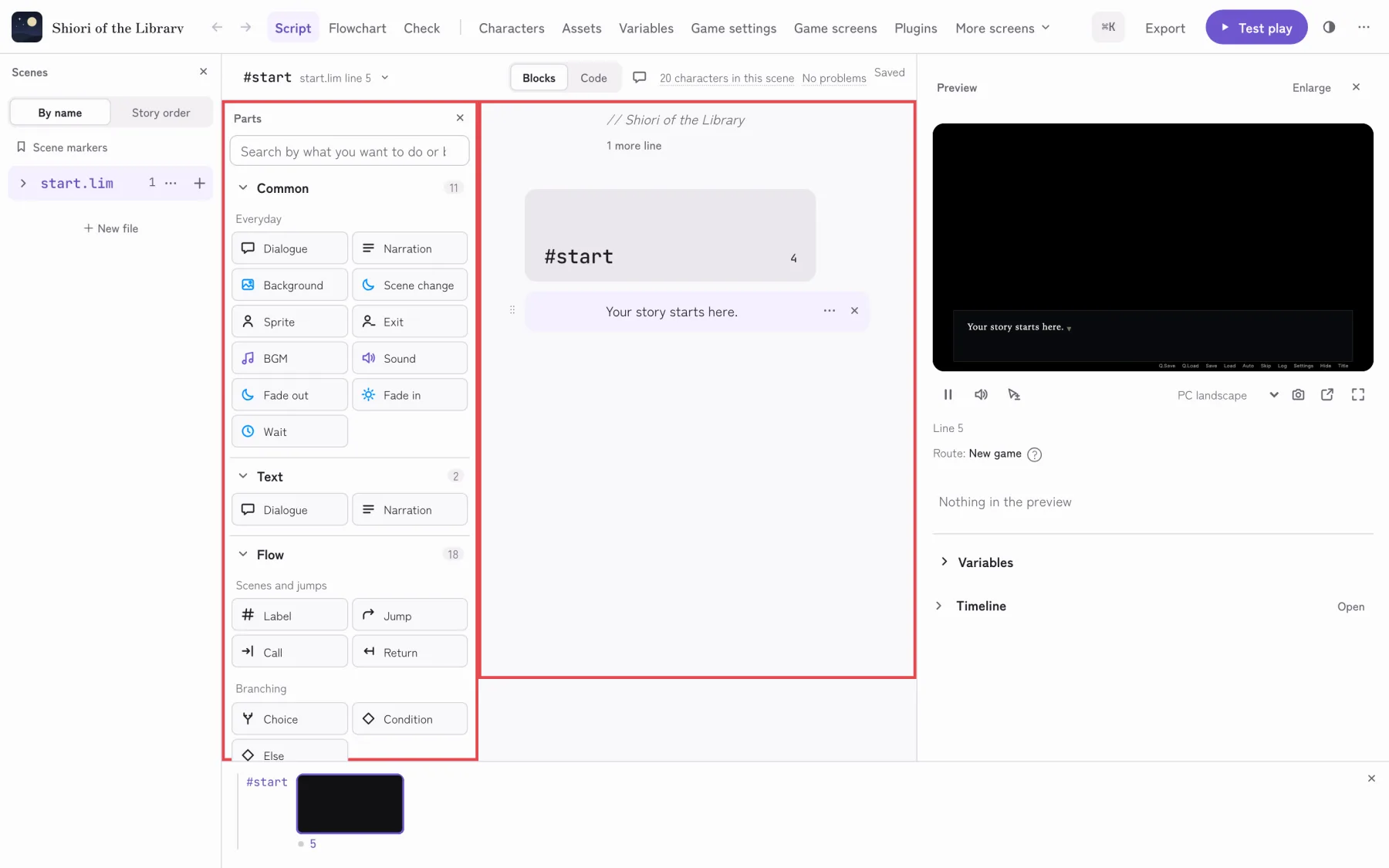
You won’t need the line “Your story starts here.” that the project starts with, so hover over it and click the × at the right end to delete it.
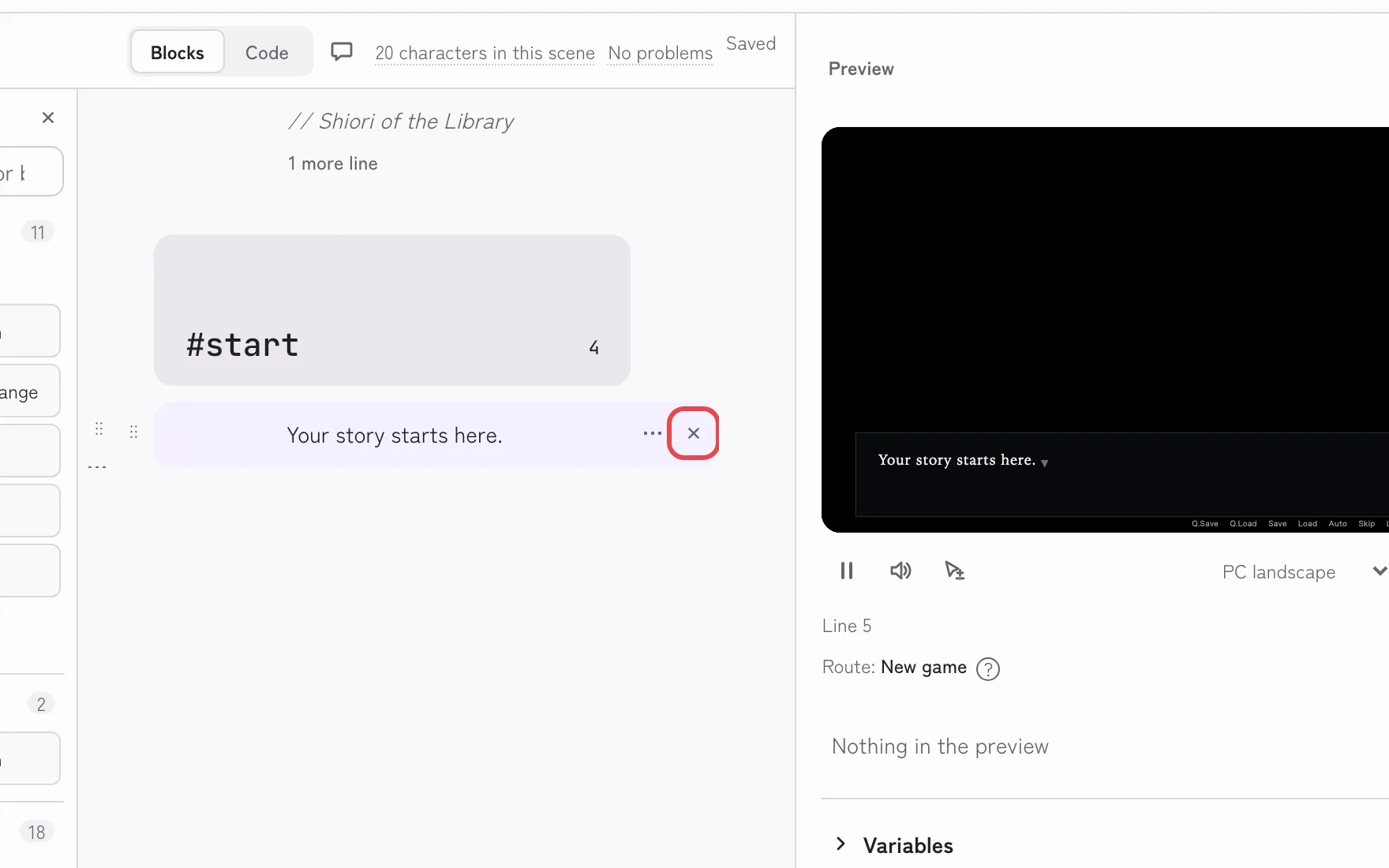
Add narration
- Click the
#startblock to select it. - Double-click “Narration” in the parts panel. You can also drag it into the script.
- The new line is ready for typing. Type the text and press ⌘Enter (Ctrl+Enter on Windows). Clicking outside the line also confirms it.
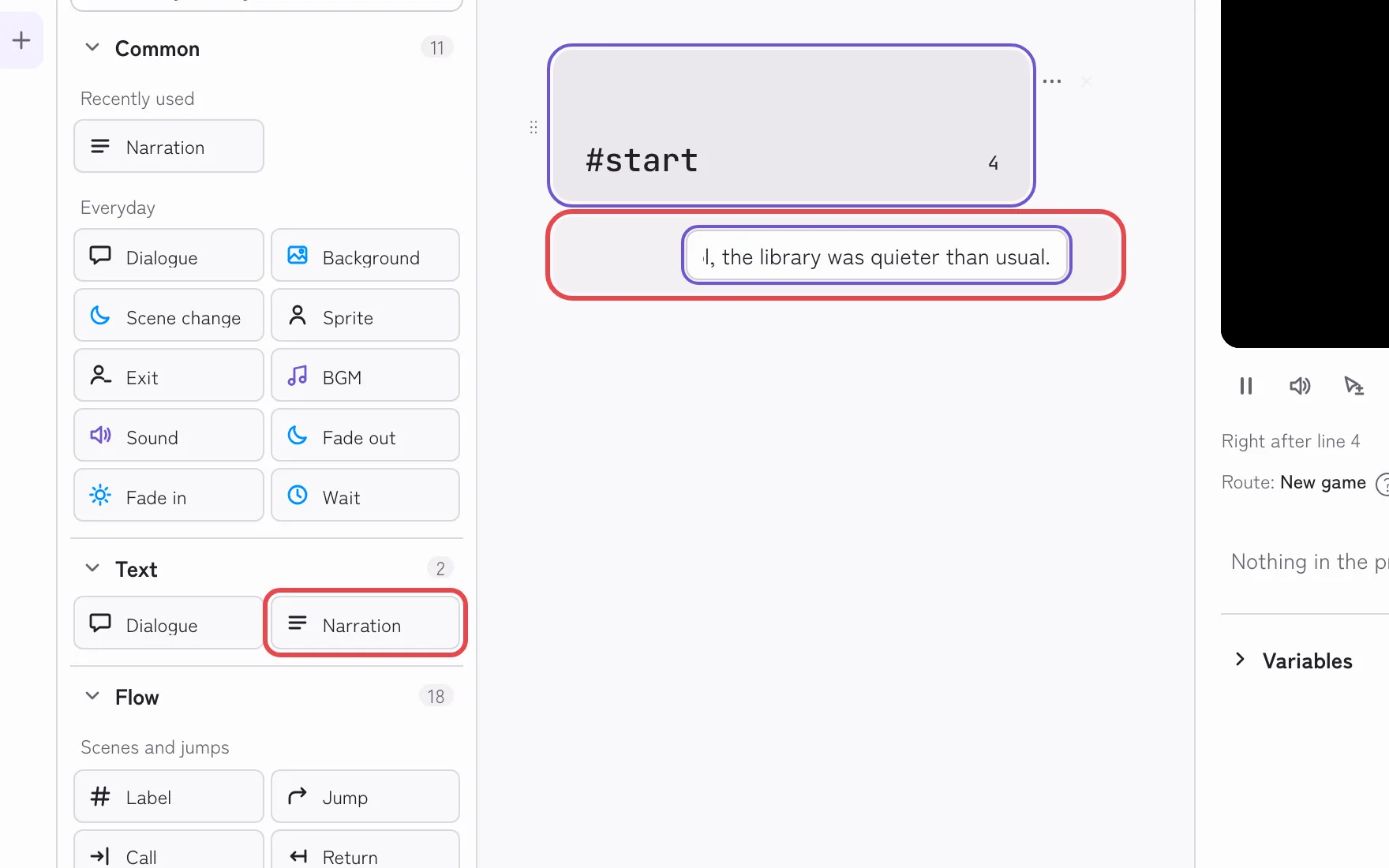
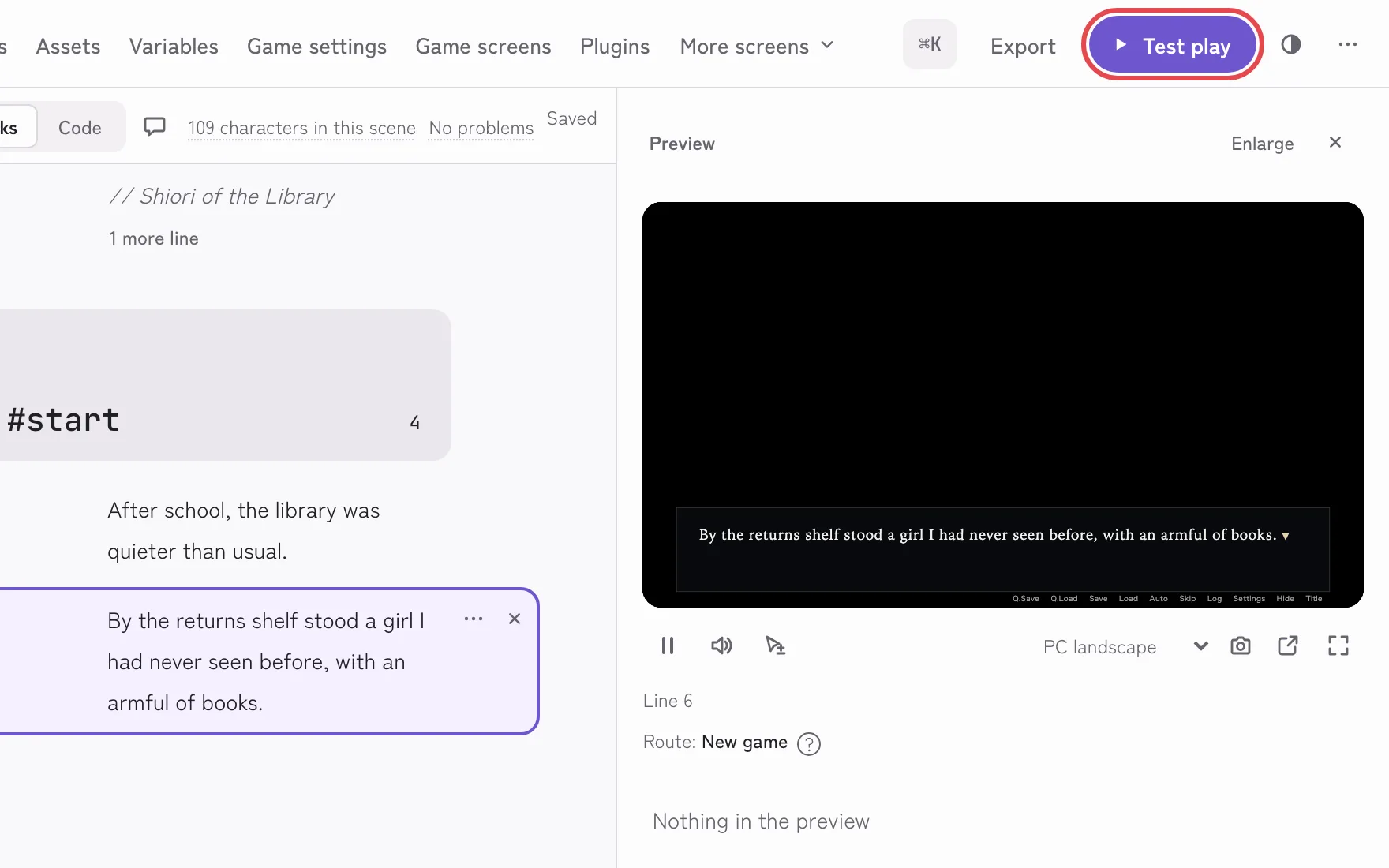
Add one more line the same way so you have these two lines.
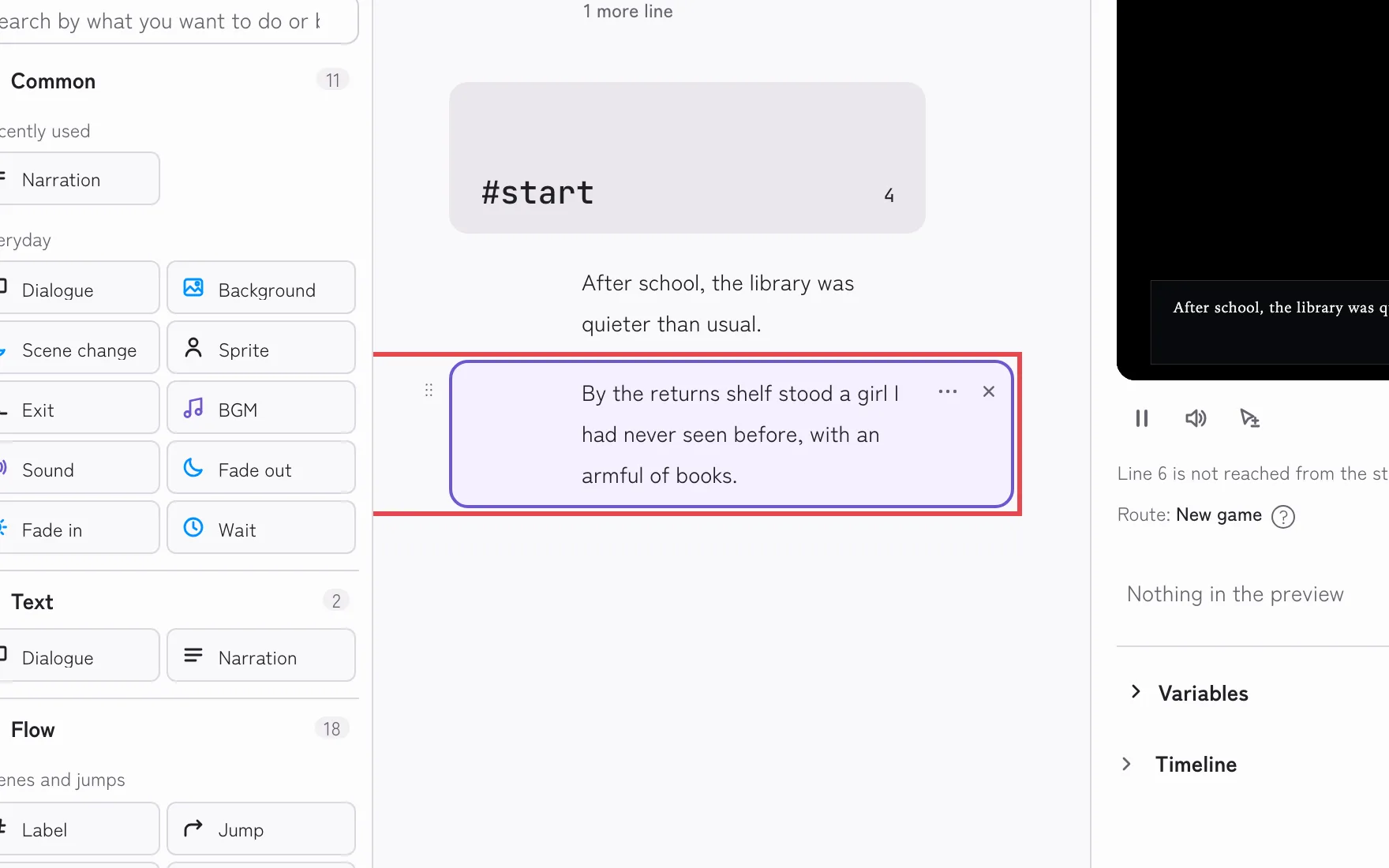
Your work is saved automatically. To save right away, press ⌘S (Ctrl+S on Windows).
Check it with a test play
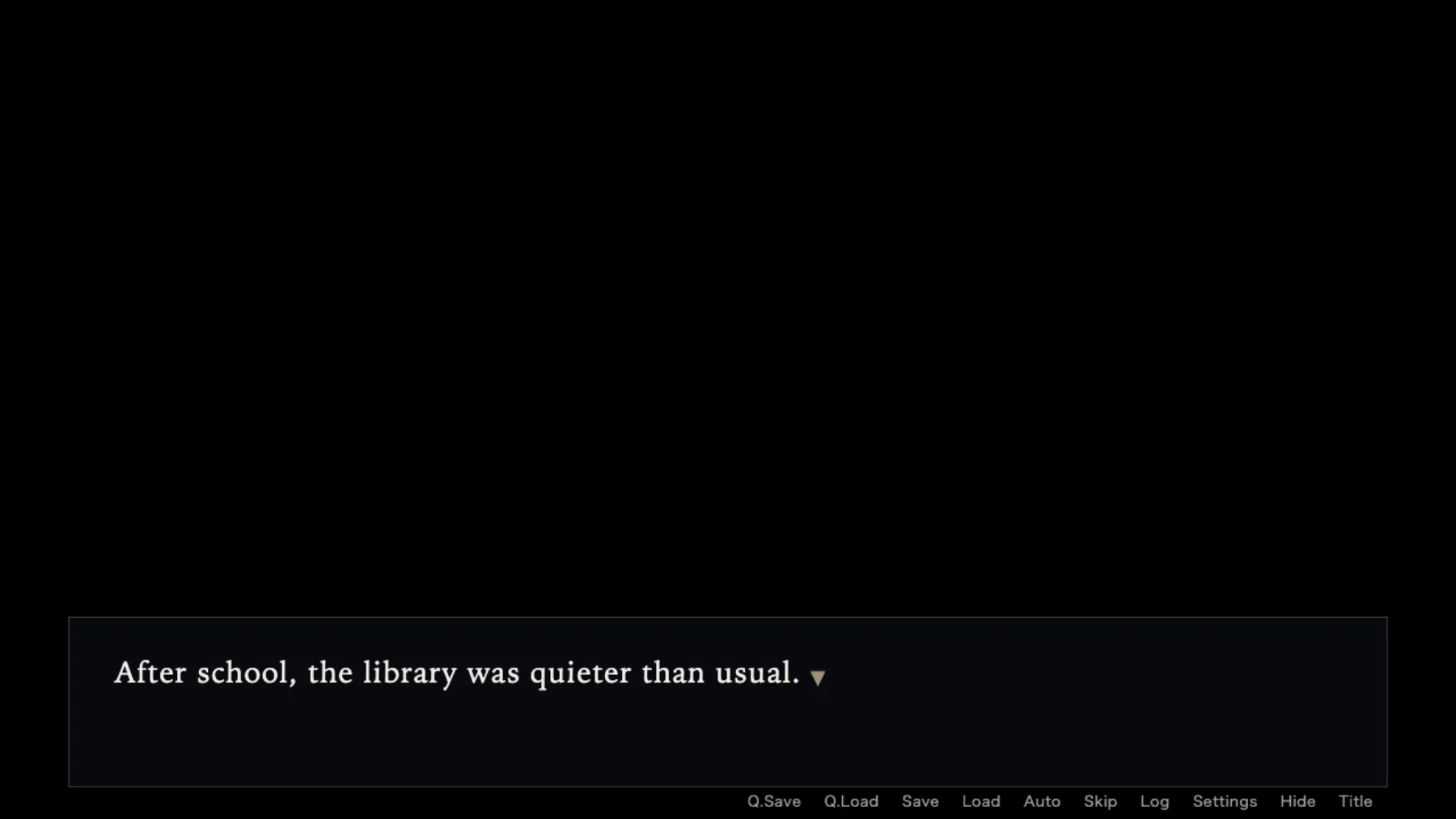
Click “Test play” at the top of the screen, and the game starts from the beginning. Each click advances one line.
In code
Click “Code” above the script (⌘E) to see the same content as text. Blocks and code are two views of the same file, and you can edit in either one.
# start
After school, the library was quieter than usual.
By the returns shelf stood a girl I had never seen before, with an armful of books.
# startis a label. The game starts from this label.- Each line is one click.
The project at the end of this chapter
This is the project as it stands after the steps in this chapter. Unzip it and open the folder with Open Project in Studio to start from the next chapter. You can also use it to compare with your own project.
Download the project (zip, 31 KB)Play this state in the browser