

Export and distribution
On this page
Click “Export” at the top of the screen to open the export screen.
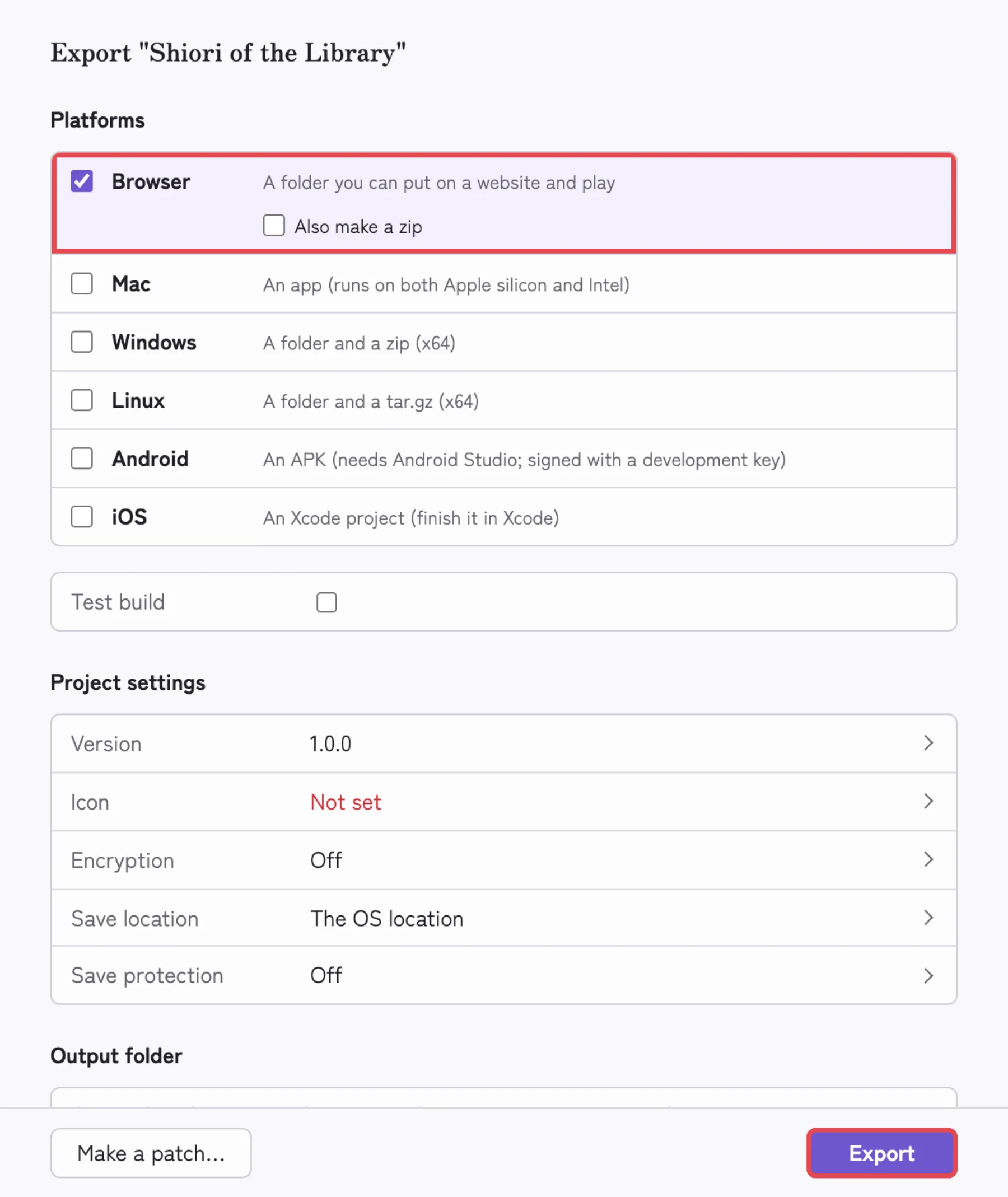
Platforms
| Platform | What you get |
|---|---|
| Browser | A folder you can put on a website and play |
| Mac | An app (runs on both Apple silicon and Intel) |
| Windows | A folder and a zip |
| Linux | A folder and a tar.gz |
| Android | An APK (requires Android Studio) |
| iOS | An Xcode project (finish it in Xcode) |
Platforms that can’t be exported on this computer can’t be chosen, and the reason is shown. When you check Browser or Mac, “Also make a zip” (and “Also make a dmg” for Mac) appears on its row, so you can choose to make a zip or dmg next to what is exported. Your choice is kept in the project settings.
“Output folder” shows the folder where exports go (the project’s dist folder). After the first export, “Open” opens it.
Editions
To make games with different content from one project, such as a trial and an all-ages version, write the editions in build.variants in liminalia.json. An “Edition” field then appears on the export screen. Choose one and export, and you get the game for that edition. Choose “Standard” to export without an edition.
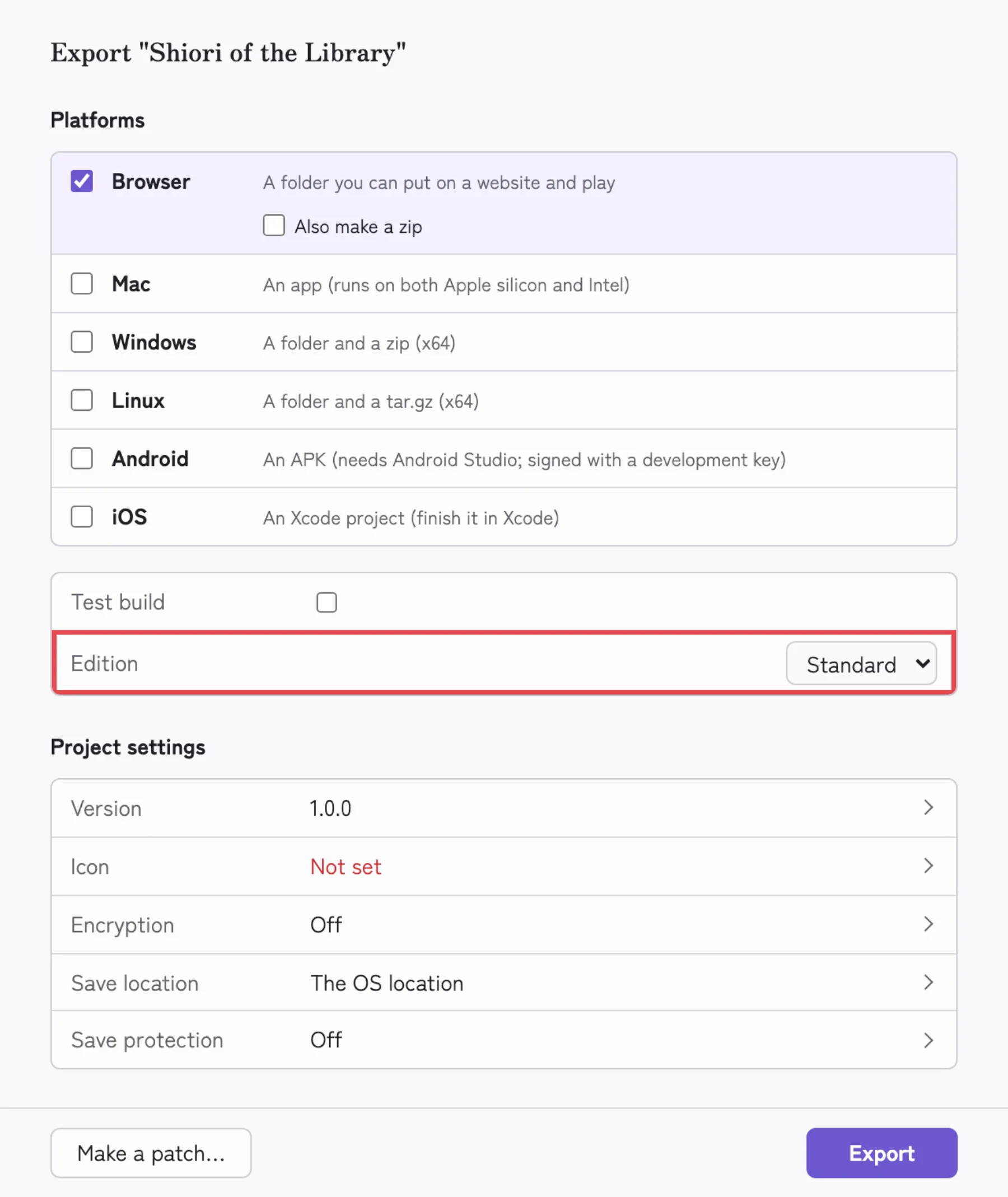
Project settings
“Project settings” shows the current version, icon, signing (when the Mac or Windows version is chosen), encryption, save location and save protection. Settings worth fixing before you distribute (such as a missing icon) are shown in red. Click one to open that item in the project settings.
Patches
Choose the previous export with “Make a patch…” to make a patch with only the files that changed. Players can apply the patch inside the app.
For details, see Distribution and updates.