

Change history and trash
Change history
Every time a script is saved, its previous content is kept in the change history. Open the change history with “Change history” in the menu that opens when you click the script heading (the file name).
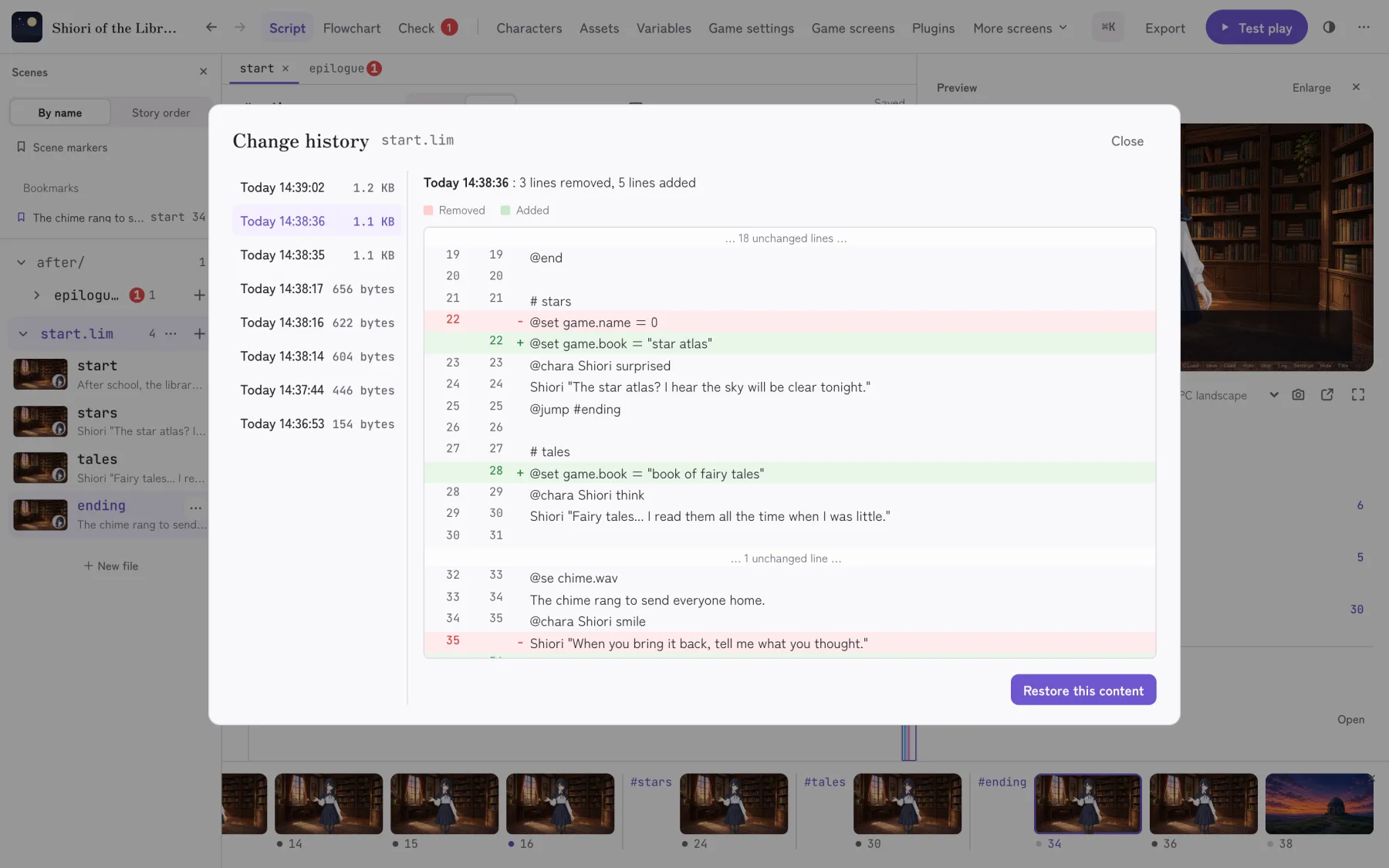
- Choose an entry in the list to see its differences from the current content, line by line.
- Click “Restore this content” to replace the script with the content at that point and save it. The content before restoring is also kept in the change history, so you can undo a restore too.
Because automatic saving happens whenever you stop typing, the change history doesn’t keep everything; older entries are kept further apart. Recent entries are kept as they are, and older ones are thinned to one per minute, one per hour and then one per day.
The change history of the characters (cast.json) is under “Change history” on the Characters screen.
Trash
When you delete a script file, an asset or a theme, it goes to the trash. Open “Trash” from “More screens” to see what is in the trash, newest first.
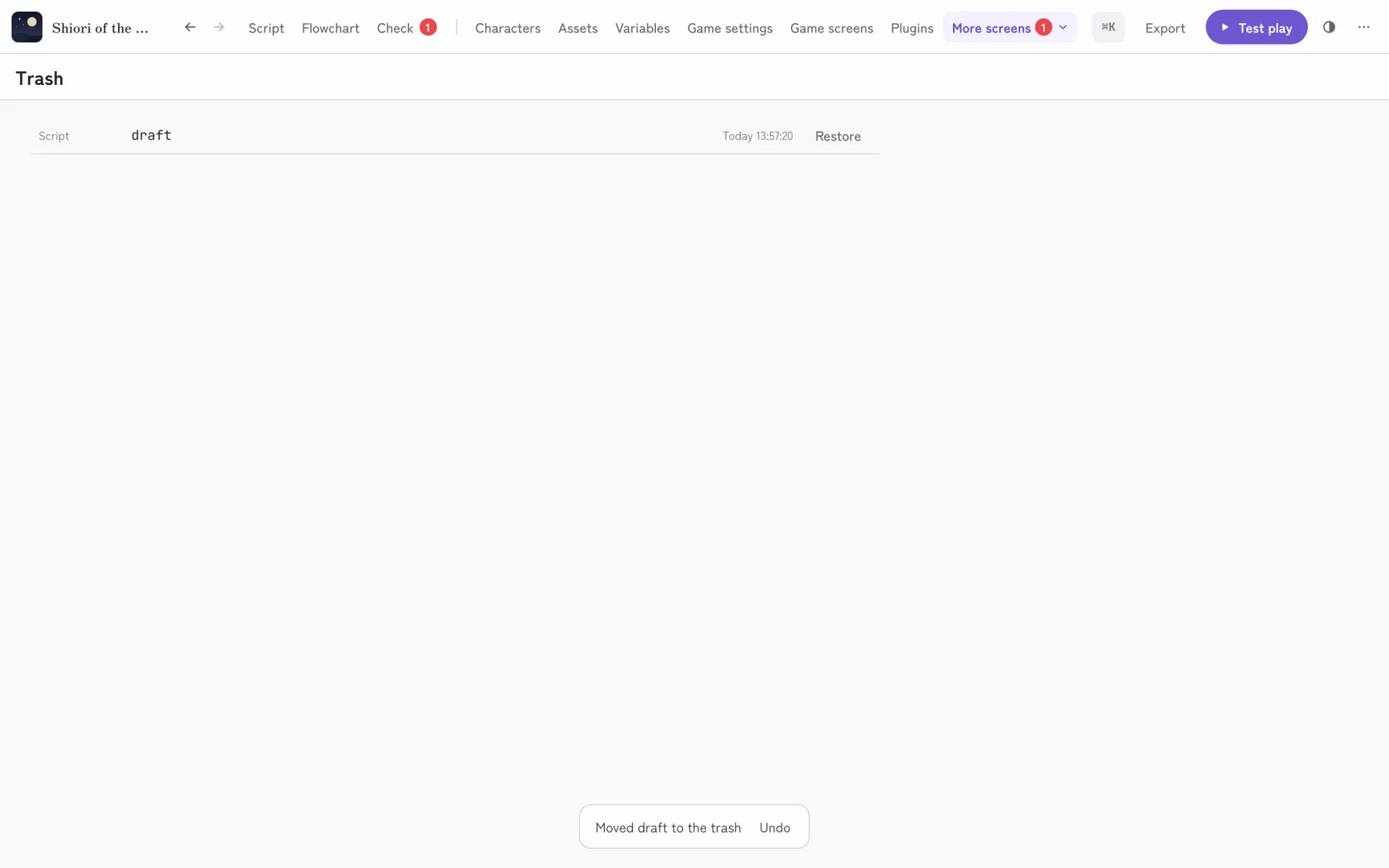
Click “Restore” to put the item back where it was. If a file with the same name is already there, it isn’t restored and you are told so.