

Game settings
On this page
“Game settings” lets you change the look of the game item by item. On the right is a preview made with the actual game screen, and changes appear there right away.
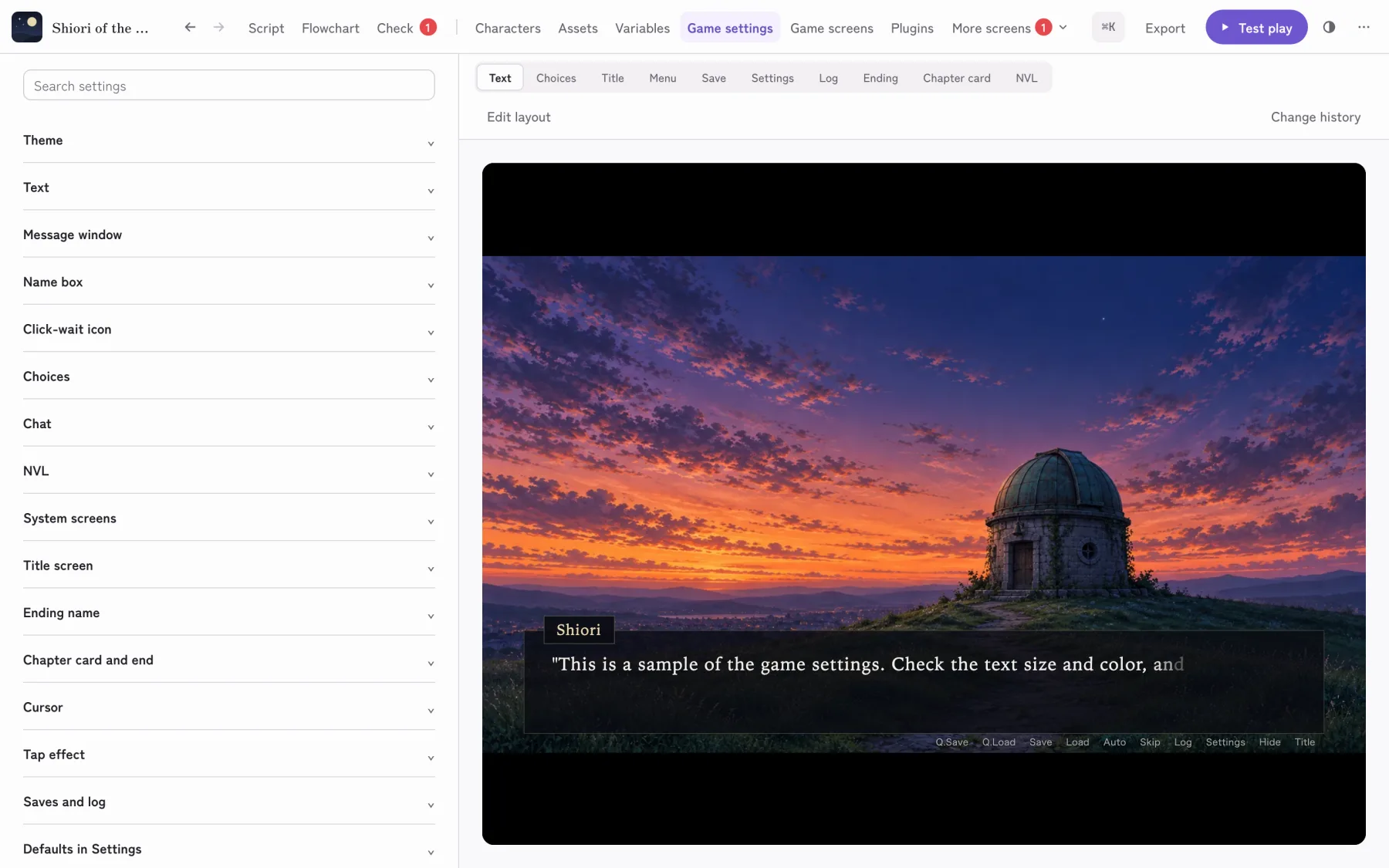
Themes
“Change theme” at the top chooses a theme, which changes the look of the text and system screens all at once. Switch between “Preset themes” and “Original themes” to choose one; the project settings don’t change until you click “Apply.” Click “Save the current look as a theme” to save the project’s current look as an original theme.
Items
The items on the left are grouped as follows.
- Text (font, text size, color, line height, ruby)
- Message window, name box, click-wait icon
- Choice buttons
- System screen colors, title screen (background, BGM, title logo, button layout)
- Cursor, saves and backlog, config defaults
- Quick menu, key bindings
Every item can be changed with fields for numbers, colors or assets. Images are sliced with four numbers for the top, right, bottom and left, and the title buttons are laid out with fields for position, direction, spacing and width. For items with several rows, such as a title that changes after the player finishes the game, add rows with “Add.” For key bindings, click ”+” and then press the key you want to assign.
Switch the preview on the right between Text, Choices, Title, Menu, Save, Config and Backlog to check each one. When you edit an item on the left, the preview switches to the one that item affects. Leave an item empty to use the default.
When the project’s CSS or a plugin decides the look, items whose values have no visible effect are marked “No effect.” For screens a plugin replaces, the group heading shows “(plugin name)‘s screen.”
Command defaults
“Command defaults” at the bottom sets, per project, the values used for parameters left out of the script. For example, if you set the fade time of @scene-change for the whole project, you don’t have to write time= on every line.
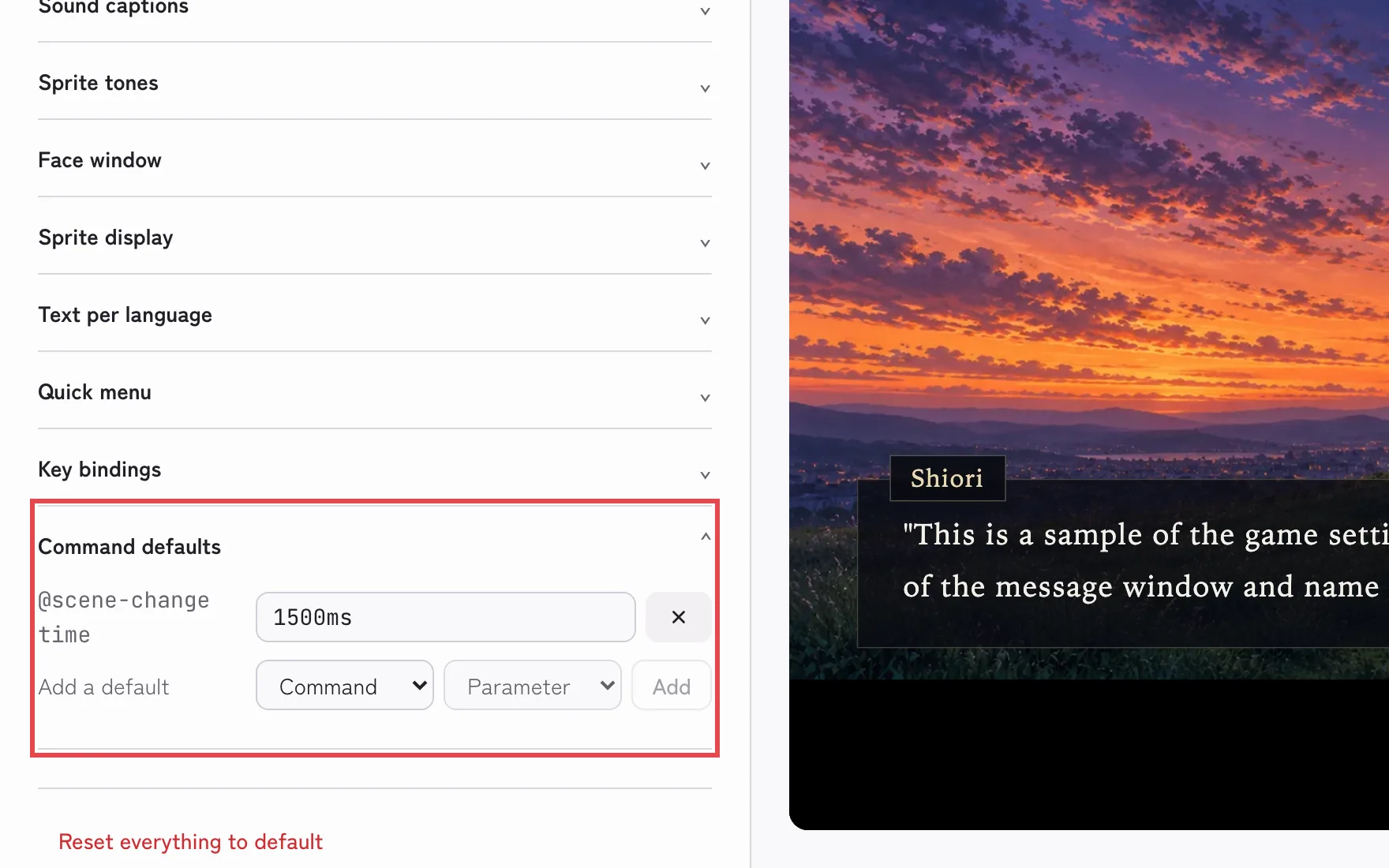
- Choose a command and a parameter and click “Add.”
- Enter a value, and it is saved right away. The faint text in the field is the engine’s built-in default.
Saved defaults take effect right away in completion, the parameter panel and the syntax check. “Reset everything to default” at the very bottom resets both the game settings and the command defaults.
To rebuild a screen entirely, you can replace it with a plugin (Writing plugins).