

Assets and variables
Assets
Files for backgrounds, sprites, images, BGM, sound effects, voices and videos are listed by kind.
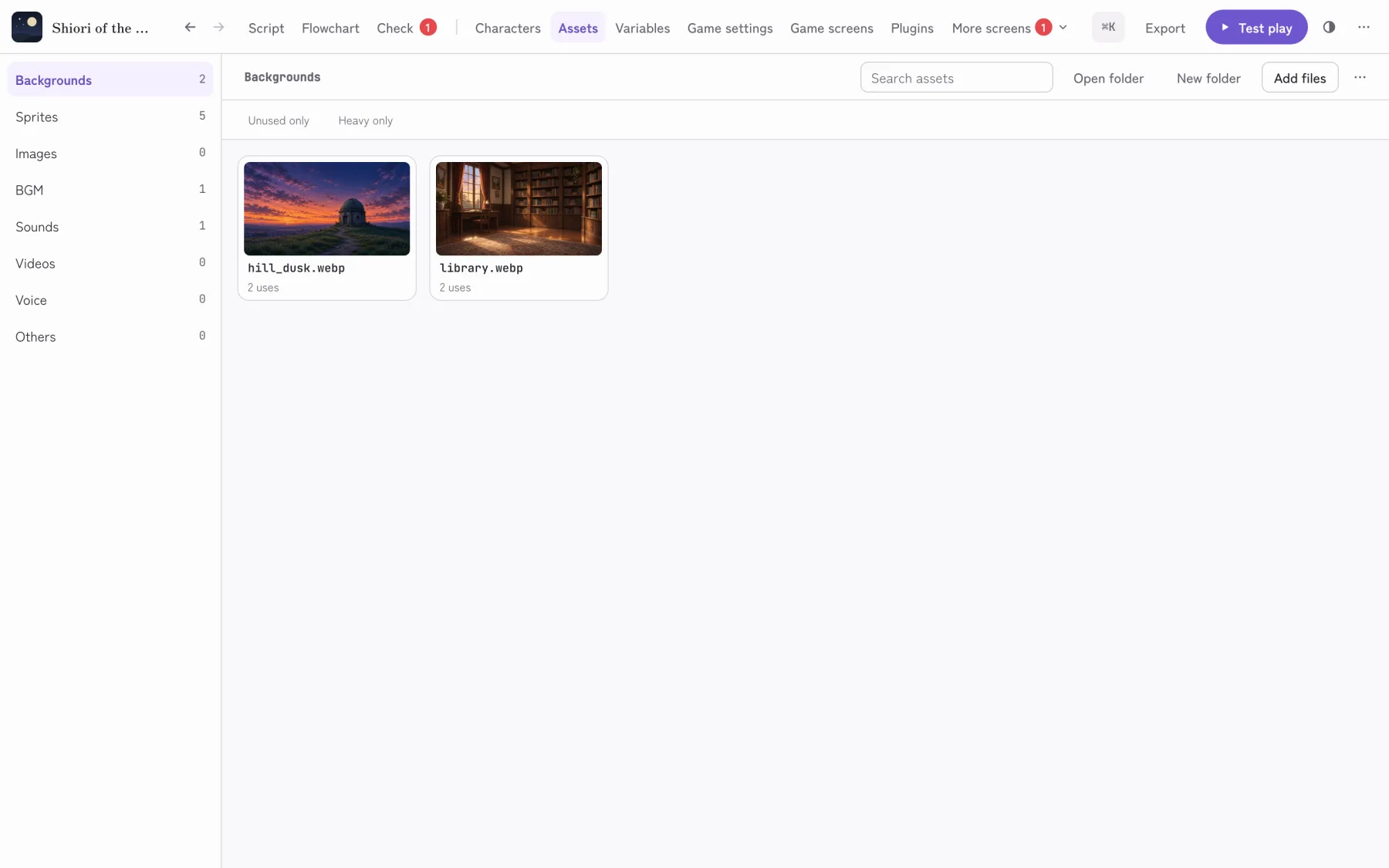
- Click “Add files” or drop files on the screen to add assets.
- Click an asset to see a preview on the right, along with the script lines, characters and project settings that use it.
- When you change a name with “Rename,” references in the script and the characters are rewritten too. Put
/in the name to move the asset into a folder. - “Move to trash” moves the asset to the trash. You can get it back with “Undo” in the notice.
Unused and heavy assets
Click “Unused only” or “Heavy only” above the list to show only the matching assets from all the folders of that kind.
- Unused assets are those whose names appear nowhere in the script, characters, settings, themes or data.
- Heavy assets are large image and sound files, and images with a much higher resolution than the game screen. The Check screen also shows “N heavy assets.”
While filtered, you can select several tiles with their checkboxes or “Select all,” check the count and total size, and then click “Move to trash.”
BGM loops
Select a BGM track to see its waveform on the right, with markers for the start and end of the loop. Drag the markers or type the seconds to set their positions, and click “Listen to the loop seam” to check the seam. “Save to scenario” writes loop-start and loop-end on the @bgm lines that use that track. The audio file itself isn’t changed.
Drop files anywhere to add them
Wherever you drop files in Studio, a screen opens to confirm their kind. It guesses the kind of each file, such as background, sprite, BGM, sound effect or voice; if a guess is wrong, choose again and click “Add.” Images added as sprites are registered together as variants of the character you chose.
Variables
This screen shows the variables used in the script (game., system. and temp.) and their initial values in a single table.
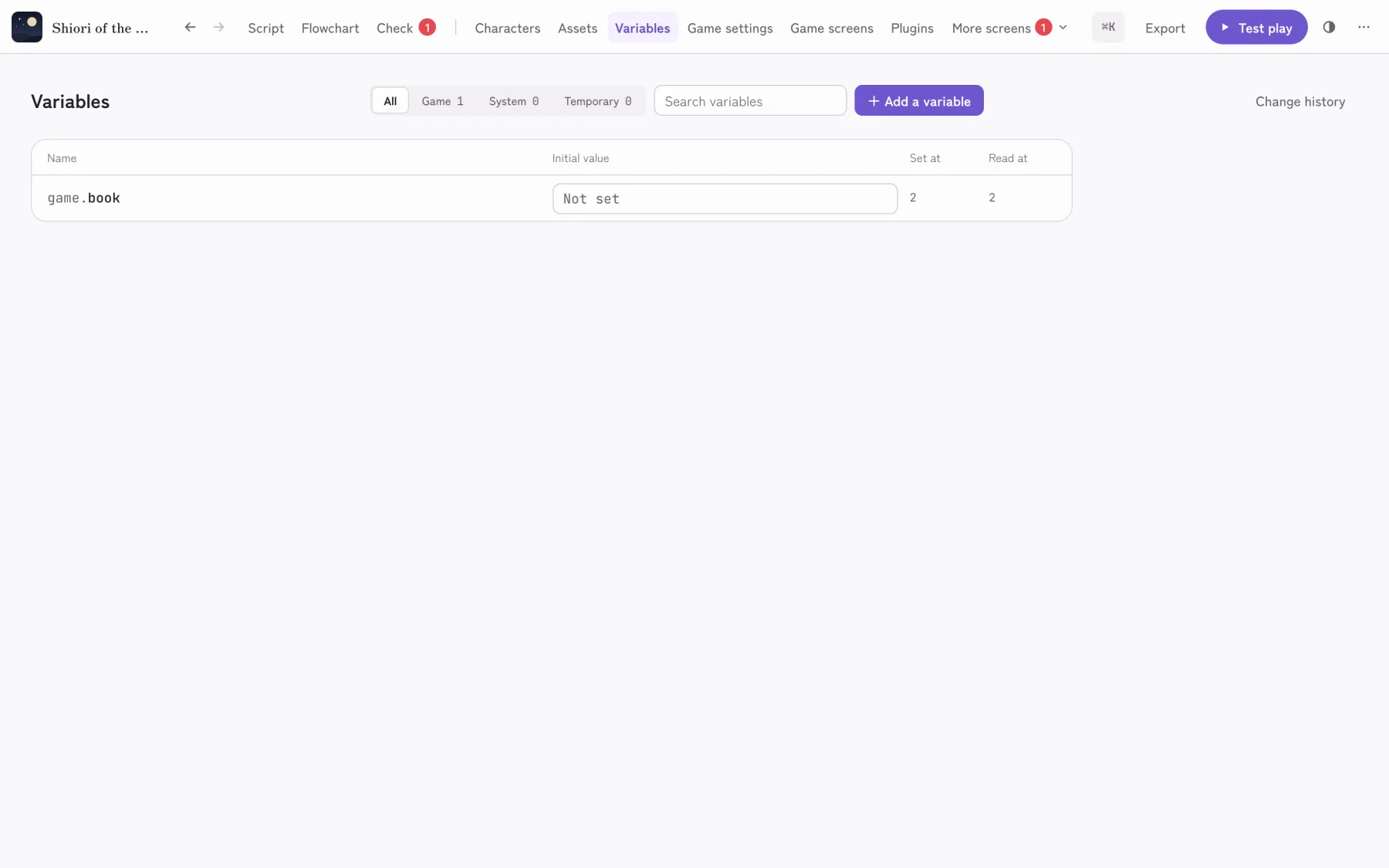
- When you change an initial value, it is saved right away and reflected in the preview.
- Click a variable’s row to open the list of lines that set and read it. Click a line in the list to go to that script.
- When you change a name with “Rename,” the references in the script are rewritten too.
- A variable that is read but never set, or set but never read, is marked.
- “Add a variable” lets you decide an initial value in advance.
| Kind of variable | How long it lasts |
|---|---|
game. | Saved with the game and restored when you load |
system. | Shared by every save (such as a record of finishing the game) |
temp. | Only during the current play |